
TABLE OF CONTENTS
- Overview
- Shipping Charge Options
- Default Shipping Policy Requirement
- Setup Kogan Shipping In Omnivore
- Using Product Groups in Omnivore
- Location Based Shipping
- Cart Based Shipping
- Setup Shipping on Kogan NZ
- Scenario 1: Selling Only on Kogan NZ
- Scenario 2: Selling on Kogan AU and All Products on Kogan NZ
- Scenario 3: Listing on Kogan AU, with only some products listed on Kogan NZ
- Helpful Links
Overview
This article explains the different shipping charge options available on Kogan.com.au /.nz and how to configure them in Omnivore.
Shipping Charge Options
You can set shipping charges in several ways:
Free shipping
Flat fee per unit
Variable rate based on shipping location
Variable rate based on product weight
Variable rate for a specific group of products using Omnivore’s Product Groups
Note: Each product can only have one shipping charge. For example, you can set Standard postage at $5 with a 3-day handling time, but you cannot offer both Standard and Express shipping for the same product—you must choose one.
Default Shipping Policy Requirement
Every Omnivore retailer must have a default shipping policy for the Kogan integration to work.
The default policy cannot use a Product Group.
If you want different shipping rates based on weight, price, or product group, you need to set up additional shipping policies for each group.
Setup Kogan Shipping In Omnivore
Step 1: Navigate to Shipping Settings
In Omnivore, go to:
Settings → Kogan → Shipping

Step 2: Create Your Default Shipping Policy
Click Add new shipping policy
Fill in the fields as follows:
- Shipping policy name: default
Product Group: Leave blank (this is a fallback policy)
Shipping type:
Free – products ship at no cost
Flat per unit – a fixed amount per unit
Custom shipping table – for variable rates (requires the Kogan Shipping Matrix, set up with your Onboarding Manager)
Handling days: Must be 1 or more
Shipping fee: Enter the amount you want to charge; leave blank for free shipping
Important: Kogan accepts a maximum shipping fee of $999. Exceeding this will cause the upload to fail.

Step 3: Create Additional Shipping Policies (Optional)
Click Add new shipping policy
Fill in the required fields:
Shipping policy name: Choose a recognisable name (for internal use in Omnivore)
Product Group: Select the group of products this policy applies to
Shipping type: Free, Flat per unit, or Custom shipping table
Handling days: 1 or more
Shipping fee: Enter amount or leave blank for free shipping
Click Update

Using Product Groups in Omnivore
Product Groups allow you to apply different shipping policies to different sets of products.
Examples:
Weight-based shipping:
0–1 kg → $10
1–3 kg → $15
3+ kg → $20
Price-based shipping:
Products over $150 → Free shipping
Steps to set up product groups:
Go to Products → Product Groups in Omnivore and create the required groups.
Go to Settings → Kogan → Shipping and create a shipping policy for each product group (follow steps above).
Location Based Shipping
Requires using the Custom shipping table option for the Shipping Type when you create your Omnivore shipping policy.
Complete the Kogan Shipping Matrix with assistance from your Onboarding Manager.
Cart Based Shipping
Based on total order value.
Set up directly on Kogan, not in Omnivore.
To configure, contact your Kogan Account Manager or email marketplace-support@kogan.com.au
Setup Shipping on Kogan NZ
You must configure shipping policies for Kogan NZ.
Products assigned to a Kogan NZ product group and covered by an NZ shipping policy will be listed on Kogan NZ.
Products not included in a Kogan NZ product group will only list on Kogan AU, even if Kogan NZ is enabled.
Shipping policies act as the control mechanism for Kogan NZ listings — if a product does not have a valid NZ shipping policy, it will not list on Kogan NZ.
This approach allows you to selectively list products on Kogan NZ while continuing to list your full range on Kogan AU.
Choose the scenario that applies to your business.
Scenario 1: Selling Only on Kogan NZ
Ensure Kogan NZ is ticked and Kogan AU is unticked.
Go to Settings → Kogan → Shipping.
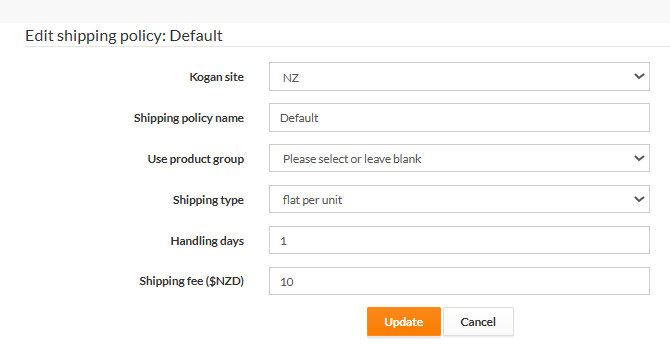
Add a default shipping policy:
Kogan Site: NZ
No product group required
Set shipping type, handling days and cost

Scenario 2: Selling on Kogan AU and All Products on Kogan NZ
Go to Settings → Kogan → General and ensure both Kogan AU and Kogan NZ are enabled.
Navigate to Settings → Kogan → Shipping.
Click Add New Shipping Policies.
In the new policy window:
Select NZ from the Kogan Site drop-down.
Complete all required shipping fields.
Save the policy.
Click Add New Shipping Policies again.
This time, select AU from the Kogan Site drop-down.
Complete all required shipping fields.
Important:
The shipping policy name must be identical for both the NZ and AU entries.When set up correctly, you will have one default shipping policy with two site-specific entries:
One for Kogan AU
One for Kogan NZ
The example screenshot below also shows a shipping policy linked to an NZ Heavy Product Group.
If you want specific products (such as heavy items) to use a different shipping policy, that policy must also have matching AU and NZ entries with the same policy name.

Scenario 3: Listing on Kogan AU, with only some products listed on Kogan NZ
Go to Settings → Kogan → General and ensure both Kogan AU and Kogan NZ are enabled.
Create a Product Group named Kogan NZ.
Add only the products you want listed on Kogan NZ to this group.
Refer to the product group setup instructions if needed.
Navigate to Settings → Kogan → Shipping.
Click Add New Shipping Policies.
In the new policy window:
Select NZ from the Kogan Site drop-down.
Assign the Kogan NZ product group you created.
Complete all required shipping fields.
Save the policy.
For this scenario, you only need NZ shipping policies linked to your product groups.
No AU shipping policy is required for these grouped products.
When configured correctly, only products in the Kogan NZ product group will be listed on Kogan NZ.
Refer to the screenshot below for a visual guide to this setup.

Helpful Links
- Kogan Support Article - Shipping to NZ and GST