
TABLE OF CONTENTS
- Initial Steps
- Gather Requirements
- Next Steps After Receiving Requirement Details
- Responding to the Retailer
- To Create a Trello
- Action Following Trello Review
- Post Release Follow-Up
Retailers will often suggest changes, enhancements and new features they would like to see in Omnivore. Here's the process to follow when you get these requests.
Initial Steps
Identify Retailer Priority
Determine the retailer's priority status (e.g., Enterprise, Account Managed) to understand the strategic importance of their request.Clarify Retailer Needs
Assess the retailer's underlying motivation, the potential impact of the feature, and any challenges they face without it. Avoid rejecting requests outright, as you may not fully understand the implications or be aware of existing functionalities that could meet their needs.Account Importance
For accounts marked as Enterprise, Account Managed, or those qualifying for Account Management based on monthly turnover, do not reject their request without further investigation. These accounts often hold strategic value, and requests from them warrant closer attention.
Gather Requirements
For all retailers, use the "New Feature - Verify Why" canned response from the General folder to gather further information on the request.
Next Steps After Receiving Requirement Details
Based on the retailer’s status, proceed as follows:
- Enterprise Retailers: Flag the ticket to Krystal, asking if she wants to pick up the conversation or if a Trello card should be created.
- Account Managed Retailers: Flag the ticket to the Account Manager for a decision on handling the conversation or creating a Trello.
- Retailers Not Account Managed but with Monthly Sales over $50k: Create a Trello card and note the retailer’s monthly revenue.
- All Other Retailers: Create a Trello card outlining the request.
Responding to the Retailer
If the ticket remains with you (not handed to Krystal or the AM), inform the retailer that their request has been submitted as a new feature request, which will be evaluated within the next couple of weeks. Let them know you will provide updates when the evaluation process is completed.
To Create a Trello
- Go to the Trello planning board https://trello.com/b/dtndHgtw/planning
- Locate the To Be Prioritised column you will see the card shown below
- Copy the contents of the Example card
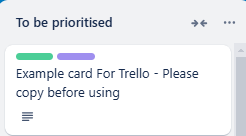
- Add a new card at the bottom of the “To Be Prioritised” column and paste in the template.
- Include all relevant details, especially a link to the Freshdesk ticket capturing the retailer's requirements.
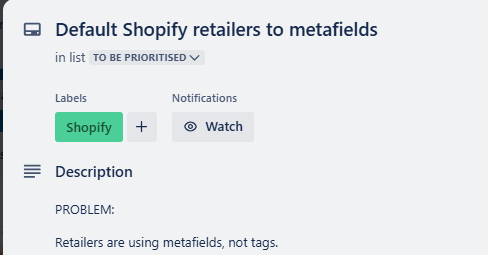
- Click the Watch button at the top of the card to receive email notifications of changes and updates to the card.
Action Following Trello Review
Updating Retailer Post Review
After Monday morning’s slate review, you will be notified if the feature is accepted for the roadmap or rejected. Update the retailer via the original Freshdesk ticket if the request was not passed to the AM team.
- Feature Added to Roadmap: Respond to the retailer using the "New feature - added to the Roadmap/Trello" canned response in the Saying No Nicely folder.
- Feature Not Added: Respond using the "New Feature - Won't Do" canned response in the Saying No Nicely folder.
Ticket Resolution
Once you've updated the retailer, close the Freshdesk ticket with the following settings:
Customer Key Issue: Feature Request
Key Issue: Feature Request
Sub Key Issue: Feature Request
Type: Question
Resolution: Closed Not Solved
Do not leave the ticket in your queue as Pending or On Hold, even if the request is added to the roadmap, as it may take months before it’s actioned. As you are watching the Trello you will be notified when there's a change to its status.
Post Release Follow-Up
When the feature is released and documented, create a new ticket to inform the retailer of the update. Share the good news and ask if they have any questions.