
TABLE OF CONTENTS
- Spelling / Grammar Checker
- Creating or Linking an Omnivore Account/Company in Freshdesk for New Contacts
- Add Onboarding to the Company details in Freshdesk
- Changing contact details on tickets submitted by marketplace contacts
- Ticket Titles
- If a Retailer/Marketplace emails directly outside of Freshdesk
- Merging Tickets
- Assign Freshdesk Properties to Ticket Fields
- Escalating a Ticket
- Ticket Review
- After Onboarding is Complete
Spelling / Grammar Checker
Please ensure that you use a spelling and grammar checker. There are various free ones available including Grammarly https://app.grammarly.com/apps
Creating or Linking an Omnivore Account/Company in Freshdesk for New Contacts
If you are onboarding a brand new Omnivore retailer, they will not have a Company set up in Freshdesk. The Company field is used to link contacts and tickets in Freshdesk so needs to be set up correctly.
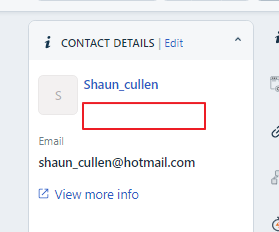
Here's an example of a ticket from a new retailer (not there is no Company/Omnivore Account under the Contact name).
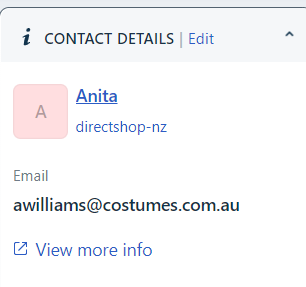
Compared this to an existing contact that has been linked to an Omnivore Account by Company
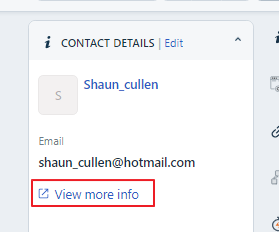
To link a new contact to the Omnivore Account/Company click on the View More Info link under the email address which will open a new tab.
Click on the Edit button in the top left corner which will open another new window.
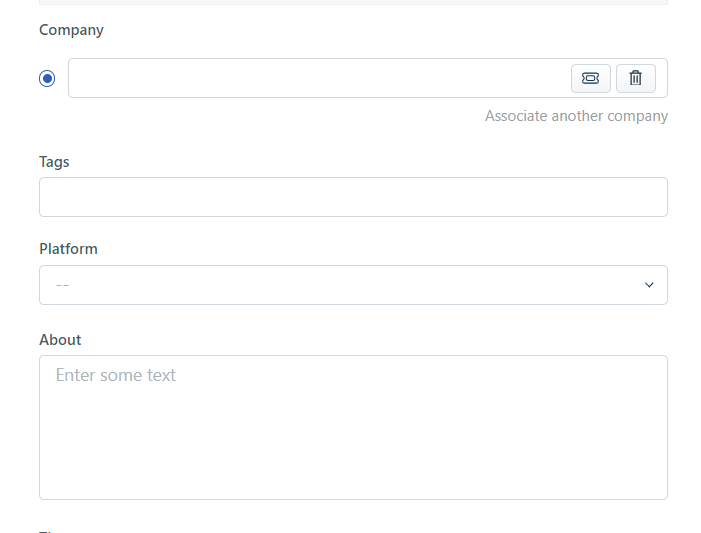
In the About field enter a link to the retailer's dashboard
In the Platform field select the retailer's eCom platform
In the Company field copy / paste the retailer's name from the end of their dashboard URL that you entered in the About field. If the retailer already exists in Freshdesk it will show up and you can select it, otherwise click on Add..... to create a new retailer record.
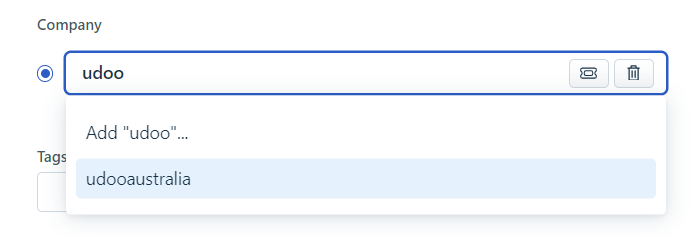
Click Save and then close the tab.
Add Onboarding to the Company details in Freshdesk
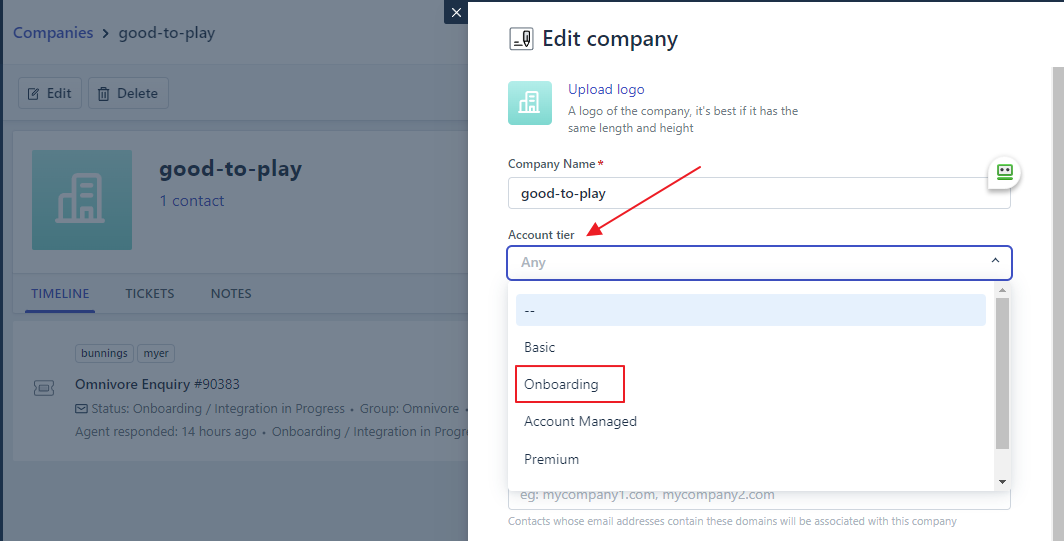
When a retailer is being onboarded to a new marketplace by the Onboarding team you will need to add "Onboarding" to the Account tier by editing the company details in Freshdesk. This is done so that support can easily see if a retailer is being onboarded.
Note: If a retailer is Enterprise then the Account tier needs to remain as Enterprise even if they are being onboarded.
Changing contact details on tickets submitted by marketplace contacts
Tickets submitted by marketplace contacts need to be edited to change the contact details to the retailer's email address. If this isn't done then the ticket isn't linked to the retailer's account and the onboarding/account management history cannot easily be found if the retailer submits a future support ticket.
To change the contact email address on a ticket
- Before changing any details add the original email address the ticket was submitted from as an internal note to the ticket so that you remember to cc them in your reply
- Click on the three dots at the top of the ticket page

- Select "Edit Ticket Details"
- In the window that opens change the Contact email address from the marketplace contact to the retailer
- Click Save
Ticket Titles
Retailers and Marketplaces will often submit tickets with generic titles such as "Omnivore "Contact Us" - Techexpress NZ" etc
All ticket titles should be edited to reflect if the retailer is being onboarded. Ideally, titles should include "Onboarding", the retailer name and the Marketplace they are being onboarded to. e.g.
TheMarket - Mighty Merchant - Onboarding
Everyday Market Onboarding / Bulk Wholesale Cleaning
If a Retailer/Marketplace emails you directly outside of Freshdesk
So that all retailer communication is visible to all of CityBeach it is important that any emails that are sent directly to your work email address are then forwarded to Freshdesk.
To do this
- Hit ”Reply All” from the email so that all cc’d contacts are included
- Add request@citybeachsoftware.com to the cc section
- If you do not feel the need to reply to the email at the time of receipt you could create a message similar to “I am forwarding this to our ticketing system for tracking”
- The above process will generate a ticket in Freshdesk that will either go into the support UAQ or be auto-assigned to a support team member. You will need to assign the ticket manually to yourself
- Please set the ticket properties as though it is a standard Onboarding/Account Managed ticket. If there is a current onboarding ticket please follow the "Merging Tickets" steps below.
Merging Tickets
Sometimes retailers and Marketplaces will submit multiple tickets during the Onboarding process. If that happens the more recent replies need to be merged into the original ticket so that there is only one live ticket being worked on.
To merge the later replies:
- Go to the ticket you want to merge
- Click the Merge button at the top of the screen

- A new screen will open
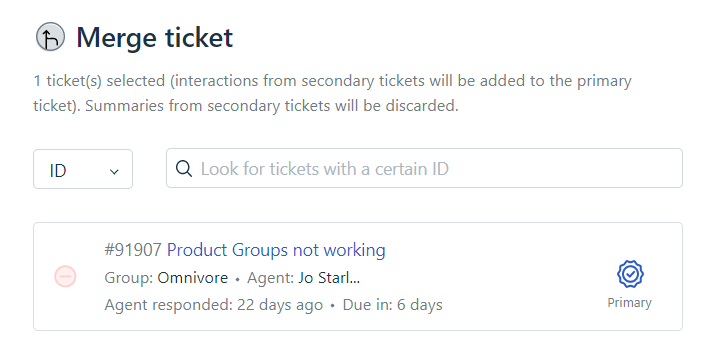
- Change the dropdown box to show ID and enter the ticket number that you want to merge the new reply into
- Ensure that the old ticket you want to merge into is showing as the primary ticket
- Click the Continue button
Points to note:
- The Merge action cannot be undone. Ensure you are merging the correct tickets.
Assign Freshdesk Properties to Ticket Fields
- Set the ticket field dropdowns as much as possible.
- Store name or User ID - this is always the retailer's Omnivore Dashboard URL
- Status - If you are waiting on a retailer or marketplace reply, use "Onboarding / Integration in Progress. "On Hold" can be used if the Onboarding has stalled but not dropped out.
- Priority - While this field is not as important in Onboarding as it is for Support it will still need to be filled in. Most often Medium is used but you can drop this to Low if the retailer is slow to respond or they are slow to action required data changes etc.
- Group - Usually Omnivore
- Marketplace - Choose the Marketplace retailer is onboarding to or 'All' if the seller is onboarding onto multiple marketplaces
- Product - (rarely used by Onboarding unless the retailer is using Catchfeeder, TradeRunner, or eBay Link)
- eCommerce Platform - Choose a relevant dropdown option
- Customer key issue - This is often "New Set up" for Onboarding
- Type - It is important that type is set to "Onboarding" as it is used to track Onboarding ticket numbers.
- If this is the retailer's first ticket ensure you link the contact to the retailer Omnivore Account/Company record (see here)
- If the ticket has been submitted by a marketplace contact ensure that you edit the contact details to the retailer's email address (see here)
Escalating a Ticket
- If you have a technical issue and can't go any further with it, firstly ask for assistance in the Onboarding or ProductSupport Slack channels.
- If you cannot resolve a ticket/issue that is blocking you from onboarding a retailer, escalate the ticket to the Onboarding Manager first. If there is an obvious bug or issue that has been triaged with the Onboarding Manager then these guidelines need to be followed https://support.omnivore.com.au/support/solutions/articles/17000129786
- If the issue is something that cannot be easily solved by troubleshooting but is not a bug or dev issue, then a support ticket can be created.
Ticket Review
Tickets in your queue should be reviewed regularly. At the very minimum, Onboarding tickets should not go for longer than 7 days without an update. If you have not heard back from a retailer or a third party to a request for more information then send a follow-up message asking for the required information again.
After Onboarding is Complete
- Remember to go into Freshdesk and remove "Onboarding' from the company details. Find the company, edit and change Account Tier to -- .
- Complete handover process to Support (process is to be written then linked here)