
TABLE OF CONTENTS
- Access Chat
- Setup User Profile Settings
- Chat Hours
- Chat Availability
- Receiving Chat Requests
- UAQ Roster / Stuck Chat Requests
- Chat Screen - User Info
- Chat Screen - Ticket History
- Chat Screen - Handling Chat Sessions
- Resolving Chat Requests
- Linking Contact Details For New Retailers
Access Chat
To access chat click on the chat icon in the left-hand side menu of Freshdesk.

A new window will open with the chat portal.
Setup User Profile Settings
Click on your user icon in the top right-hand corner of the screen, select Profile Settings and then Notifications. From this screen you can set how and when you receive notifications of a new chat request.
Click on the "enable desktop notification" link at the top of the screen to enable desktop notifications. This allows Freshchat to display popup notifications on your desktop. You will receive notifications of new requests even if you are in another tab.
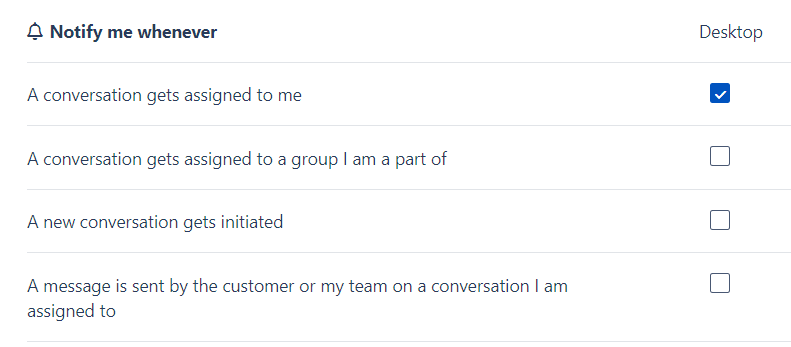
Underneath you can set audible alerts to notify you when a request is initiated and / or allocated to you. Recommended settings are shown below. If you wish to add additional alerts on other devices such as mobile, email etc you can.
Chat Hours
Chat is available from 8am - 5pm AEST Monday to Friday. Outside of these times a bot will take any requests and convert them into tickets.
If you are handling a chat request that started before 5pm you are expected to resolve it even if it means assisting the retailer past 5pm. Only new requests after 5pm will be converted to tickets.
Chat Availability
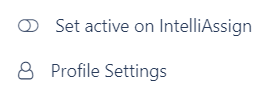
You need to set your status to "Active on IntelliAssign" when you start working every day. Agents should remain active for their shift unless they need to step away from their desks for a short time such as making a coffee, using the bathroom etc.
Click on your user icon in the top right-hand corner of the screen to toggle your status. Setting it to active means you will receive incoming chat requests. Setting it to inactive means you are unavailable and will not receive requests.
Receiving Chat Requests
The system will automatically allocate incoming chat requests to each agent. Depending on the alerts you have configured above you will receive notification either visibly and / or audibly.
UAQ Roster / Stuck Chat Requests
When a retailer initiates a chat session a bot first connects with them to get basic information such as name, email address, retailer name etc. If the retailer doesn't answer these questions, or doesn't provide the required information the bot cannot hand over the session for assignment to an agent.
It is the responsibility of whoever is on the UAQ each morning / afternoon to check for stuck sessions and manually allocate them if required.
To manually allocate click on the Inbox icon in the left-hand menu

Click on New to expand the view

You will now see
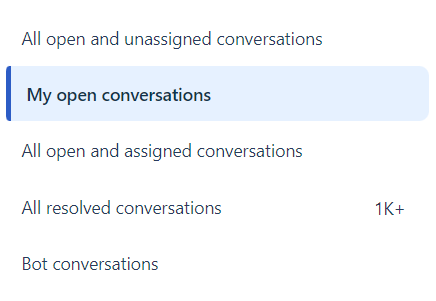
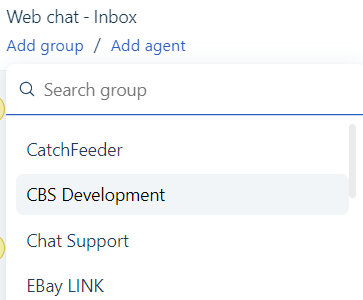
Any stuck sessions will show as a number under either All open and unassigned conversations or under Bot Conversations. Click on the relevant link to see the session. From the top of the screen click on Add Group and select Chat Support. This will move the ticket out of the unassigned queue and assign it to the next available agent.
Chat Screen - User Info
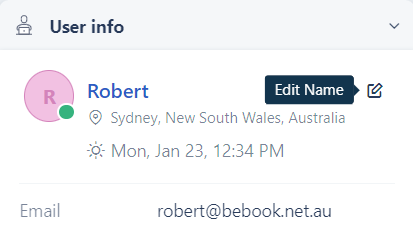
On the right hand side of the chat screen you will see basic user info. This is populated when the retailer first submits a chat request and the bot asks them for their information. If a retailer doesn't complete the bot steps this will not get populated and the session can't be recorded.
Always check here first to ensure that the name, and email address are completed. If not you will need to ask the retailer for the relevant information. Move your mouse to the right of each field and an Edit link will appear so you can amend the details.
Chat Screen - Ticket History
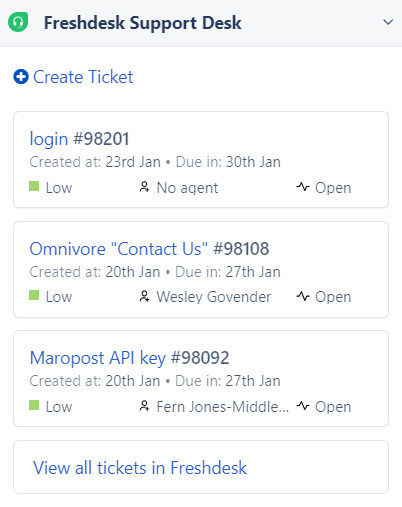
If you scroll down the right hand side of the screen you will see a section called Freshdesk Support Desk. This shows the last few tickets submitted by the retailer and provides a quick way for you to review previous issues / ticket history.
Always check here first to see if the retailer has already submitted a ticket for the same issue they are asking about on chat, or to find an existing ticket if they are referring to it.
Chat Screen - Handling Chat Sessions
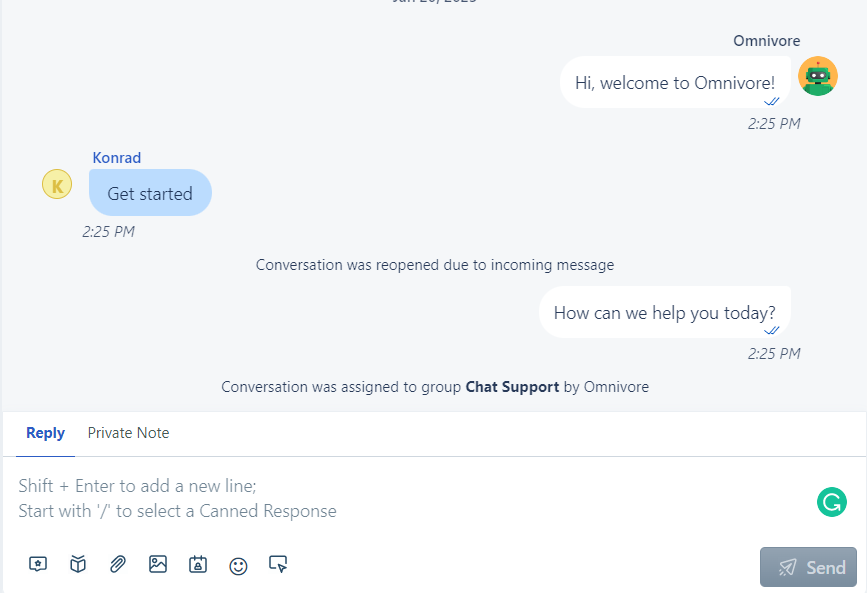
In the middle of your screen is the chat window where you can see and reply to messages. Once the bot has handed a request over to you start typing in the Reply box to send a message back to the retailer.
You can use the icons to include canned responses, attach screenshots etc.
Click on the Private Note link to add a note that the retailer can't see such as what data you've looked at, what you've tried, what is showing on any error messages etc, just as you would with a ticket.
Resolving Chat Requests
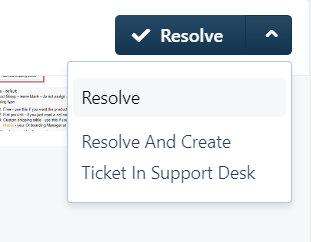
When you resolve any chat request you need to create a ticket in Freshdesk to record the session so that it's available to view on the retailer's account.
Click on the down arrow to the right of the Resolve box at the top of the screen, then click on Resolve and Create Ticket in Support Desk.
A pop-up window will open. Many of the fields are the same as used on tickets so fill these in as normal to categorise the issue.
The following fields need to be completed:
- Save as new ticket / Append to existing ticket - If the chat request relates to an existing open ticket then select Append to existing ticket, you will then be able to select the ticket number you want to merge the chat session details into, otherwise leave as the default Save as new ticket.
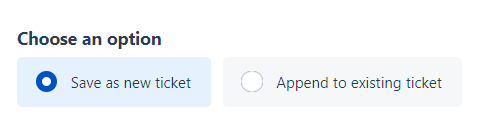
Note - you can only append to an existing ticket if the email address being used in the chat session is the same as the email address for the ticket. If they are not the same you will need to edit the User Info details in Freshchat to use the same email address as the ticket (see section above).
- Subject - Ensure that this is edited to an appropriate title that reflects the issue. Do not leave as generic "conversation with x". If the session ended up covering several topics then use a title that shows what topics were covered e.g. editing descriptions / shipping setup / promotion setup.
Linking Contact Details For New Retailers
If you receive a chat request from a brand new retailer, or they provide an email address that doesn't already exist in Freshdesk you will need to link the contact details to the retailer account.
You will be able to tell that the details don't exist as the bot will have asked for them prior to handing the ticket over to an agent. For this reason please check the bot session at the start of the ticket to see what has been asked for.
If the details are not linked then the ticket that is created when you resolve the chat session will not be visible when you look at the retailer's account in Freshdesk. That means we will not be able to find it should we need to refer back to it, or be able to report accurate ticket numbers being submitted by each retailer.
It's therefore important that you check each ticket to ensure the Contact Details are completed and linked correctly.
See here for how to link contact details.