
TABLE OF CONTENTS
- Check Go-Live Date
- Review Retailer Dashboard
- Check Recent Changes
- Check for Repeat Failures
- Review Marketplace Listings
- Validate Purge Outcome (if applicable)
- Example purge checking process and expected result.
- Rerunning Failed Jobs
Here's an example failed purge ticket
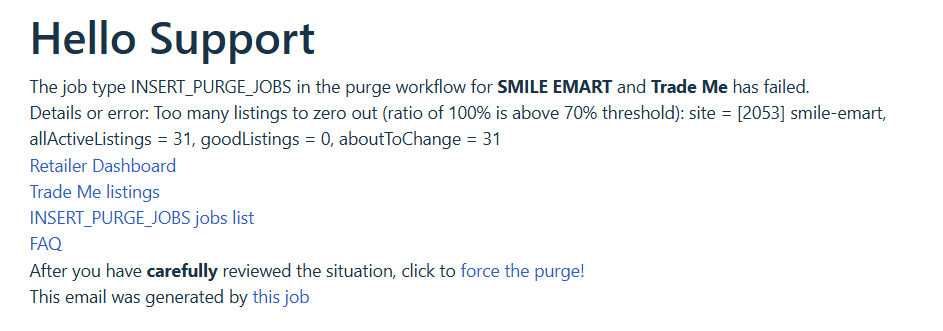
Check Go-Live Date
Confirm the retailer’s go-live date.
- If the go-live was recent, this may explain a failed purge and not require further investigation.
Review Retailer Dashboard
Check the retailer dashboard for product-level issues.
- Look for a high number of products showing error messages.
- Consider whether a recent change could explain the failure.
Check Recent Changes
Review the change log for updates made just before the job failed.
- Identify any changes that may have triggered or contributed to the failure.
Check for Repeat Failures
Review earlier closed tickets for the same retailer.
- Look for multiple failures within a short time period.
- If more than a couple of failures occur close together, treat this as a red flag.
Use common sense when assessing patterns.
- Ask yourself: Does it make sense for this job to be failing repeatedly?
- If the pattern seems unusual or inconsistent with expected behaviour, investigate further.
Review Marketplace Listings
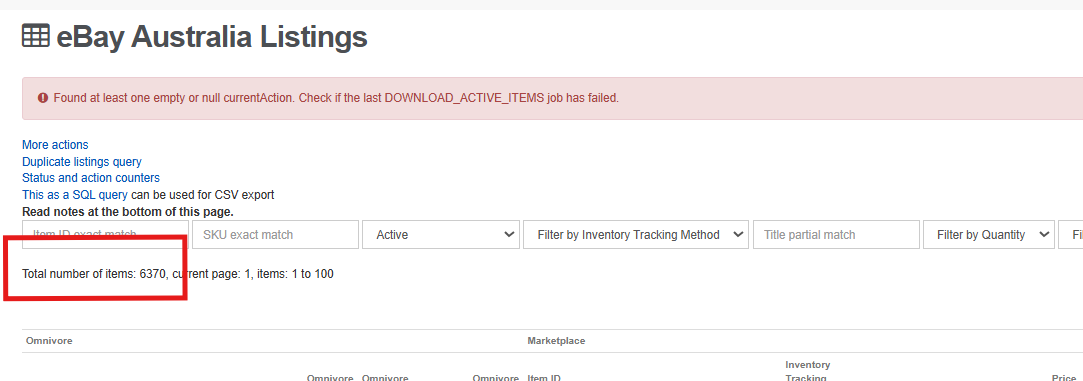
Check the marketplace listing page for additional context.
- Look for any visible issues that may explain the failure.
- Note the current number of listings.
Validate Purge Outcome (if applicable)
If a purge is performed:
- Recheck the marketplace listing page.
- Confirm the listing count has reduced as expected.
How to Manually Force a Purge Job if the Job Keeps Failing
This should only be done if it is verified that listings do actually need to be removed from the marketplace. If you are not sure, please check with others in support
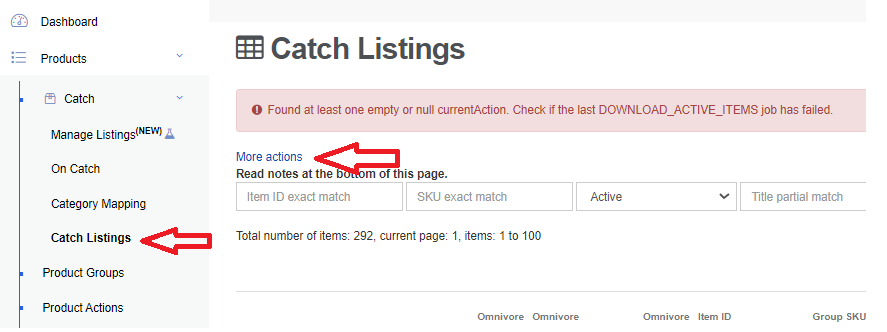
In the retailer's account, go to Products->(Relevant Marketplace) Listings
Click the More actions link
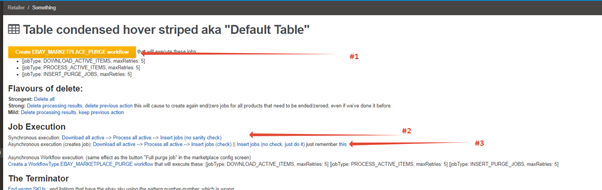
Try the steps below in order.
Each time, you will need to check whether the purge job completed successfully and whether or not any listings were removed. If the job was not successful and / or listings were not removed then move on to the next option until the job completes successfully and listings are removed.
- Click the orange Create EBAY_MARKETPLACE_PURGE workflow and wait to see if the purge job succeeds
- If it fails, click on Synchronous execution: Download all active --> Process all active --> Insert jobs (no sanity check)
- If that fails, click on Asynchronous execution (creates job): Download all active --> Process all active --> Insert jobs (check) || Insert jobs (no check, just do it)
For the purge to actually work, the job must be successful, the "Processed =" number must be something other than zero and the "Total Processed =" should show the number of good listings figure from the failed purge job ticket.
Example purge checking process and expected result.
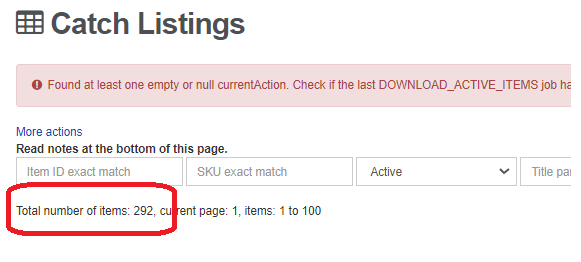
Failed purge job ticket reports 292 good listings

It is determined that a purge needs to be done and the orange purge button referred to above is clicked. The result of the job is

Although the job was successful, you can see that there is nothing in the Workflow type column and zero records have been processed. This means nothing has happened and no listings have been removed.
In this scenario, you would now run the second purge option. When that job has completed, check whether or not it was successful and if any records have been processed. If that produces the same result, then run the third purge option.
For the purge to be regarded as successful, you are looking for the following end result

Here you can see the following:
- The job was successful
- There is an entry in the Workflow Type column
- The total number of records processed is 292 which matches with the Good Listings number reported in the original failed purge job ticket
- The listing number on the marketplace listing page should now have reduced and should match both the Total Processed number above as well as the Good Listing number reported in the failed purge ticket
Rerunning Failed Jobs
If you need to re-run a failed job or start a new purge, you must return to the ticket within 24 hours to check if the job has completed successfully.
It is your job to follow up on the ticket in your queue.