
To successfully complete the App Migration, shipping policies must be completed AND setup according to your existing shipping requirement. We do most of the automations for you, but there are some steps you will need to complete.
Read and consider the following points and scenarios that match your setup:
TABLE OF CONTENTS
- Scenario 1: One Default Shipping Policy
- Scenario 2: Multiple Shipping Policies
- Scenario 2: Multiple Shipping Policies with Custom Shipping Tables
- Video - Create group assign to imported policy
- Recap and Key Points on Shipping
Scenario 1: One Default Shipping Policy
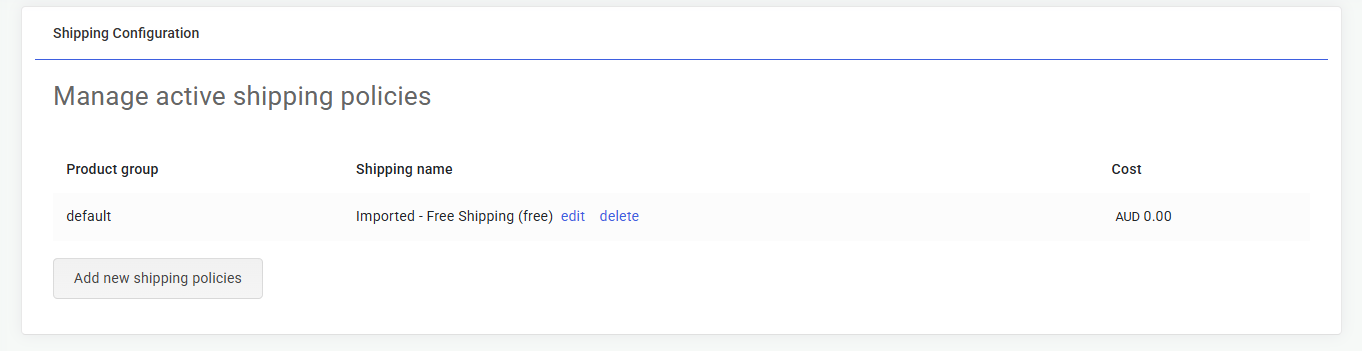
You will continue to have one Shipping Policy. We will import and create this policy automatically based on what you already have in Woolworths MarketPlus. This policy will apply to all products, it will be called 'default' and you don't need to do anything.
Your shipping setup will look something like this. The default in this case is Free Shipping ( 0.00) but it can be whatever cost you choose.
Scenario 2: Multiple Shipping Policies
You will continue to have multiple Shipping Policies. We will create all policies automatically based on on what you already have in Woolworths MarketPlus. You will need to choose which policy will be your default policy and which products you want assigned to each policy using product group.
Setup for Scenario 2
- View the policies & check the cost and shipping name have been imported correctly. In the App go to Settings - Woolworths MarketPlus - Shipping.
- Now create Product Groups pertaining to each policy - in the left navigation menu go to Products - Product Groups. Follow this guide to Create a product group.
- With your product groups now in the App, go back to Settings - Woolworths MarketPlus - Shipping. Click 'edit' on the shipping name and apply the product group from the drop down.
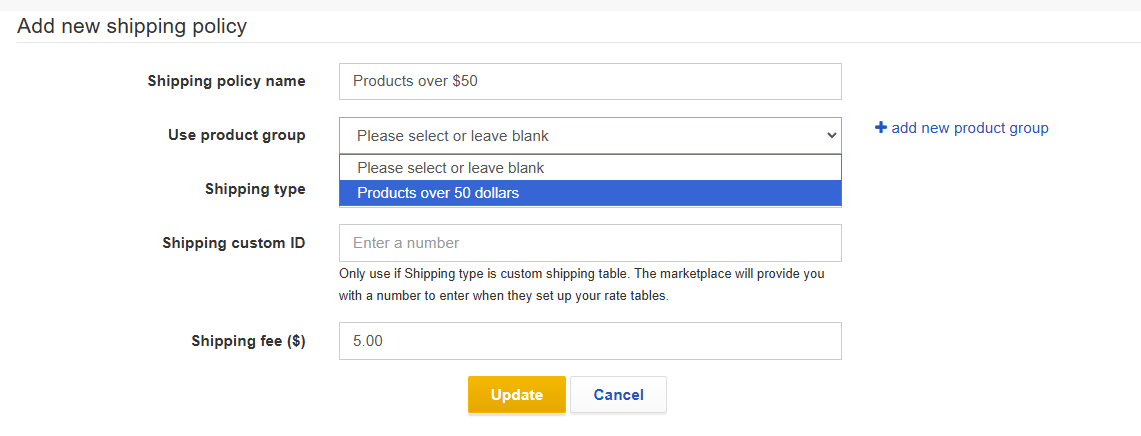
- In our scenario we created a product group for all products over $50 and added it to the corresponding shipping policy.
- To make one of the imported policies the Default policy, remove any product group associated with it. A default policy cannot have any product groups assigned.
- Continue to create groups and edit the policies so each policy has a group attached.
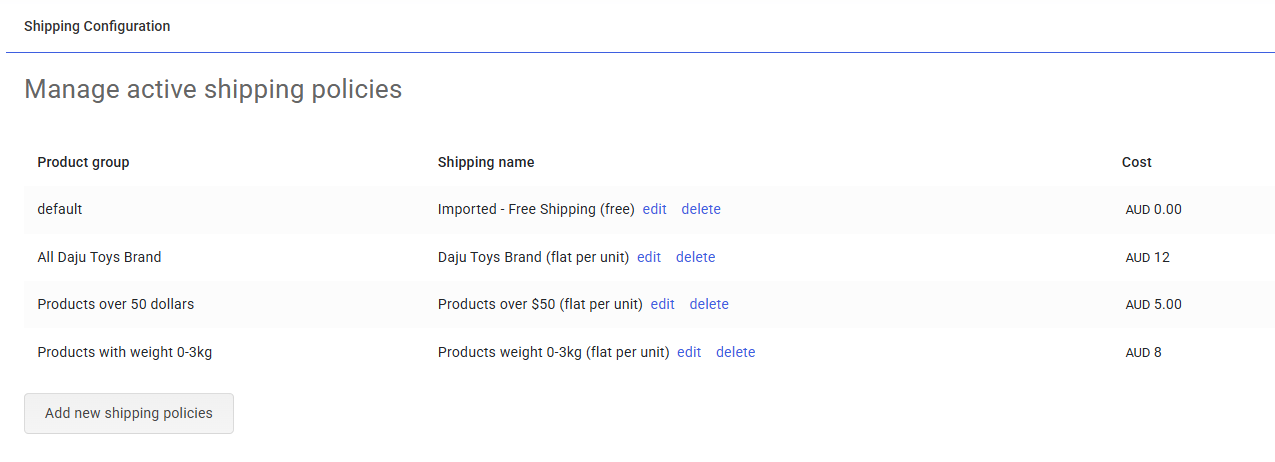
This shows an example of 4 policies, 1 x default and 3 x with a product group. A group based on price, based on weight and based on brand.
Scenario 3: Multiple Shipping Policies with Custom Shipping Tables
You will continue to have multiple Shipping Policies, AND some or all of them may be Custom Shipping Table.
We will import the custom shipping table policies, but you may not see a policy called Default.
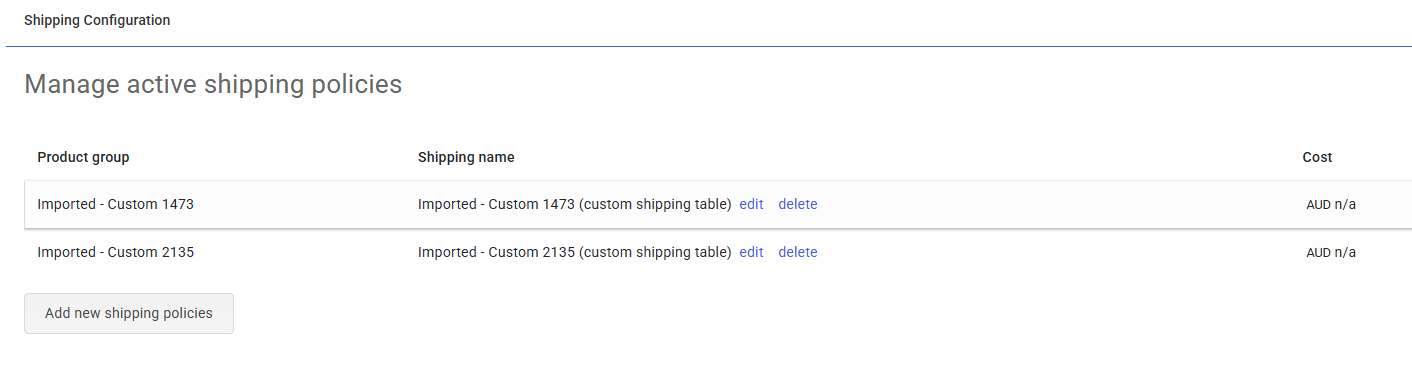 If this is the case click Add new shipping policy, call it Default, leave the product group blank, add a type and cost and click Update. You only need one Default policy.
In this scenario the Product Groups have been automatically created for you.
Video - Create group assign to imported policy
Recap and Key Points on Shipping
- We will import your existing shipping policies, if there is only 1 policy it will be called Default.
- If there is more than 1 you will need to decide which one is default and create a product group for the other policies.
- Default Policy = no product group.
- Additional Policies = create and use a product group.
- This FAQ covers how to create a Product Group.
- https://support.omnivore.com.au/support/solutions/articles/17000060615-create-a-product-group-in-omnivore
- Contact our support specialists if you need assistance - click here to reach out.