
- How to Assign a Deal to an Agent
- Test Accounts
- How to Access a Hubspot View
- Duplicate Deal Cards
- Standard Checks to do no matter what Deal Stage you are working in
- How to email the retailer from within the Deal Card
- How to Use Snippets to email a retailer who has multiple Deal cards
- How to make a record that a phone call was made
- Account Set-Up checks
- Marketplace Set-Up Checks
- Ready To Sell Checks
To access the DIY Onboarding Board in Hubspot in the left menu go to CRM->Deals and Make sure you have chosen Onboarding DIY from the dropdown
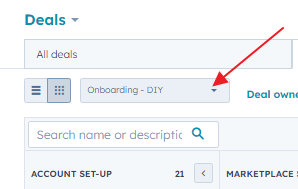
You can also bookmark https://app.hubspot.com/contacts/22393621/objects/0-3/views/36792325/board
This article covers the three stages: Account Set Up, Marketplace Set Up, and Ready to Sell. The Account Management team handles any stage from Clicked Start Selling onwards.
How to Assign a Deal to an Agent
Click into the Deal card and on the left-hand side choose your name from the list
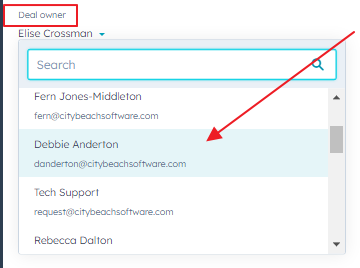
Important - You need to remember to hit the Save button at the bottom of the page after doing this. This is not immediately obvious
Test Accounts
These are primarily Omnivore-created accounts like All That Digi etc. To remove them from all views on the DIY board, click in to the Deal and choose "Follow up not needed". This should be added to all Deal Stage dropdowns as per the following screenshot. You can do this no matter what stage a deal is in. These Omnivore deals do not need to have an owner assigned.
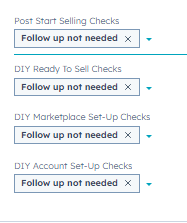
Important - You need to remember to hit the Save button at the bottom of the page after doing this. This is not immediately obvious
How to Access a Hubspot View
From the DIY Deal board Click "+ Add View
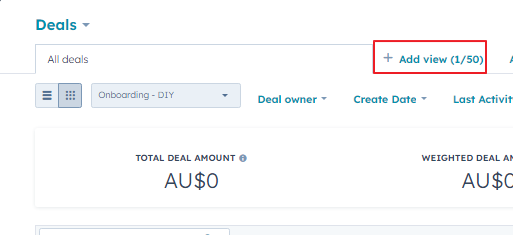
In the Search bar search DIY (all views currently set up for this board have DIY as a keyword in their name), then choose the relevant view that you are working on. Currently the 3 main ones are listed in the FAQ below.
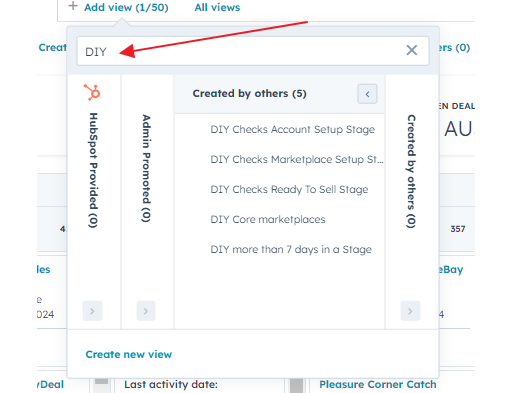
Hubspot has an option of tabs, so if you are working on more than one View you can have multiple open and click between them.

Duplicate Deal Cards
Note there may be more than one Deal for a retailer as the Deal cards are marketplace specific but if you see multiple Deals with the same retailer and same Marketplace the current process is to inform Will.
Standard Checks to do no matter what Deal Stage you are working in
Open the Omnivore account and review. Look for anything that can help you see where the retailer is at.
- Invoice history - Do they have any unpaid invoices, have they agreed to Shopify billing etc
- Notes
- Changelog - see whether the retailer has changed any major settings. From this, by looking at dates, etc you can gauge how invested/motivated the retailer might be in getting their integration live.
- Check Freshdesk to see if there are any recent support tickets and if yes, are they relevant to the Marketplace and Deal Stage (formulate any correspondence around these if they exist)
- Category mapping - have they started yet
- Product Errors related to their data
How to email the retailer from within the Deal Card
NOTE: If a retailer has unsubscribed/opted out of communications via a Hubspot email there will be no option to create emails for them
- Click in to the Deal card
- Select the "Emails" tab
- Select the "Create Email" button
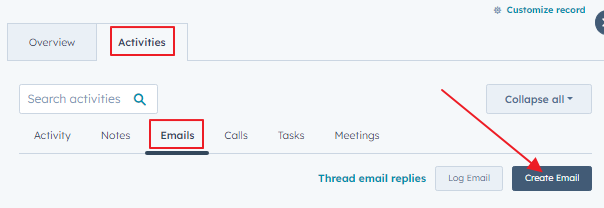
- There are templates for each stage and each core Omnivore marketplace within a stage. Click the templates tab. Note you can select a to do task to follow up in 2 weeks etc. We currently do not use this but it is planned that a deal owner can use this if they are going to take ownership of a retailer throughout the DIY onboarding workflow.
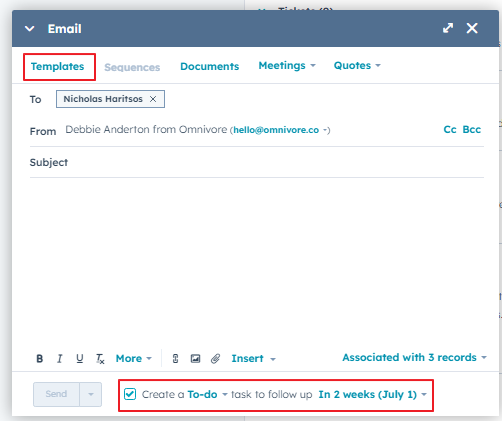
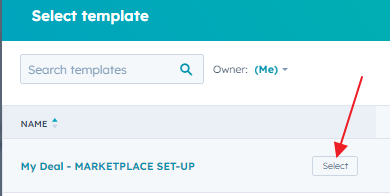
- On the popup that opens it is important to choose the correct email template which matches the Marketplace and the Deal Stage. You can confirm this within the Deal Card here
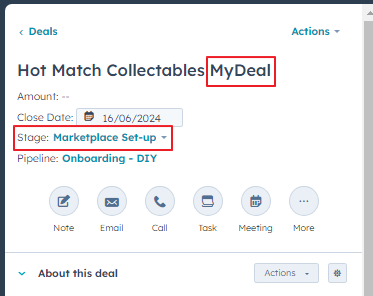
- In this example, you would choose the template named My Deal Marketplace Set-Up
- Personalise the emails to suit anything you may have seen during your Omnivore account checks and/or Freshdesk tickets
How to Use Snippets to email a retailer who has multiple Deal cards
As the DIY Deal cards are marketplace specific, if the retailer has added multiple marketplaces to Omnivore which are in setup stage, they will have multiple Deals on the DIY board. These retailers should not be sent an individual email for each card. If using the Hubspot views correctly these Deals will usually be obvious.
- Note: The Marketplace Set-Up Checks template will be used as the example, but there is also a Ready To Sell template option
- Make a note of the marketplaces on each Deal card for the one retailer
- Choose one Deal card to send the email from
- Make notes with a link back to the Deal where the Multiple Marketplace template email has been sent
- On the chosen Deal card, use the Create Email button
- For the template option choose "Multiple Marketplaces USE SNIPPETS - MARKETPLACE SET-UP"
- Click so your cursor sits under the line that says "If you are not sure where to start, please go through the setup checklists below:"
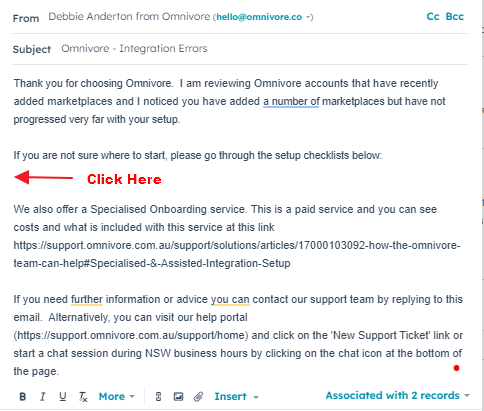
- Refer to your list of retailer marketplaces for next steps so you can choose the relevant snippets
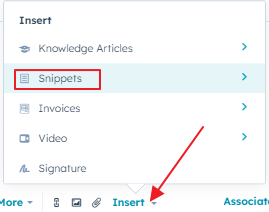
- At the bottom of the email you can see "Insert", click this then choose snippets
- You will then see the list of snippets available, named relevant to both the marketplace and Deal stage e.g.
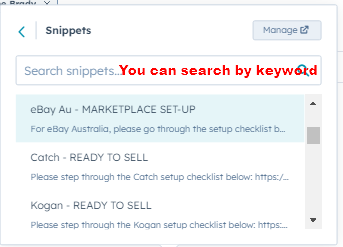
- Click the relevant snippet, and add all the relevant Marketplace snippets, one after the other.
How to make a record that a phone call was made
NOTE: If a retailer has unsubscribed/opted out of communications via a Hubspot email there will be no option to log or make phone calls.
- Click in to the Deal card
- Select the "Calls" tab
- As Hubspot Calling has not been set up yet, you should call from Freshdesk Caller and Select the "Log Call" button in Hubspot
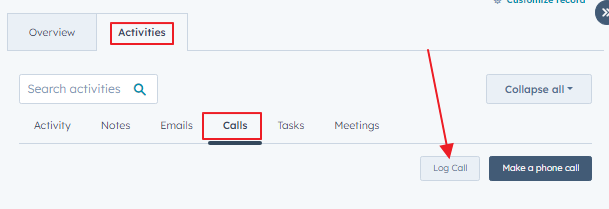
- Choose the contact, select a Call Outcome and select the Call Direction as "Outbound". Describe the call e.g. "no answer and no voicemail, followed up with email" etc. You can also create a follow up "To-do" task if required.
Account Set-Up checks
Use the Hubspot View Named DIY Checks Account Setup Stage
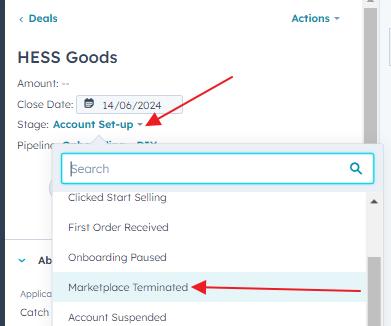
- Check the Omnivore instance. Occassionally you will end up at a "Retailer Not Found" Omnivore page which indicates their Omnivore account has been deleted but the Deal card is stuck. Move the Deal Card manually to the "Marketplace Terminated" Deal Stage
- Check for Freshdesk tickets.
- If you feel contact is warranted, these retailers should be emailed the standard Template named "No marketplace added - Account Set-Up"
- If a retailer has raised a ticket and you feel contacting them is not appropriate at this stage, make a note on the HubSpot Deal.
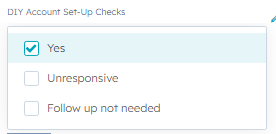
- Finally, go to the DIY Account Set-Up checks dropdown and select "Yes" (Don't forget to hit the "Save" button)
Common Scenarios
Non-responsive at 14 days
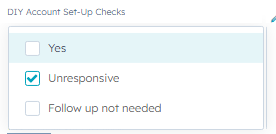
- Set the DIY Account Set-Up checks dropdown to "Unresponsive" (Don't forget to hit the "Save" button)
No Marketplace added - Retailer has agreed to billing/set up a credit card or Shopify charge and are being invoiced
- Even if the retailer is non-responsive at 14 days, these retailers are NOT to be suspended as per Ivan's instruction.
No Marketplace added - Not agreed to billing so not being invoiced
- If the retailer is non-responsive at 14 days, even though they are technically being invoiced they do not have a payment method so they need to be suspended in Omnivore. Make a note in both the Hubspot Deal on the notes tab and also in Omnivore add a note clearly explaining this is why along with the link to the Hubspot Deal Card
- Note the Deal Card should be automatically moved to the "Account Suspended" stage when the Omnivore Sales Event Sync runs.
Marketplace Set-Up Checks
Use the Hubspot View Named DIY Checks Marketplace Setup Stage
- Check the Omnivore instance as per Standard Checks to do no matter what Deal Stage you are working in
- Where possible, personalise any contact according to what you can see the retailer has done/not done in their Omnivore account. These retailers should be emailed the relevant marketplace Template named "***Marketplace name*** - MARKETPLACE SET-UP". See this step for how to do this. This template email is a guide
- If a retailer has raised a ticket and you feel contacting them is not appropriate at this stage, make a note on the HubSpot Deal.
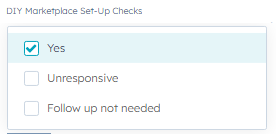
- Finally, go to the DIY Marketplace Set-Up Checks dropdown and select "Yes" (Don't forget to hit the "Save" button)
Common Scenarios
Non-responsive at 14 days
- Depending on how much setup the retailer has done will determine the next steps.
- You can choose to email again but do NOT repeat word for word what was sent in the first email.
- If relevant you can phone the retailer or offer a 30-minute Zoom call if you feel that this would be more effective
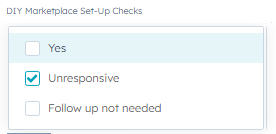
- If the retailer has not done any Set-Up steps then mark the DIY Checks Marketplace Set-Up Checks dropdown to Unresponsive (Don't forget to hit the "Save" button)
Ready To Sell Checks
Use the Hubspot View Named DIY Checks Ready to Sell Stage
- Check the Omnivore instance as per Standard Checks to do no matter what Deal Stage you are working in
- Where possible, personalise any contact according to what you can see the retailer has done/not done in their Omnivore account. This stage is where contact should really be tailored to where the retailer is at. For example, if they have completed all setup stages except category mapping, then sending them the specific category mapping articles rather than the template link and asking them to go through the setup checklist again would not be the best option. Use your discretion.
- These retailers should be emailed the relevant marketplace Template named "***Marketplace name*** - READY TO SELL". See this step for how to do this.
- At first contact make notes in the HubSpot deal as to where the retailer is at with their Omnivore setup. This will make it easier to see whether they have progressed if they have not hit Start Selling post 14 days after your first email.
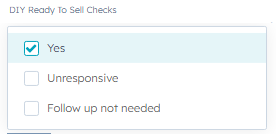
- Finally, go to the DIY Ready To Sell Checks dropdown and select "Yes" (Don't forget to hit the "Save" button)
Common Scenarios
All is Ready but Start Selling has not been hit
- Personalise the email template named "***Marketplace name*** - READY TO SELL" to the retailer asking if there is any help they need as you can see they only have one more step to go live. Edit the template wording to make it relevant.
Non-responsive at 14 days
- Depending on how much setup the retailer has done will again determine the next steps.
- You can choose to email again but do NOT repeat word for word what was sent in the first email. Make it relevant.
- You can phone the retailer or offer a 30-minute Zoom call if you feel that this would be more effective.
- While you can set the DIY Ready to Sell Checks dropdown to Unresponsive, if a retailer has gotten to this deal stage they have done some work in Omnivore so following up in a way relevant to the retailer setup steps completed would be the best option.
Product Errors
- If you can see specific data/product errors and we have an appropriate FAQ article, send the link with some relevant wording.