
Overview
SFTP (Secure File Transfer Protocol) is a network protocol for securely accessing, transferring and managing large files.
More simply, it Is a folder that exists on the internet for you to drop CSV files into and take files from. Omnivore processes files dropped into these folders to update inventory and shipments, and pass to you order files for you to load into your sales system. All this means you can manage your Omnivore account just using CSV files and the SFTP.
Below we will go into each part of this process in more detail.
TABLE OF CONTENTS
Types of Files
These are the files you will use for the SFTP. The file names are case-sensitive, so please ensure all files are named correctly.
If you need any help populating these files or have any questions, please ask your Onboarding Executive or create a ticket with the Omnivore Customer Support team.
Example files are attached at the bottom of the page.
Files you provide Omnivore
Products file - named product-feed*.csv. This is the file with all of the information about your products. The * is to be replaced with a date, so the file is unique, ie product-feed-2024-03-23.csv. This ensures no double-ups of files.
Inventory file - to be named Inventory.csv. This file is a simple inventory update to existing SKUs. As with the product file, should be named with a date to avoid any double-ups, ie 2024-01-09-Inventory.csv.
Shipments file - to be named 2shipment.csv. This file gives Omnivore the tracking and carrier information for your processed orders. When processed in Omnivore the details will be passed on to the marketplace and the order will be marked as shipped. Again, it is always best to add a date to the file name, ie 2022-12-08shipment.csv.
Files Omnivore provide for you
Orders file - This is the file Omnivore places into the orders folder with the orders you need to process. It will be named with a date, ie orders-retailer-name-20241207224954.csv.
Setup
It is always best to discuss how you wish to connect to your Omnivore account with your Onboarding Executive or Customer Support so the best fit can be decided. If SFTP is the method that fits best, the Omnivore team will set you up with the SFTP folder and provide you access. It will be provided to you as below
sftp://sftp.citybeachsoftware.com - This is an example of the address of the folder you will use
username: retailername - This is an example of a SFTP username
password: 23^8jfhreg46596 - This is an example of a password
In order to access the SFTP, you will need a program. Filezilla is a great and totally free option that is very small and perfect for accessing the Omnivore SFTP.
Site ManagerFilezilla is very easy to set up. You take the SFTP details Omnivore have provided you and enter them in the site manager. As per the image below, click the Open the site manager button at the top left of the screen. Now in the site manager window add the details you have been given, as below.
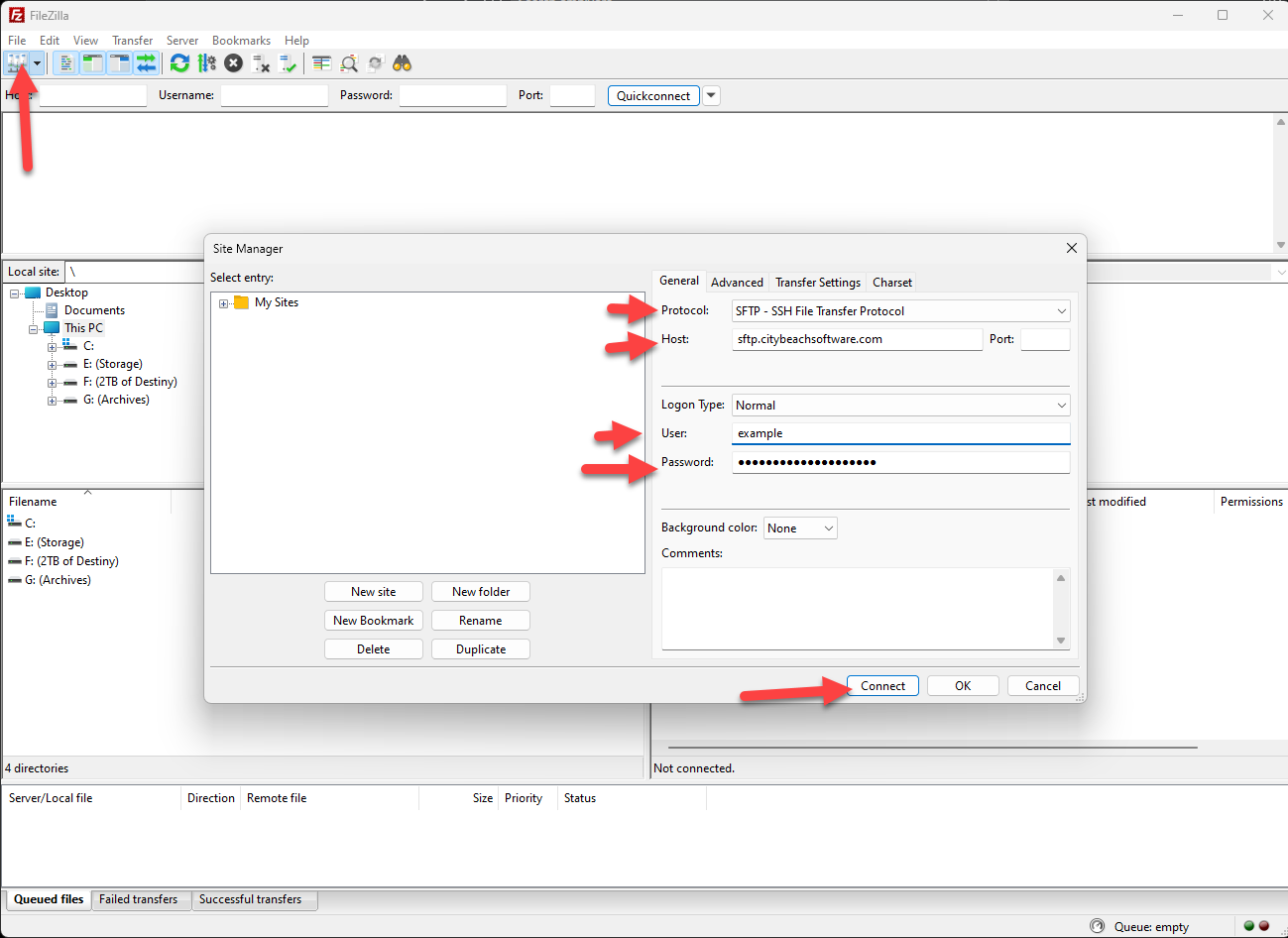
Protocol - select SFTP - SSH File Transfer Protocol from the dropdown menu
Host - add the Omnivore SFTP address, sftp://sftp.citybeachsoftware.com
Logon Type - set to normal
User - add your user name Omnivore provided, ie retailername
Password - add the password Omnivore have provided, ie 23^8jfhreg46596
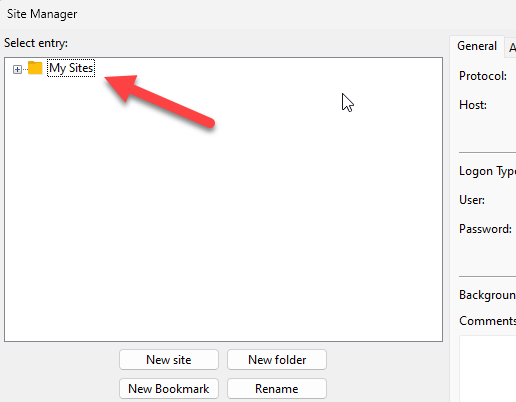
Now click connect and you will have created the access to the SFTP. You will only need to do this the first time, after that when you click the Open the site manager button at the top left of the screen you will see this in the My Sites folder, and you can simply select it to connect.
Folder Structure
Now you are connected to the SFTP, let's look at the folders, what they are and how they work. Using the SFTP is simple, just drop the appropriate file into the appropriate folder, and Omnivore will do the rest.
Once connected your FIlezilla screen will look like this
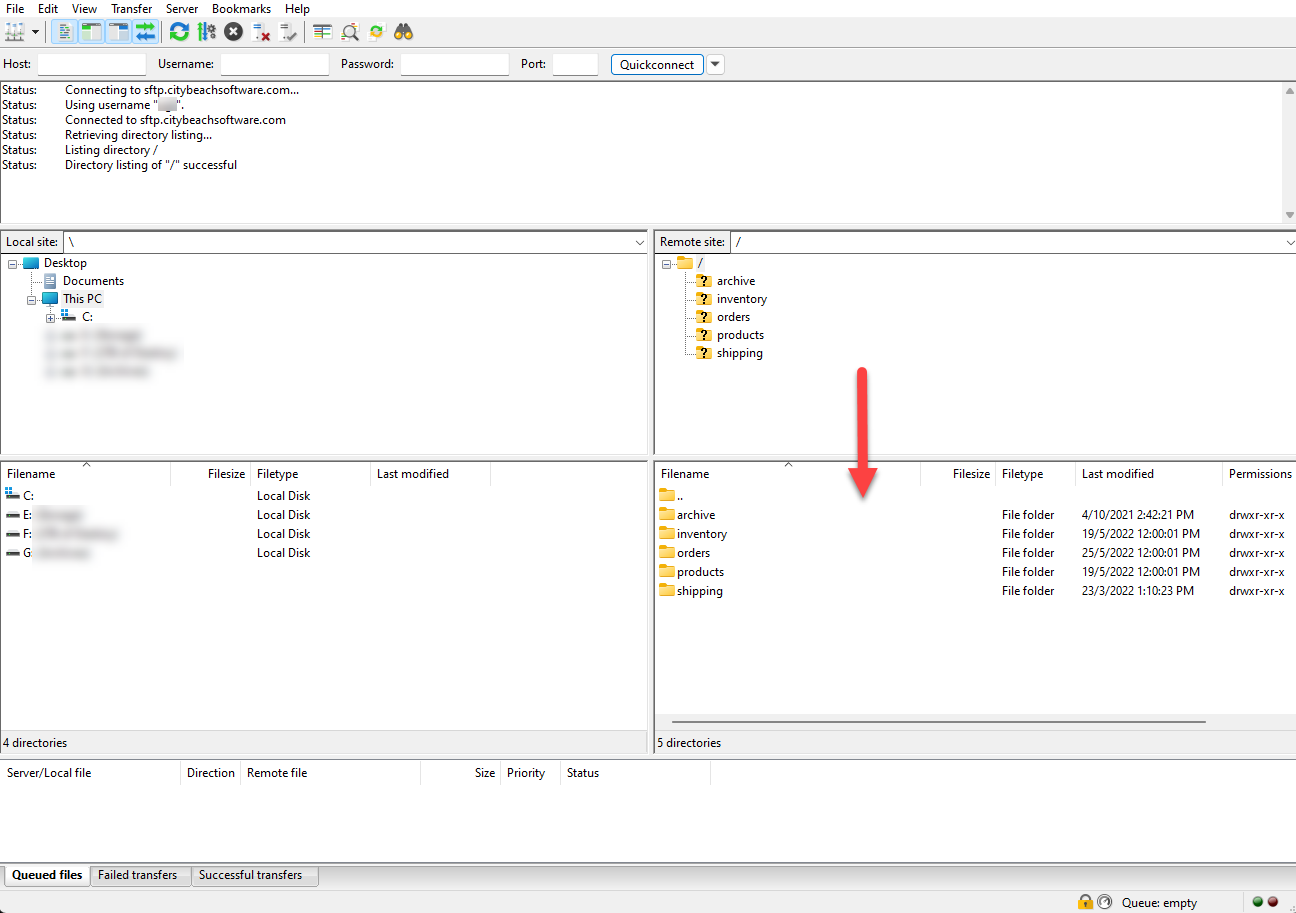
The bottom right portion of the screen is your SFTP folders. This is where you will drop files and take files from. Let's look at these one by one.
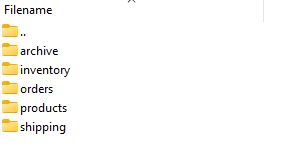
The .. folder - this simply takes you back a level, you will not likely need this.
The archive folder - this is where previous versions of files that have been processed will be stored, separated per type ie inventory, orders etc.
The inventory folder - this is where, if you are using the inventory part of the process, your inventory files will be placed.
The orders folder - this is where Omnivore will place CSV files of your orders. You will take these from this folder and process them in your systems so you can then pick, pack and send orders to your customers. The order files will be named with a date, ie, orders-retailername-20240110040011.csv, so you can easily see their date.
The products folder - this is where you will place your product-feed.csv file of all products. Omnivore will then take this and process it, updating and creating products based on this information.
The shipping folder - this is where you will place your shipment*.csv that provides Omnivore with the shipping data for the orders you have sent, the tracking number and the carrier will be updated and sent to the marketplace and the order will be marked as shipped.
The most important part for you as a user is to ensure the correct files are dropped into the correct folders. Omnivore is looking for specific details in each file, so if it is in the wrong folder, it will not process.
Now you are all set up using the SFTP. You may wish to run some test orders through to ensure you are comfortable with the process, and your Onboarding Executive or the Omnivore Customer Support team can help with this.