
TABLE OF CONTENTS
Viewing the DIY Onboarding cards
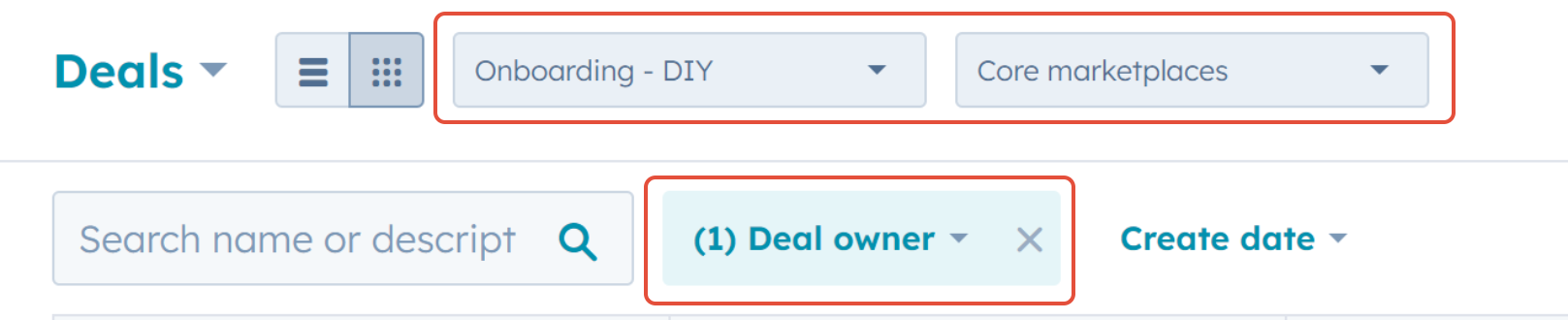
In Hubspot click on Sales - Deals. Ensure the board showing is the 'Onboarding - DIY' board. Set the other filter to 'Core Marketplaces' and filter the Deal Owner to 'Unassigned'.
Working through the 'Clicked Start Selling' column
We focus on the retailers who have clicked 'Start Selling' on a marketplace but have not yet received any orders. The intention is to check that their sites do not have too many errors or other reasons why their products are not listing.
- Click on the deal card to open it.
- Click on the Omnivore URL link to check the site.
- Review the site and see what issues they may have (see section .... below for more details)
- If the retailer needs to be emailed first check in Freshdesk to see if they have not already reached out to support for their issues. If they are already in contact with support we will not contact them as well.
- Make a note on the deal card if necessary (usually in cases where you have not sent an email but want to follow up in a few days). For more info on setting adding notes and task reminder see the 'Task Follow Ups' section below.
- Update the deal card - Set Deal Owner to yourself and set the 'DIY Integration Manually Checked' flag to 'Yes'.
Checking the Site
- If they have errors that can be quickly resolved by you then take that action (For example if they have recently activated Kogan and have the error 'Product SKU does not exist' we know this will clear after a fresh upload).
- If they have a decent percentage of their products listing successfully there is no need to do anything.
- If the errors are all Catch approvals errors then set a reminder to check the site in 2 weeks. Make a note of the number of errors so when you check back you can verify that products are listing now.
- Make a note of the main errors that the site has. When sending the email you can modify the default template to include some more specific details for their errors and what is needed to fix them.
Sending the email
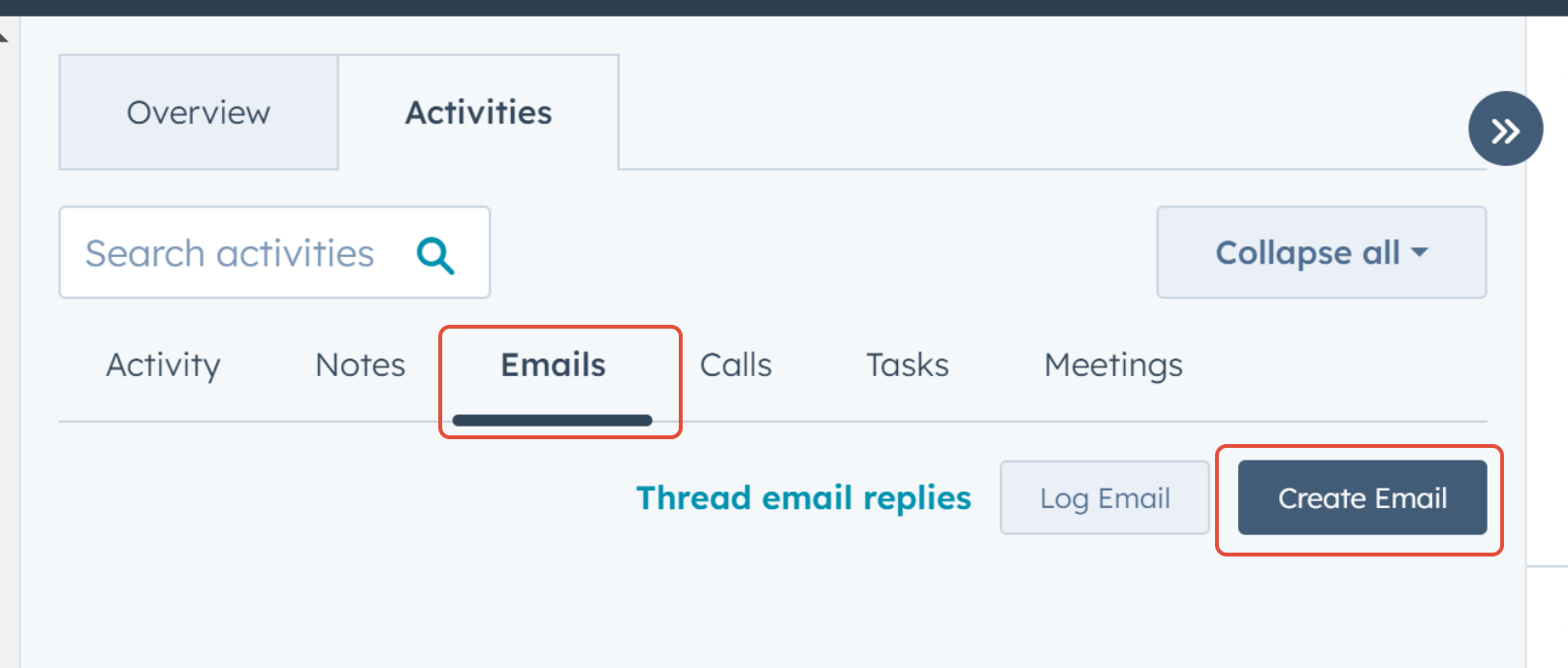
- On the deal card click on the 'Emails' tab. Then click on the 'Create Email' button.
- An email box will pop up. Click on the 'Templates' link.
- Find the relevant template you would like to use and click on the 'Select' button that appears when you hover over the template name. There is a template for each of the main marketplaces which contains an explanation of how the retailer can view their errors. It also has a link to the common errors FAQ for the marketplace and an explanation on how to contact support if they require more assistance.
- Edit the template to include more details on the retailers specific errors. Add this additional info after the screen shot in the template.
- In the 'From' field on the email make sure you are using the hello@omnivore.co email address. This means any replies to the email will go through to Freshdesk and create a new ticket.
Task follow ups
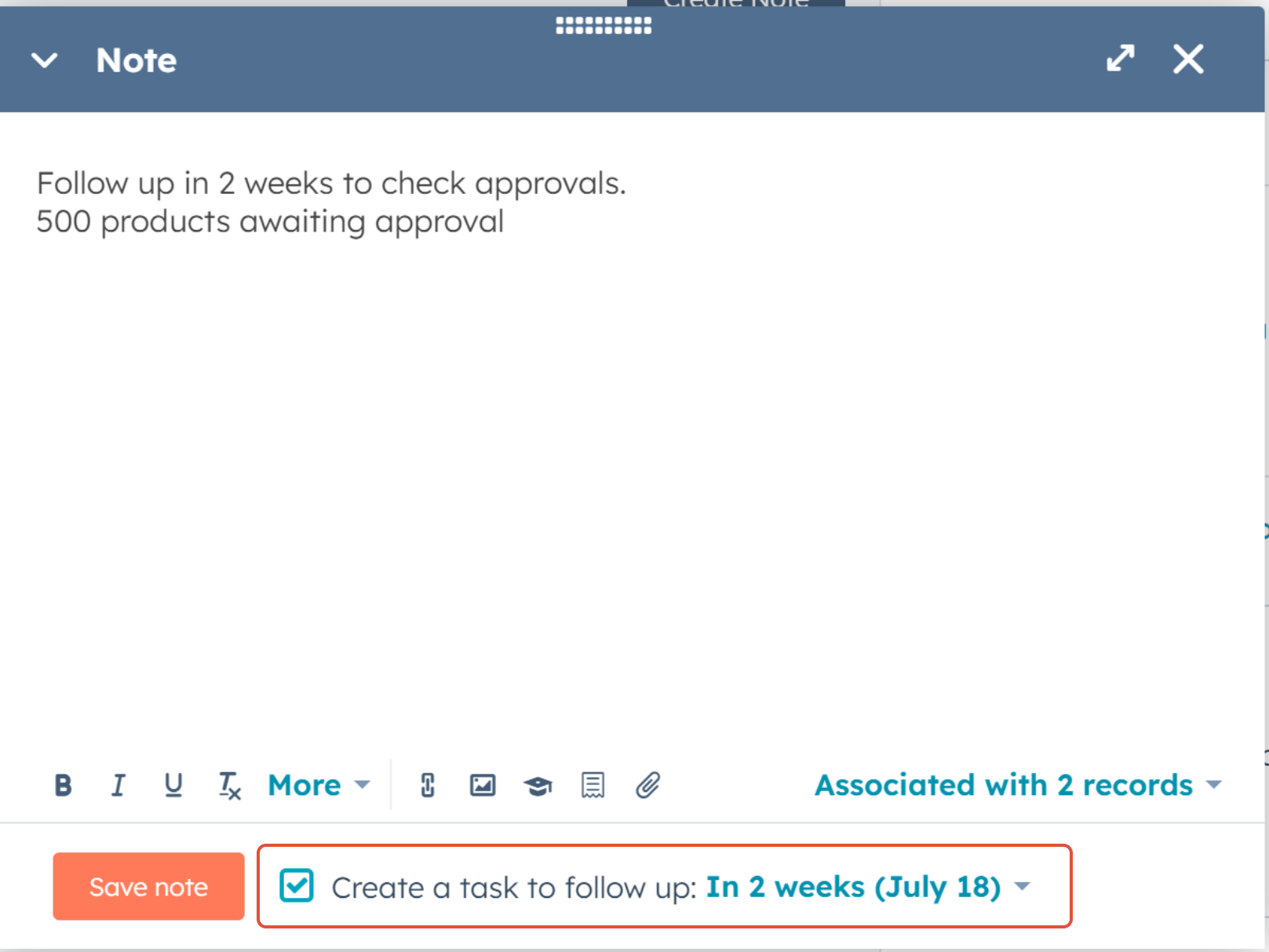
- To set a task follow up, click on Notes and the 'Create Note' button.
- Enter any relevant information on the note and then check the 'Create a task to follow up' box. Select from the drop down how long you want to set the reminder for.
- You will then get a daily email to let you know what tasks are due. You can also check for your upcoming and due / overdue tasks by going to Sales - Tasks.