TABLE OF CONTENTS
- Overview
- Understanding Clearance Items
- How To Mark Products As Clearance
- How Clearance Products Appear on Trade Me
Overview
This FAQ explains what Clearance products are on Trade Me and how to set them up.
Understanding Clearance Items
If you plan to permanently reduce the price of a product (for example, at the end of a season or when discontinuing a product line), you must mark the item as Clearance.
Clearance products:
Are tagged as “Clearance” on Trade Me
Can remain listed indefinitely with the Clearance tag until they sell
This is different from a Sale, where the price is temporarily discounted and then returns to the normal price once the sale period ends.
How To Mark Products As Clearance
Follow the steps below to mark products as Clearance:
Ensure the product pricing meets the Clearance requirements:
The RRP must be the same as the Sale Price.
Trade Me will only apply the Clearance tag if the RRP and Sale Price are identical.
Create a Product Group:
Go to Products → Product Groups.
Use the available criteria to create a Product Group containing the Clearance products.
Create the Clearance Product Action:
Go to Products → Product Actions.
Click Create Clearance Item.
Enter a name (for example, Summer Clearance Items).
Select the Product Group created in the previous step.
Apply the changes:
Go to the Dashboard.
Click Upload to Trade Me.
How Clearance Products Appear on Trade Me
Products marked as Clearance will:
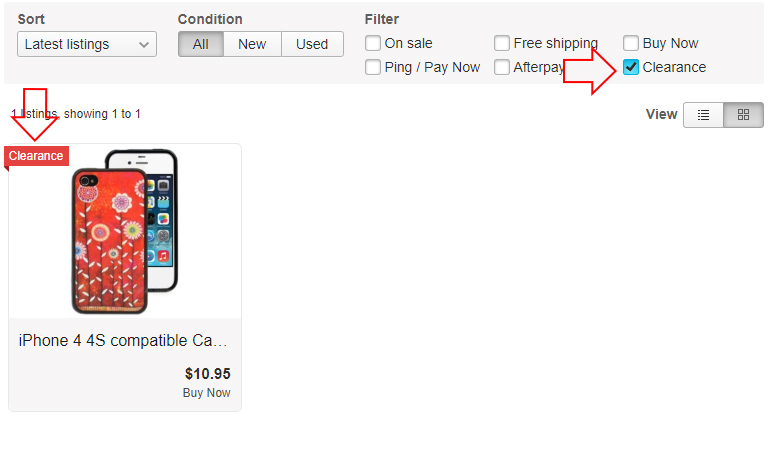
Display a red Clearance tag on the listing
Appear in Trade Me search results when buyers filter by Clearance