
TABLE OF CONTENTS
- Must Do
- SFTP Setup Process
- Setup Omnivore V2 API Access
- Additional Reading.
Must Do
Full setup guide and reading.
https://support.omnivore.com.au/a/solutions/articles/17000129792?portalId=17000029510
This covers setup for SFTP and V2 API Access.
SFTP Setup Process
Sellers using CSV Integrations via SFTP need to have an account setup by us on our SFTP Server.
This is done by dev (Steve Tait), please follow the steps below:
- Use the setup guide here to create the account.
- Raise a trello card requesting an SFTP Account, add the Dashboard link to the trello card. See image below. At kickoff, cover with retailer timings for files in and out, provide that to dev in the Trello for SFTP creation.
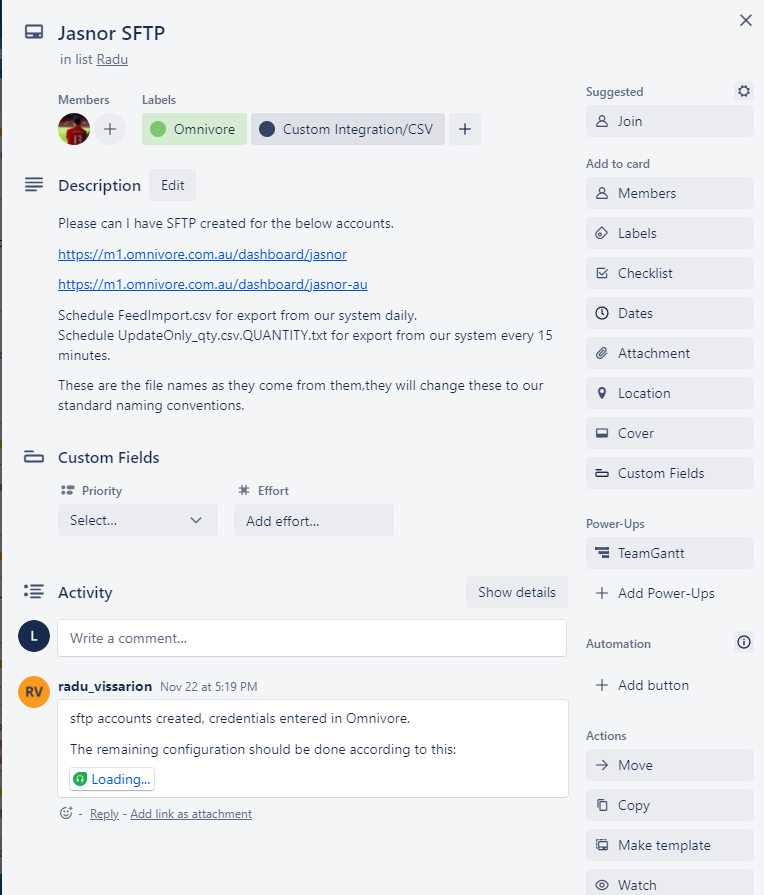
- The trello card will be updated with the SFTP account login details.
- Provide the log in credentials to the seller.
- Use the steps in the SFTP Section of the setup guide above, it covers file types etc.
- Go into Omnivore Settings - CustomPullCSVFeed - General and add the username and password if required.
Dev may have completed this step for you.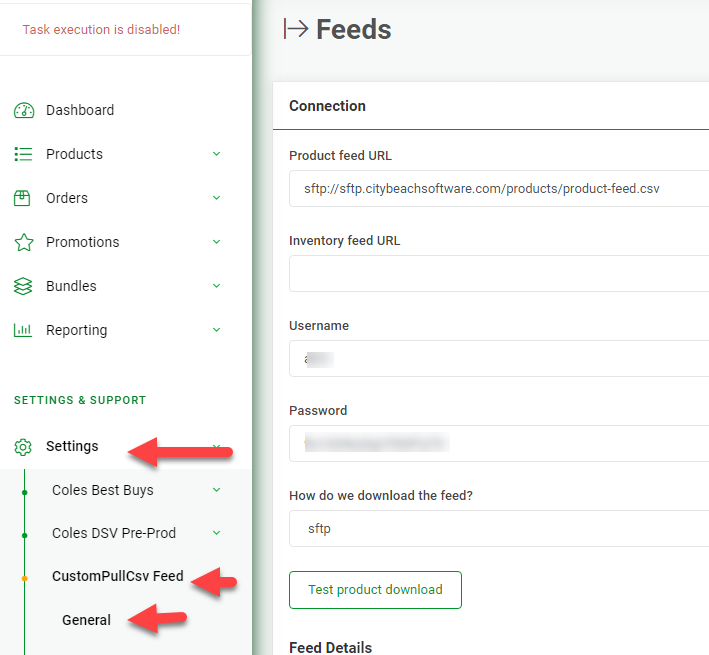
- Ensure the seller drops the files into the folder once they connect and also that they can successfully connect.
Setup Omnivore V2 API Access
New method (2026)
If you want to create a site that integrates using the apis, as an Omnivore Admin:
(If the site exists and you only want to add api access, start from step 8)
- Navigate to Dev Admin -> Mixed Stuff
- Locate the section "Create test site" and read the text
- Fill in the form and hit Go
- Check that the site is created as expected
- Add a marketplace, so that an user can see the products
- Navigate to Settings -> Custom Pull Json Feed -> General
- In "How do we download the feed" select "manual" and update. The page content will change.
- Navigate to Dev Admin -> Api v2 -> Create client (bottom of the page)
- Follow the prompts and write down the result. Pay attention to the naming of the client.
- Verify that the newly created api client is visible; navigate to either step 6 above or Settings -> Api access list
- If required or if you believe it will help the retailer, generate a test order
- If required, create a login user and associate the site to the user
- Send an email to the user. Suggested email content below
Adjust the email accordingly.
Email example
Hi <User name>,
I have created an Omnivore v2 api account for you.
Login page:
https://m2.omnivore.com.au/login/auth
Email/username: user@example.com
Password: changeMe!123
You can change the password after you login.
Dashboard:
https://m2.omnivore.com.au/dashboard/my-store
It has 2 test products (single sku and multi-sku with colour-based variants) and a marketplace.
At the bottom of the product page, there's a link that shows the Omnivore product data in the same format as used by the api:
https://m2.omnivore.com.au/product/view?retailerCode=my-store&sku=TEST1
Advanced Data View
View Omnivore V2 API Product data (more info)
From the product page you can also create test orders.
I created 1 test order:
https://m2.omnivore.com.au/retailer/my-store/orders
The test orders only exist in Omnivore, thus updating those using the api might result in errors because the order does not exist in the marketplace.
Api access list:
https://m2.omnivore.com.au/configuration/apiAccessList/my-store
You can reset the secret.
Api Client Id: <random string that you wrote down>
Current secret: <random string that you wrote down>
If you paste the secret into this page:
https://m2.omnivore.com.au/configuration/apiHelp?retailerCode=my-store&clientId=<the random string above>
You'll get working curl commands to call the Omnivore api, eg:
curl -H "X-OMNIVORE-CLIENT-ID: ..." -H "X-OMNIVORE-CLIENT-SECRET: ..." "https://m2.omnivore.com.au/v2/retailer/my-store/products/list"
curl -H "X-OMNIVORE-CLIENT-ID: ..." -H "X-OMNIVORE-CLIENT-SECRET: ..." "https://m2.omnivore.com.au/v2/retailer/my-store/orders/list"
The official Omnivore v2 API documentation:
Https://support.omnivore.com.au/support/solutions/folders/17000136075
Postman and swagger files here:
https://support.omnivore.com.au/support/solutions/articles/17000097820-set-up
Anything missing, unclear or not working, please let me know.
Additional Reading.
What is a custom integration
https://support.omnivore.com.au/a/solutions/articles/17000124474?portalId=17000029510
CSV Retailer
https://support.omnivore.com.au/a/solutions/articles/17000127995?portalId=17000029510