
TABLE OF CONTENTS
- Add Onboarding to the Company details in Freshdesk
- Add Omnivore link in Company and Contacts
- Update eComm Platform and Marketplace
- Update Status
- Organise an initial zoom call
- Create an Onboarding Trello
- Create an Onboarding Trello for category mapping
- Omnivore Plans
- Freshdesk Marketplace Checklists
- Order Testing Steps
- Troubleshooting technical/dev issues
- After Onboarding is complete
Add Onboarding to the Company details in Freshdesk
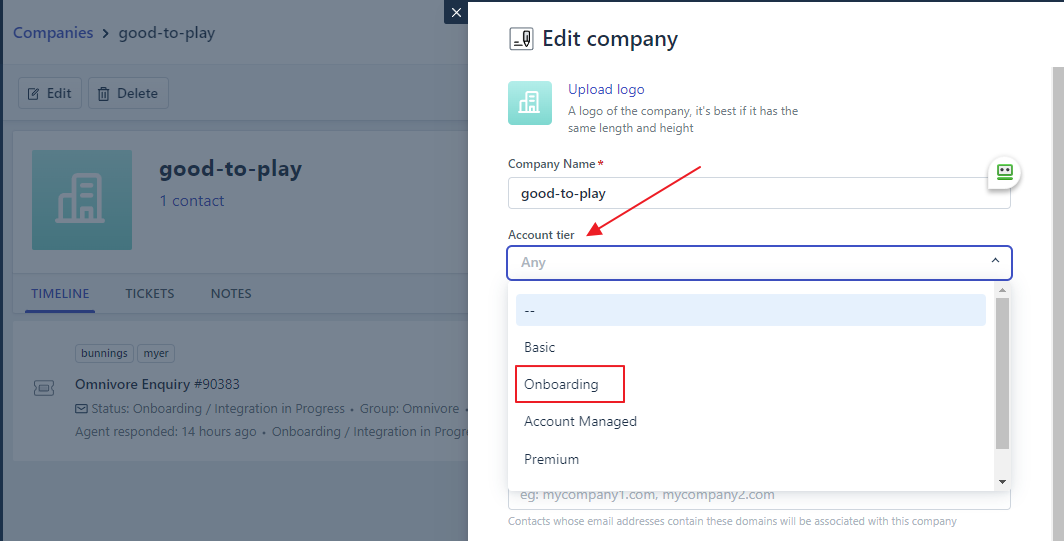
If paid onboarding or enterprise onboarding add "Onboarding" to the Account tier by editing the company details in Freshdesk. This is done so that support can easily see if a retailer is being onboarded.
Add Omnivore link in Company and Contacts
Update eComm Platform and Marketplace
Update seller's ecommerce platform details. Choose 'All' if seller is onboarding onto multiple marketplaces, or choose a specific one, needs to be done before the ticket is closed.
Update Status
- Update status to Onboarding/Integration in progress - Changes to 'Open' after we respond, change it back to In progress.
- On Hold or Closed if long delay - Ticket will reopen when they email. Based on email ID.
Organise an initial zoom call
This call should at a minimum go over
- blocking products
- shipping setup
- general questions and requests by retailer
Create an Onboarding Trello
at https://trello.com/b/jbJejjoq/omnivore-onboarding, add the following details
- In your Trello onboarding column, click +Add a Card
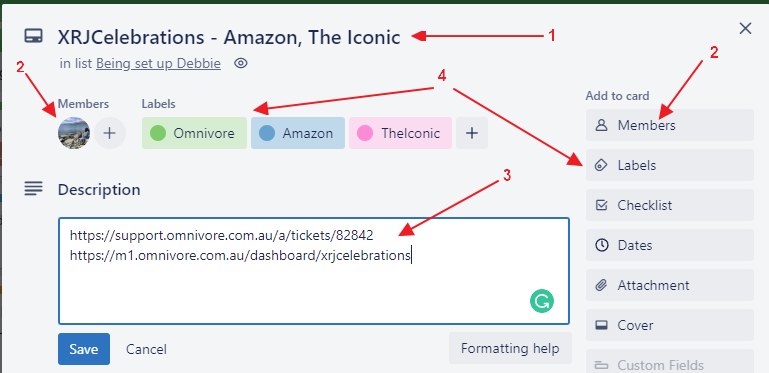
- Add the name of the retailer and marketplace being onboarded into the Title section
- Add yourself to the card by clicking on Members and selecting your name (this will show your icon on the card as well)
- In the Description field add the relevant ticket link plus the Omnivore Dashboard URL.
- Add relevant labels by clicking the Labels tab. Relevant labels are usually the marketplaces being onboarded and Omnivore
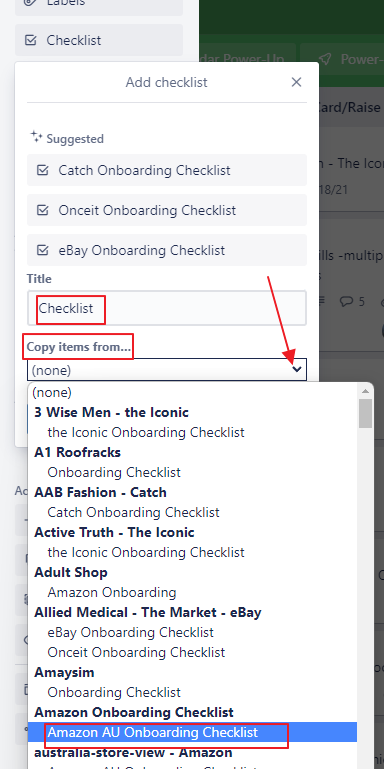
- Add the relevant marketplace checklist to the trello, to do this click Checklist
- Click the drop-down for Copy items from
- Choose the relevant Onboarding Checklist from the dropdown. This list includes all retailers that have ever had a checklist added so you will need to scroll. All onboarding checklists are named with the marketplace name first so just scroll to the relevant spot alphabetically
Create an Onboarding Trello for category mapping
- In the Requires Mapping column click +Add a Card
- Add the name of the retailer and marketplace being onboarded into the Title section. If the retailer has more than one marketplace, create a card for EACH marketplace
- Click on the Members and select your name, Fern's name, plus all of the current mapping people. We currently have
- Andreea Vissaron initials AV
- Athena Anne McGinley initials AM
- Maya initial M
- Belinda Robb initials BR (special note Belinda is not to be added to any sporting goods retailers as she is a seller herself)
- In the Description field add the relevant Omnivore Dashboard URL plus a message regarding which marketplace needs mapping.
- Add the start date as the date you have created the card
- Click the Labels tab. Choose the marketplace you are wanting to have mapped
Omnivore Plans
Current and Grandfathered/Legacy Plans
Freshdesk Marketplace Checklists
Amazon Australia
Baby Bunting
Bing
Catch
Coles
eBay Australia
Google Product Feed
Kogan (AU and NZ)
MyDeal
Onceit (NZ)
The Iconic
The Market (NZ)
TradeMe (NZ)
TradeSquare
Westfield online
Marketplacer Marketplaces
Marketplacer General Info
Marketplacer Contacts
BBQ's Galore
Lasoo
MedCart
The Dom (not completed yet)
Woolworths EDM
Order Testing Steps
Some retailers and marketplaces need test orders to be placed to check the end to end order flow and to ensure that all the connections are working correctly and doing what they're expected to do.
Product and inventory is tested when we send up products to the marketplace - Any gaps found by the marketplace are fixed along with other listing errors.
With orders and shipping, orders are created at the source marketplace and tracked all the way until the source marketplace receives a valid tracking ID and shipped update.
1. Test order is created by the marketplace or the retailer as a customer on the marketplace
2. Create a job within Omnivore to poll orders from the specific marketplace. This manual polling allows the test orders flow in quickly, outside of the regular order poll schedule.
- Go to Retailer Admin > Jobs List > Create
- Ensure the retailer name field is filled
- Select Job Type 'Order Poll'
- Select the Marketplace you're testing for
- Click Submit
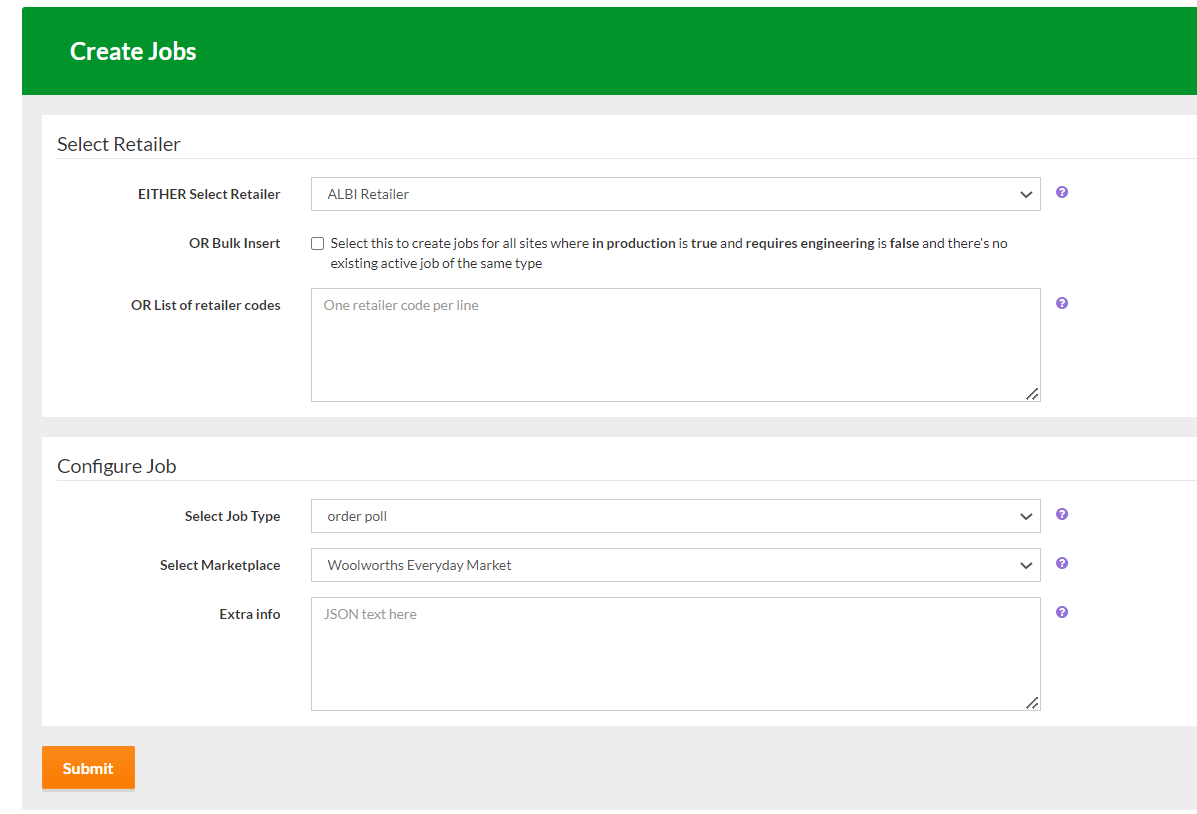
3. Once the orders are in Omnivore, it take a few minutes for the order to be sent to the retailer and for the status to change - This is a crucial stage as we might get errors back from the retailer systems, or be unable to send the order out successfully. We know that the order has been sent to the retailer when the status changes to 'Pending Shipped'
4. Once the order reaches the retailer systems, they need to be able to catch the test order and update it with tracking details and carrier details (using an old tracking ID so we're testing with valid data). Once retailer completes their steps, the status will flow back into Omnivore.
5. Create a job within Omnivore to pull this status back from the retailer/website quickly, outside of the regular schedule.
- Ensure Retailer field is selected
- Select Job Type '1 order pending shipped check'
- Leave the Select Marketplace field empty as this job is pulling updates from the retailer
- Click Submit
Note: This job checks for multiple things, beginning with the order status. If the status has changed on the retailer side, it then checks for tracking details etc., and pulls this information into Omnivore. Sometimes, we might see a status change but no tracking details - so it's important to check the order page for errors if any.
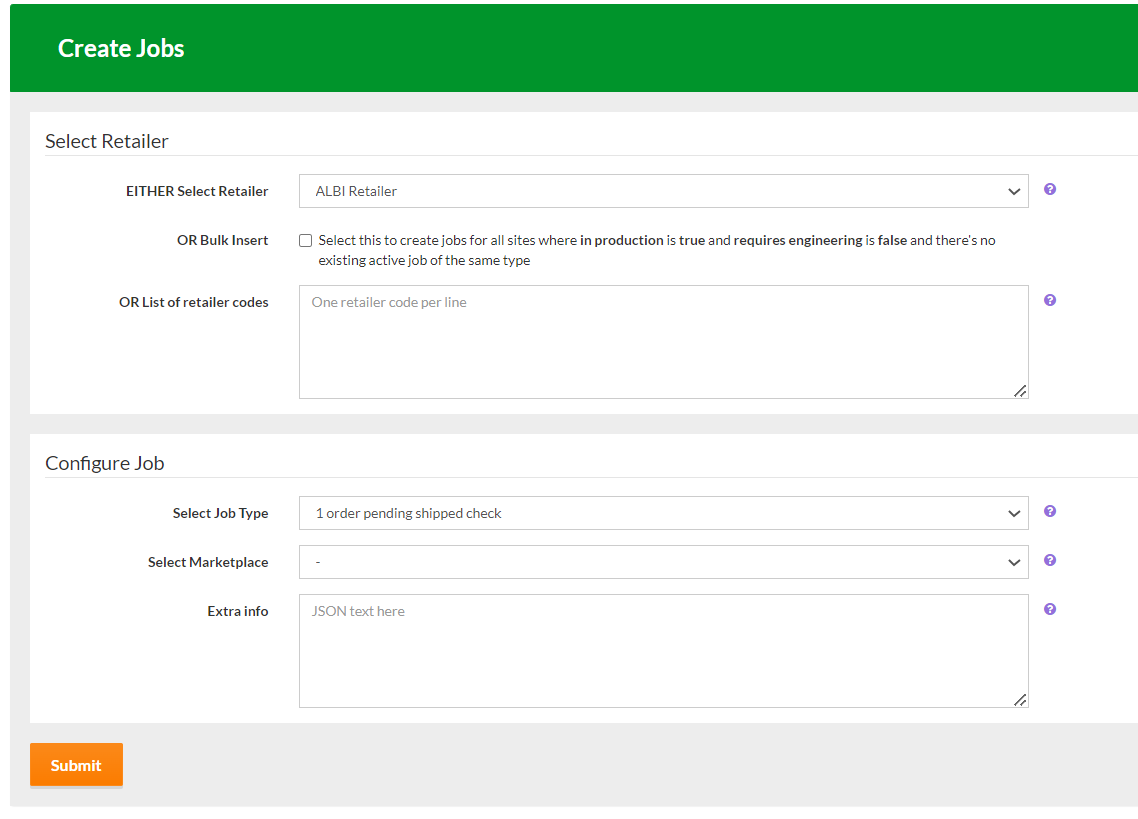
6. Once the tracking and shipped details appear in Omnivore, it flows back to the marketplace and is visible on their end.
Troubleshooting technical/dev issues
relevant links to creating DF tickets to be added tbc
How to add a Trello card to our planning trello tbc
Contacts for different marketplaces tech support
After Onboarding is complete
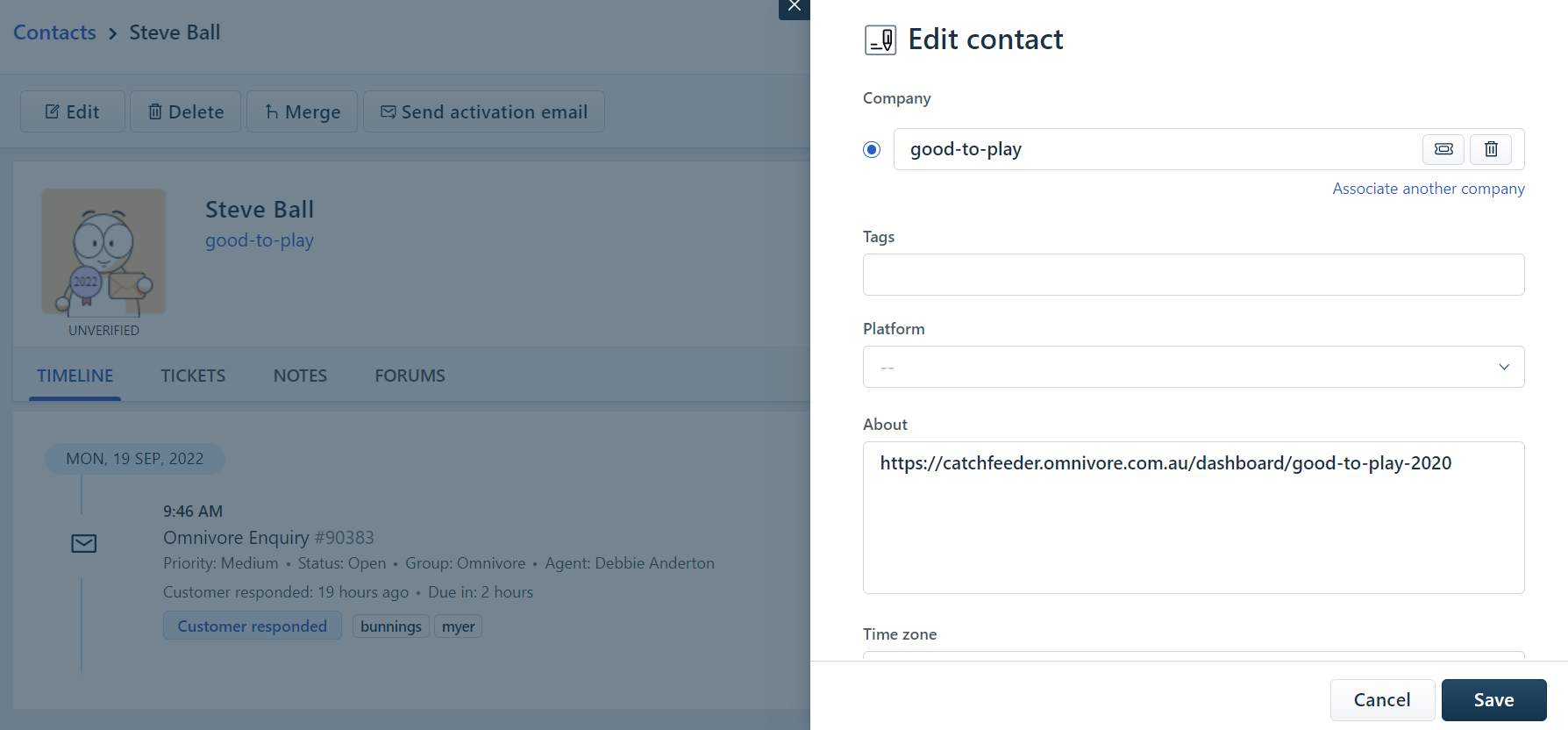
- Remember to go into Freshdesk and remove "Onboarding' from the company details. Find the company, edit and change Account Tier to -- . If you do not find a company, go to the contact > edit > add company details. Then, link any additional contacts to the same company. Add Company Name = Omnivore Dashboard name (ie., name at the end of the URL). Add Omnivore dashboard URL under the 'Address' tab under each of the contacts.
- Invoice the retailer following instructions here https://support.omnivore.com.au/support/solutions/articles/17000121299
- Follow up with the retailer in 3 weeks to see if they are happy and request a review if relevant. When hubspot is integrated this will be automated but for now, add a reminder to your calendar to manually do this