
TABLE OF CONTENTS
- Overview
- What Is a Size System?
- Option 1: Set Size System at the Account Level
- Option 2: Set Size System at the Product Level
Overview
Onceit requires every product listing to include a Size System value (based on country sizing standards) before it will accept your products. You can set this value either for your whole account or individually for specific products in Omnivore.
What Is a Size System?
The Size System tells Onceit which country’s sizing rules your products use (e.g., AU, NZ, UK, US, International). It helps ensure size information is interpreted correctly on the marketplace.
Option 1: Set Size System at the Account Level
This applies the same size system to all products by default.
In Omnivore, go to Settings → Onceit → General.
Scroll to the Size System field.
Choose the appropriate option from the dropdown (e.g., AU, NZ, UK, US, International).
Click Update to save.
Go to your Dashboard and click Upload to Onceit Marketplace to push the setting live.
Option 2: Set Size System at the Product Level
Use this if some products need a different size system from your default.
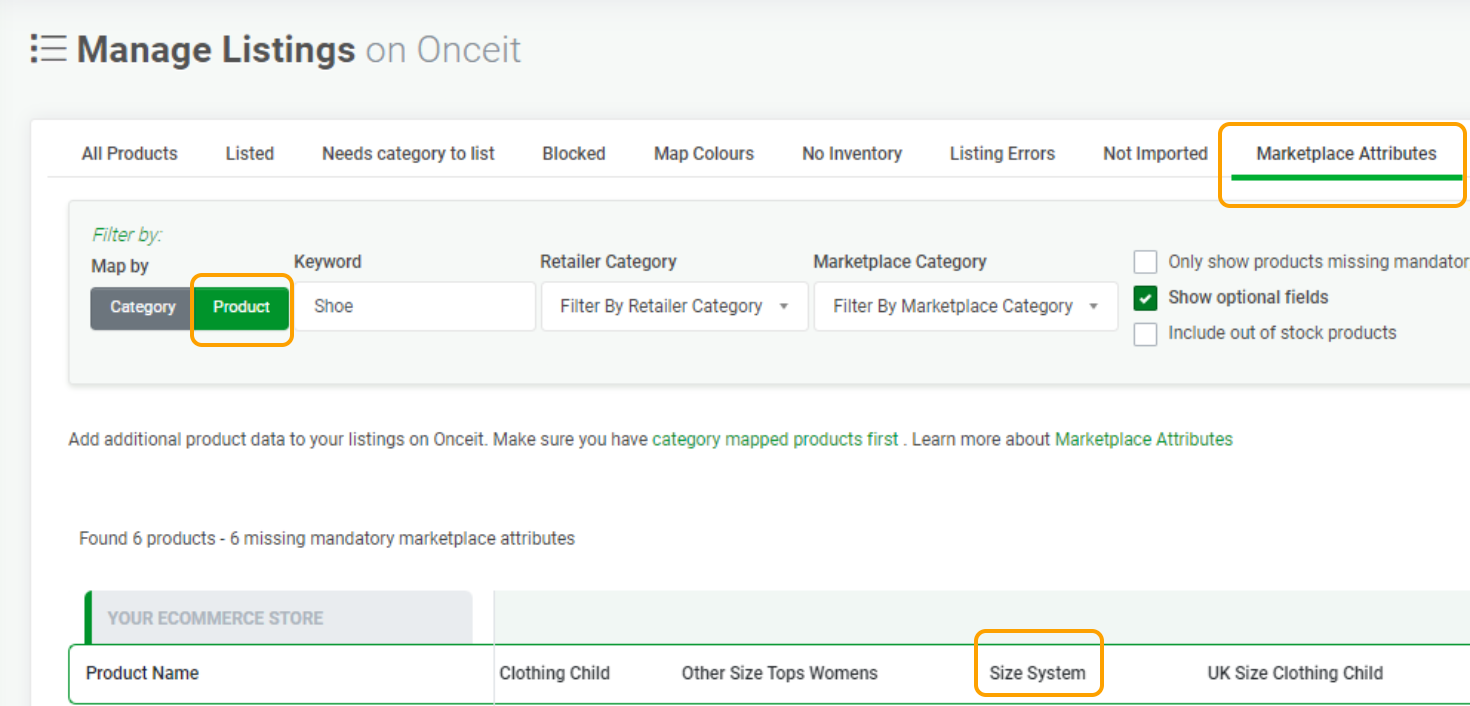
In Omnivore, go to Products → On Onceit → Marketplace Attributes.
Find the products you want to update.
Scroll until you see the Size System column.
Select the correct size system from the dropdown for each product.
Save your changes — these individual settings will override the account default for those products.
That’s it! Once set, the Size System value will be included in your product feed to Onceit and help ensure your sizing displays correctly on the marketplace.