
TABLE OF CONTENTS
- Overview
- Why You Need a Colour Attribute
- Option 1: Add Colour Attributes Manually in Omnivore
- Option 2: Add Colour Attributes via CSV
Overview
Some Onceit categories require colour information for products. If your items don’t include a colour attribute, they won’t list on Onceit. This guide shows two ways to add the colour attribute using Omnivore.
Why You Need a Colour Attribute
If you see an error like:
validation error = 1000|The attribute 'colour' (Colour) is required,1000|The attribute 'colour_group' (Colour Group) is required
it means that Onceit expects colour and colour group data before your products can be listed.
Your products will not list until this is provided.
Option 1: Add Colour Attributes Manually in Omnivore
Login to Omnivore
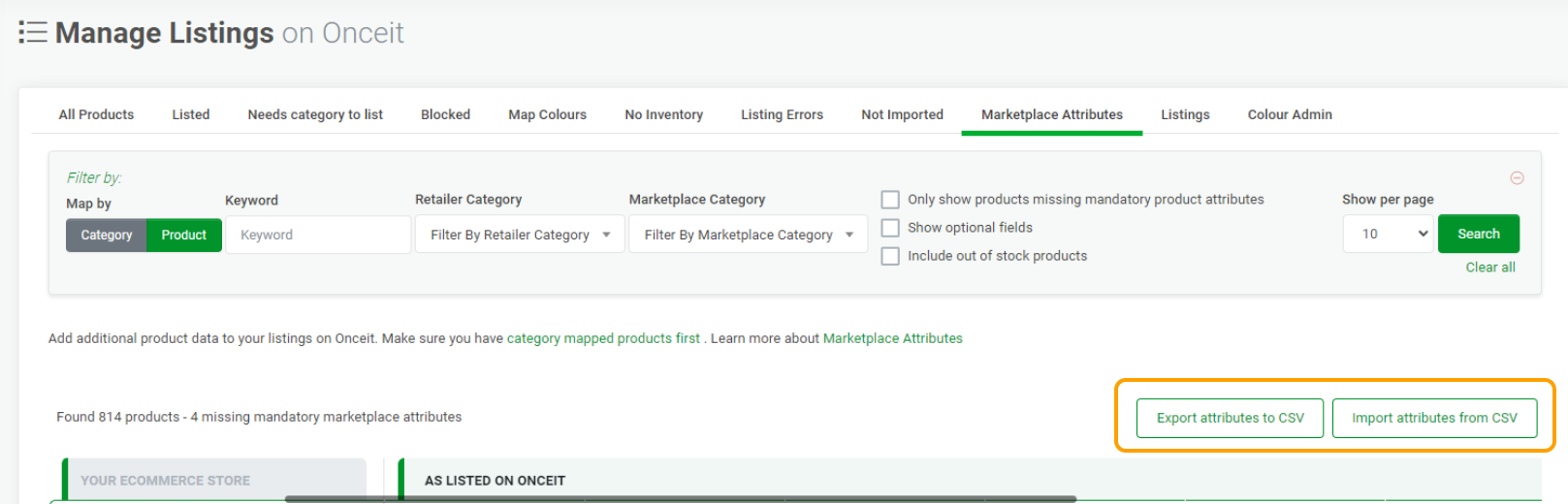
Go to Products → On Onceit.
Click the Marketplace Attributes tab.
Under the Map By filter on the left-hand side, click Product.
You will now see a list of products with the Colour and Colour Group attribute columns.
Enter the product’s Colour and choose a Colour Group from the dropdown.
Colour is free text.
Colour Group must be selected from the available options.
After you’ve entered data for the products you want to update, go to the Dashboard, open the Onceit tab, and click Upload to Onceit to send the updates to the marketplace.

Option 2: Add Colour Attributes via CSV
If you have many products, you can update colour attributes in bulk using a CSV file.
Login to Omnivore.
Go to Products → On Onceit.
Click the Marketplace Attributes tab.
Click Export attributes to CSV to generate a file with your existing product and attribute data.
Open the file.
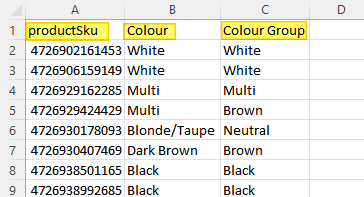
Edit the CSV to add or update the Colour and Colour Group values for each product.
- Ensure the column headings are exactly productSku, Colour, Colour Group (case sensitive).
If starting a new file, include only those three headings.
For Shopify or BigCommerce stores, productSku is the platform’s internal product ID, not your store’s SKU.
Delete the first two columns titled "Delete from Import" before saving your CSV file.
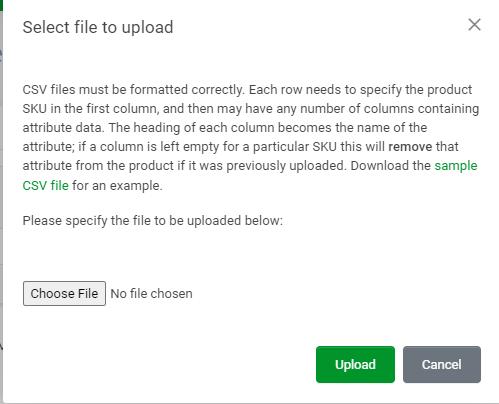
Go back to Omnivore and use the Import attributes from CSV on the Marketplace Attributes screen to upload your file.
After uploading, the Marketplace Attributes tab returns to the standard view.
Use the search box to confirm the new values are applied.
Your next scheduled feed will send the changes to Onceit, or you can go to the Dashboard → Onceit tab and click Upload to Onceit to update immediately.
Once the colour and colour group attributes are added and uploaded, the listing error will clear, and your products will list with correct colour data on Onceit.