
TABLE OF CONTENTS
Overview
This FAQ explains how and what products you can import from Shopify.
You can import products from Shopify into Omnivore, even if they are hidden from your Shopify storefront.
This allows you to sell items on marketplaces without listing them on your own store, such as end-of-line stock, past-season products, or exclusive marketplace items.
Import Options:
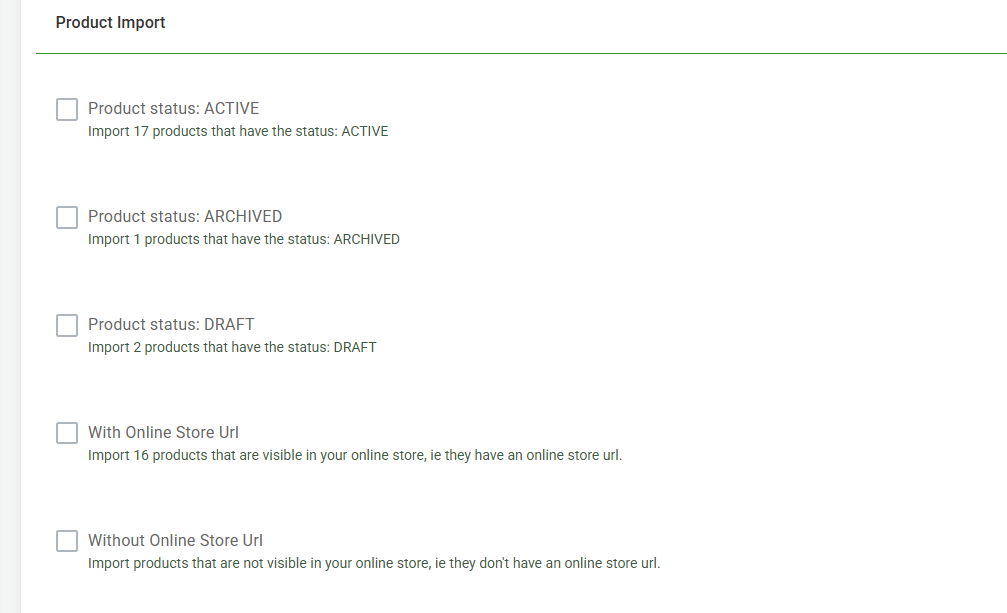
By following these steps, you can effectively manage and sell products on marketplaces without displaying them on your Shopify storefront.
Setup guide
To check a your Product Import Settings in Omnivore, follow these steps:
- In your Shopify Store admin panel, navigate to the Apps section.
- Select Omnivore to launch the application.
- In Omnivore, go to Settings - Shopify Feed - General
- Scroll down a little to see the Product Import section.
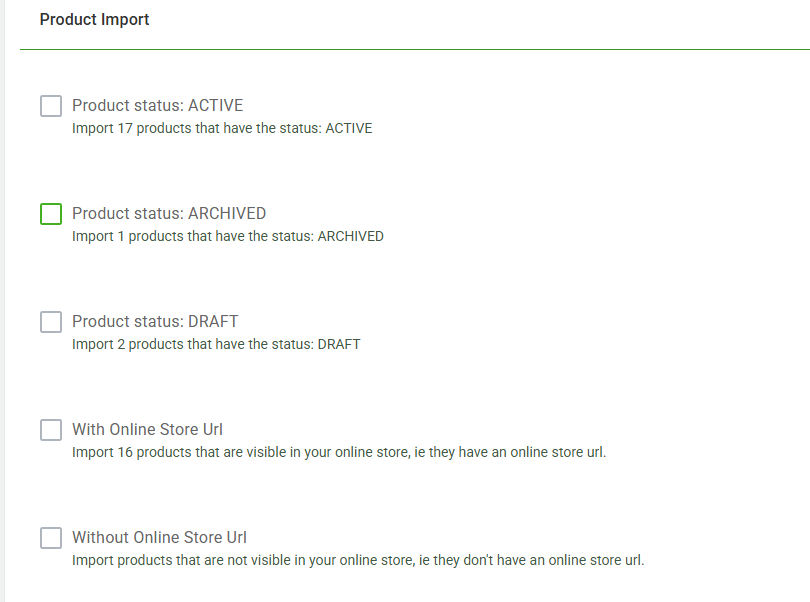
- By Default nothing will be ticked, therefore we will import Visible Active Products.
- Based on what you want Imported from Shopify tick the relevant setting/s then click Update to save your changes.
- From the Omnivore Dashboard click Import from Shopify.
- The newly import products will need to be assigned to a Marketplace Category.
- Once they are category mapped they will be listed on the Marketplace.
- The status of the products in Shopify will remain unchanged.
Please Note
There is a setting in Omnivore under Settings - Administration - Product Import:

This is ticked by default and will remain so even after you make changes on the Shopify Config page explained in the setup steps.
