
TABLE OF CONTENTS
- Overview
- How To Add Subtitles To All Your Products
- How To Add Subtitles To A Group of Products
- Metafield Usage
- Important Note On Fees
Overview
This article explains how to add subtitles to your Trade Me listings. You can apply subtitles to all products or to a specific group of products using a Product Action.
How To Add Subtitles To All Your Products
To add the same subtitle to all of your Trade Me listings:
From the left-hand navigation, go to Settings → Trade Me → General.
Enter the subtitle you want to appear on all Trade Me listings in the Product Subtitle field.
This field accepts free text only.
Metafield tags cannot be used when applying subtitles using this method.
Example subtitle (text only): “All items shipped within 1 day”
Click Update settings.
Return to the Dashboard and click Upload to Trade Me to apply the subtitle to your listings.

How To Add Subtitles To A Group of Products
If you want to apply subtitles to only a group of products, you must use a Custom Subtitle Product Action.
Setup Steps
Ensure you have already created a Product Group, as the Product Action requires one.
Navigate to Products → Product Actions.
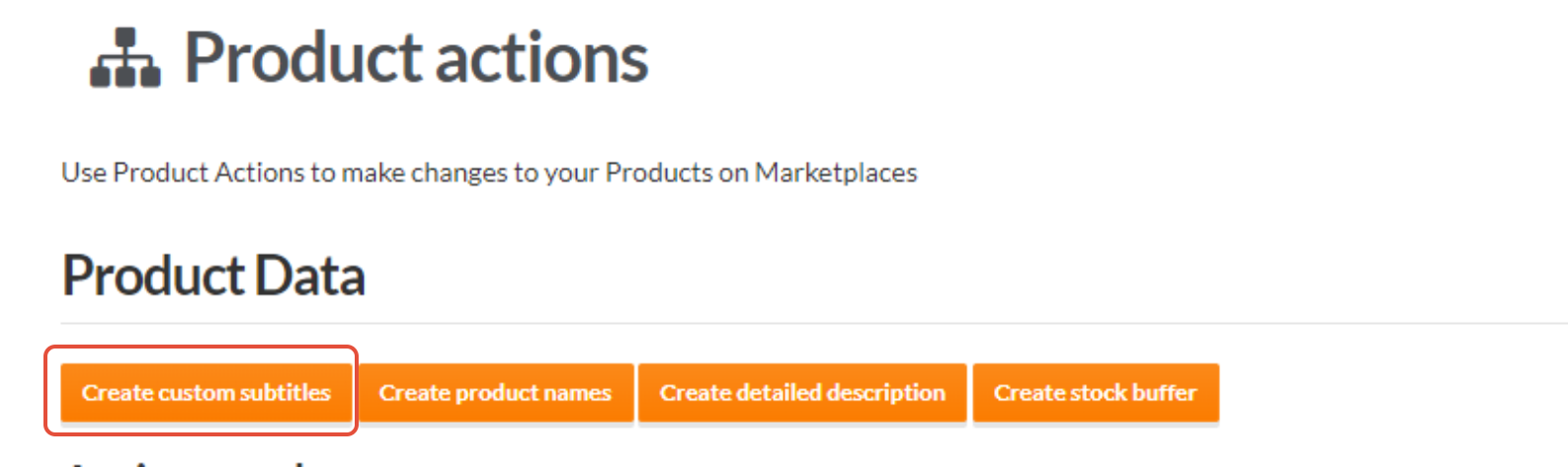
Click Create Custom Subtitles.
Configure the Product Action using your Product Group.
When using a Product Action:
The subtitle can be entered as free text, or
You can use a metafield attribute.
Metafield Usage
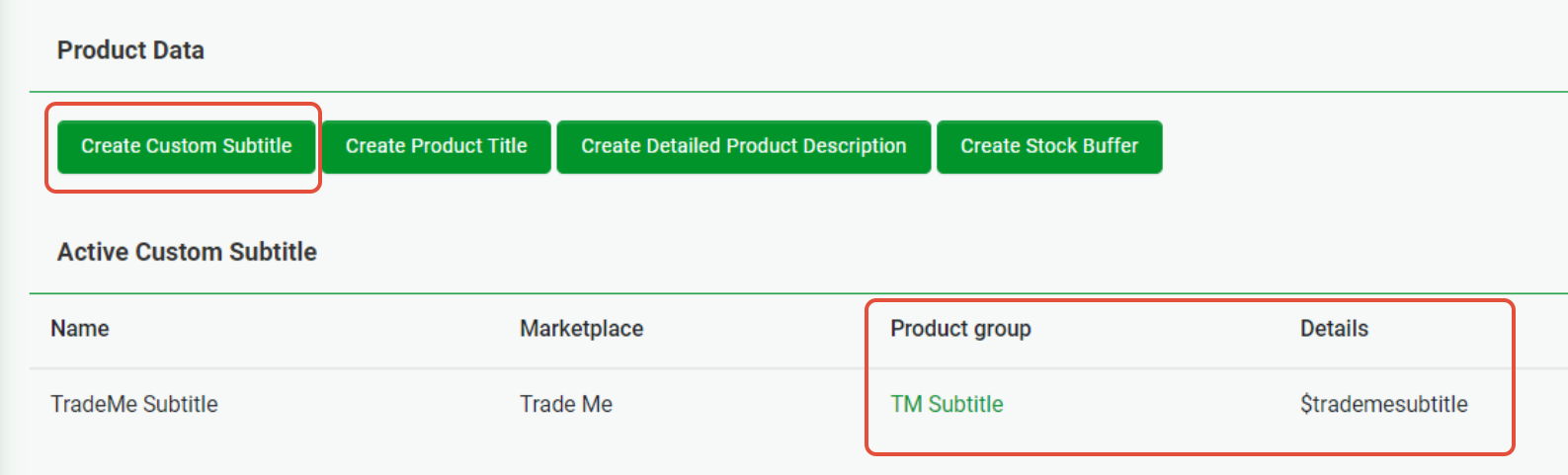
If you choose to use a metafield, the example screen capture below shows how a metafield can be selected and applied.
For more information, see Shopify Metafields.
Important Note On Fees
There is a charge for subtitles.
See Trade Me for more details Optional Extras