
TABLE OF CONTENTS
- Refunding Orders: Important Information
- Correct Refund Process
- How to Cancel and Refund an Order in Trade Me
- Important notes about Trade Me refunds
- Orders older than 45 days
- How to Mark an Order as Refunded in Omnivore
- Key Takeaways
Refunding Orders: Important Information
Marking an order as Refunded in Omnivore does not refund the buyer in Trade Me or in your eCommerce store. Refunds must always be initiated directly in Trade Me.
The “Mark as Refunded” action in Omnivore only:
Stops further updates to the order in Omnivore
Prevents any further syncing with your eCommerce platform
Prevents updates from being sent to Trade Me
Similarly, cancelling or refunding an order only in your eCommerce platform does not refund the buyer. The refund must be completed in Trade Me.
Correct Refund Process
To ensure the order is fully refunded and all systems remain in sync, follow these steps in order:
Cancel and refund the order in Trade Me
Cancel the order in your eCommerce store
Mark the order as Refunded in Omnivore
Shopify sellers: If you cancel the order in Shopify, Omnivore will automatically mark the order as refunded. This automation is not available for other eCommerce platforms.
How to Cancel and Refund an Order in Trade Me
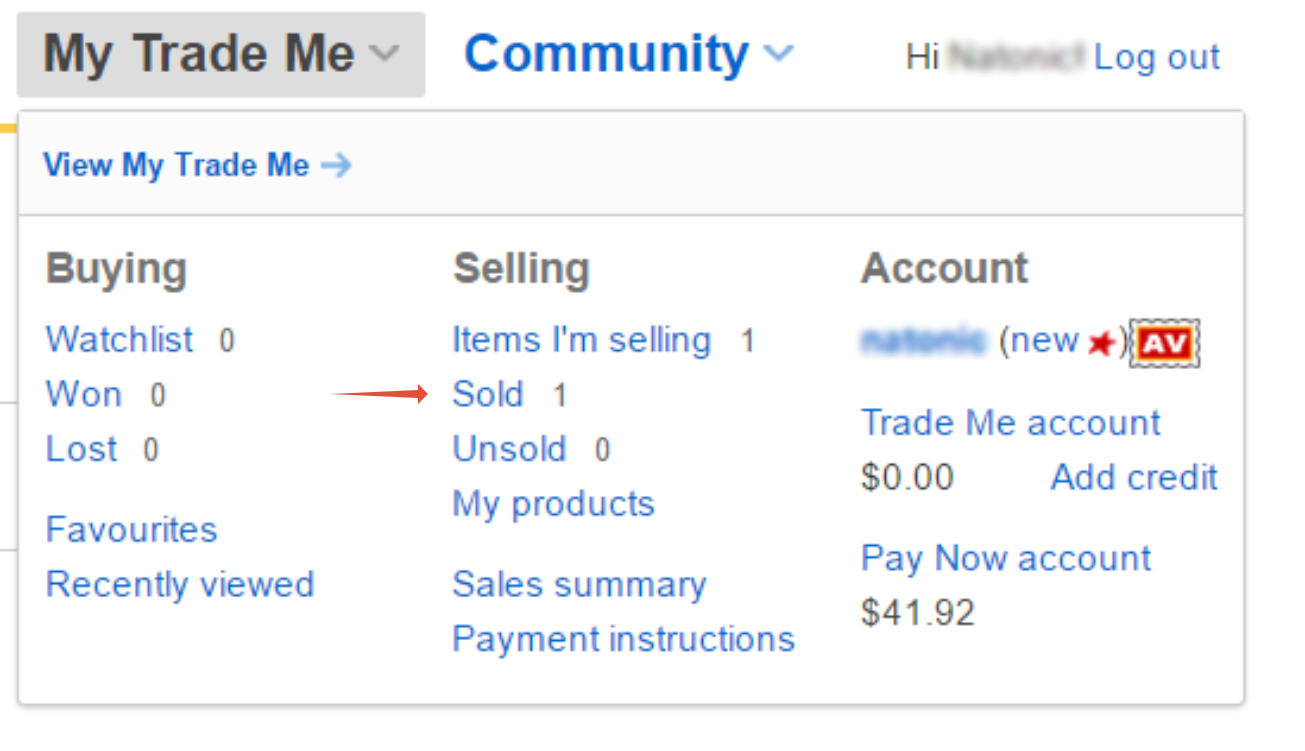
Go to My Trade Me
Select Sold
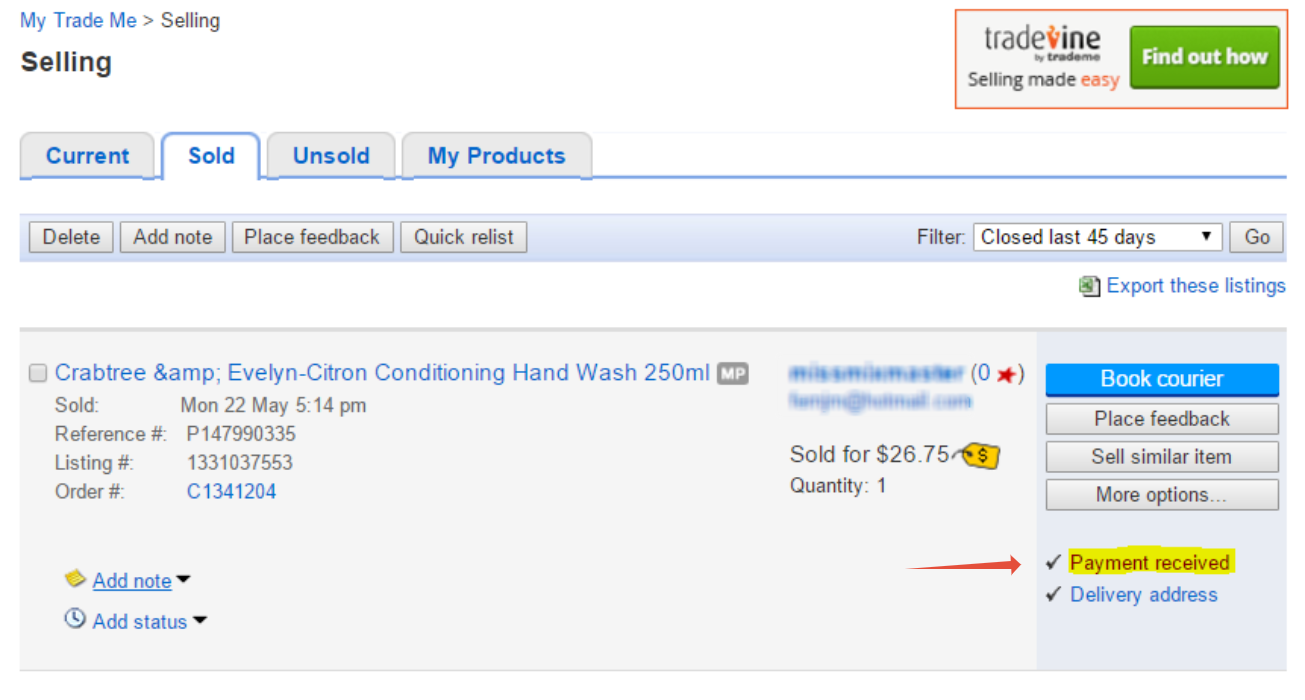
Click Payment received for the relevant order
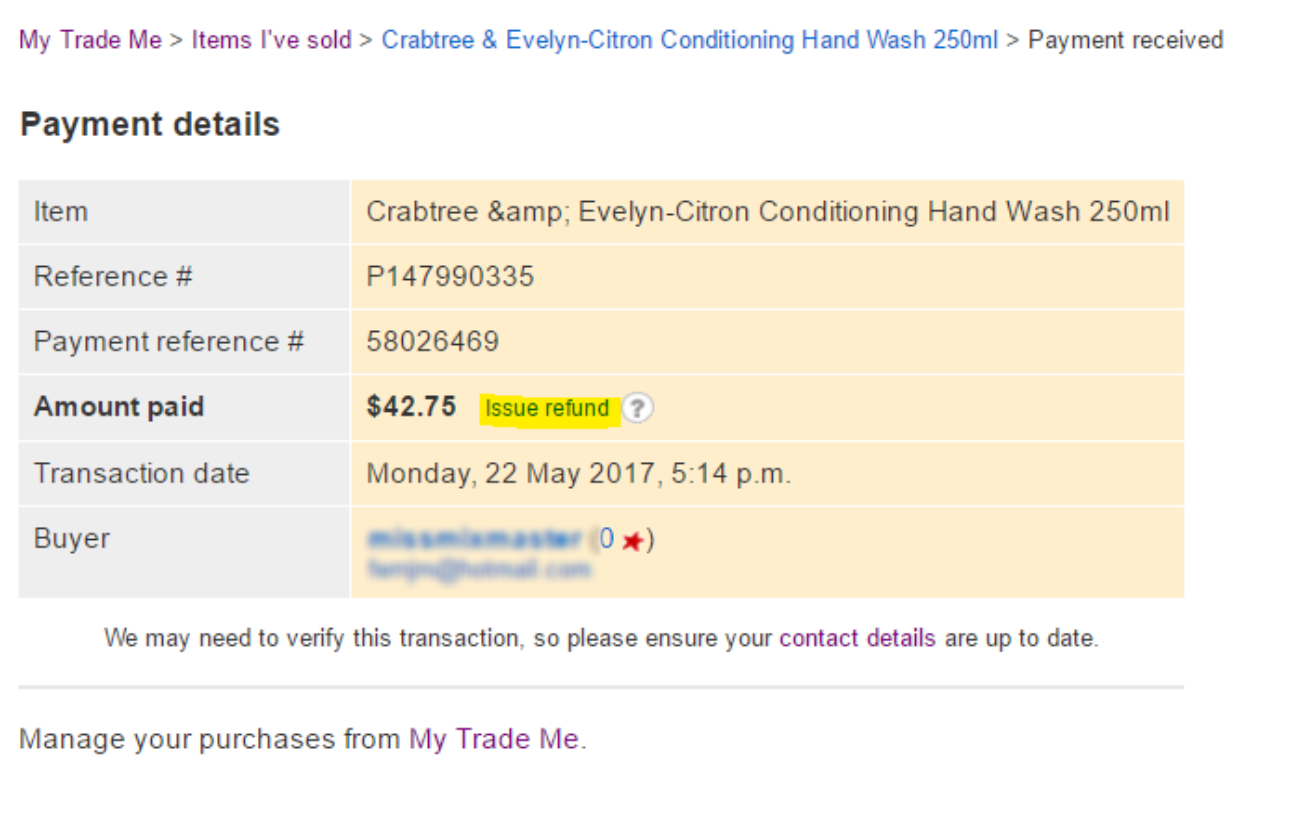
Click Issue refund
Important notes about Trade Me refunds
Only one refund can be processed per transaction (either full or partial).
If a transaction has already been partially refunded and a further refund is required, your Trade Me Account Manager will arrange for Customer Service to contact the buyer and collect bank details.
Refunds are then processed from the seller’s Pay Now account.
Orders older than 45 days
Transactions older than 45 days will not appear in your Trade Me account history.
These refunds must be handled by Trade Me Customer Service or your Account Manager, as they still exist within Trade Me’s system.
How to Mark an Order as Refunded in Omnivore
Log in to Omnivore
Go to Orders from the left-hand menu
Open the relevant order
Click Mark as refunded
Shopify sellers: This step is not required if the order has already been cancelled in Shopify.
Key Takeaways
Refunds must always start in Trade Me
Omnivore does not process buyer refunds
Cancelling an order in your eCommerce platform alone will not refund the buyer
Marking an order as refunded in Omnivore simply stops further syncing
Following the correct sequence ensures accurate records across Trade Me, Omnivore, and your eCommerce platform.