
How Omnivore can handle Iconic Descriptions and Images
- Retailer does not use Omnivore to provide Descriptions or Images
- Retailer provides separate "Iconic Description" and Html image links via Magento/WooCommerce website attributes or Shopify metafields
Iconic Images Requirements
The Iconic has very specific image requirements and almost always a retailer's website images will not be able to be used.
For example, images must be exactly 1600 (w) x 2000 (h) px, 300 dpi and less than 2MB.
Backgrounds must be Grey with a RGB value of 230.230.230
There is no leeway with this and a number of other requirements re retouching etc.
More info is here: https://sellercenter.theiconic.com.au/academy_img_guide
Iconic Product Descriptions
The Iconic also has very specific description requirements, down to line spacing, ordering of content, placement and bolding of brand name, etc. This also means that a retailer almost always cannot use their standard website description field to list on the Iconic.
Note: The Iconic can offer as part of the seller contract to write descriptions and edit/create images. This is reflected in the fee structure so not all retailers will be offered or will use this option.
More information about the Iconic Content Guidelines are here https://sellercenter.theiconic.com.au/academy_ct
How Omnivore can handle Iconic Descriptions and Images
There are two options on how to handle these, the retailer provides us with a separate "Iconic Description" and separate html image links via website attributes or metafields, or we can choose not to send a description or images to the Iconic.
1. Retailer does not use Omnivore to provide Descriptions or Images
In this scenario, the Iconic generally asks for a one-time push of the retailer's website description so that they can edit the description directly in the Iconic to suit their strict requirements. The Iconic do not want the description to be sent again and they do not want images to be sent at all.
If a retailer asks for this, at some point before hitting "Start Selling", in Omnivore go to Settings->The Iconic->General and in the Your Products section check the checkbox next to Do not send descriptions and images to The Iconic then hit Update Settings

This checkbox sends the description in the first upload ONLY
2. Retailer provides separate "Iconic Description" and Html image links via Magento/WooCommerce website attributes or Shopify metafields
Shopify Metafields Solution
Link to article on how to create and map Shopify metafields (when published this can be shared with retailers)
The retailer must create the following Shopify metafields:
- Iconic Description
- Parent Image metafield
- Variant Image metafields
Things to note:
The image Shopify metafields have to be added to all products that retailer wants to list to the Iconic
If the retailer is a mulitple marketplace Omnivore and want to use this solution they will need to have a new dedicated Omnivore instance created as the image and description changes will affect all marketplaces.
Only one image URL can be added to each metafield, they cannot have multiple images in the one metafield.
This article explains to a retailer how they can host their images directly in Shopify if they do not have hosting elsewhere. Note: Dropbox etc will not work for image hosting https://support.omnivore.com.au/host-images-on-shopify-and-retrieve-image-urls
Shopify Iconic description metafield is mapped to the description Omnivore Data field
Shopify Parent product images should be mapped to the additional imagesOmnviore Data field
Shopify variant image metafields are mapped to the additional variant images Omnviore Data field
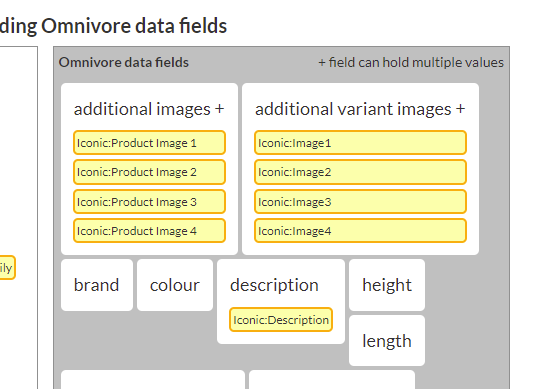
Once the Image metafields have been mapped to Omnivore the next step is to exclude all the existing Shopify images. This is why a retailer must have Image and description metafields for every product they want to list to the Iconic:
In Omnivore go to Settings-> Shopify Feed ->General
Scroll to the Products Import section
Tick the Ignore Product Images as per screenshot
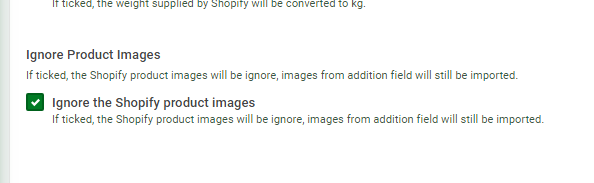
Hit Update
Magento/Woo attributes solution
This will be the same process as above but using Magento/Woo product attributes.
Note: Image attributes at a variation level have not yet been set up as we have not yet had a retailer use them. Please consult Ivan