
TABLE OF CONTENTS
- Overview
- Product-Level Attribute Mapping
- Show / Hide Trade Me Attributes
- Summary Video Showing Product-Level Attribute Mapping
- Category-Level Attribute Mapping
- Summary Video Showing Category-Level Attribute Mapping
- Viewing Attributes on the Product Page
- How Attributes Appear on Trade Me
Overview
You can enhance your Trade Me listings by adding product attributes through Omnivore. Adding attributes provides two key benefits:
Improved search results using Search Filters
Providing additional attribute data allows Trade Me to return more specific search results, helping buyers find products more quickly.Better product information for buyers
Additional attribute data is added to the description area of your Trade Me listings, helping buyers make informed purchase decisions.
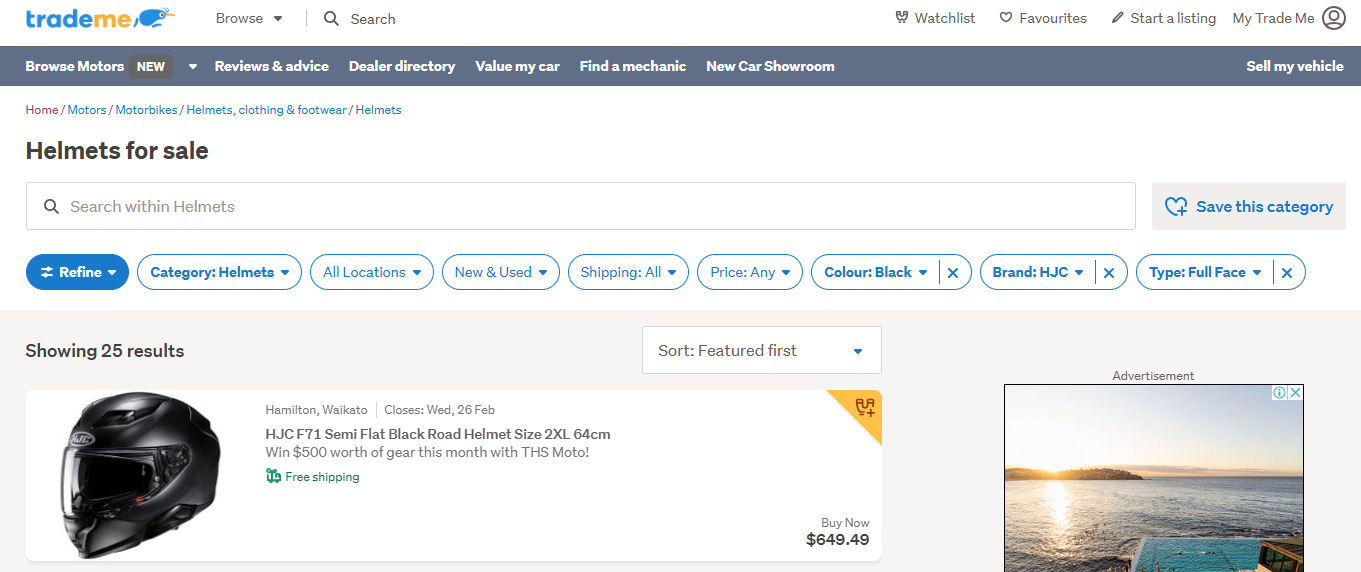
NB: Listings on Trade Me Motors do not display product content on the listing itself. For these listings, attributes are used only for Search Filters e.g. the attributes Colour, Brand, and Type were selected for this product, but they do not appear on the product listing.
Summary and Key Points
- Trade Me product attributes are set at the Trade Me category level. For example, the category:
Home → Marketplace → Antiques & Collectables → Movie & TV Memorabilia → Trading Cards has specific attribute types that can be assigned values.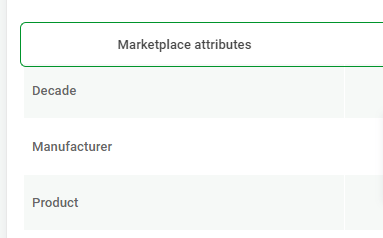
- Products must be mapped to a Trade Me category. If that category supports attributes (not all categories do), it will appear in Omnivore under the Marketplace Attributes tab.
- If you cannot see any categories on this tab, your products may not be mapped to a Trade Me category that supports attribute data.
- Attributes can be applied:
To a single product (Product-level mapping)
To a store category (Category-level mapping)
- Category-level attribute mapping can be applied at the same time as product-level mapping. If a product has both:
The product-level attribute value will take priority for that specific product.
- Attribute changes are saved and displayed instantly in Omnivore. However, you must run an upload feed to Trade Me from the Dashboard for changes to appear on live listings.
Product-Level Attribute Mapping
Go to Products → Trade Me → Marketplace Attribute.
Under Add Attributes By, select Product.
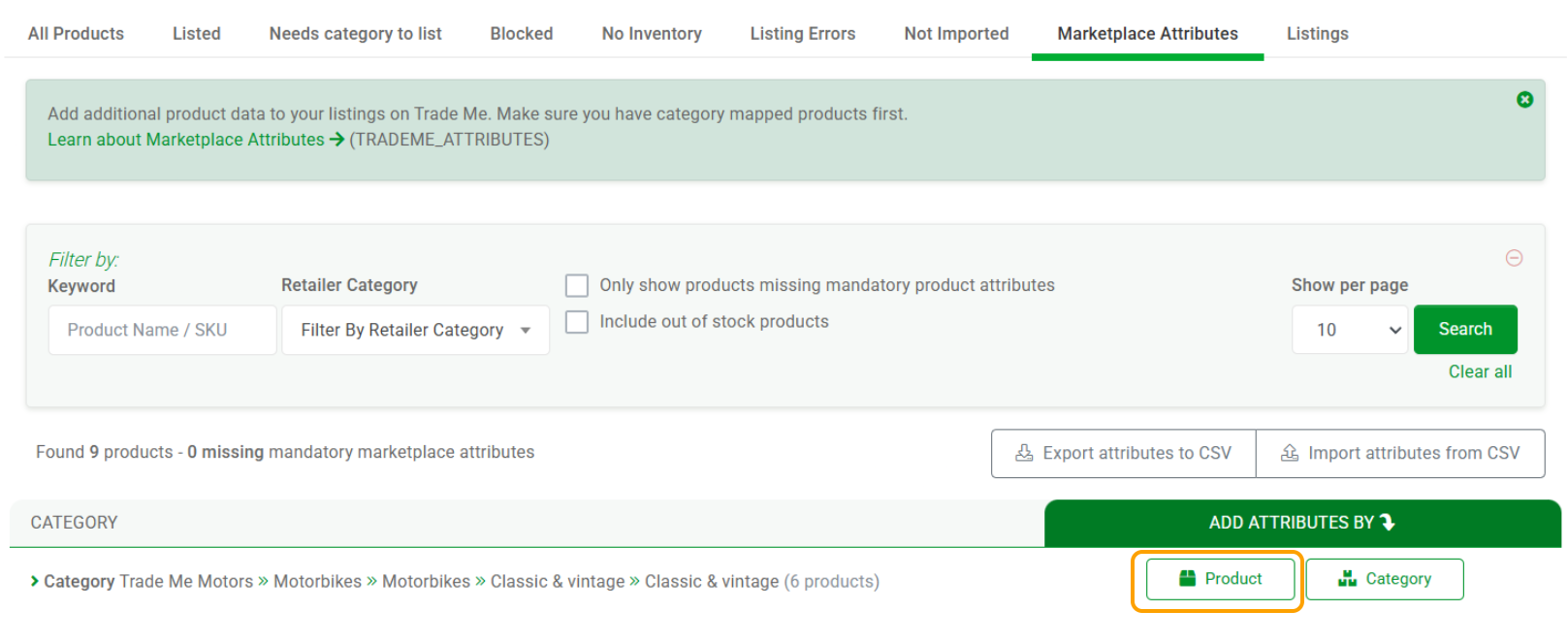
- The screen will update, allowing you to scroll through attributes and set values using the dropdowns.
Once selected, attribute values are saved automatically and will be sent to Trade Me during the next upload feed.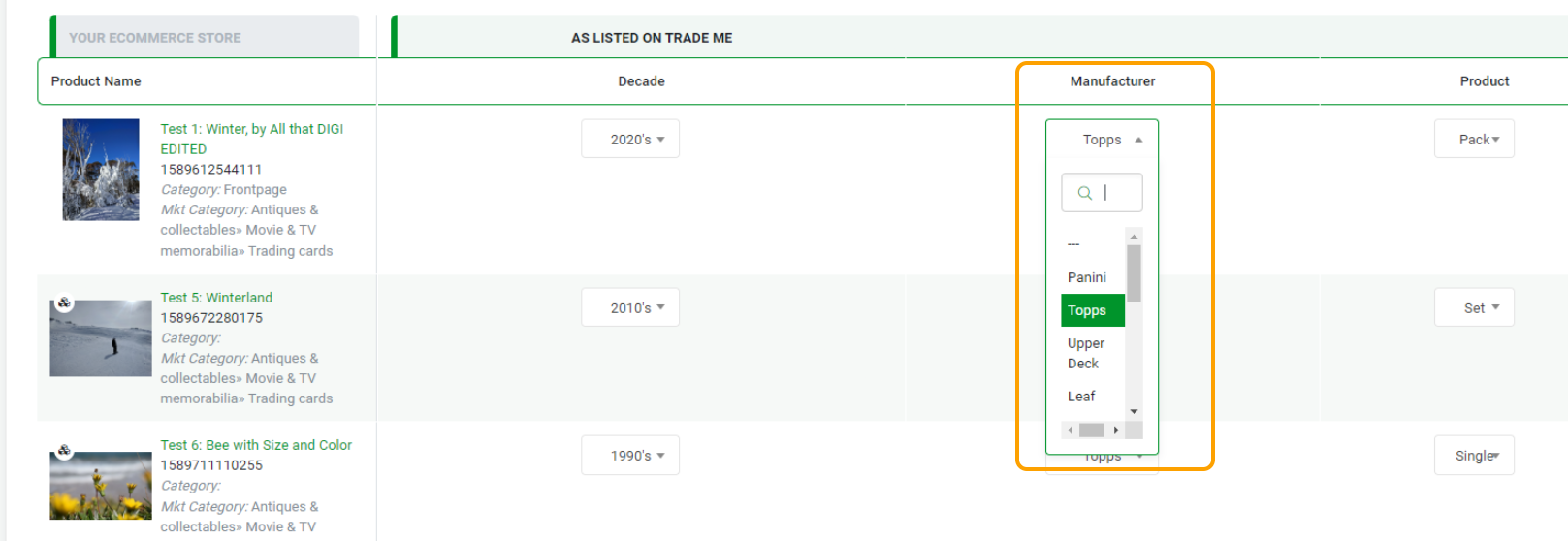
Show / Hide Trade Me Attributes
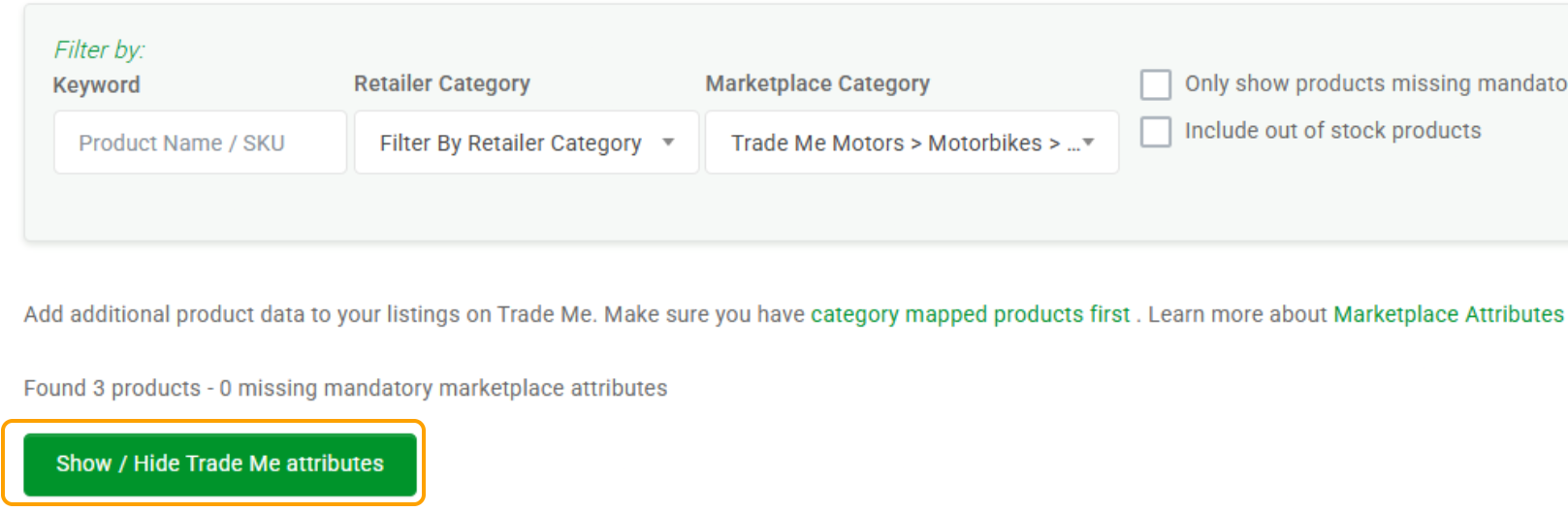
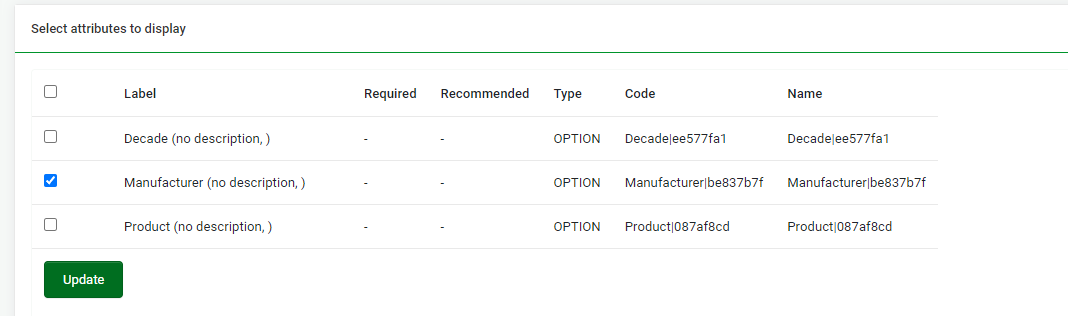
Use the Show / Hide Trade Me Attributes (green button) to control which attributes are visible in the search screen.
This is useful if there are many attributes and you only want to focus on one or two (e.g. Manufacturer).
Untick unwanted attributes and click Update.
This setting only affects attribute visibility in the search screen.
Summary Video Showing Product-Level Attribute Mapping

Category-Level Attribute Mapping
- Go to Products → Trade Me → Marketplace Attribute.
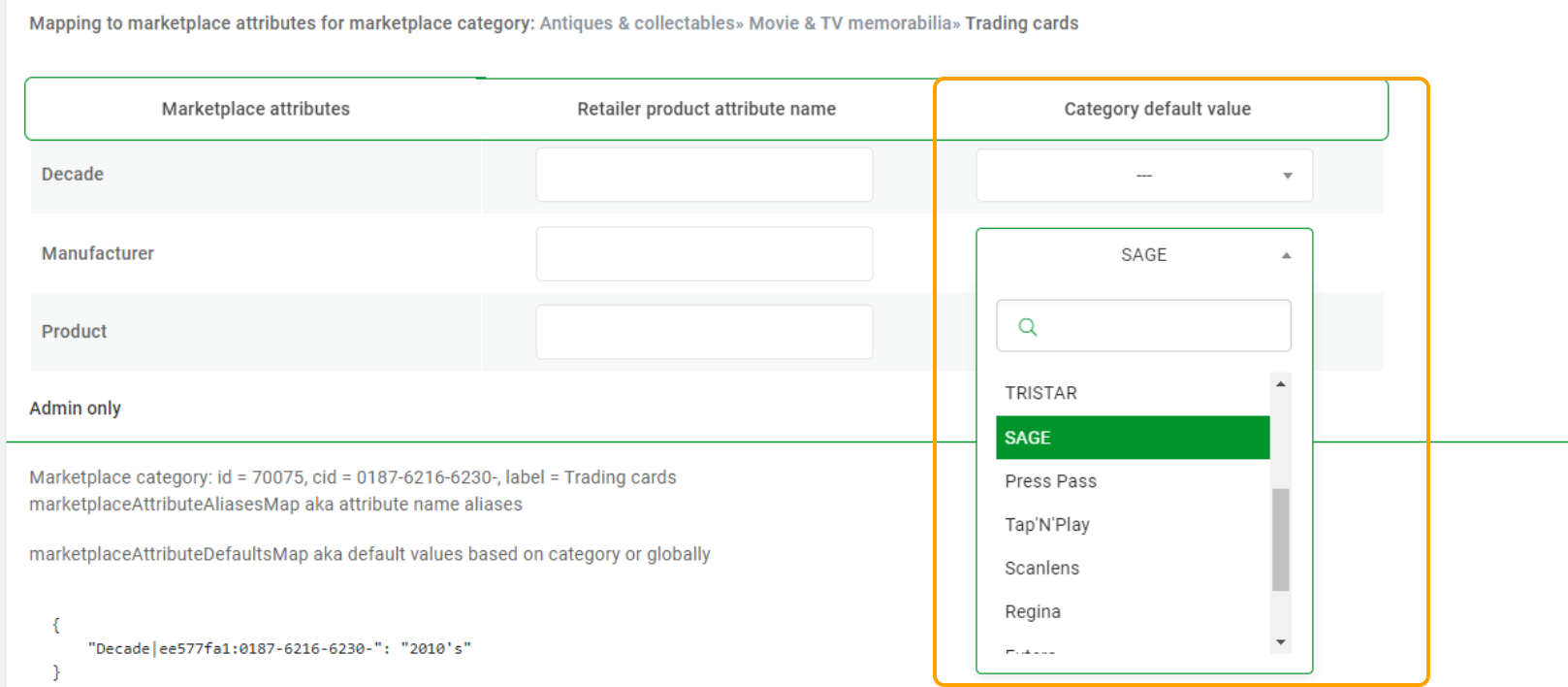
- Under Add Attributes by, select Category.
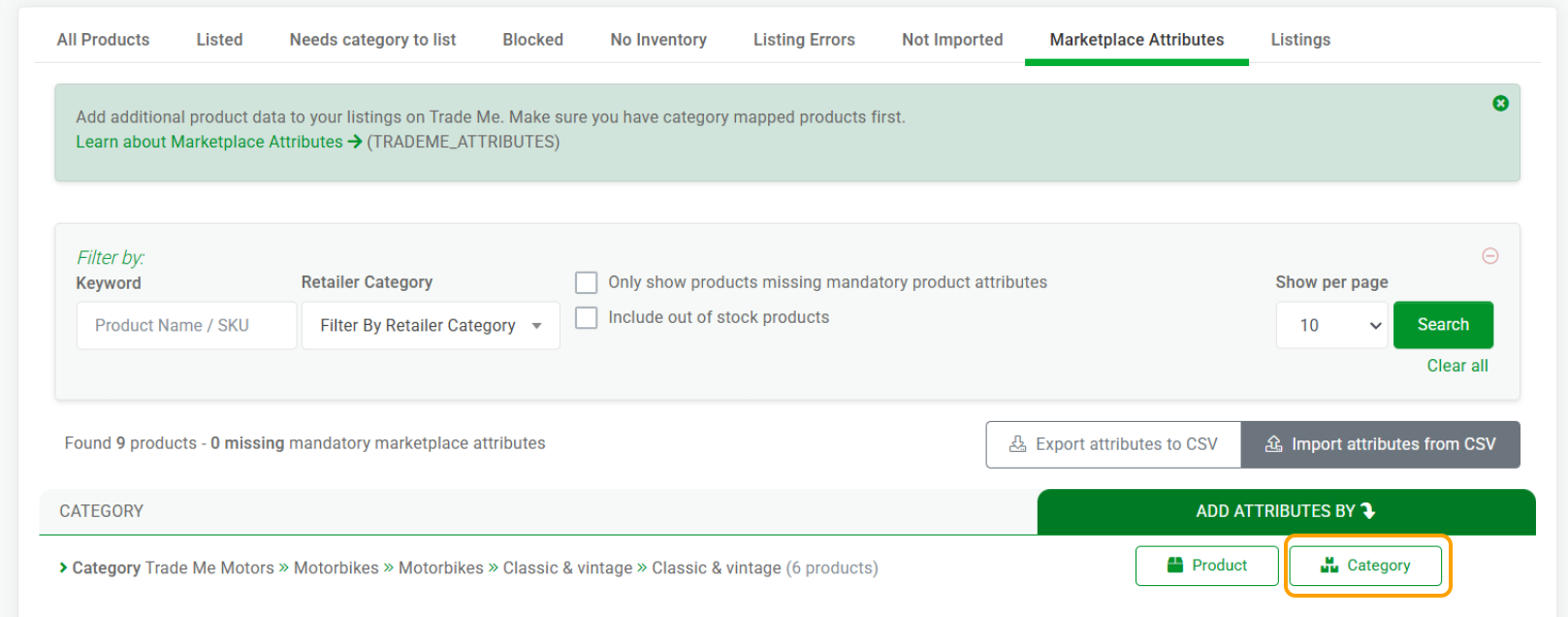
- The screen will update to display category-level mapping options using dropdowns.
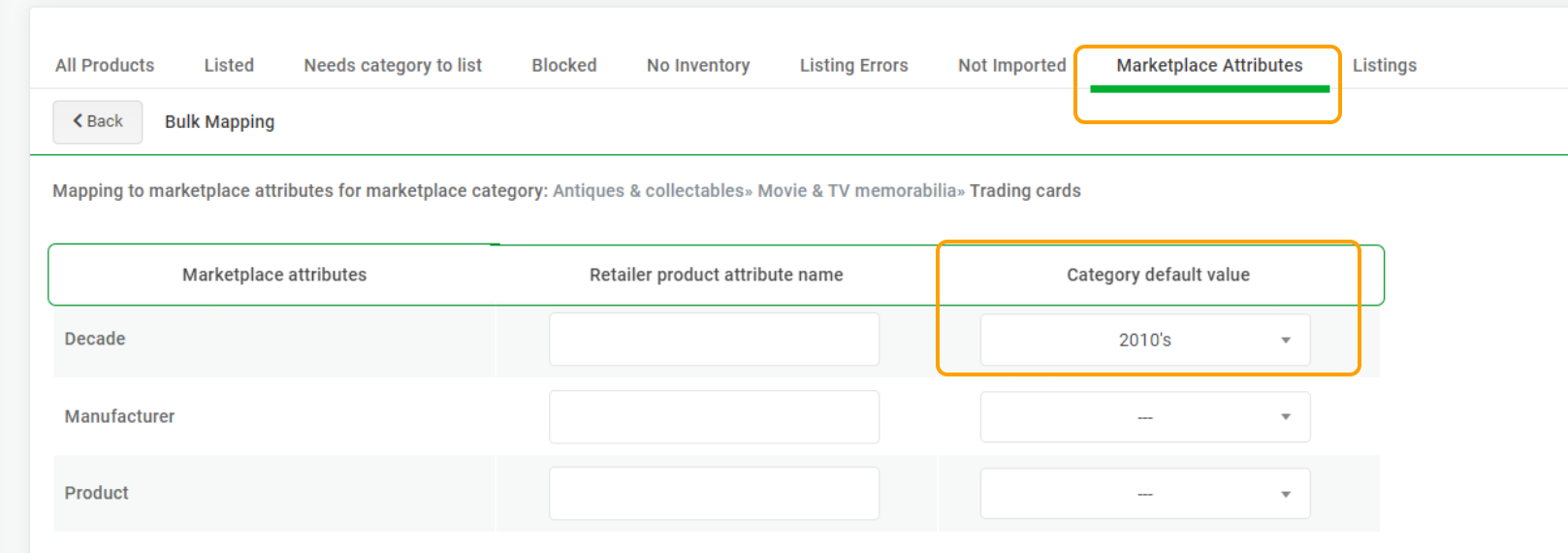
In the example shown below:The attribute Manufacturer will be bulk-mapped to SAGE
This is based on the category:
Antiques & Collectables → Movie & TV Memorabilia → Trading Cards- If you have imported custom attributes, you can use the first column to map those attributes.
Summary Video Showing Category-Level Attribute Mapping

Viewing Attributes on the Product Page
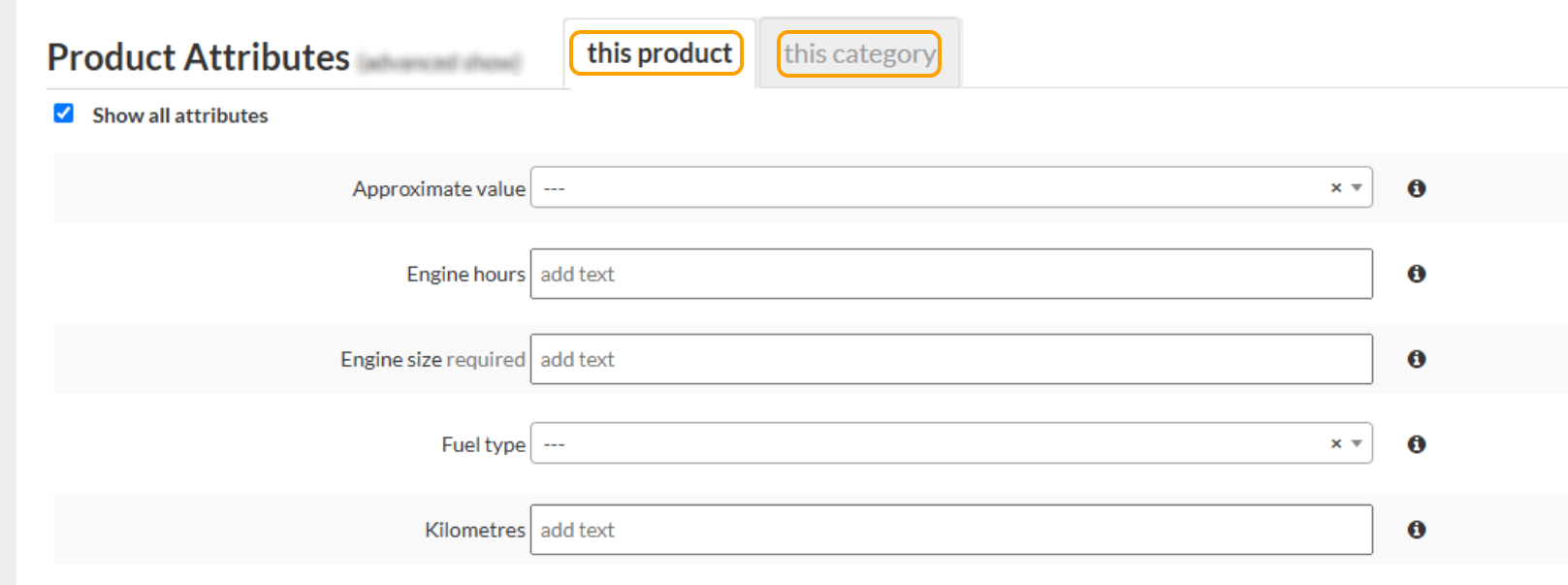
Any attributes set at a product or category level will also appear on the product page in Omnivore under Trade Me Product View → Product Attributes (tick Show all attributes).
From the product page, you can also assign attributes at both:
Product level
Category level
Setting category-level attributes on a product page will apply those attributes to all products within that category, even though the change is made from an individual product page.
NOTE: If a product has attributes set at the product level, those values will take priority over category-level mappings for that specific product.
How Attributes Appear on Trade Me
Attributes will be displayed in the Details section of the Trade Me listing.
