
Amazon uses two important identifiers for product listings: the ASIN, which identifies a product in Amazon's catalogue, and the Seller SKU, which identifies your specific listing in Amazon Seller Central.
Omnivore uses ASIN matching to connect your products to the correct Amazon catalogue products or create new listings where required.
Important: If you already have listings in Amazon Seller Central, your existing Amazon Seller SKU must exactly match the Amazon Marketplace SKU in Omnivore. Matching the ASIN alone does not connect Omnivore to your existing seller listing.
Understand ASINs and Seller SKUs
ASIN (Amazon Standard Identification Number)
An ASIN is a unique 10-character identifier assigned to a product in Amazon's catalogue.
- Multiple sellers can sell the same product using the same ASIN.
- Each ASIN represents a specific Amazon catalogue product.
- Product information such as the title, images and description is managed through Amazon's shared catalogue.
Seller SKU
A Seller SKU identifies your individual product listing in your Amazon Seller Central account.
- Each seller manages their own SKUs.
- Your Seller SKU identifies the offer associated with the Amazon product.
- If you're connecting existing Amazon listings through Omnivore, your Amazon Seller SKU must match the Amazon Marketplace SKU in Omnivore exactly.
For example:
| Identifier | Value |
|---|---|
| Amazon ASIN | B0EXAMPLE1 |
| Seller SKU in Amazon Seller Central | ABC123 |
| Amazon Marketplace SKU in Omnivore | ABC123 |
In this example, the SKUs match.
If Omnivore sends ABC123-AU instead, Amazon will treat it as a different seller SKU, even if both SKUs reference the same ASIN.
Before You Start: Do You Already Have Amazon Listings?
The process depends on whether you already sell the product through your Amazon Seller Central account.
Option 1: You already have this product listed in Amazon Seller Central
You must check that the Seller SKU in Amazon matches your Amazon Marketplace SKU in Omnivore before uploading products.
Follow the next section, Connect Existing Amazon Seller Central Listings.
Option 2: The product exists in Amazon's catalogue, but you don't have a seller listing for it
You can use Omnivore's ASIN matching feature to find and assign the existing Amazon ASIN, then create your seller listing.
Follow Match Products to Existing Amazon ASINs.
Option 3: Your product does not exist in Amazon's catalogue
Omnivore can submit the product to Amazon to create a new catalogue listing, subject to Amazon's product data and approval requirements.
Follow Create New Amazon Listings.
Connect Existing Amazon Seller Central Listings
If you're already selling products directly through Amazon Seller Central, check your existing Seller SKUs before Omnivore starts managing these listings.
What to do
- Log in to Amazon Seller Central.
- Find the existing product in your Amazon inventory and check its Seller SKU.
- In Omnivore, locate the same product for Amazon Australia.
- Check the Amazon Marketplace SKU that Omnivore will send for that product.
- Confirm that both SKU values match exactly.
- Repeat this check for all existing listings you want Omnivore to manage.
Important:
- The SKU must match exactly, including any prefixes, suffixes, hyphens or other characters.
- A matching ASIN does not resolve a Seller SKU mismatch.
- Do not assume your website SKU is the same as your Omnivore Amazon Marketplace SKU.
- Do not upload the product until any SKU mismatch has been resolved.
If the SKUs do not match, contact Omnivore Support before proceeding. Include the existing Amazon Seller SKU, the Omnivore Amazon Marketplace SKU and the ASIN.
Find an Amazon ASIN
If your product already exists in Amazon's catalogue, you can find its ASIN in several ways.
Find an ASIN on Amazon
- Search for the product on Amazon Australia.
- Open the matching product page.
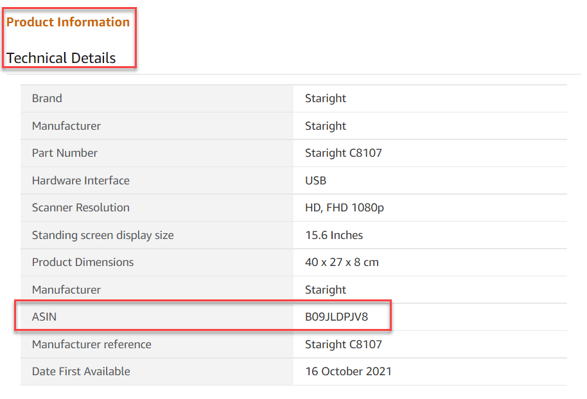
- Locate the ASIN in the product information or product details section.
- Confirm that the product matches yours, including its brand, model, size, colour and other relevant variations.
Find existing ASIN assignments in Omnivore
- In Omnivore, go to Products > Amazon > Manage Listings.
- Click Export CSV.

- Review the exported file to see which product SKUs already have an assigned ASIN.
Important: An ASIN must only be assigned to the corresponding product SKU in Omnivore. Do not assign the same ASIN to different products or variations that should have separate Amazon catalogue records. Incorrect ASIN assignments can cause listing errors or order issues.
Match Products to Existing Amazon ASINs
Omnivore automatically attempts to match products to Amazon's catalogue using their GTIN, such as an EAN or UPC.
Where Amazon already has a matching catalogue product, Omnivore can use its ASIN. You can also search for or manually assign an ASIN when the automatic match is missing or incorrect.
Review and assign ASINs
- In Omnivore, go to Products > Amazon Australia > Create/Manage Listings.
- Review the table of products. Your Omnivore product information appears on the left, with Amazon matching information and available actions on the right.

- Use Search for SKU to find the product you want to review. You can also search using its UPC. You can also use the product checkboxes and Modify Selected Products menu to perform actions in bulk.

- Review any ASIN that Omnivore has automatically matched.
- Open the ASIN link to check the corresponding Amazon product page.
- If the match is correct, click Create Listing where the action is available.

- If no ASIN has been matched, search for the correct ASIN or enter a known ASIN and click Assign.

- Review the result before proceeding.
When might manual ASIN matching be needed?
- Amazon has an incorrect UPC associated with the product.
- Your product's UPC is incorrect or missing.
- You have a UPC exemption and need to match an existing ASIN.
- More than one ASIN is associated with the same UPC.
- The product shows as Not on Amazon, but the correct catalogue ASIN already exists.

Important:
Always check the product details rather than relying only on the image. A similar-looking product may have a different ASIN.
Create New Amazon Listings
If Omnivore cannot find a matching ASIN, the product may need to be submitted as a new Amazon catalogue listing.
What to do
- Go to Products > Amazon Australia > Create/Manage Listings.
- Find the product using Search for SKU.
- Check whether an ASIN has already been assigned or suggested.
- If a correct ASIN exists, use the matching process rather than submitting the product as a new catalogue item.
- If no matching ASIN exists, proceed with the available listing creation process.
- Return to the dashboard and click Upload to Amazon to submit your products.
Creating a listing does not mean the product is immediately available for sale.
Amazon may still need to validate the product information, required attributes, brand details and other listing requirements.
After submission, products may show as pending, inactive or have validation warnings or errors.
Amazon requires approved brand information. If you sell products under your own brand, check Amazon's brand requirements before submitting new catalogue products.
Block Products That Should Not Be Listed
If Omnivore has found an incorrect ASIN, or you cannot identify a valid Amazon catalogue match, you can prevent the product from being listed.
- Go to Products > Amazon Australia > Create/Manage Listings.
- Find the affected product.
- Check the matched ASIN and product details.
- Click the red Block product button to block the product from Amazon.
You can also use the product selection checkboxes and Modify Selected Products menu to apply available actions in bulk.
Do not create a listing against an ASIN that belongs to a different product.
Upload Products to Amazon
Once you have reviewed your ASIN matches and confirmed the Seller SKU requirements for any existing Amazon listings:
- Return to the Omnivore dashboard.
- Click Upload to Amazon.
- Allow Amazon to process and validate the submitted product data.
- Review the product listing statuses and resolve any errors.
Amazon validation may take approximately 2–24 hours depending on the number of products and processing requirements.
Products that have already been matched will continue to appear on the matching page. You do not need to match them again unless the assignment is incorrect.
Check Amazon Listing Statuses and Errors
After uploading products, check their status in Omnivore to determine whether they are available for sale or require further action.
| Status | Meaning |
|---|---|
| Active | Matched, live and available for purchase on Amazon |
| Inactive | Matched and exists in Amazon, but is not currently available for purchase |
| Not on Amazon | Not currently matched or listed on Amazon; may have validation errors |
| Not for Sale | The product is either not on Amazon or is inactive |
Find products requiring attention
- On the Omnivore dashboard, locate the Not yet for sale information.

- Click Fix Now to view the affected products.

- Check the Amazon status for each product.
- Use the green contextual help where available to understand the status.
- If a product displays Has Errors, click View error to see the reported issue.

- Make the required corrections and upload the product data again.
Tip: Use the Not on Amazon filter to find products that may need ASIN matching or further setup.
Not every product shown as Not yet for sale requires manual ASIN matching. Some products may already have the correct ASIN but need product data or validation issues resolved.
Import ASINs in Bulk Using CSV
If you already know the correct ASINs for multiple products, you can import their assignments using a CSV file rather than matching each product individually.
Prepare your CSV
- Go to the ASIN linking screen in Omnivore.
- Click Import ASIN.

- Prepare a CSV file with these exact column headings:
seller-skuasin1
- In
seller-sku, enter the product identifier required by Omnivore for the ASIN import. - In
asin1, enter the matching Amazon ASIN. - Check each row to ensure the SKU and ASIN refer to the same product.
- Save the CSV file and import it into Omnivore.
For products with variations
The CSV's seller-sku value uses the Omnivore SKU and Retailer Ref (variant SKU), separated by a hyphen.

For example, if the Omnivore SKU is ABC123 and the Retailer Ref is BLUE, the CSV value would be:
ABC123-BLUE
Check an existing product page in Omnivore to confirm the correct values for your products.
Important: The CSV import identifier is used to assign ASINs within Omnivore. If the product already exists in Amazon Seller Central, you must also confirm that the Amazon Marketplace SKU Omnivore sends matches the existing Amazon Seller SKU exactly.
After importing, review the ASIN assignments and use Upload to Amazon when you're ready to submit the updates.
If the import fails, contact Omnivore Support and attach the CSV file you attempted to import.