
TABLE OF CONTENTS
- The Importance of Your Google Product Feed
- Omnivore Allow You To:
- Free Listings on the Google Shopping Tab
- Setup Custom Label in Omnivore
The Importance of Your Google Product Feed
Omnivore has spent a lot of time and effort into making your Product Feed for Google Shopping the best it can be. The Omnivore product feed for Google meets all of the Google requirements for product data and product attributes to ensure relevancy in search results for free and paid listings on the Google Shopping tab.
Omnivore Allow You To:
- Submit a Google Product Feed to a Google Merchant Centre account (GMC)
- Create free product listings on the Google Shopping Tab - all ecommerce retailers should have this, its free to set up with Omnivore and free on Google.
- If you have physical retailer stores, Omnivore also supports pushing your location inventory data to Google. This enables you run Local Inventory Shopping ads which will show products you have in stock in your local store(s) - Google will display "In Store" or distance to the closest store on the ad.
About the Omnivore Google Product Feed
- The product feed we submit to google meets Googles product feed requirements. In addition, you can use Omnivore to optimise your product data.
- You can use features in Omnivore to enhance product data such as title and description from your ecommerce platform if your customers search on Google in different ways to the way your customers use your website.
- You can also use Omnivore to add 'custom labels' to products to use in Google Ad campaigns. For example, you can add a custom label such as 'fathersdaypromo' to a particular group of products then create a campaign in Google Ads using that custom label for those products. See more on Custom Labels below,
- You can link your GMC account to Omnivore's MCA account which enables you to sync your product feed and product updates to Google via their APIs. This means that your products update on Google every 15 mins throughout the day.
Free Listings on the Google Shopping Tab
Google have made it free for Retailers to list their products on the Shopping tab. The Shopping tab, found at the top of Google Search, is a page dedicated to helping Shoppers search and filter results for the products they’re looking for
Free Listings appear under this carousel, and flow down the page as shoppers scroll and browse.
Setup Custom Label in Omnivore
You can also use Omnivore to add 'custom labels' to products to use in Google Ad campaigns. (please read all of these steps before creating your custom label)
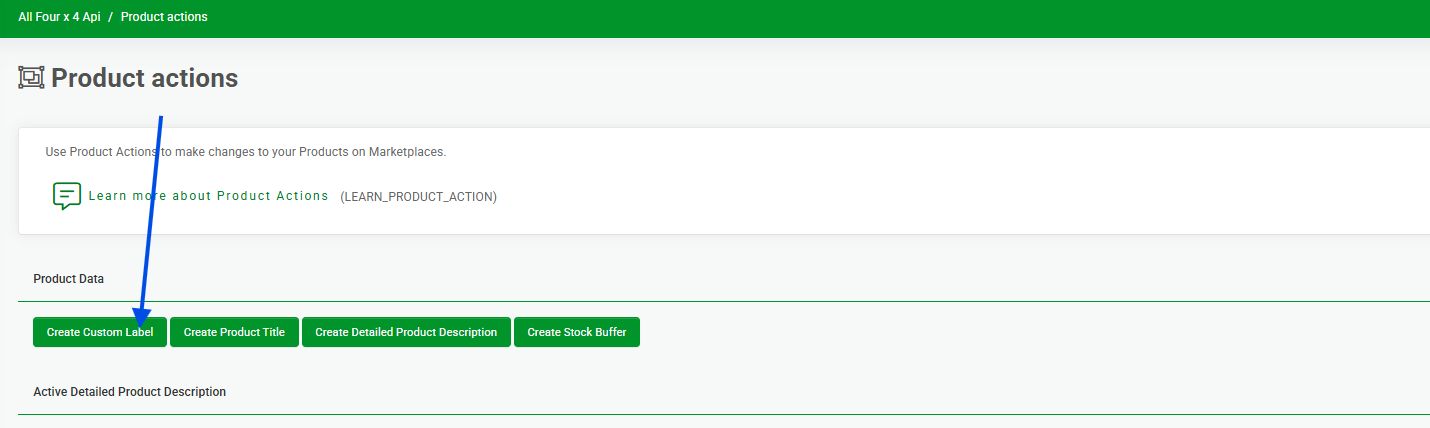
- In the App navigate to Products - Product Actions - Click Create Custom Label
- Decide if you want to have the custom label for either of the two scenarios - ALL PRODUCTS or A GROUP OF PRODUCTS. If needed, created a product group before you proceed.
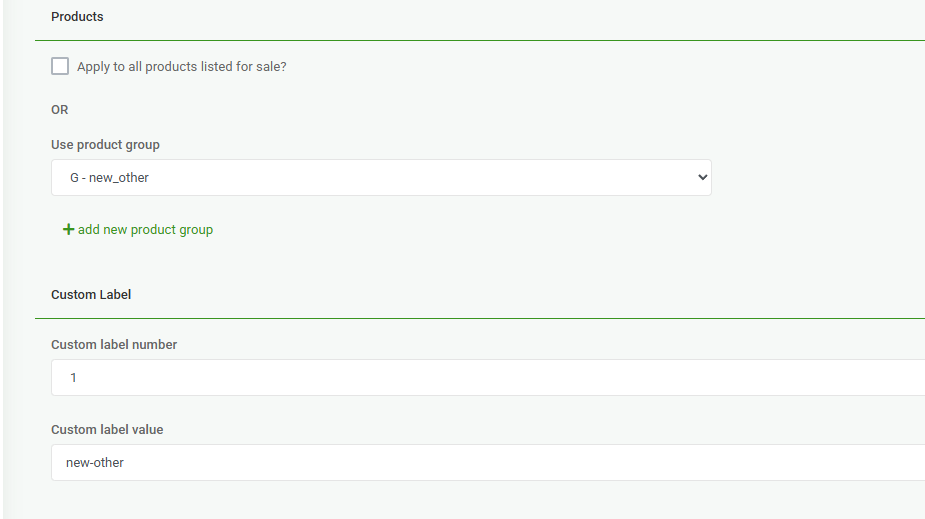
- When creating your Custom Label Action enter your 'custom label value' and name accordingly. This value is used ONLY when you create a custom label for ALL PRODUCTS.
- When creating a custom label for A GROUP OF PRODUCTS note the NAME OF THE PRODUCT group. The name of the product group becomes the custom label value (what you enter into the custom label value is ignored in this scenario).
- custom label on all products = value used in custom label value field when creating the product action.
- custom label on a group of products = value used from the name of the product group that is used in the product action.
- As per below this shows the use of a product group so we will ignore the value 'new-other' and use the product group name.
- Trigger an upload to Google to send this change to your live products.