
Internal only.
Omnivore offers the functionality to use a CSV file to create and import bulk promotions. This is particularly handy when selling on Marketplaces that require specific price points for different products.
Setup
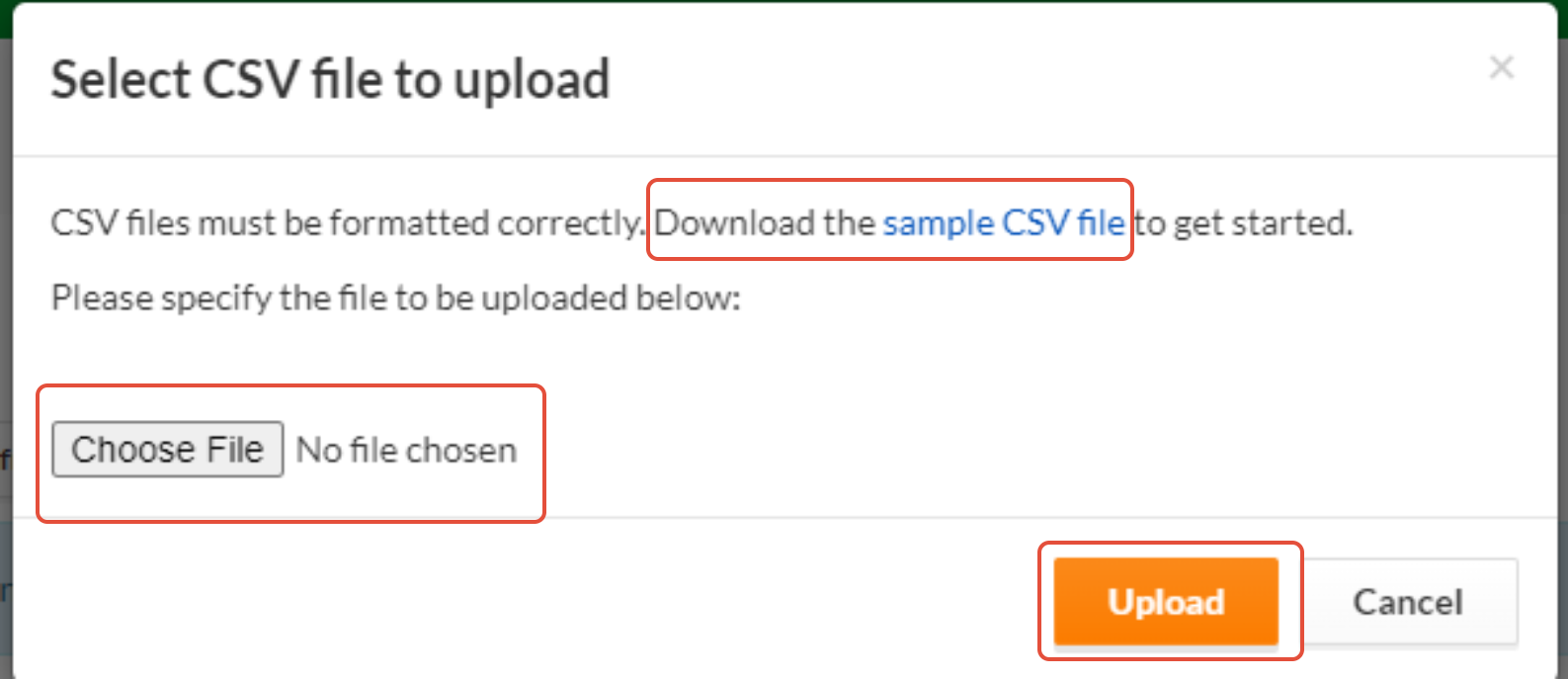
- Navigate to Promotions - All Promotions - click Bulk refresh via CSV.
- This will allow you to download the sample file that you need to complete.
- The sample file has the following fields as per the table below.
- We have ALSO attached a CSV file example that demonstrate how to complete the CSV. See below.
- Complete your CSV file accordingly and save as .csv to your local machine.
- Click the Bulk refresh via CSV button again and click Choose File to attach and then Upload.
- Once uploaded the screen will refresh straight away and you will see the promotions now appear on the All Promotion Page.
- If they do not appear on that page the process has not worked.
- Check your CSV to ensure the fields follow the rules below.
Tables can't be imported directly. Please insert an image of your table which can be found here.
Field Name
Value Rule
name
insert product name
from
start date in format 8/02/2022
until
end dates in format 8/5/2022
include on sale items
n or y
free shipping
n or y
discount percentage
numerical value
discount amount
numerical value
fixed price
numerical value
inventory minimum
numerical value
skus
sku as it appears in Omnivore
marketplace
(if left blank the promotion will apply to all marketplaces)Marketplace Field and Code
The last column field on the CSV is the 'marketplace' field. The value in this field is the marketplace code as it appears in Omnivore. You will have to supply the marketplace name to your promotions if you do not want the promotion to be applied to all marketplaces. The table below shows the values.
Tables can't be imported directly. Please insert an image of your table which can be found here.
Marketplace Value to add into CSVSee full list in the UI here https://m1.omnivore.com.au/marketplaceAdmin/marketplaces