
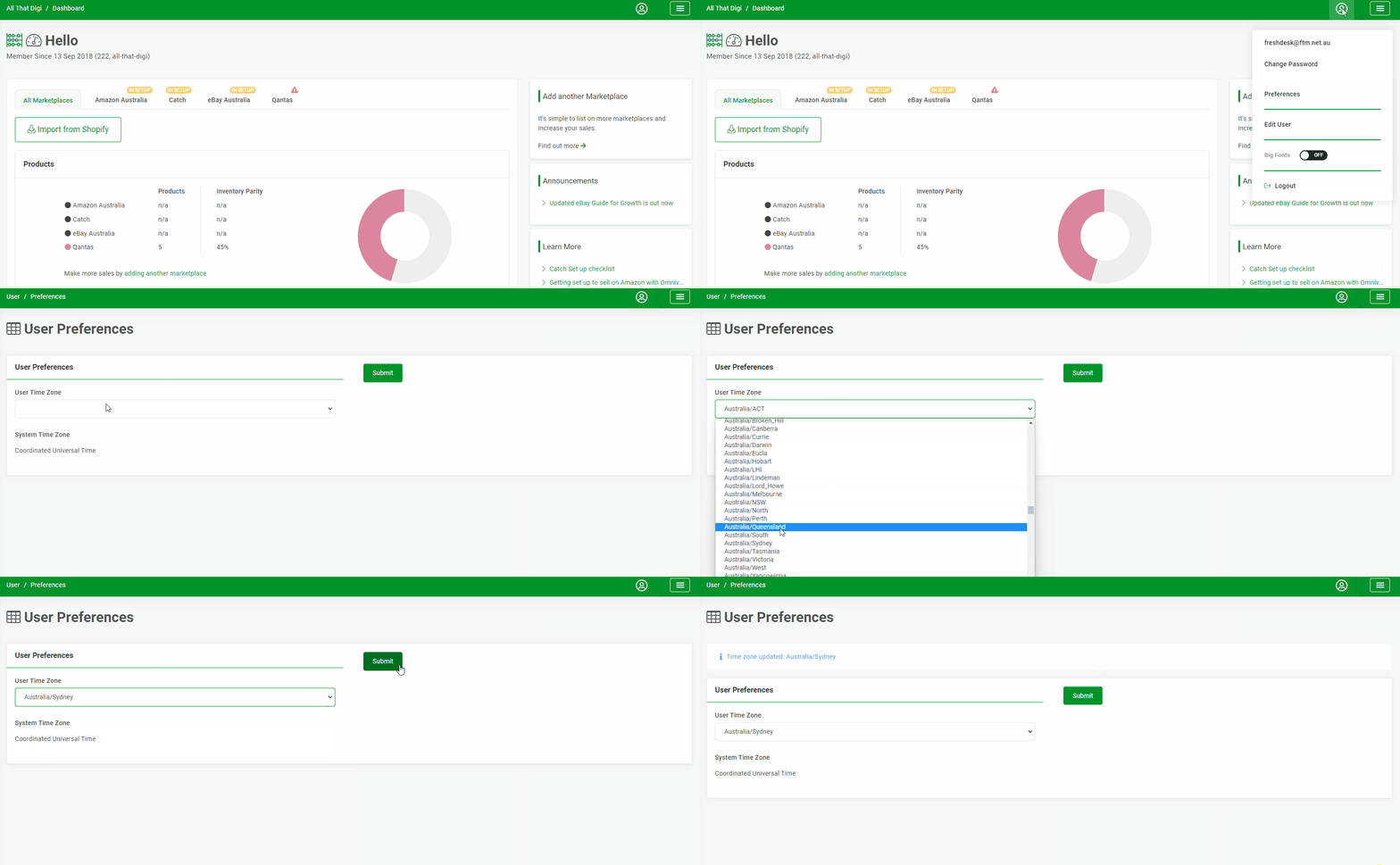
You can use the Time Zone User Preference function in Omnivore to set your time zone to be where you live or AEST.
This will have to be set on each cluster.
This means you will now see the time zone you are in as well as UTC when you are viewing products and logs. This makes it easier to determine product updates times based on your location.
Steps as per above image:
- Click into the User Account Icon top right
- Click Preferences
- Find your time zone in the drop down menu
- Click Submit.
See output:
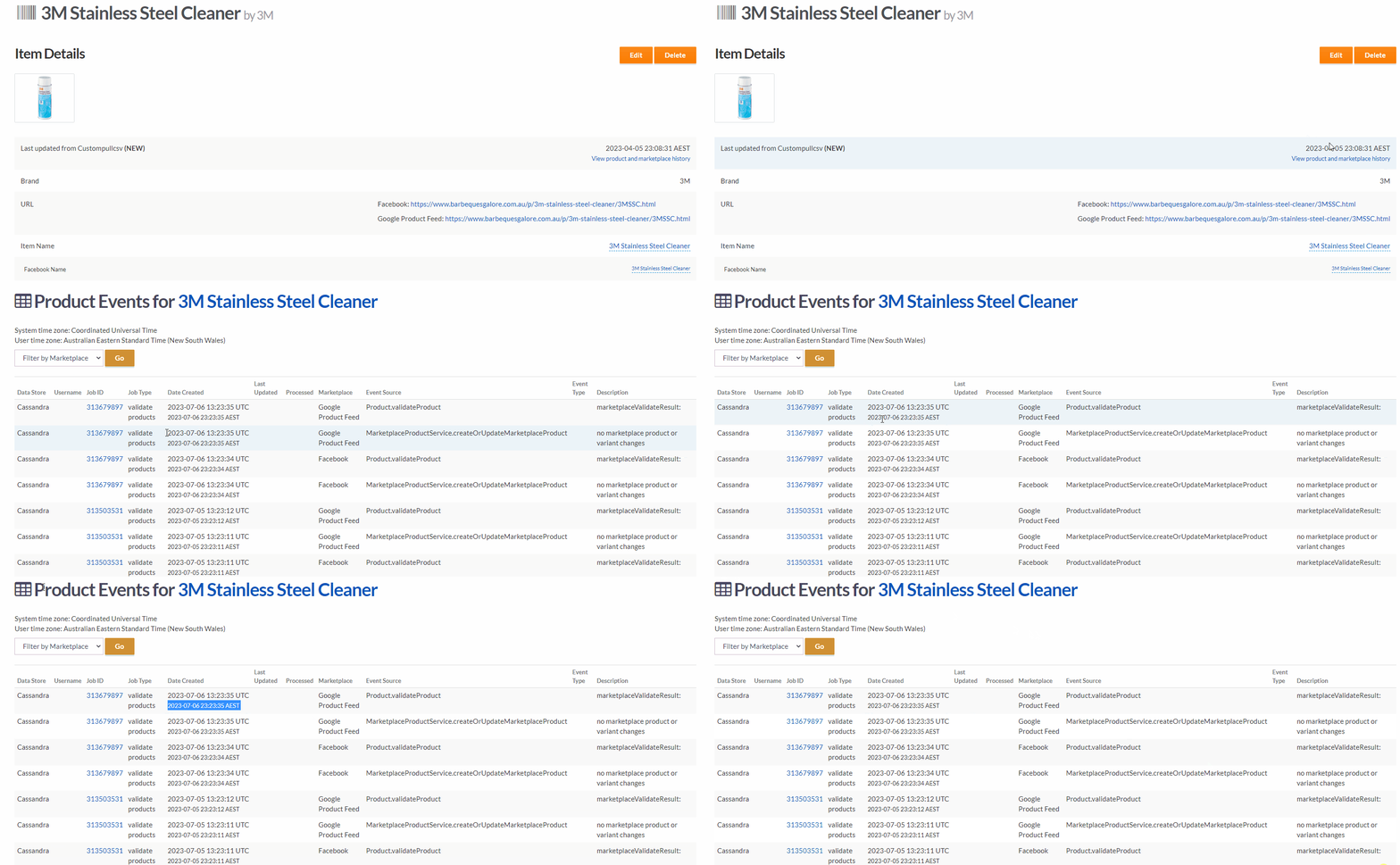
This User Preference function is currently set for Admins, but we can apply it to a retailers user account for them.