The purpose of this document is to assist an Omnivore Admin in troubleshooting why tracking information is not being pulled into Omnivore and passed to the marketplace.
In following this guide, it would be useful to have the faq open, the order you are troubleshooting and the relevant section of Omnivore where tracking can be configured.
The relevant faqs are as follows,
Woo
https://support.omnivore.com.au/marking-orders-as-shipped-in-woocommerce-for-omnivore
BigCommerce
Shopify
https://support.omnivore.com.au/marking-orders-as-shipped-and-sending-tracking
Magento 1 & 2.
https://support.omnivore.com.au/marking-orders-as-shipped-and-sending-tracking-from-magento
Woocommece troubleshooting
- Check Order management setting, as this will determine if we wait for the tracking information or not

- Looking at this example order
https://m1.omnivore.com.au/retailer/low-cost-wire/order/16-07325-88459
Order history has the following error
Found NO fulfillment data from WooCommerce API, cannot mark as shipped until tracking info is added in WooCommerce
This indicates either the tracking data is not present in Woo or the tracking criteria is misconfigured in Omnivore. - Check the tracking and carrier information found in Omnivore - >Settings -> Woocommerce feed -> Tracking and Carrier Information
There are two options here:
- Using Order Note Field, this retailer has a great example of custom entries
https://catchfeeder.omnivore.com.au/configuration/feedConfig/blue-bar-industries?feedType=wooCommerce2 You can find the correct data by clicking into View order data persisted in the WooCommerce backend
Search for "note" and will can see this kind of enter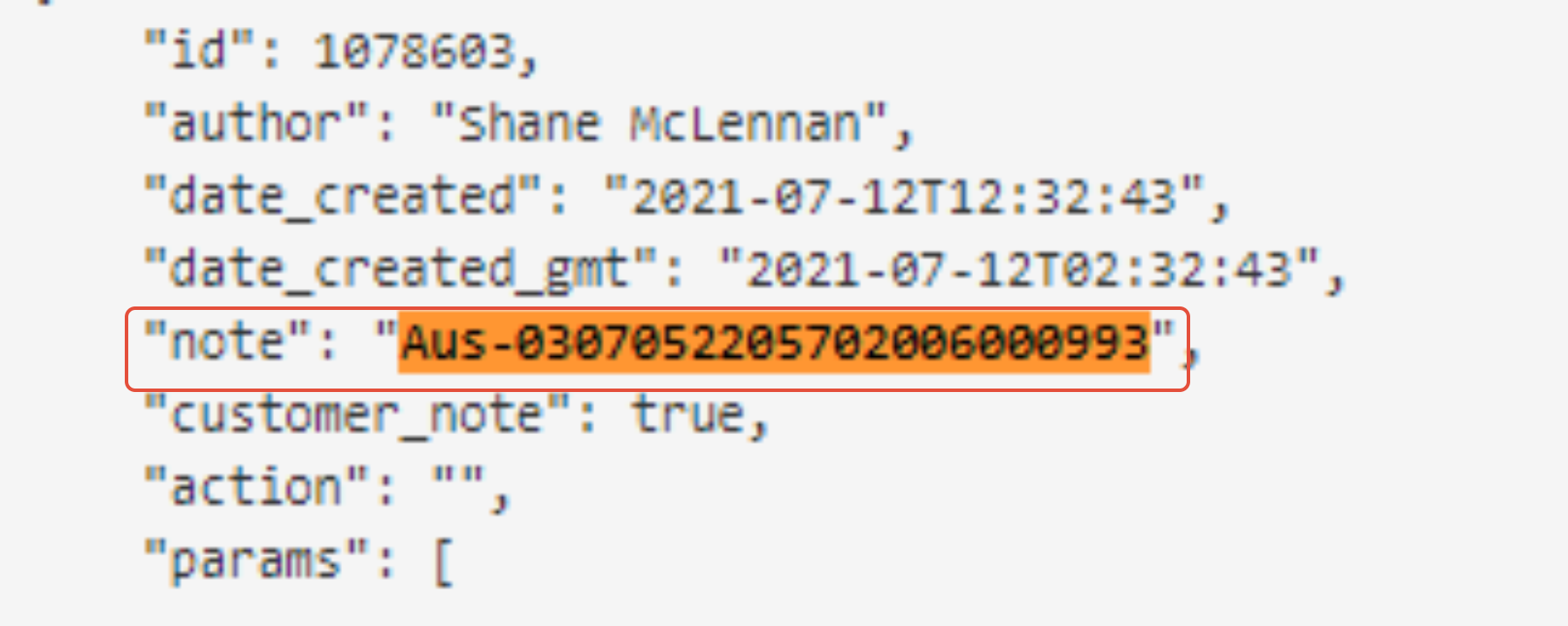 We are using this rule(11) to parse "Aus" as Australia Post and the "-" to mean the start of the tracking number,
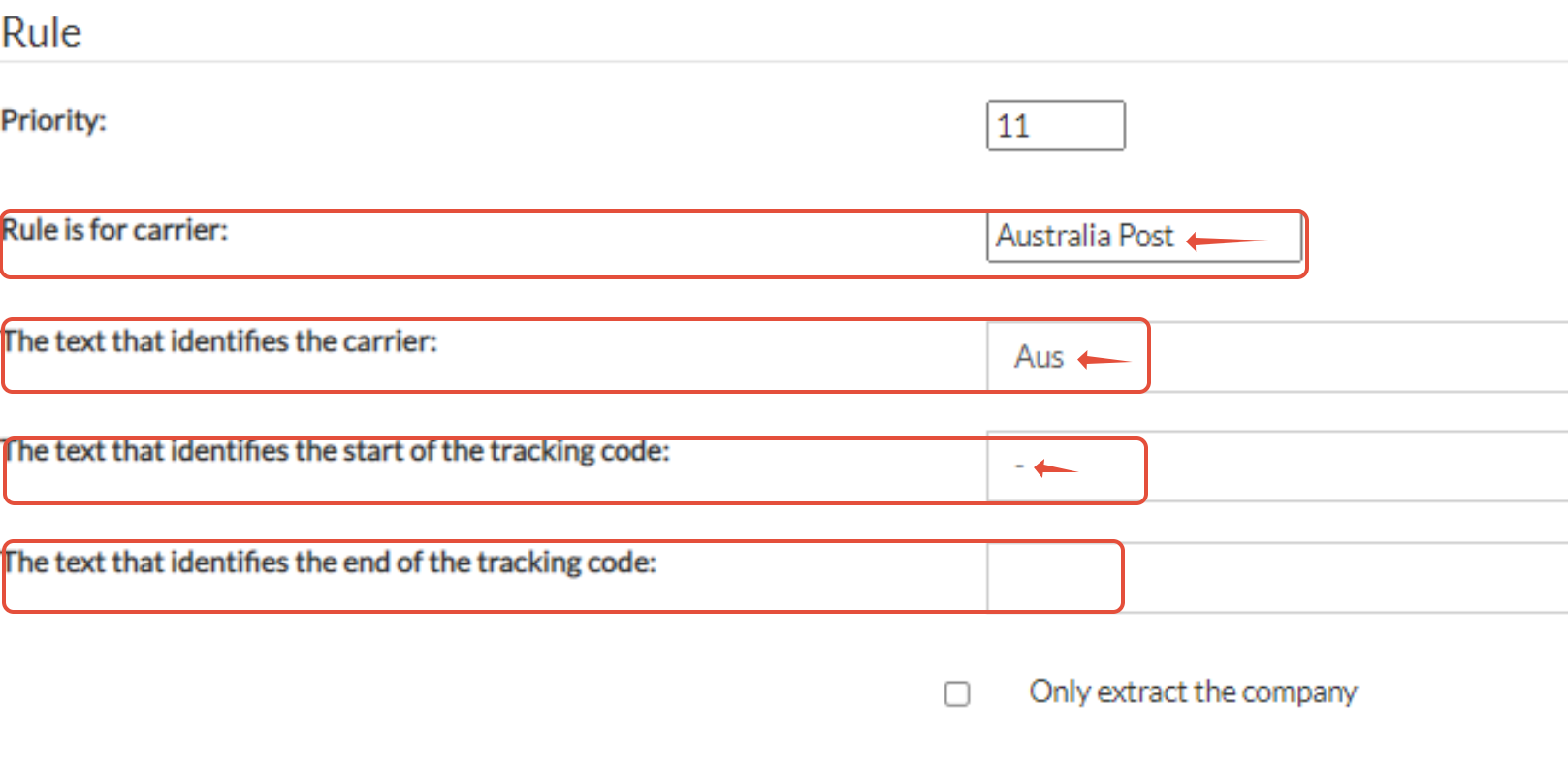 If a retailer is using order note field and we cant find the details, then you may need to confirm the format of the note and create a custom rule or direct them to the faq on how to do this.
 - Using Metadata, this is the tricky one, where we really need to check the format and location of shipper and tracking code. Refer to the FAQ to find if the tracking field is
- Straight forward key ie the "key we look for has the "value" we are looking for.
In the below example, the tracking number is in the key"_tracking_number" the tracking company is in the key "_tracking_company"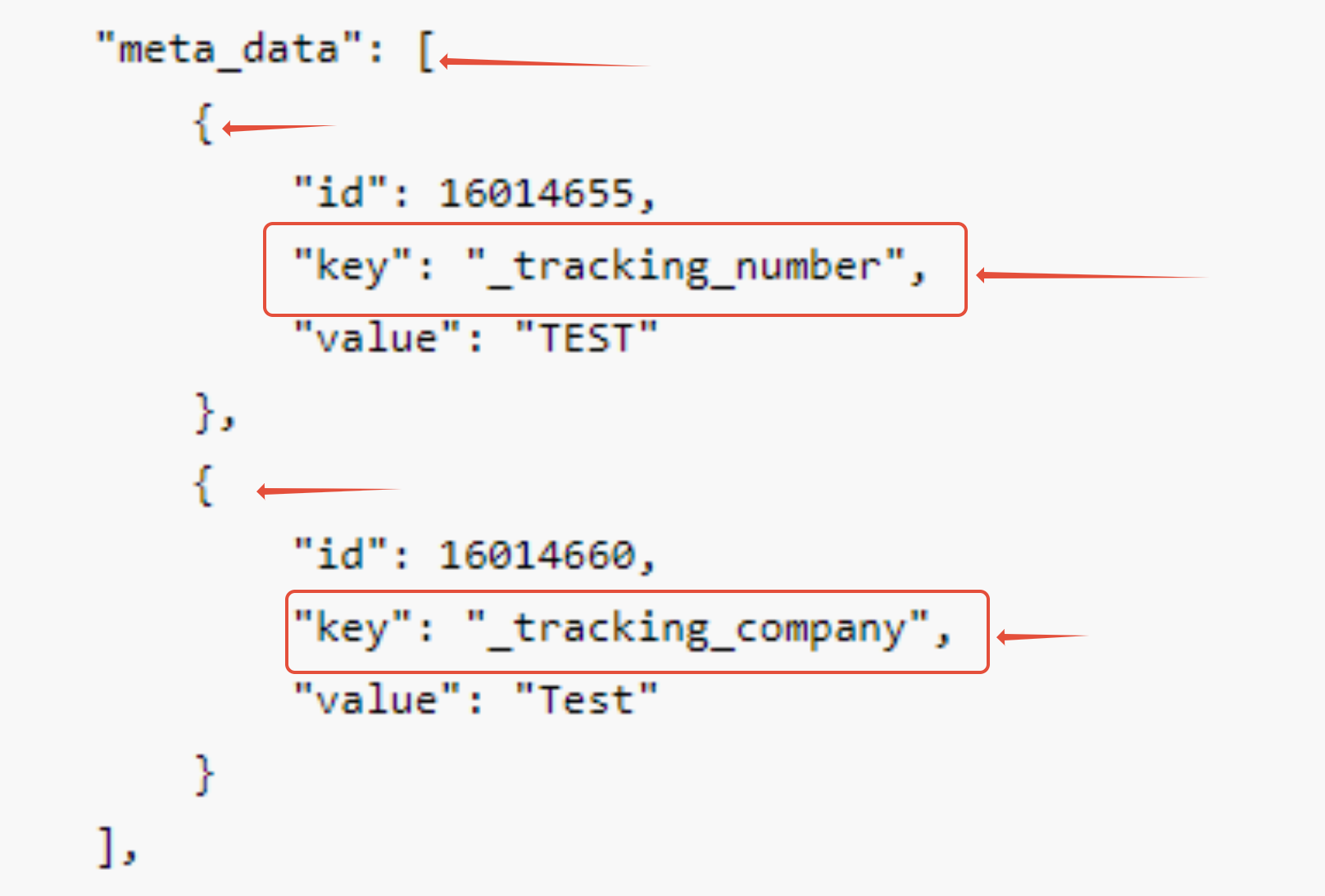
So the configuration in Omnivore would look like this
- Nested key ie, where we need to go to the key first then look for the values.
In the below example we first look for the key "wf_auspost_shipment_source" but the values in this case are in "shipment_id_cs" and "shipping_service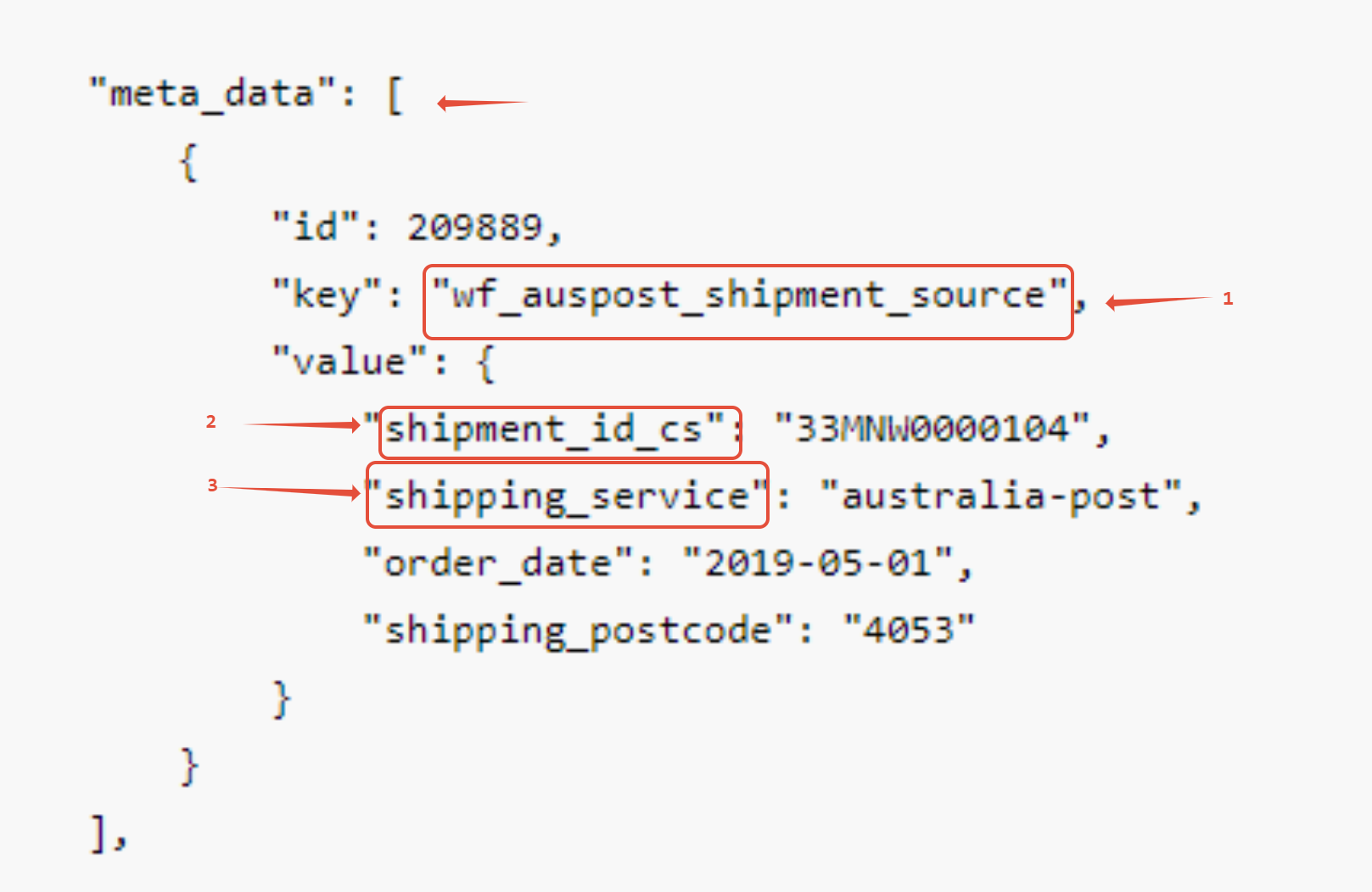
So the configureation in Omnivore would look like this, using "~~" to force the code to search deeper in the key for the required information.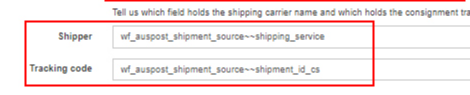
- Straight forward key ie the "key we look for has the "value" we are looking for.
- In most cases where we dont pull the information into Omnivore , the setting are not configured correctly or inconsistent data, ie using a combination of metadata and notes, this is not supported.
The key for it to work is consistency of data entry in Woo.
- Using Order Note Field, this retailer has a great example of custom entries
Bigcommerce Troubleshooting
- Check Order management setting, as this will determine if we wait for the tracking information or not

- There is no configuration of fields on Bigcommerce tracking in Omnivore, The code will look in a number of places in the "Shipment response"
"tracking_number": "YY091169",
"shipping_method": "Hunter Express",
"shipping_provider": "",
"tracking_carrier": "",
"tracking_link": "", - If there is nothing in these fields, it has not been entered in Bigcommerce, have the retailer provide a screen dump of the data in BC and troubleshoot from there.
Shopify Troubleshooting
- Check Order management setting, as this will determine if we wait for the tracking information or not
 If we are waiting for the order details, then we need to look at an example order to determine if the data is in Shopify first.
 - Go to a pending shipped order that the retailer has said is shipped, click View current order data in Shopify
Look for"fulfillments": [
if there is no data, then its not shipped and you now why its got no tracking information. - If there is data and we have not pulled it in, as below
fulfillments": [ {Then check
"id": 3543944757416,
"admin_graphql_api_id": "gid://shopify/Fulfillment/3543944757416",
"created_at": "2021-07-20T12:10:52+10:00",
"location_id": 39038320779,
"name": "#IS-0067660.1",
"order_id": 4010625269928,
"receipt": {
},
"service": "retail-express",
"shipment_status": null,
"status": "success",
"tracking_company": "Other",
"tracking_number": "WRX0454274",
"tracking_numbers": [
"WRX0454274"
],
"tracking_url": "https://track.omniparcel.com/?id=WRX0454274",
"tracking_urls": [
"https://track.omniparcel.com/?id=WRX0454274" - If tracking_company and the tracking number exists then we use that tracking_company and tracking_number (no new rule required)
- If tracking_url exists with no tracking company or tracking number then do the tracking URL parsing as per FAQ where it shows how to create a new rule
- If shipper/carrier is 'Other' we use "Other" with the tracking_number. At this point we might have a company/carrier and might have a tracking code. (some markets do not accept other)
- If a marketplace does accept Óther and you have a tracking code and URL you can create a rule as explained in this FAQ here (2nd section)
- We also check if the tracking code starts with 'http' and create an audit record.
- The tracking code is trimmed to less than 255 characters long
- In the example above we would expect it to be parsing the 'tracking_url' for both the carrier and tracking code.
Magento Troubleshooting
- Check Order management setting, as this will determine if we wait for the tracking information or not
 If we are waiting for the order details, then we need to look at an example order to determine if the data is in Magento first.
 - Go to a pending shipped order that the retailer has said is shipped, click View tracking info persisted in the Magento backend
- If its blank, there is no data to pull in , go back to retailer requesting screen dump of tracking information as per FAQ
- If there is data, check for the following fields have information in them.
- "carrier": "xxxxxxxxxxxxxx",
- "number": "xxxxxxxxxxxxx",
Generic Troubleshooting.
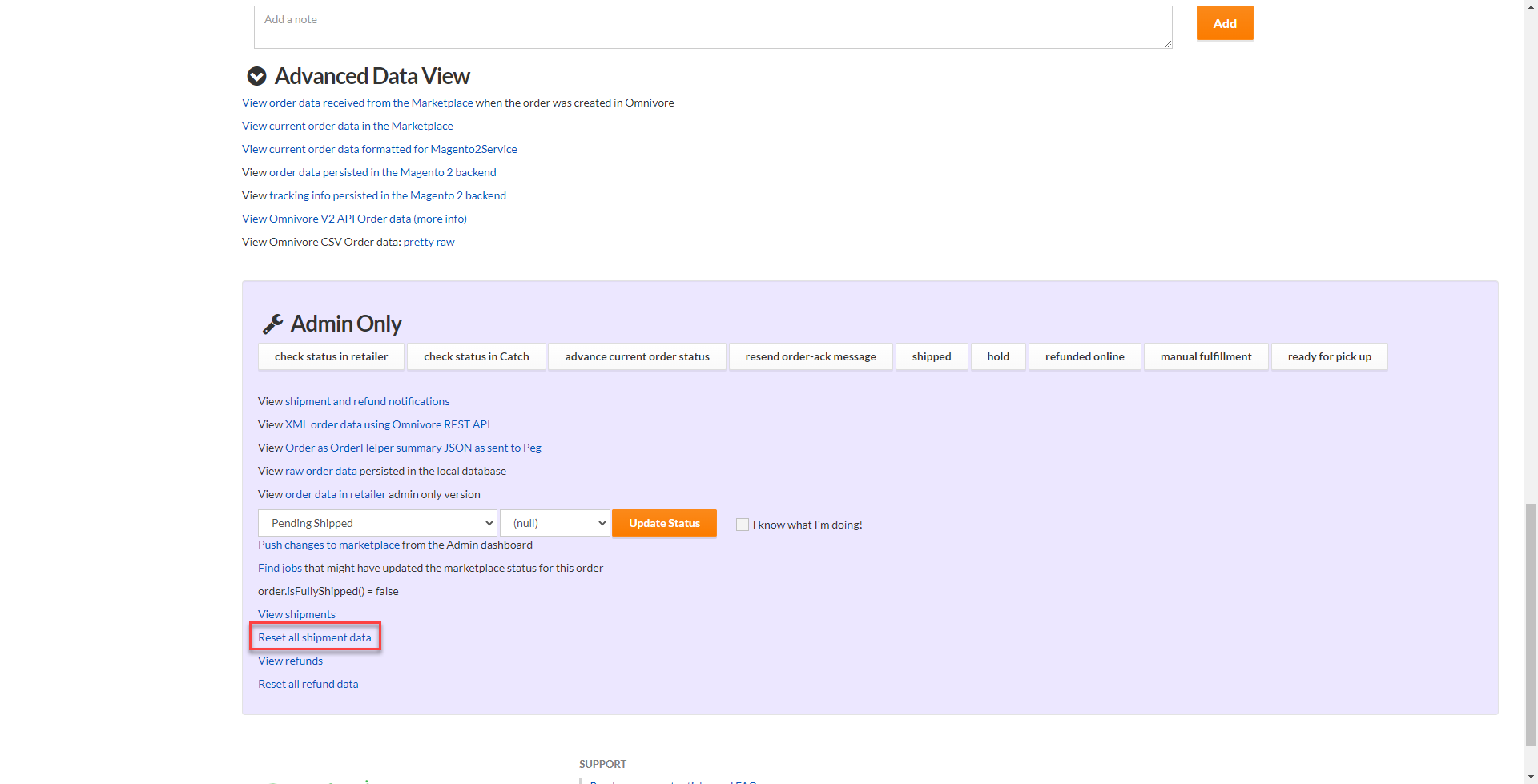
When to use the Reset all shipment data link.
See explanation below that explains a scenario when you would use this.