
About Attributes
The Iconic require attributes such as size and gender to exactly match their defined list. See this article for an example list. This article can be shared with retailers.
As the Iconic is paid onboarding, rather than us asking a retailer to change their data so that it is an exact match, where possible we "map it for them". This is particularly relevant for size and sometimes age or gender.
To manually map attributes go to Settings->The Iconic->General
Go to the Your Products section and then Marketplace attribute mappings
A good example is Country Road
If a retailer does not have exactly the same size values as in the Iconic value list you will see a product error and will then need to revert to mapping the retailer size to match.
This mapping is set up using JSON code and added to the Marketplace attribute mappings field. Reading left to right it is Retailer size : Iconic Value

In the above example the format is:
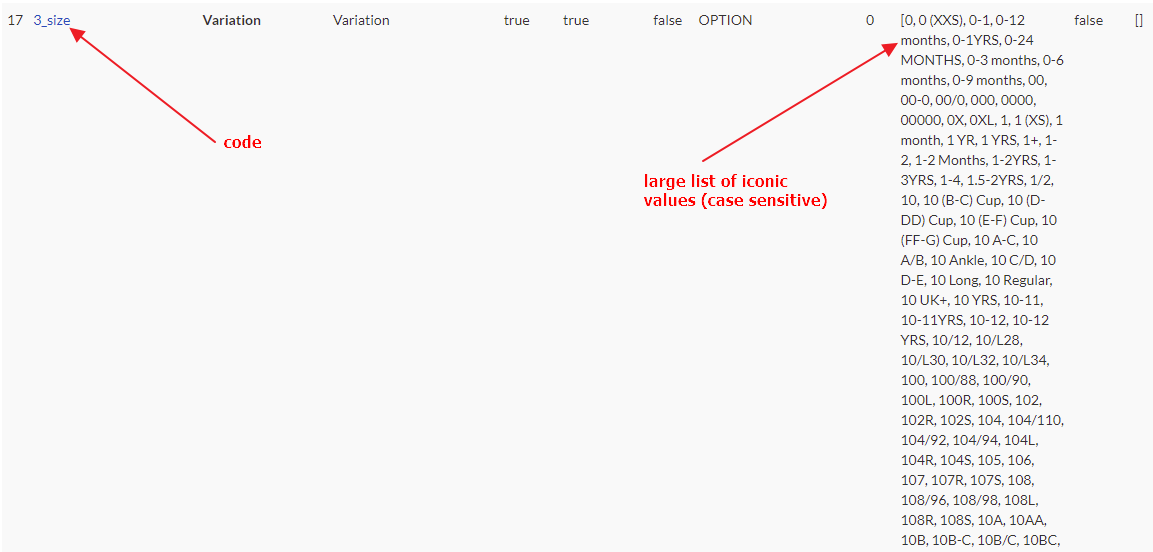
- 3_size is the Iconic "code" for size for the category that the above retailer is listing in. The code can vary by category e.g.
19_size
3_size
1050_size etc, so it is important to find the relevant code for the retailer you are working with and they can have more than one if they list in multiple categories.
XS - S is the Retailers variation size value
XS-S is the Iconic value
To find the correct iconic code and Iconic value, you will need to go into a product in Omnivore which would be showing a "size" error
Scroll down to the Iconic Product View
Click Marketplace Category Attributes in the Admin Only section
On the page that loads (e.g. https://m1.omnivore.com.au/marketplaceCategoryAttribute/listForCategory?marketplaceCode=iconic&categoryId=827790) you will need to look for Variation in the Name Column and the values are in the Values on this page
Before hitting update settings you can check your JSON code using this link https://jsonviewer.arianv.com/
If the retailer has any attribute values visible on this page, you can map any of the codes with values that are causing errors using the same logic as above.
About Brand
In November 2023 Radu changed the way we map Brand for the Iconic, this is still an admin function so it is something we do for the sellers. See below:
Scenario and Steps
- This retailer has the brand name Upstate Sport but the Iconic want "Upstate" OR they have a product that has the following type error: error: Brand 'B. Toys' is not registered on Seller Center.
- Have your product page open, on another tab navigate to Settings - TheIconic - General - Marketplace attribute mappings JSON.
- Make sure this is ticked: Brand Mapping Method: Use the new method of mapping the brand, ie marketplace attribute mappings, see below
- Now Click Edit Mappings under Marketplace attribute mappings
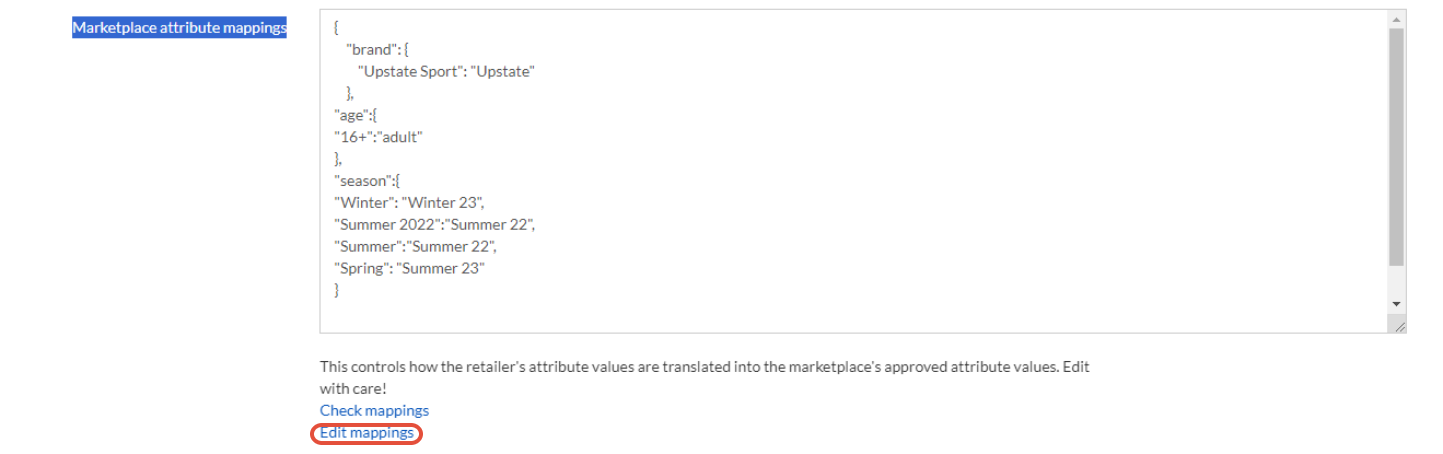
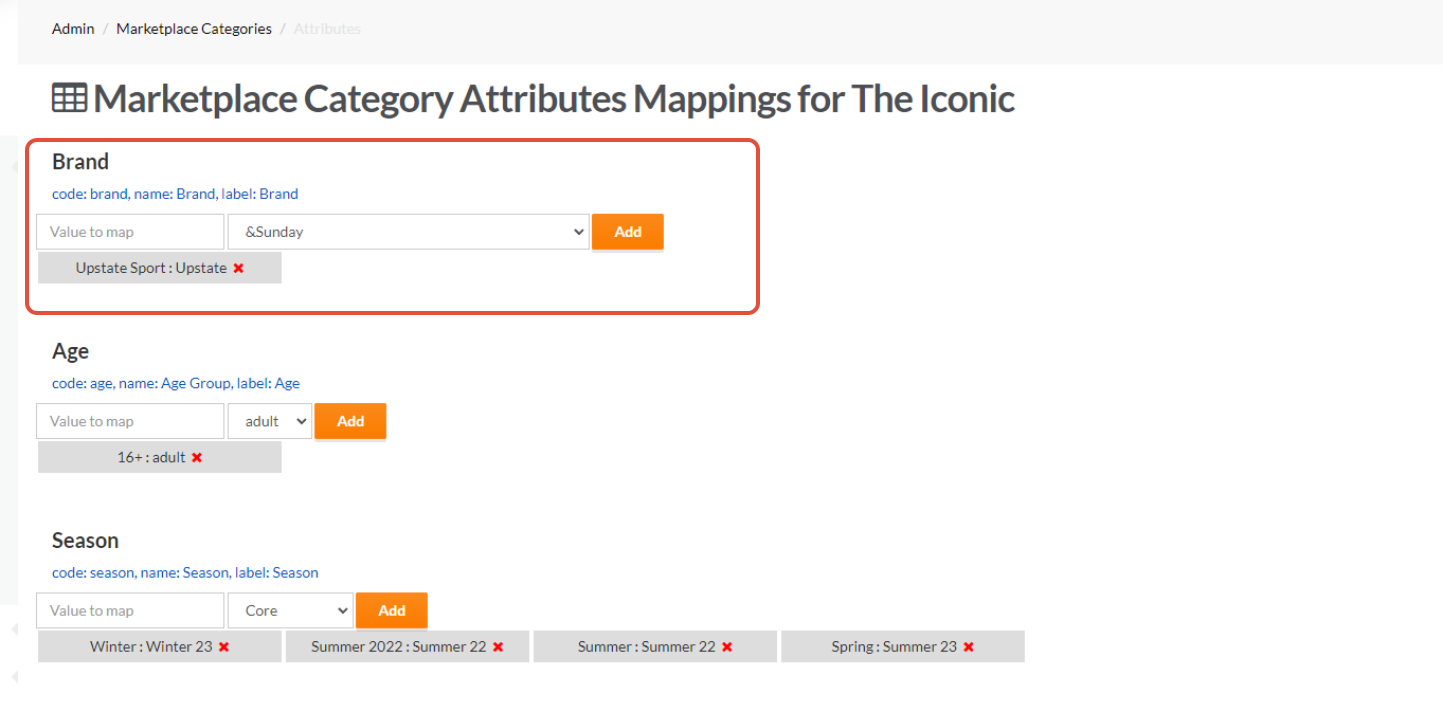
- From the Edit Mappings Page see the Brand Section, insert the Value to Map (Upstate Sport) and find the Iconic Value in the drop down (Upstate). If you cannot see Brand on the page, CTRL F to find Brand and click 'adding mapping'
- To check your work on the product page scroll down and click Validate with debug.
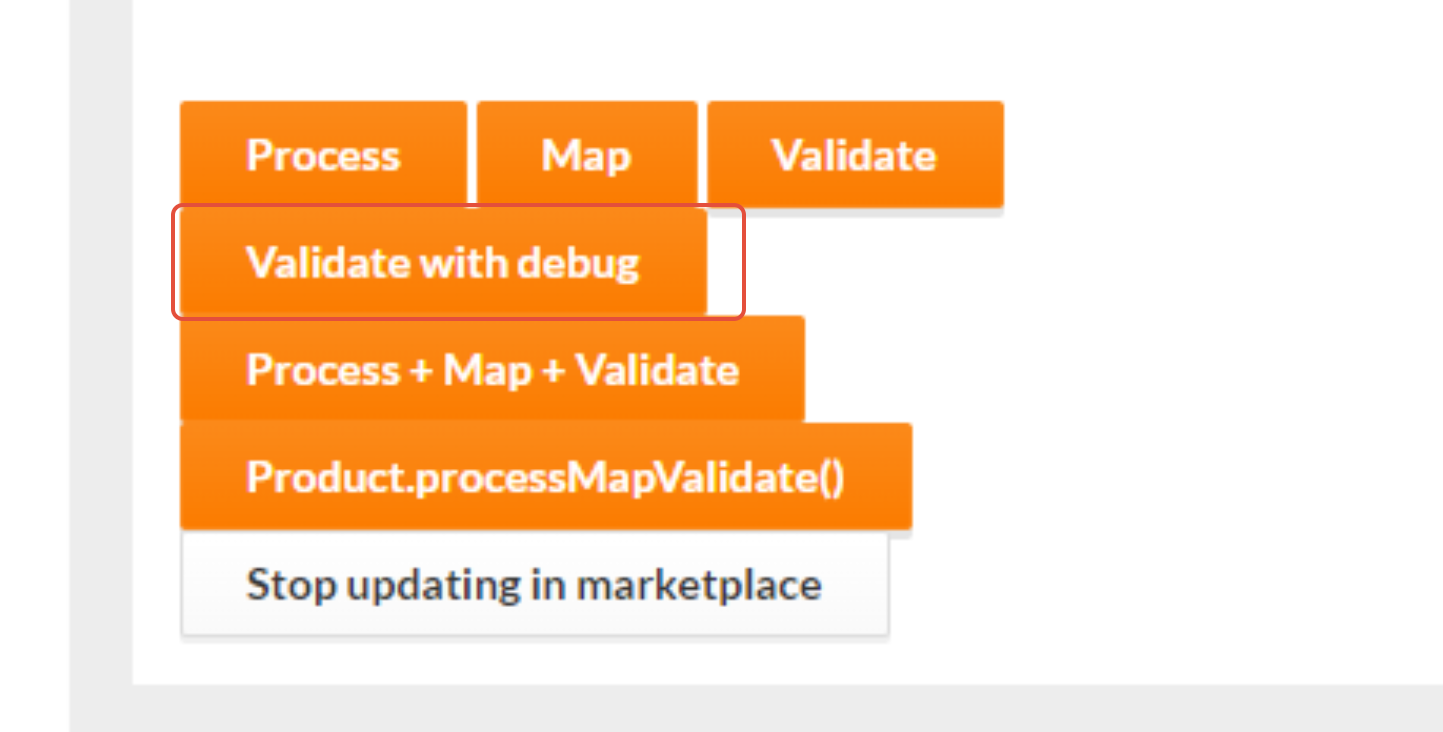
- Look for this, it means success: TheIconicAdapterService.augmentMarketplaceProduct using product.brandName = Upstate Sport, found marketplaceProduct.brandName = Upstate, attribute = [549] code = brand, name = Brand, label = Brand, required = true, type = OPTION, values.size = 6385, value mappings = [Upstate Sport:Upstate]
- Using this product example the outcome will look like this - https://m1.omnivore.com.au/product/view?retailerCode=upstate-sport&sku=7505129439385 - Brand we import:
 Brand we send to TheIconic:
Upstate
Additional Troubleshooting and Brand Refresh:
- The current list of The Iconic Brands you see in the drop down are also reflected here, to get to this page navigate to Marketplace Admin - Marketplaces - find TheIconic - View Brands https://m1.omnivore.com.au/marketplaceAdmin/brands?marketplaceCode=iconic
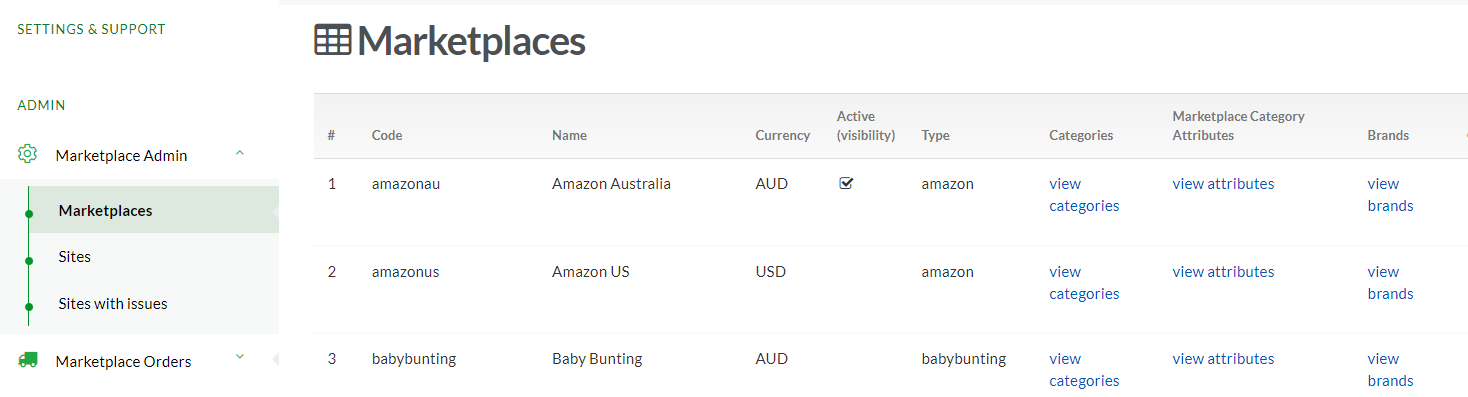
- If you cannot see a Brand and you are sure its not there, you will need to run a Category Refresh for TheIconic on that cluster to update the Brands.
- This page is another way to check which Brands are in which TheIconic Category - https://m1.omnivore.com.au/marketplaceAdmin/attribute?marketplaceCode=iconic&code=brand
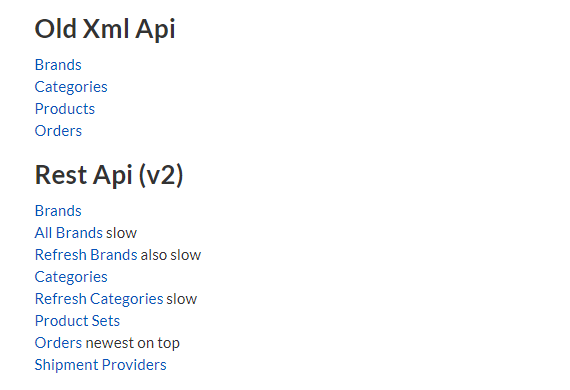
- The Sellers Brands - to check and refresh the sellers brand list go to Retailer Admin - New Dashboard - The Iconic, you can check Brands and Refresh Brands just for that seller.
Foot note:
See example ticket of error you get when this is not setup correctly and how to resolve
https://support.omnivore.com.au/a/tickets/76408