
How to test various marketplace integrations.
General info
Pick one of the test stores, the recommended ones are these, but you may use your own if needed.
Shopify: All That Digi https://m1.omnivore.com.au/retailer/all-that-digi
BigCommerce: CityBeachSoftware https://m1.omnivore.com.au/retailer/citybeachsoftware
Magento 1:
Magento 2:
WooCommerce:
Logins for the actual test stores are here:
https://www.citybeachsoftware.com/wiki/index.php/Main_Page#Online_Commerce_Platforms_Integration
Do not delete test products that were created to test specific use cases. Or else.
To see the live product listing in the marketplace, do this:
1. From the product page in Omnivore, click on the link next to URL in the "Marketplace" Product View section.
For these marketplaces, that link should be valid immediately after the upload:
eBay, The Market, todo
For these marketplaces, that link is valid only after the "download active items" completes:
Trade Me, todo
2. From the Active Items on "Marketplace", the link in the column Item ID (marketplace listing).
3. For some marketplaces it's also rather easy to login to the marketplace account and see active listings.
Eg: Trade Me, The Market, eBay (if you're willing to ignore OOS listings), Amazon (if you get over the 2FA hurdle)
If you're setting the marketplace integration from scratch, it may take a while to fill in all required data, eg shipping.
Some of the error messages are incorrect or inconsistent.
Setting the integration status to active enables the upload even tough there could still be things to complete.
Amazon
This one is hard(er) due to:
1. It's hard to get into the account due to 2FA, the code being sent to Ivan.
2. Our account cannot list random products, it needs to be a real UPC + product title + brand.
If you still want to test, use this value for Seller ID:
A1SVF2QYAQU2OY
You do not need anything in the MWS Auth Token field.
Catch
Catch uses Mirakl as the marketplace platform. Log into either Mirakl DEV/PROD with user support@citybeachsoftware.com
PROD: https://marketplace.catch.com.au
DEV: https://catch-dev.mirakl.net
Our MiraklHelper class assumes integration with PROD unless the site is listed in the MiraklHelper.testSites list.
The catch-api-key identifies the store. Within Mirakl a list of associated stores is listed in the top-right drop down. First select the appropriate store. If a store is not shown, request from Catch support that the 'store be attached to our support@citybeachsoftware.com account in mirakl/mirakl-dev'
Products are uploaded in two components from the upload-products-to-catch executor:
- Products (CSV) which can be seen in the Mirakl from the top menu [My Inventory] -> [Import from File]. Select 'Track product imports' and you'll see each upload file, import time, status and error reports. If you hover over the import file you'll see the import-id which matches the id seen in the upload-products-to-catch job.
- Products contain base product information, eg. title, descriptions, images attributes etc. Product information can be shared across retailers.
- Offers (JSON) which can be seen in the Mirakl from the top menu [My Inventory] -> [Import from File]. Select 'Track offer imports' and you'll see each upload file, import time, status and error reports. If you hover over the import file you'll see the import-id which matches the id seen in the upload-products-to-catch job. Note that the JSON uploaded to Mirakl is converted to CSV which is shown in the window. The original JSON is not available here.
- Offers contain the price, inventory, shipping etc. for the stores products.
eBay
Pick your test store.
Connect it to the ebay account miptestau. Password is here:
https://www.citybeachsoftware.com/wiki/index.php/Account_Credentials#LIVE_EXPERIMENTAL_STOREFRONT
Alternatively, find an existing site already connected to miptestau and copy the credentials using this page:
Retailer Admin -> New Dashboard -> ebayMarketplaceConfig "New" OAuth values
Google Ads
To keep manageable the number of Google Merchant and Ads accounts we create for testing, there are currently 2 test stores that have hard-coded account ids:
Shopify -> Costi https://costis-double-quotes-shopify-store.myshopify.com/admin
Bigcommerce -> CityBeachSoftware https://store-q178ow9j.mybigcommerce.com/admin
Using these 2 test sites will not create new accounts if you click the button "Create New Accounts" but otherwise it looks and feels like it does.
Using any other store will really create new accounts.
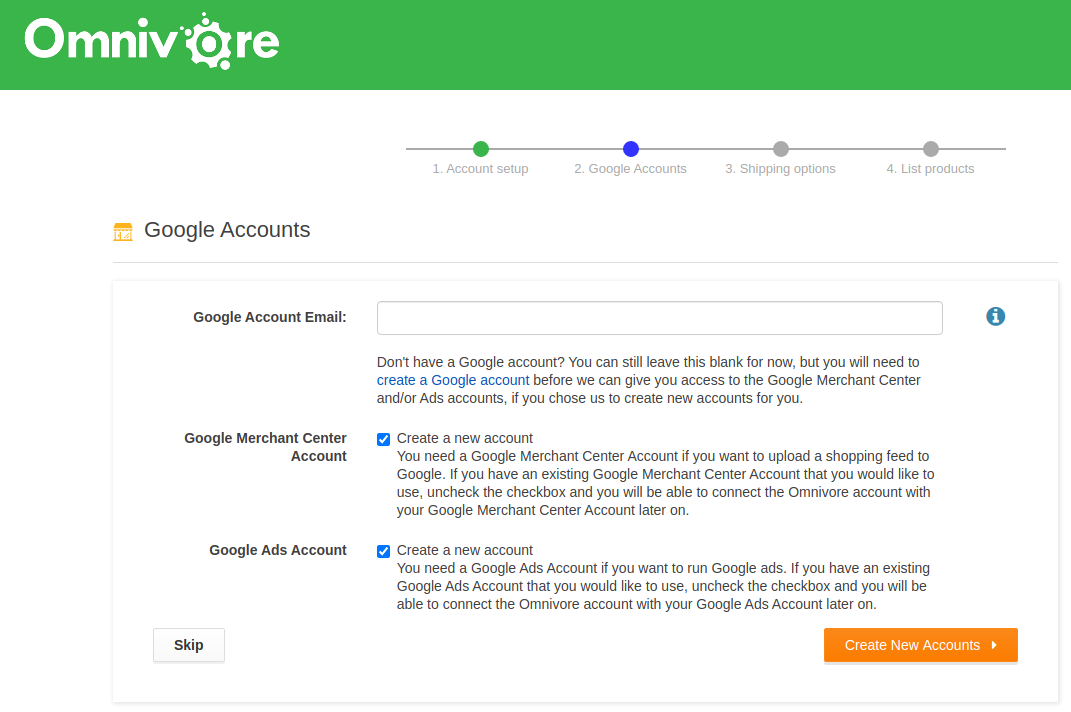
Same on the config page:
Once we have a pair of accounts for each one of our test stores (including Magento and Woo), I will add these IDs to the code so that they work like Costi and CityBeachSoftware
Kogan
Verified working Oct 2024:
This is the Kogan SANDBOX test account:
SellerID: omnivore.test
Token: 596cb5e7bd32780823b28f44f7c206346b906b4d
Warehouse prefix (or whatever) is AUOMNI
The test order must be prefixed by that for some of the code to work as expected.
If you get this when checking connection:
Invalid Warehouse
Ask the Kogan people in the Kogan slack to reset something or other.
Kogan is a simple REST based API with all interactions defined in the KoganClient class.
Authentication is done using a combination of the merchantId and merchantToken
API documentation is located here: https://nimda-marketplace.aws.kgn.io/api/marketplace/v2/
Classes of interest:
KoganAdapterService
KoganProductJSONCodec
KoganOrderJSONCodec
Products must be sent as either 'create' or 'update'. If the product exists in Kogan and a 'create' is sent then it will fail. Similarly, if a product does not exist in Kogan and the 'update' is sent it will fail. We keep track of the status in MarketplaceVariantProduct.listingStatus. We monitor errors like 'already exists' and 'not found' to ensure we have the correct status in Omnivore. The means that 2 uploads may be required to ensure sync, particularly with new retailers that have existing listings on Kogan.
Marketplacer Marketplaces
Currently these are all listed here:
https://m1.omnivore.com.au/marketplaceAdmin/marketplaces
Look in the column Type for "marketplacer"
To retrieve categories and attributes, use the page above. Credentials are either in Config.groovy or not needed.
To push products and download orders, you need an API key for a specific retailer account in Marketplacer.
Use this:
b4248367bc81604d514f0f16091dcf43
It's the api key for Russel Athletic on https://omnivore.marketplacer.com/
Or this:
9e3b7c4116307e61f2270489d610f517
Its the api key for Google seller.
Important note: the retailer account key works for both REST and GraphQL queries on that specific account.
The "admin" marketplace wide key works for all retailers, but we only have that for the Omnivore Marketplacer test instance.
Logins to the marketplace GUI
Omnivore Marketplacer
This instance always sends an SMS code when I login, so you will need your own account. Ivan has one I believe.
https://omnivore.marketplacer.com/administration/
rvissarion
C1tyB3ach2021
The Dom
https://thedom.com/client/session
Login: gormantest
PW: Omnivore123
The Market
Pick your test store.
Connect it to the Omnivore test account, ie go to Settings -> The Market -> General
enter Merchant Id = 4407 and Connect to TheMarket DEVELOPMENT environment.
To login to the Dev environment as an admin:
https://dev.themarket.co.nz/merchant
Login: Omnivoreint
Password here https://www.citybeachsoftware.com/wiki/index.php/The_Warehouse
Then you have to select the correct account from the dropdown top left-ish, ie Omnivore
Depending on what products you push, you might need to do some mapping. Claire said that products will be auto-approved for that account if all data is correct, ie you should not see products in pending.
Products that are "pending" cannot be seen in a listing page.
Products that are active can be seen.
Shopify Marketplaces
aka Coles DSV
Pick the marketplace from the list in the usual places. The marketplace needs to be created and the credentials must be placed by a developer in /opt/omnivore/conf/OmnivoreConfig.groovy in the section omnivore.shopifyMarketplace
eg:
If the Shopify app is re-installed, then the new access token must be obtained and pasted there.
The access token is visible on this page, eg:
https://m1.omnivore.com.au/adminSite/index?siteId=2113
Trade Me
If you want to avoid getting the error:
This Trade Me account has already been connected to another Tradevine account
use the test store All That Digi from m6:
https://traderunner.omnivore.com.au/dashboard/all-that-digi
Alternatively, copy the credentials:
Retailer Admin -> New Dashboard -> TradeMe Auth all 3 values must be filled in.
To login to the Production test account:
https://www.trademe.co.nz/Members/Login.aspx?url=%2fdefault.aspx
fmcclure@citybeachsoftware.com
Password is here: https://www.citybeachsoftware.com/wiki/index.php/Logins#production
At the end of your testing session, you have to end all the listings. Or else get a lecture from Dave Stewart.
The easiest method is this:
From the product list page in Omnivore, block all products.
Then from the Dashboard, Upload to Trade Me.
Wait.
Verify that all listings are gone: https://www.trademe.co.nz/MyTradeMe/Sell/Current.aspx
The Iconic
If the login below doesn't work, it's likely that they have reset the preprod environment, in which case we write an email to
Benjamin Lopez
and ask for our test account to be reactivated.
The Iconic: https://sellercenter-preprod.theiconic.com.au/
Store: Omnivore
User ID: rvissarion@citybeachsoftware.com
Pass: SoIconic2026*
https://sellercenter-preprod.theiconic.com.au/api-explorer
API key:
7e9b41b38e2061ed76b0fade8e0bce51c8edc48b
For the REST Api aka v2 use the credentials on the OAuth Applications tab https://sellercenter-preprod.theiconic.com.au/oauth/apps/index/id/135
Oct 2024: Omnivore is working:
App id: a69f7b66d248771913b4
35cf5ddcb3cc6acf4a86d2174d7b8a02bcee2996
Details on test orders...
https://marketplace.zendesk.com/hc/en-us/articles/360003823436-Integration-Order-Testing
Westfield
To do.
~~~