
How to manage Sites with Issues:
Once a month the Account Management team is required to review the Sites with Issues across all clusters.
1. Navigate to Admin/Site page for each nominated cluster
https://m5.omnivore.com.au/login/auth
https://m1.omnivore.com.au/login/auth
https://m2.omnivore.com.au/login/auth
https://m3.omnivore.com.au/login/auth
https://m4.omnivore.com.au/login/auth
https://m6.omnivore.com.au/login/auth
https://m7.omnivore.com.au/login/auth
2. Select the GENERAL link from the left hand menu
3. Select SITES WITH ISSUES link. User is redirected to the Sites with Issue page
4. Filter the list by SHOW IN Production
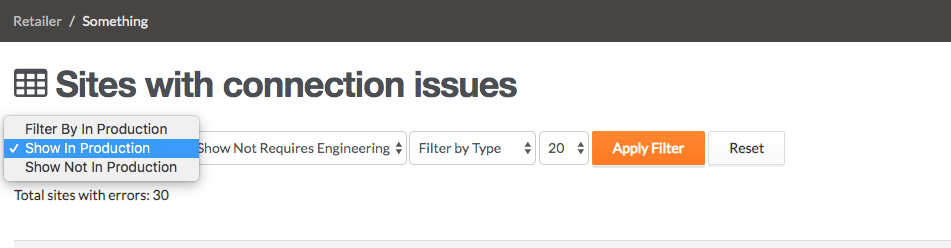
5. Review the list of retailers with errors.
(5a) Where a retailer has had a failed Authentication error - then select the red ALERT RETAILER button to notify the retailer
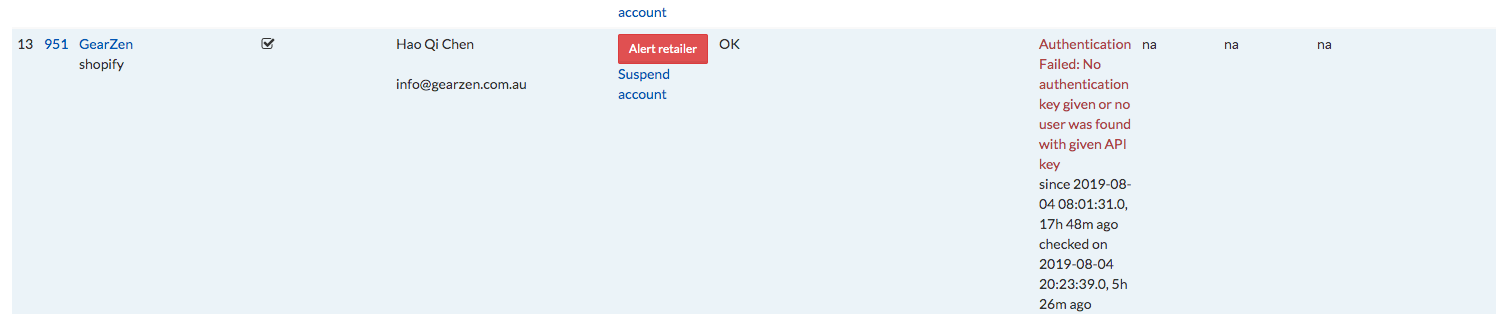
(5b) Where a retailer has had a failed Authentication error on a single marketplace AND an alert has been sent with no action - Then suspend the account.
(5c) Where a retailer has had failed Authentication errors across multiple markets AND an alert has been sent with no action - Then email the retailer directly and ask for clarification.
6. Suspend an account
Select the SUSPEND ACCOUNT link under the ACTION column next to the relevant retailer.
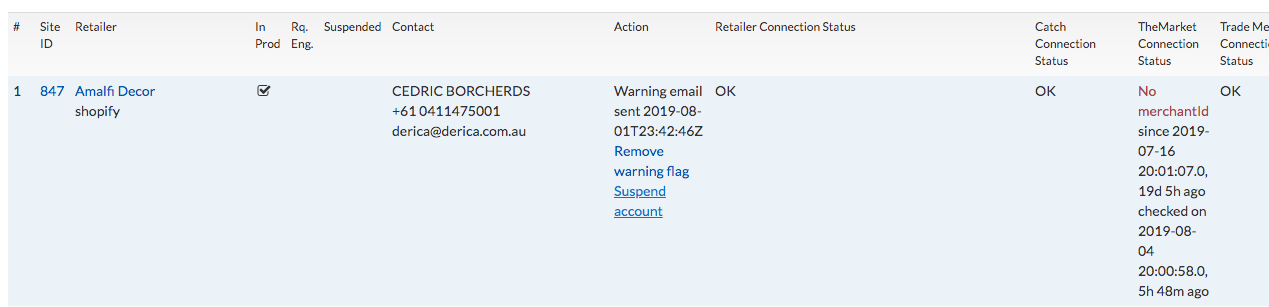
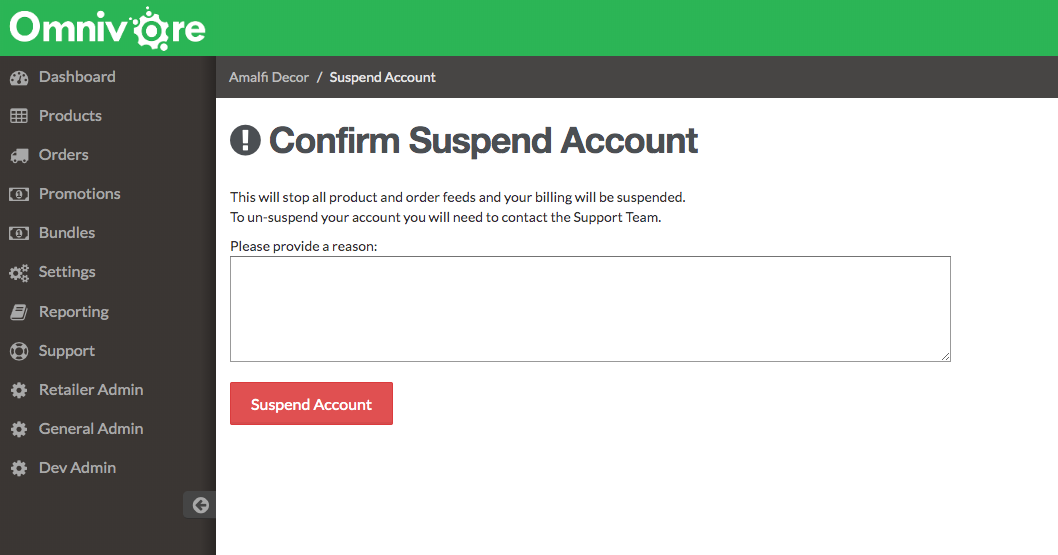
This will redirect the user to the retailers account page. The user will see a large text box.
Write the reason for suspension of the account and include the date of failed error and date of alert sent in notes field.
Select the SUSPEND ACCOUNT button.
7. Remove marketplaces from a retailer account
Where a retailer has multiple marketplaces and has confirmed that they are no longer proceeding with the integration, those marketplaces should be removed from the account.
*they can always be reinstated at a later date*
Navigate to SETTINGS on the left hand menu
Select ADMINISTRATION
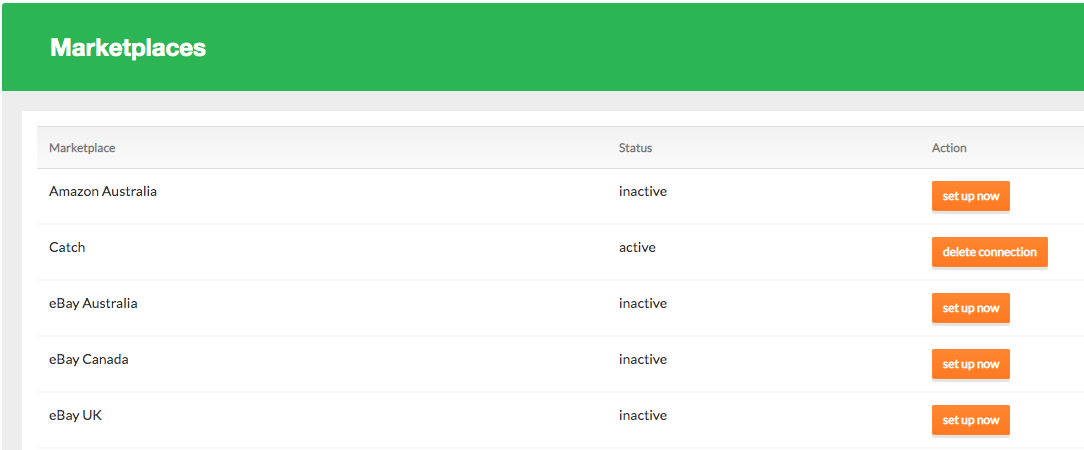
Scroll down to the MARKETPLACES section
Select the orange DELETE CONNECTION button next to the relevant marketplace to remove it from the account
Special Note: where a retail store includes UAT or Test in the store name I will leave these for 2 months before disabling. It is important to reach out to the onboarding team and confirm a retailer has finished onboardboarding before disabling the test instance.
Finally there are 3 key stores that we use across multiple clusters for testing purposes. These are never disabled even if the connections have failed.
1. ALLThatDigi
2. Costi's double Quotes
3. Covers and Cases