
Mapping shipping is handled differently in the Iconic to other marketplaces. This cannot be setup by retailers and must be added to or updated by us.
Getting tracking right is a really important step, as the Iconic will financially penalise retailers who do not mark orders as shipped within about 6 hours of their shipping cutoff time.
Note: some of this cannot be set up until after go live unless the retailer quite specifically knows exactly what they are sending via their website orders.
Stress to the retailer this is important due to the Iconic requirements to provide shipment details within their contracted timeframe (this time can vary by retailer)
Note: carriers are added to each Iconic selling account individually, as the carriers used are approved by the Iconic at an account level. To see which carriers are approved on an individual account:
Changes on m1 Oct 2023:
Shipper setup
Example config:
https://m1.omnivore.com.au/configuration/genericMarketplace/kidstuff-iconic?marketplaceCode=iconic
1. See what values are accepted for this retailer by clicking View shipment providers defined in the marketplace for this retailer only, eg https://m1.omnivore.com.au/theIconicAdmin/viewShipmentProviders?retailerCode=kidstuff-iconic&marketplaceCode=iconic
2. See what value comes in the order from the retailer by looking in the Shipper column of the table for View shipments, eg:
3. If the value from the retailer is not accepted by the marketplace, you have to map it using the json string as explained below.
4. If there is no mapping in the json string, we upload the value as it comes from the retailer. This means you don't have to map if the value from the retailer is accepted by the marketplace. It also means it's possible to upload invalid values, in which case the order history will show: "Not allowed to change the preselected shipment provider." Then you go and map the invalid value and resend the shipment notificatio
Go to Settings->The Iconic->General
Go to the Your Orders section
- Click the Check shipment providers button
- This will load the "refreshed shipment providers" as in the screenshot below and show which shipment providers have been approved for the individual account.
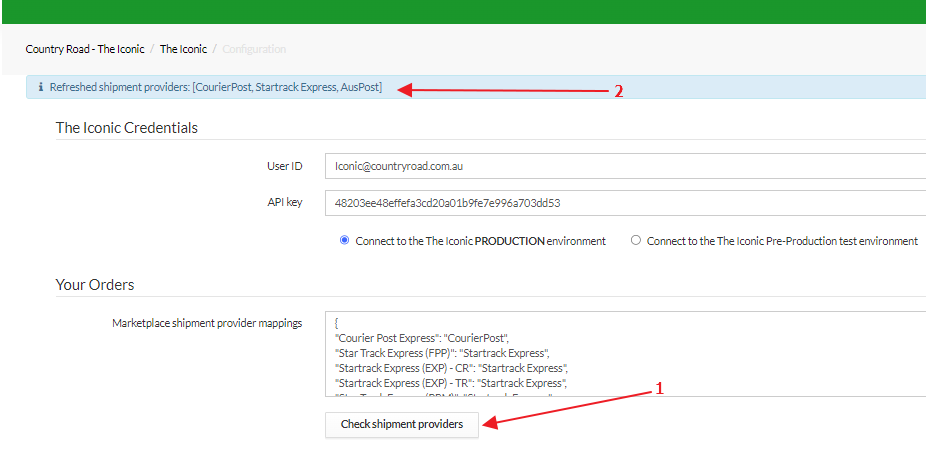
To map shipment providers you must use JSON code as below
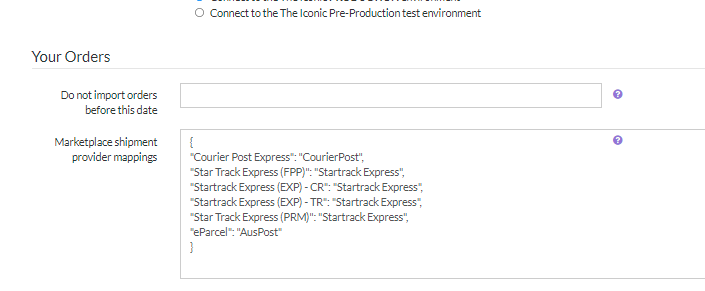
This must be set up using JSON code and added to the Marketplace shipment provider mappings
e.g.
{
"Courier Post Express": "CourierPost",
"Star Track Express (FPP)": "Startrack Express",
"Startrack Express (EXP) - CR": "Startrack Express",
"Startrack Express (EXP) - TR": "Startrack Express",
"Star Track Express (PRM)": "Startrack Express",
"eParcel": "AusPost"
"eParcel Express Post - Powered By Shippit":"Shippit",
"eParcel International Express - Powered By Shippit":"Shippit"
}
The format is
Left Hand Side = Retailers Courier/Shipper Code sent directly from the retailer via their website order/s. This is case sensitive
Right Hand Side = Iconic accepted Courier/Shipper values exactly matching the values you can see in Step 2 after clicking the Check shipment providers button. This is case sensitive also
Before hitting update settings check your JSON code using this link https://jsonviewer.arianv.com/
example here https://m5.omnivore.com.au/configuration/genericMarketplace/country-road-the-iconic?marketplaceCode=iconic