General Guidelines
- Requests to pause, delete or suspend from Enterprise or AM'd retailers must be passed to Krystal or the relevant Account Manager.
- Requests from any other retailers should be passed to Jo for review.
- Suspend an account, don't delete it.
- Pause a marketplace, terminating is permanent.
- If you need to delete on behalf of a marketplace, escalate to Bill, Ivan, Fern, or Krystal first.
While the steps below address specific requests to pause, delete, or terminate, please flag any situation where a retailer expresses dissatisfaction with Omnivore, or implies they may stop using Omnivore to the relevant contact.
The purpose of this process is to engage with the retailer, understand the reasons for their concerns, and attempt to retain the account before they leave.
Policy for Pausing a Marketplace
All requests from a retailer to pause a marketplace should be directed as follows:
- Enterprise Accounts: Send requests to Krystal.
- Account Managed Accounts: Send requests to the assigned Account Manager.
- All Other Accounts: Send requests to Jo.
This policy applies to any request to pause due to dissatisfaction with Omnivore or the marketplace.
However, if the retailer requests a temporary pause (e.g., for a holiday, whilst listings are purged) with plans to reactivate the connection, or if Support needs to pause the connection to address an issue (e.g., jobs failing due to Amazon account issues), Support may process the request directly.
Policy for Suspending an Account
All requests from a retailer to suspend their account should be directed as follows:
- Enterprise Accounts: Send requests to Krystal.
- Account Managed Accounts: Send requests to the assigned Account Manager.
- All Other Accounts: Send requests to Jo.
This policy applies to any request from a retailer to suspend their account.
Policy for Deleting a Marketplace
All requests to delete a marketplace should be directed as follows:
- Enterprise Accounts: Send requests to Krystal.
- Account Managed Accounts: Send requests to the assigned Account Manager.
- Any account that is being onboarded to that marketplace: Send requests to the person onboarding the retailer.
- All Other Accounts: Send requests to Jo.
This policy applies to deletion requests due to dissatisfaction with Omnivore or the marketplace, unless the deletion is required to provide support e.g., you need to delete the marketplace and start again
A Marketplace should only ever be deleted under the following circumstances
- You have written confirmation from the retailer requesting the deletion.
- You have informed them that deletion is irreversible, and they will lose any existing setup, order history, and other data in Omnivore.
To delete a marketplace -
Go to Settings / Marketplaces and click Remove Link and Config
OR
Go to Settings / Marketplace you want to delete e.g. Amazon / General then to the 'Integration Status' section and click 'Terminate'
Policy for Deleting an Account
All requests to delete an account should be directed as follows:
- Enterprise Accounts: Send requests to Krystal.
- Account Managed Accounts: Send requests to the assigned Account Manager.
- All Other Accounts: Send requests to Jo.
This policy applies to deletion requests due to dissatisfaction with Omnivore or a marketplace, unless the deletion is required to provide support e.g., there is an old install with the same admin email.
An account should only be deleted if:
- You have received written confirmation from the customer.
- You have informed them that deletion is irreversible, and they will lose any existing setup, order history, and other data in Omnivore.
Deleting accounts should be the last resort, Accounts should be SUSPENDED instead.
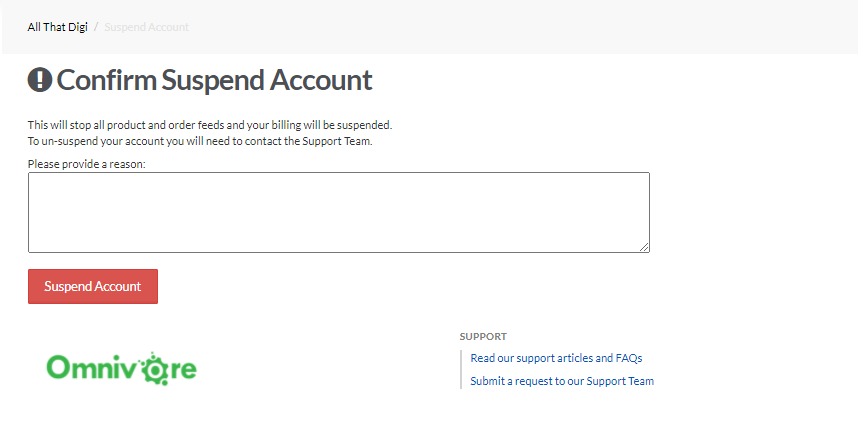
To suspend an Account
- Find the Retailer
- Go to Settings / Account Summary in the left navigation
- Click Suspend Account
- If the retailer is also subscribed to Omnivore Analytics ensure you also suspend that as well.
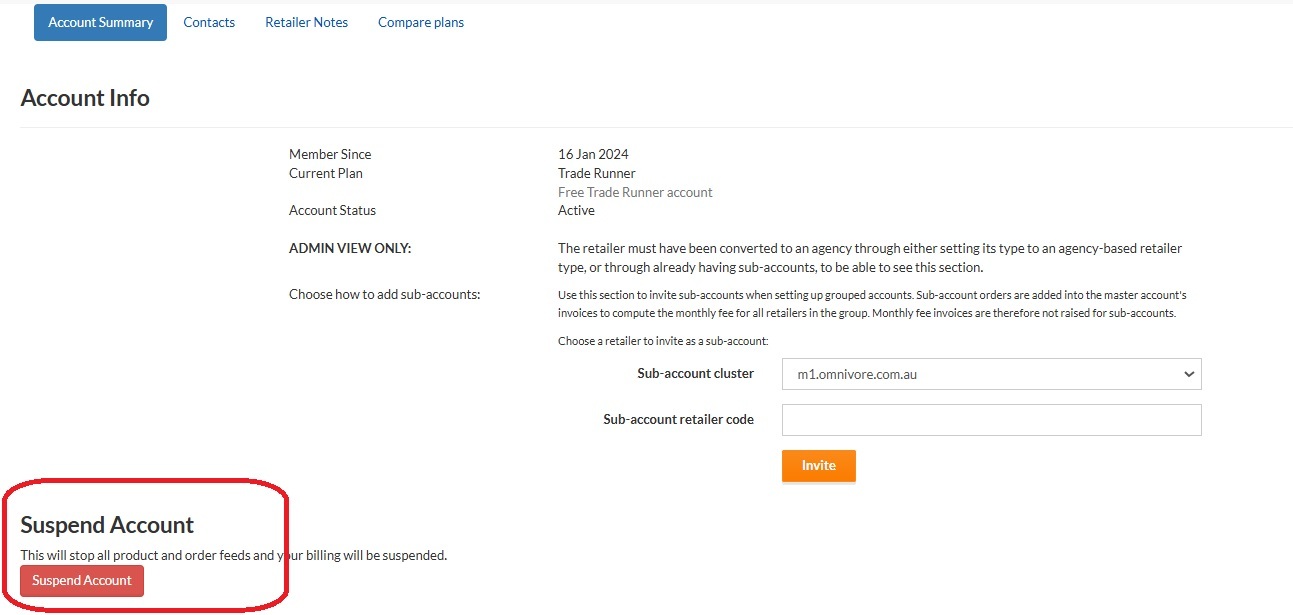
- You will need to provide a reason - provide as much detail as possible. Ensure you include a link to the Support ticket where the retailer requested the suspension.