
Internal only. It is suggested to read the FAQ fully before you proceed to do the setup.
For sellers who want to OR have to setup Webhooks please send them the FAQ below directing them to the relevant Webhook section.
It explains the finer points and considerations before they proceed. For support, it also explains when Webhooks will NOT work.
Retailer facing FAQ - https://support.omnivore.com.au/magento-2-inventory-syncing-and-product-update-methods
NOTE: if a sellers wants webhooks setup for multiple accounts that have the same Magento 2 endpoint, the setup will have to be completed by Will.
Setup in Magento & Omnivore
- Have the seller and developer read the external FAQ and if they want to proceed get them make sure they have the latest Omnivore Plugin Module for Magento 2, the may need to upgrade the plugin.
- It would be best to have the developer or technical contact cc'd into the ticket. They must upgrade to this version to be able to proceed with Webhooks:

- The most recent plugin has Webhooks built in, so when they click on Stores - Configuration they will see City Beach Software - Webhooks Enabled No.
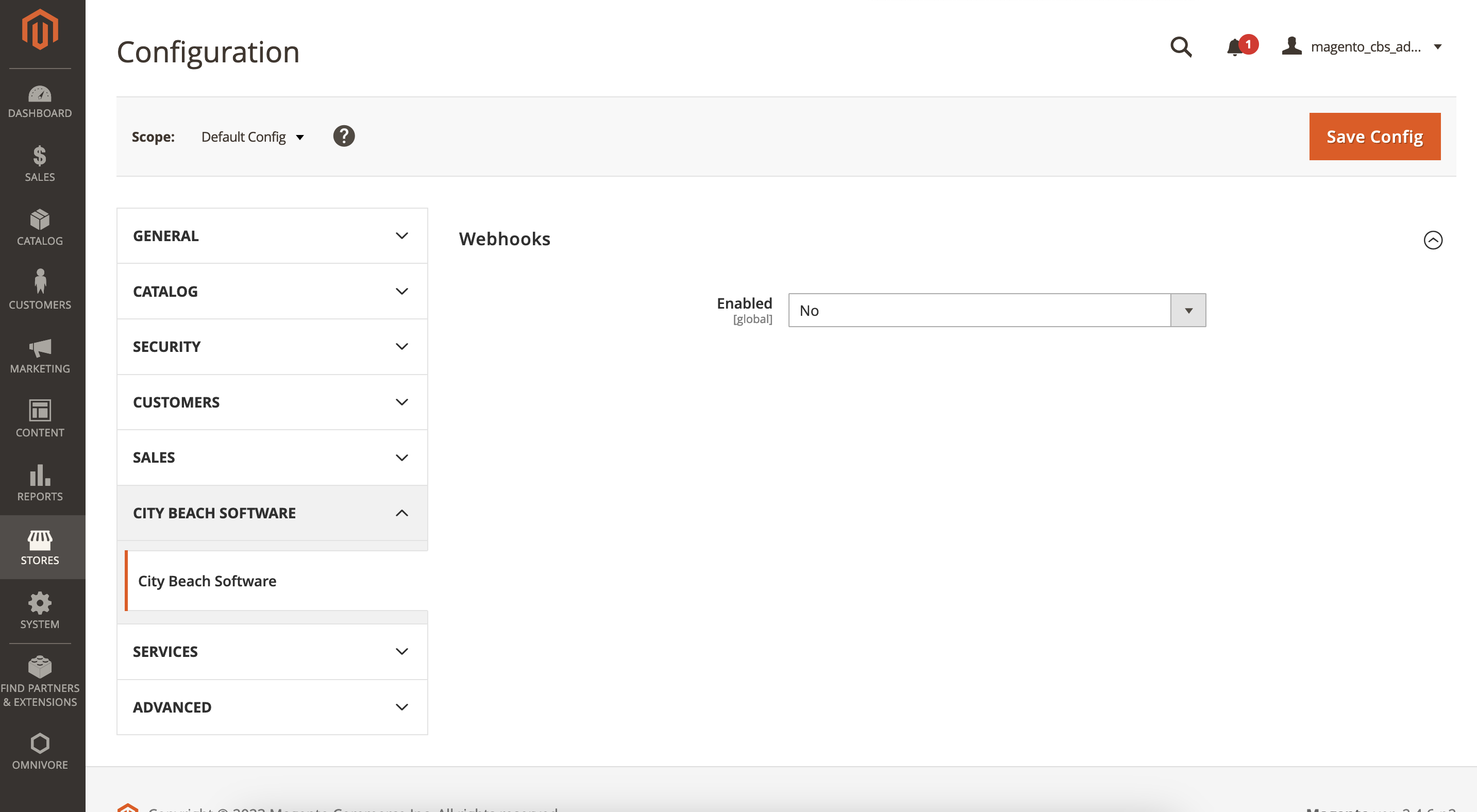
- After they complete the Omnivore plugin update in Magento, Omnivore Support/dev/integration do the next steps in Omnivore. Admin Only.
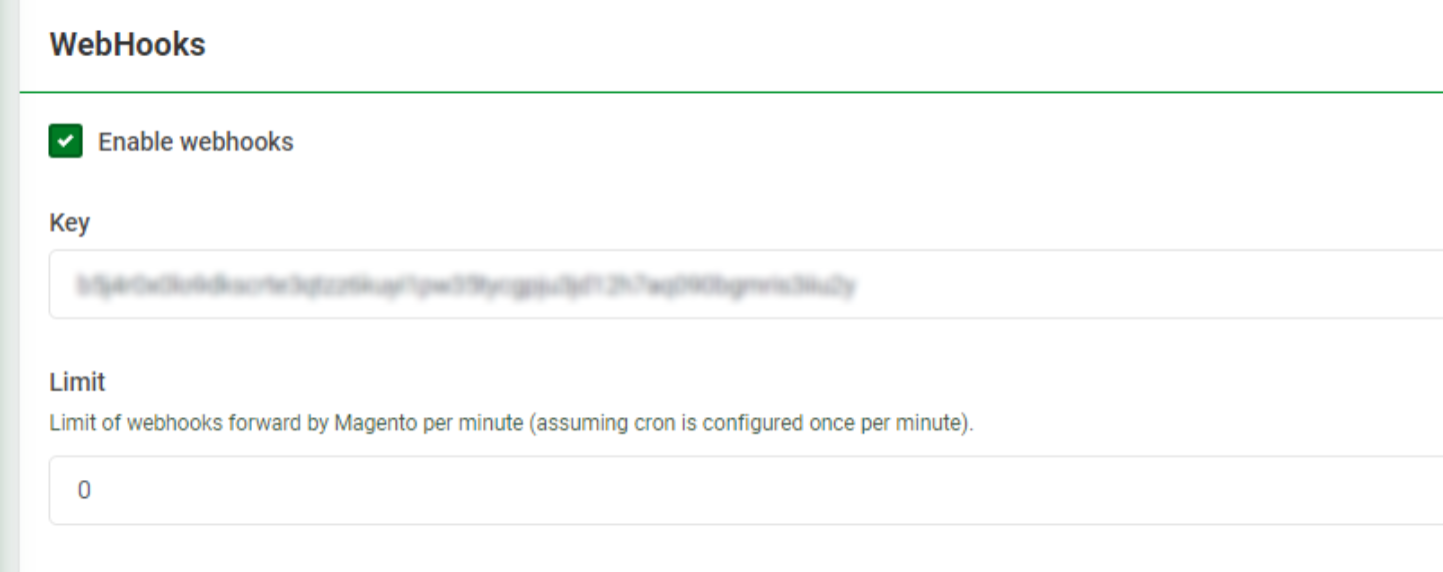
- Under Settings - Magento2 Feed - General tick Enable webhooks- click Update.
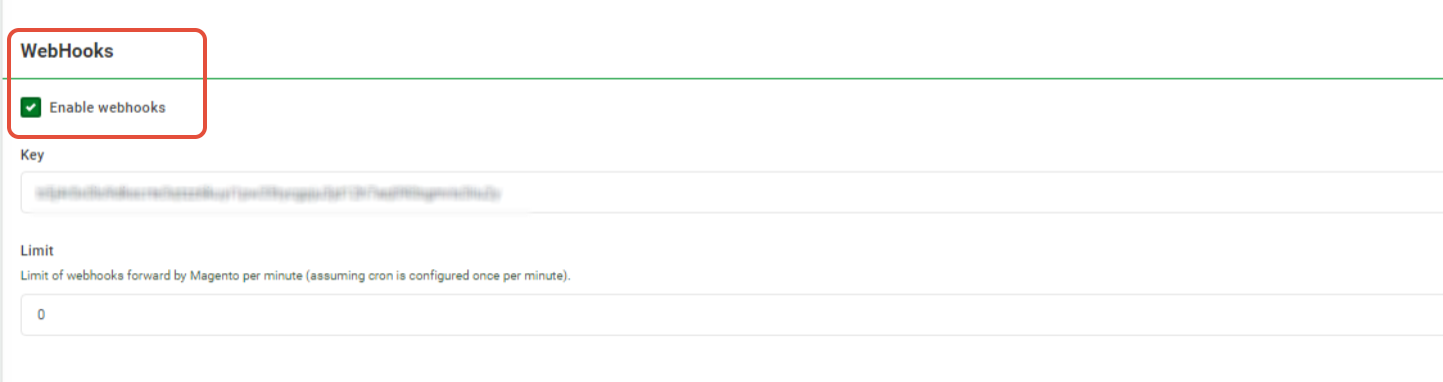
- Next under Settings - Magento2 Feed - General scroll down and

- click Generate Webhook Key,
- click then Update.
- Next we need to update the Magento site, three option to choose from:
- Magento where webhooks have not been setup on another Omnivore account - click "Webhook Update"
- Magento where webhooks have already been setup on one or more Omnivore account - click "Webhook Add"
After the Update or Add you should see something like the following:
[{"enabled":true,"hostname":"m2.omnivore.com.au","code":"magento-example","key":"c5j4r0x0lo9dkscrte3qtzz6kuyi1pw35tycgpju3jd12h7aq090bgmris3iiu2y","limit":0}]
- At this stage their Magento Store and Omnivore Account are configured to use Webhooks.
- A completed Omnivore Setup will look like this:
- A completed Magento Setup will now look like this:
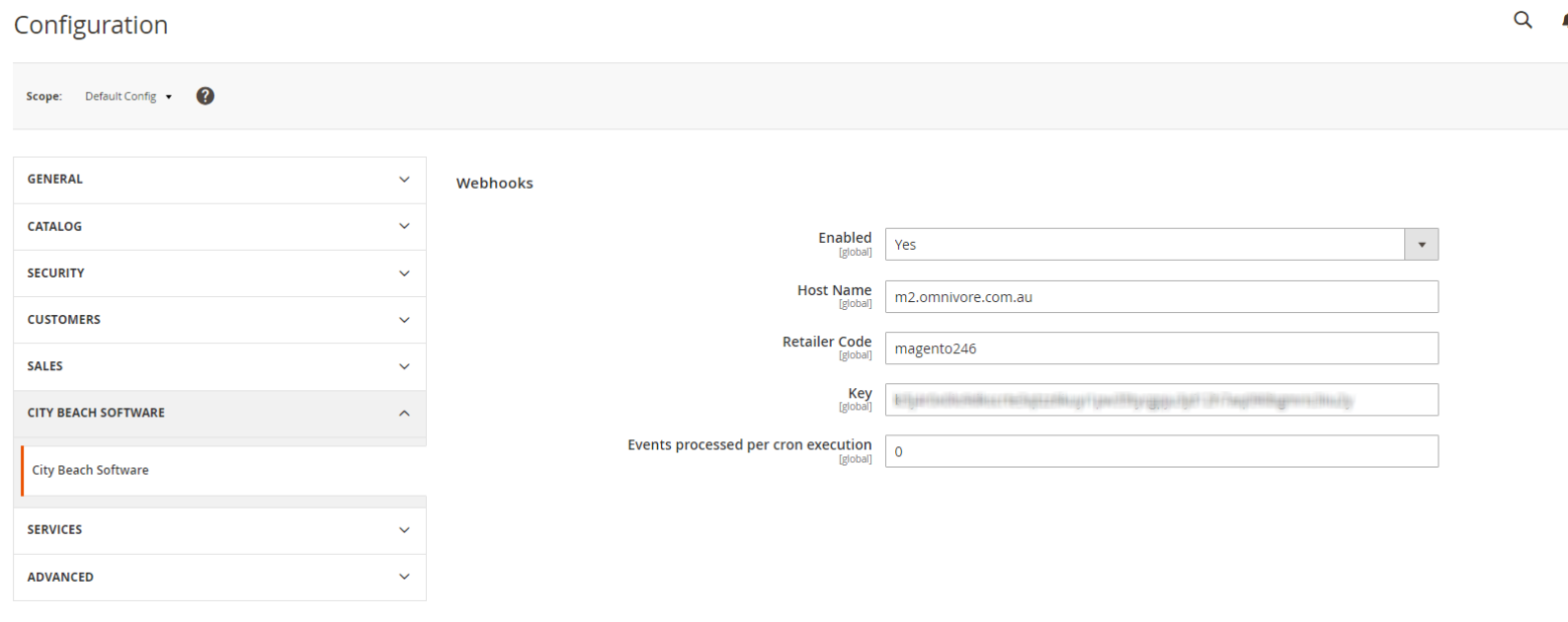
- If they enable it to YES manually it will not work, it has to say NO in Magento for the above process to work.
- Keep notes in your tickets so that troubleshooting steps can be applied to internal help faq's, this is a new feature so we are all learning.
- Use this test account if you want to check things first - https://m2.omnivore.com.au/dashboard/magento246
Webhooks in Omnivore & What If's
** This is a summary of key points, do's and don't, and general info to help setup & troubleshoot Webhooks for Magento 2.
- The above external faq covers instances where webhooks will not work.
- Webhooks can be found in the UI by looking at the Queued Batch Import Job and the Webhooks Page. Errors will be visible if webhooks are not working, the errors are reflective of the two situations where webhooks will never work.
- What if webhooks are setup but they are not running or you cannot see them being triggered? TBA.
- How will we know they have Webhooks turned on? The synchronous call status check at the bottom of the settings - magento2 feeds - general page will show you.
- What does the product log show?
- If webhooks are ON does this turn off the 'every 20 minute' inventory sync? No, they both still run.
- More points to come .....