
Internal FAQ
Pre-Reading
Seller should have been sent this: https://support.omnivore.com.au/magento-multiple-sources-inventory-msi-setup-in-
Which has this link: https://www.magestore.com/blog/complete-guide-for-magento-inventory-msi/
Similar to Shopify Inventory Location, Magento 2 has an equal function whereby we can do some configuration in Omnivore in order to look for inventory/stock in a specified location.
MSI = Multi Sources Inventory.
THE MAGENTO SETTING SCREENS FOR THIS FEATURE ARE ADMIN ONLY.
This TR Seller has it setup - https://traderunner.omnivore.com.au/dashboard/nzboxer-storeview#marketplace-trademe
So does this seller - https://m2.omnivore.com.au/dashboard/automotive-superstore#marketplace-ebay
Steps:
- Find out from the seller the name of the site/location that is the Stock Source. See below for more info on this. Add it into Stock Sources on the Magento - Settings - General page. Sellers cannot see this. The site data that goes into this field is comma separated and will be the same as what has to be in the CSV, see below for how to find it.

- Turn on Store Inventory the same way you do for Shopify https://m2.omnivore.com.au/configuration/adminConfig/automotive-superstore-pty-ltd#store-inventory
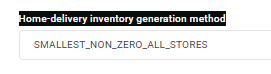
- Also select the home delivery generation method from the drop down. See more explanations below at the bottom of this FAQ, you will need to ask the seller.

- Now go to the Stores page to use a CSV to import the Stores, see below.
From memory try not to use "all", the volume of MSI data can be a bit stupid so we need to filter it as much as possible
- Navigate to Administration Menu - Implementation and look for Store Inventory Adapter. Make sure it is Magento MSI

- Make sure all of these are now ticked, visible and there are no errors before you continue. Do Not Do An Import at this stage.
- Go to the new Stores Menus, get a blank CSV by clicking Export to Store CSV.
- Complete the fields, the min required fields are below, please make sure you also include latitude and longitude in the CSV, they are in row Y and Z.
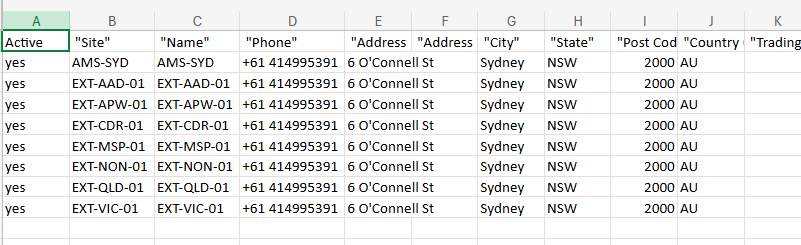
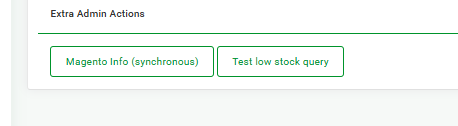
- The Site column (location ID on the UI page) is the Source Store and it can be found by doing a Magento Info synchronous call on Settings - Magento General - Scroll down. This can take a while to retrieve. Search on Sources to determine the site or sites that need to go into the CSV.

- This instance has 8 sites in the CSV, the seller needs to confirm the sites they want to include. 'Name 'can be whatever you like.
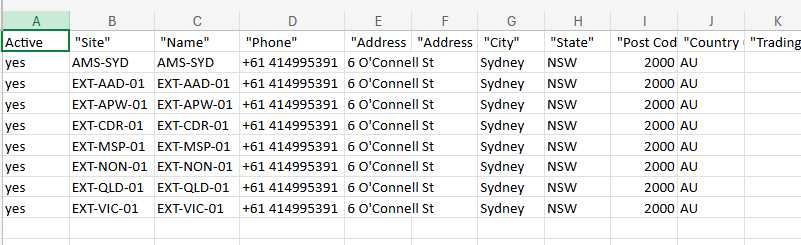
- Complete the CSV remember the Lat / Long info and save to import into the Stores page.
- Refresh the page after the import if necessary.
- A completed Stores page will look like this https://m2.omnivore.com.au/store/list?retailerCode=automotive-superstore-pty-ltd
- If it does not work check the CSV and try it again, pay attention to any errors that may appear after the import..
- Run a single product update on one product to check it is working and get the seller to confirm.
Extra Information
** More Info on this field Home-delivery inventory generation method
 ADD ALL:
SMALLEST NON ZERO ALL STORES:
ADD ALL:
SMALLEST NON ZERO ALL STORES:
These two drop down choices have been used and tested for Magento 2 as of April 2025, if you think you need to select others because this feature is not working seeing help from Will.