
Internal Only.
Ineda Contacts
Sales and Onboarding: aid@ineda.com.au
Technical and Onboarding: rob@ineda.com.au and nick@ineda.com.au
Integration Contact: Dave and Deb.
All new enquiries get funneled to Aid at Ineda first to ensure they have an account setup and ready to go.
About Ineda
- Marketplace Link - https://ineda.com.au/
- Become a supplier/seller on Ineda - https://inedamobile.com/api/v1/crmAdmin/store/page-seller-register.php
- How Ineda works - https://ineda.com.au/customer-landing
- When they get setup on Ineda and get approved they receive a secure key issued from the Ineda onboarding team, the onboarding team at Ineda then activate the account.
- Buyers bid on products and the sale is dependent on the seller accepting a bid.
Omnivore and Ineda
- The Ineda/Omnivore integration is a product only feed via SFTP. NOT Orders.
- The marketplace is added like every other marketplace, it is setup with a custom CSV feed file that we push to Ineda.
- Sellers cannot add the Marketplace, we can and Aid at Ineda can add Ineda in Omnivore.
- Boutique Retailer is the first seller to be onboarded to Ineda - https://m1.omnivore.com.au/dashboard/boutique-retailer#marketplace-ineda
- Products are mapped to Ineda Categories in Omnivore.
- Shipping code and Shipping cost is included in the product feed.
- Omnivore does not manage orders.
- Ineda requires a sell price and reserve price, these two prices are usually different. More to come on that.
Setup Information
- When you add the Ineda Marketplace to the account in Omnivore it will ask you to setup shipping. This is setup with each listing.
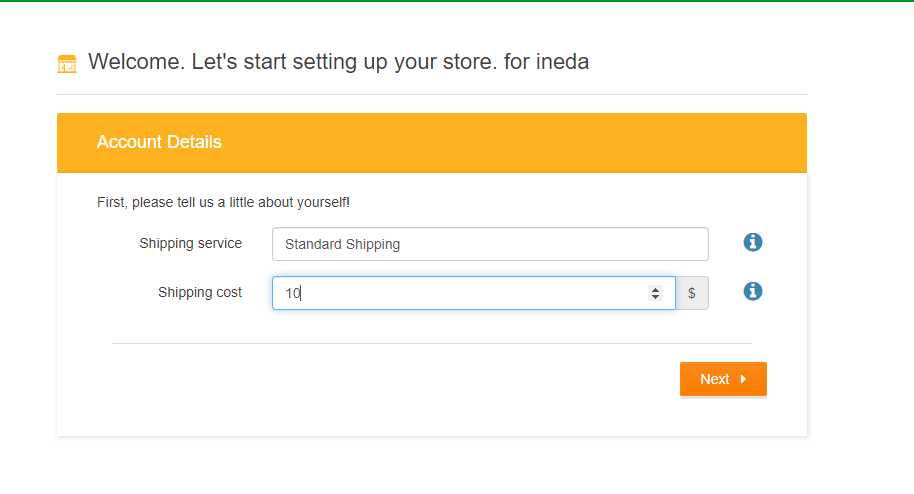
- It will generate a Feed Url secret key that is unique to each seller.
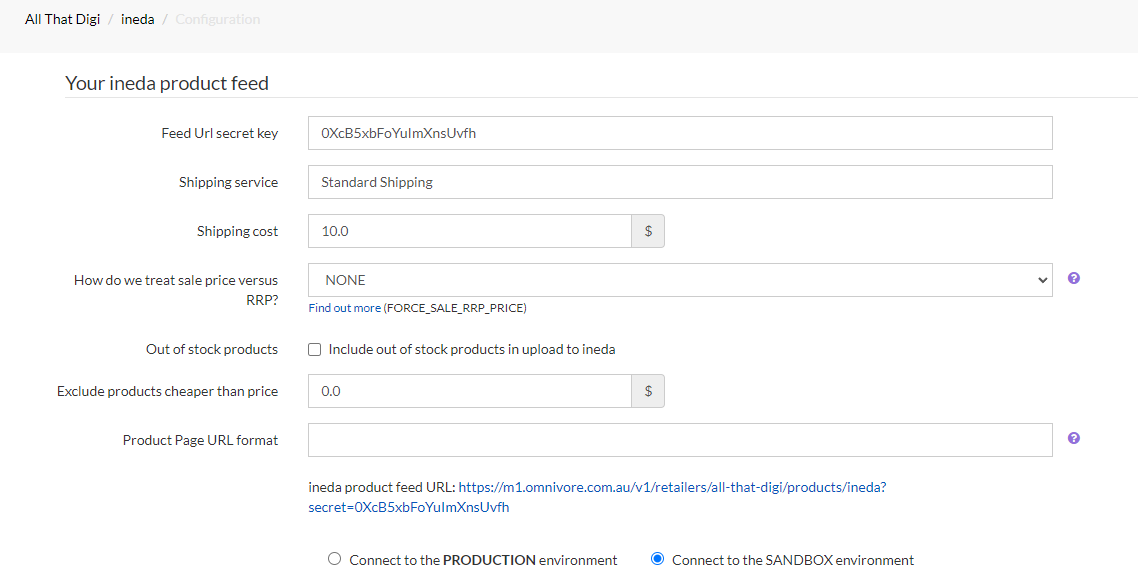
- Note, the Feed URL secret key is applied when you add the marketplace in Omnivore, the seller should not need to re-add the secret key in Omnivore.
- The SFTP details are being used for Ineda but they are not visible to us in the UI, so even though they are blank on the settings page there is a username and password for each account.
- If the feed from Omnivore to Ineda breaks, it will need Ivan to look at it.
- If the seller wants to check the feed to Ineda they just click the feed URL on the settings, general page.
- They are advised by Ineda to use the Sandbox environment first.
- If the seller hits start selling while in sand box, just change to production and click and upload to Ineda.
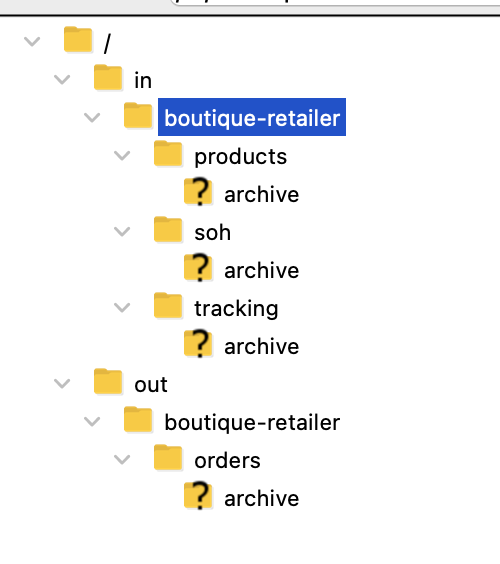
- Each seller will have a folder structure on Ineda, it will look like this.
Price on Ineda
- There are two prices sent to Ineda. Listing price and Reserve Price.
- Listing price in Omnivore is Price.
- Reserve price in Omnivore is set as an attribute by the seller. The reserve price is what they use an offer price if the buyer does not accept the list price.
- If the seller has not set a reserve price attribute then Omnivore will revert to use the price with TAX as the reserve price.
- The column reserve_price in the csv is either standard price with tax or the contents of "reservePrice" or "reserve_price" product attribute. Needs this exact wording to work, there's no flexible mapping.
- Ineda does not support marketplace product attribute overlays, the reserve price attribute has to come from the import feed (seller).
- You can use a Metafield as long as the wording is exact.
Feed Information
SFTP is being used but not visible to us in the UI. Broken feed = see dev.