Troubleshooting the Feed URL Solution i.e where Omnivore is NOT connected to the GMC
- Retailer should follow the instructions in this FAQ: https://support.omnivore.com.au/how-to-set-up-and-upload-your-product-feed-to-google
- If a retailer is saying that there are NO products showing in the GMC:
- Confirm the URL that they are using in the GMC is the same URL as under 'Settings - Google Product Feed - General'

- In Omnivore, click the link to generate the file and open in a browser. Check the XML feed has content; search for 'title' – it will tell you how many products are in there. This should match with what is in Omnivore.
- Ask the Retailer to follow the instructions in Step 3 and step 4 in the article https://support.omnivore.com.au/how-to-set-up-and-upload-your-product-feed-to-google
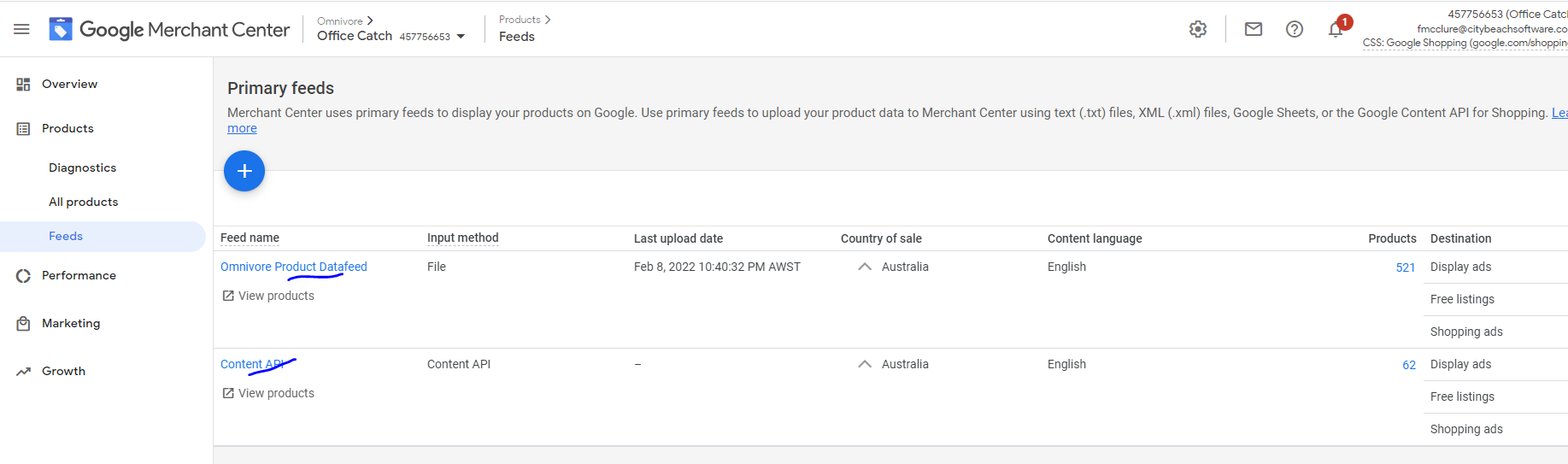
- Ask the Retailer to provide a screenshot of the feed outcome from the GMC e.g go to 'Products - Feeds' and also confirm the TIME that they scheduled the fetch.
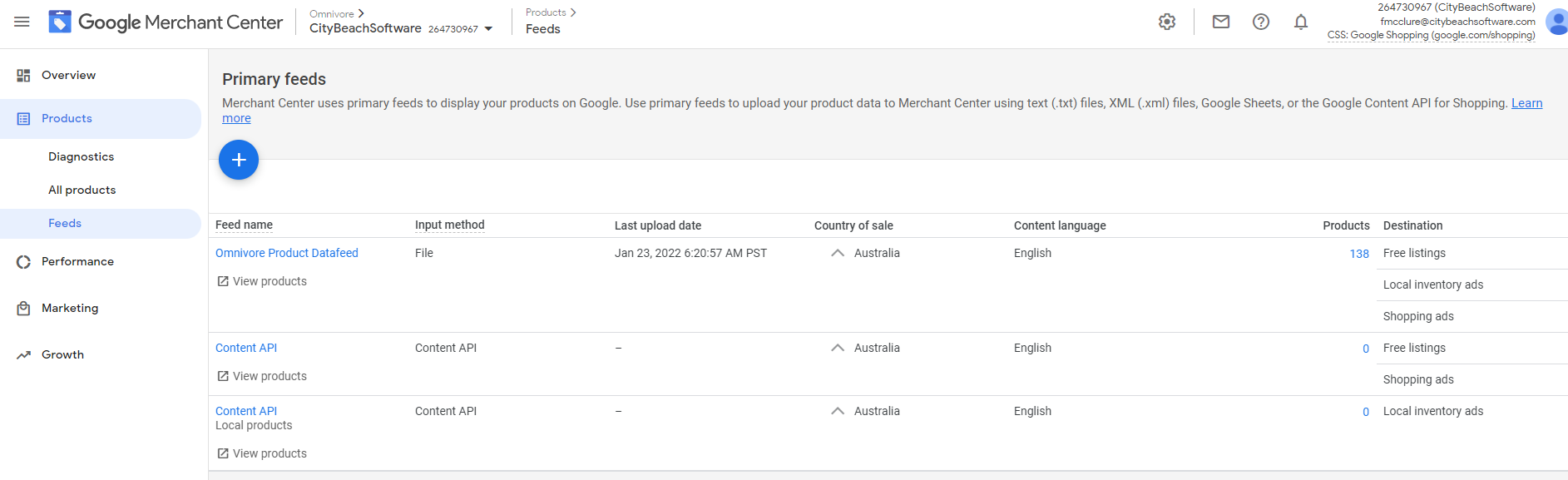
- Also click on the Feed name for more details
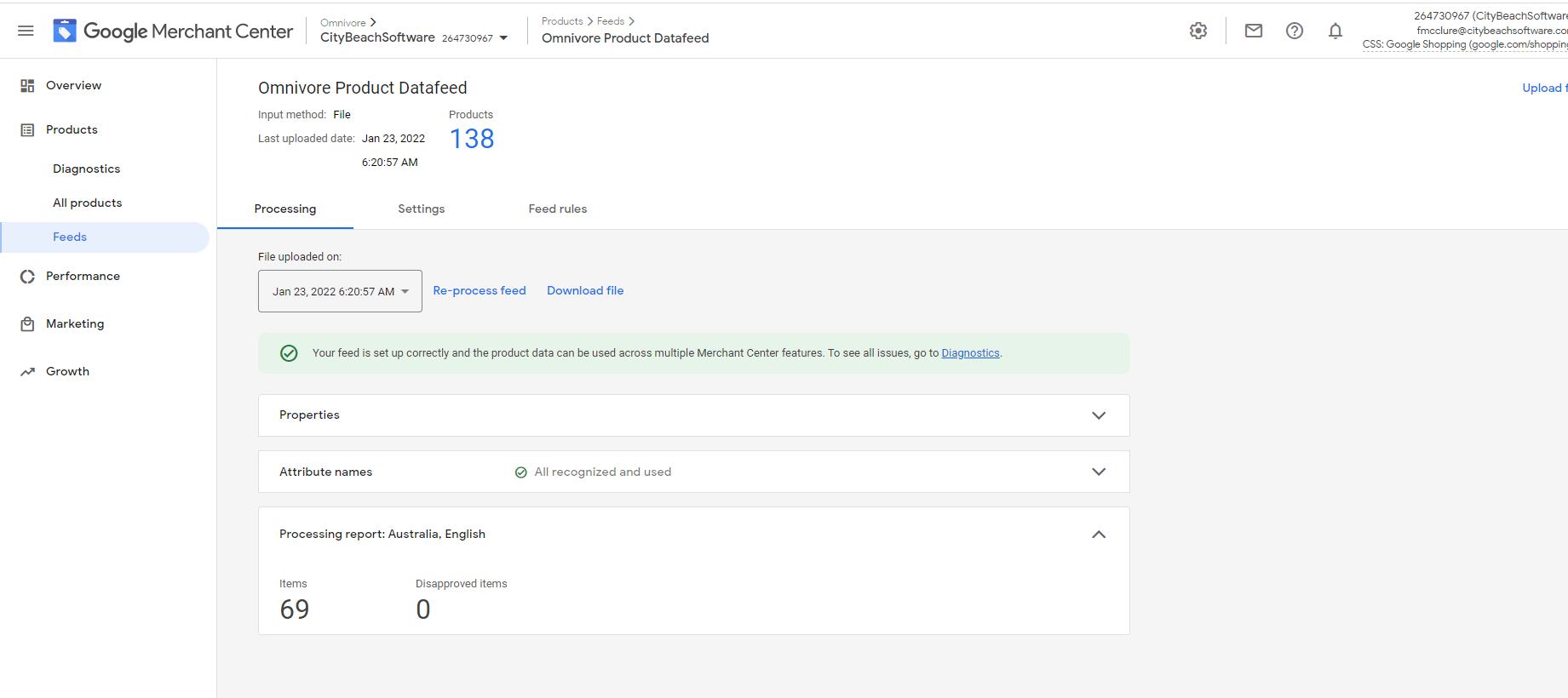
- If we know the TIME the fetch was initiated we can check the Log Files for http status, how often its accessed etc. and see what is happening on the server.
- Don't need to change the FEED URL SECRET - this doesn't have any impact on the products being generated.
- SML is prone to problems because there are less safeguards in place and more manual with less visibility of what is going on in the GMC compared to connecting via APIs where we can see what is going on.
- Confirm the URL that they are using in the GMC is the same URL as under 'Settings - Google Product Feed - General'
Feed Uploads where Omnivore is connected to the GMC via API Uploads
- Check the GMC account is active - 'Settings - Google Product Feed - General' Check Connection.
- Go to Settings - Google Product Feed - Admin - click List data feeds - see if any feeds exist.
- Try and upload to google ads from the Dashboard and monitor the Jobs - Job type: UPLOAD_PRODUCTS_TO_MARKETPLACE and Validate Products - Filter by Google Product Feed marketplace.
See: Products- Google Product Feed Listings is an internal page to show all products.
Filter by approved/disapproved.
To validate the number of products in Google and # in Omnivore:
- Go to Products - Google Product Feed Listings
- The 7th column - Item ID Marketplace Listing
- This is the listing ID in Google. If have multiple variants they count as a single product in Omnivore on the Dashboard but multiple listings on Google
- Scroll to the right, see the errors in the GMC
- Can also filter by listing status - disapproved
- product approvals come through when we download active items;
- status was valid when we retrieved the info from google, google then crawls and the product may be approved
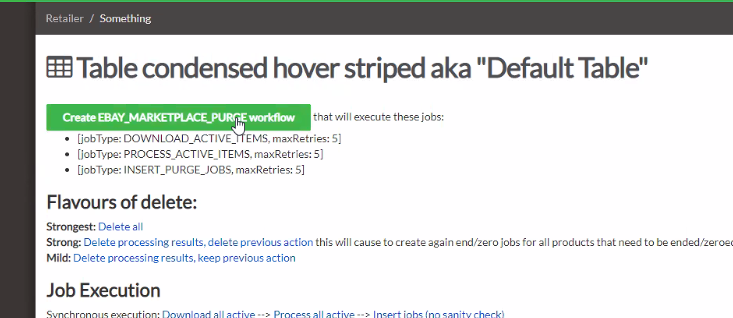
- To sync omnivore again to get the updated approvals/errors: Go to Products - Google Product Feed Listings
- More Actions - Create ebay marketplace purge workflow - this will download active items
To check status of a product in google:
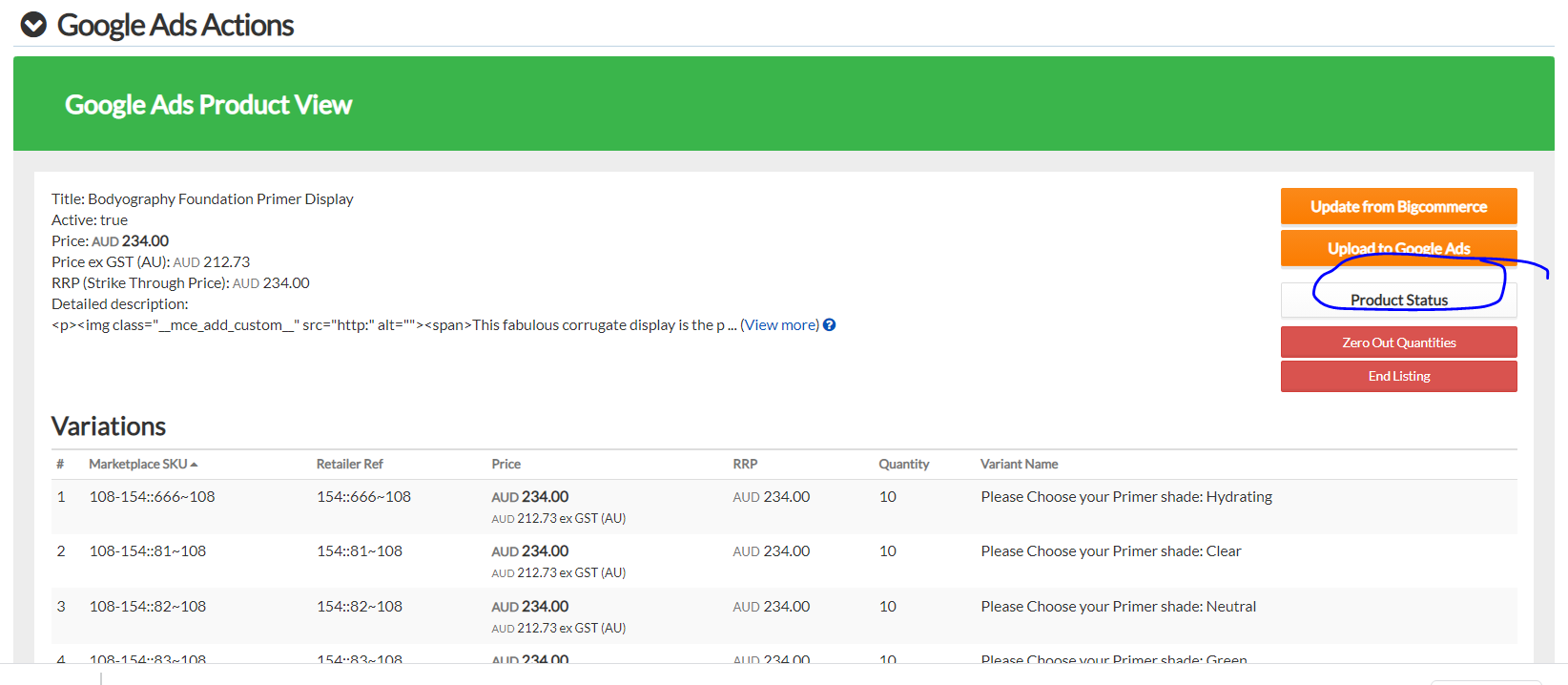
Product errors and documentation on how to fix it is available;
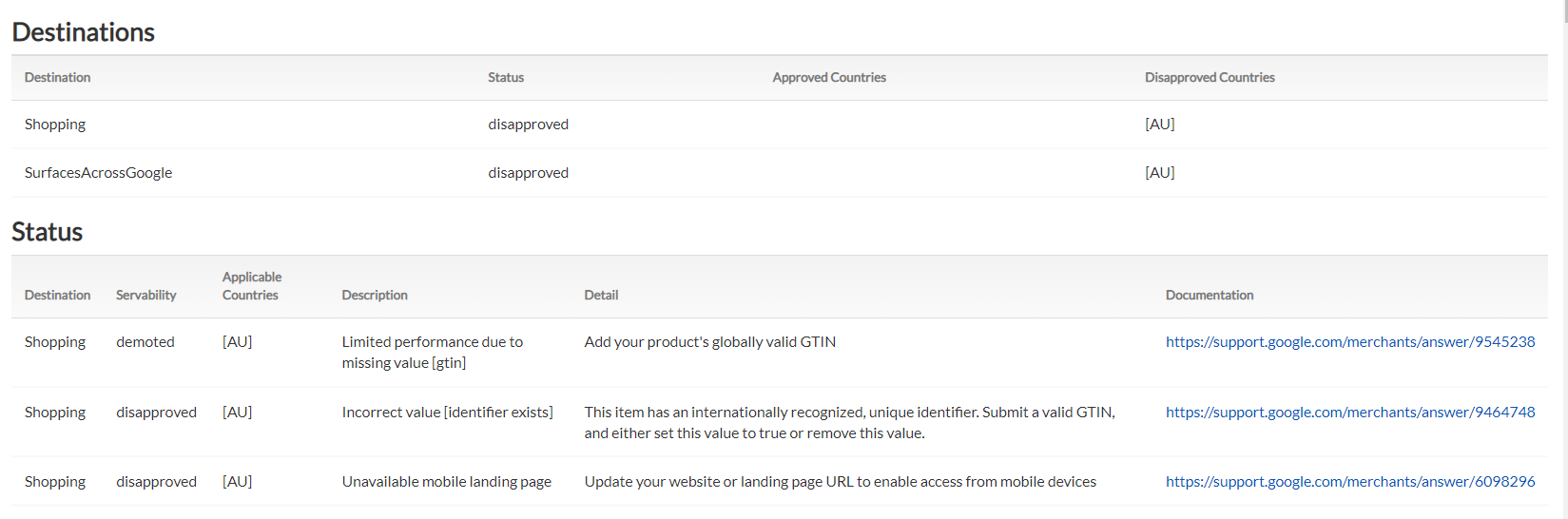
Troubleshooting the Product Feeds
NB: 'Upload to google' - not actually an upload. it prompts Google to download the file from Omnivore.
Check connection to GMC and Ads. Go to Settings - Google Product Feed - General and click the Check Connection button.
Check feed status - Go to Settings - Google Product Feed - Admin and click list data feeds - under Misc. NB: Paused will always say ‘true’ in Google Admin. 
Check the Jobs:
Go to the Jobs: Retailer Admin - New Dashboard - List tab - Filter: Upload to marketplace; Filter by Google
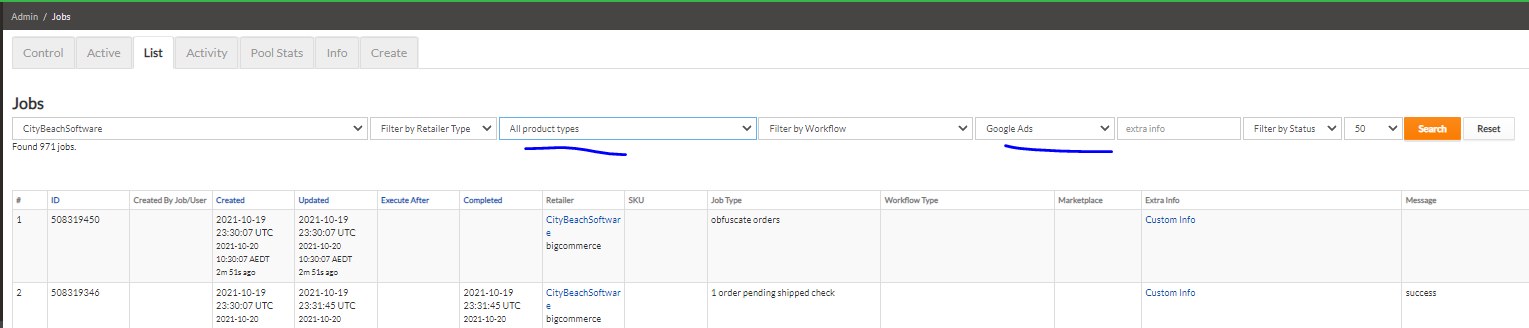
Insert purge job: last job in the workflow; view parents: see full workflow: see upload to marketplace – step to trigger google to download the products
Last job in workflow is at the top
Retrieve products
Product process: internal step;
Product Bundle short if no bundles
Map products to categories
Validate products
9 product full Upload – creates the next one
Upload products to marketplace; asks google to download the feed file; waits for google to confirm the file has processed
Purge: get listings; compare what we have to what they have and determine if there is a mismatch and try to correct; 1. Download active items from the marketplace. 2.Process active items Compare what we have 3. Insert purge job to fix discrepancies
Check the Product Data Sent to Google
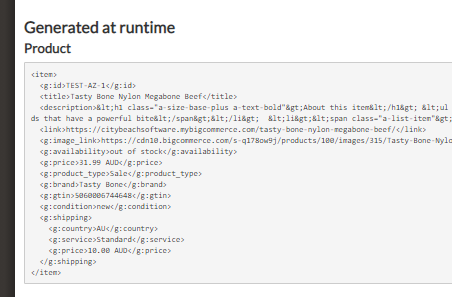
To check if the product data we are sending to google is correct go to a product details page and view the Google Product Feed product view.
Click View data sent to Google Product Feed
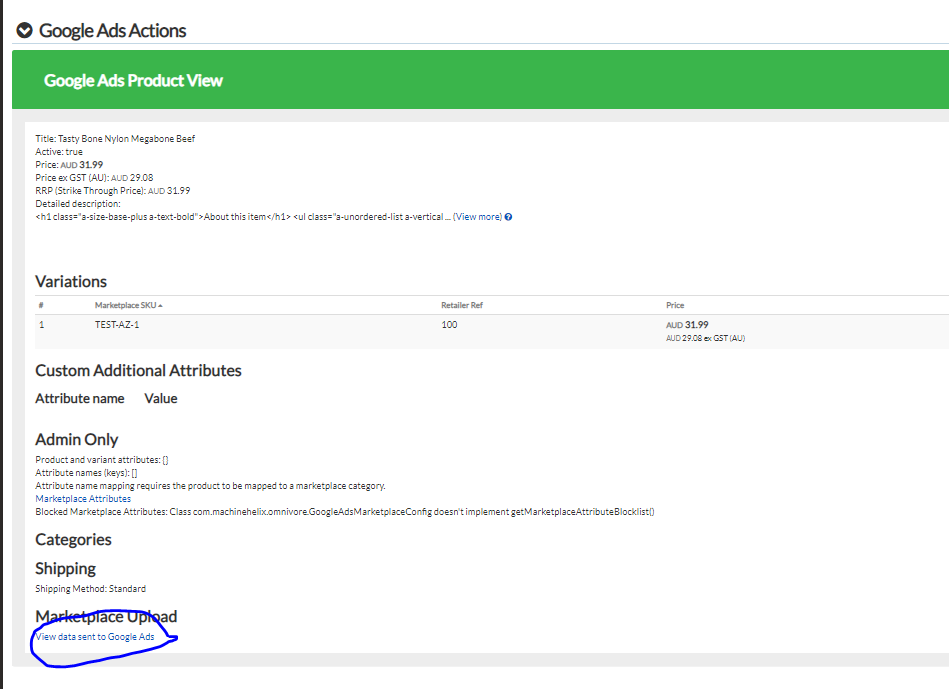
View 'Generated at runtime' - will tell you if what we are sending to Google is what should be e.g check the product link, shipping etc.
If a Campaign is NOT Starting:
- CHECK Shopping Ads is active – in GMC go to ‘Growth - manage programs – activate shopping’
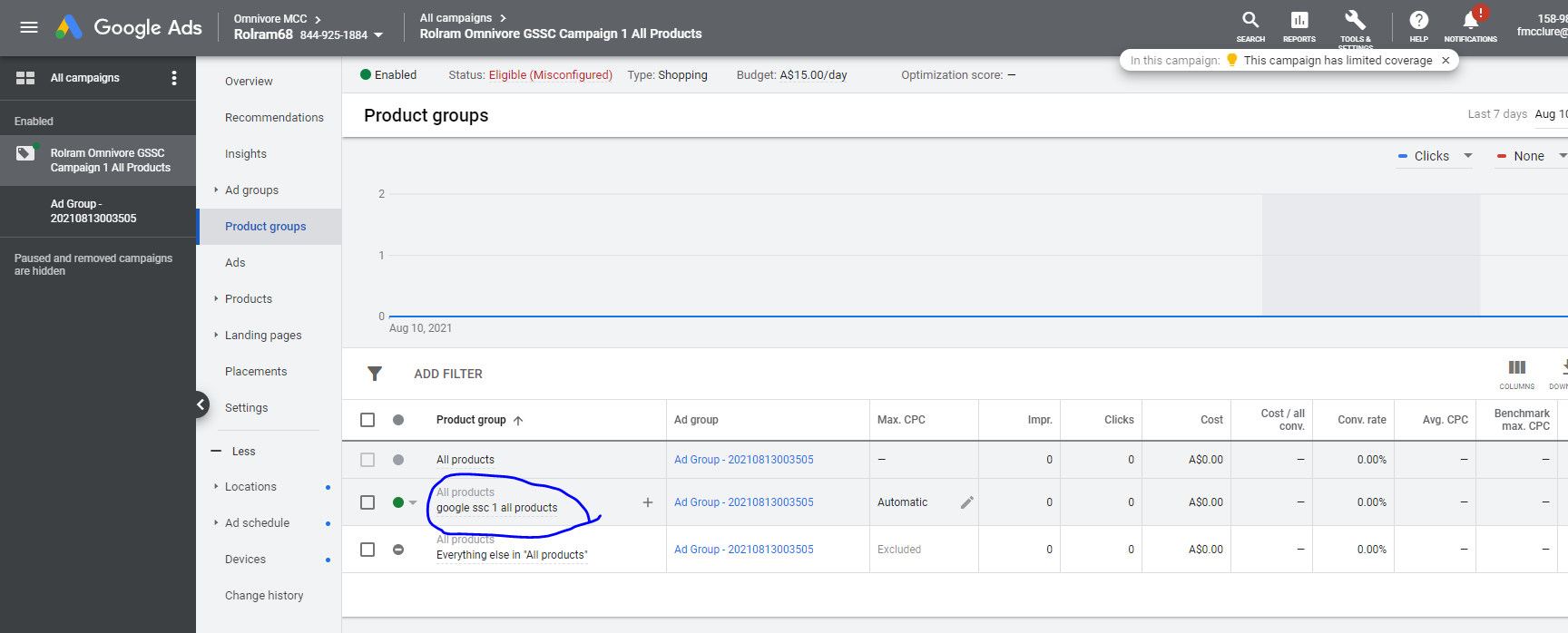
- Check Products are showing in the campaign in Google Product Feed - click on the Campaign - Product Groups
Google Errors:
There exist other accounts with homepage that conflicts with the homepage of account 455397229. Set the parameter 'overwrite' to true if you want to take the claim and remove it from these accounts: nat@skinmindandbeauty.com.au
Solution: probably means the site is already claimed by another merchant account
Example ticket: https://citybeachsoftware.freshdesk.com/a/tickets/75634
In the GMC - Account Access, created an account under the email address in the email address that was in the error message. They can then login to the GMC and follow the prompts to claim the website using that email address.
Feeds in the GMC - Content API vs Omnivore Product Datafeed
- The feed in the GMC is called Omnivore Product Datafeed when submitted to the GMC by Omnivore
- Content API means any product updates created by webhooks from Omnivore
- If the retailer doesn't do webhooks, don't expect to see anything in the Content API feed - if we never do a single product update, then you will not see the Content APi line in there