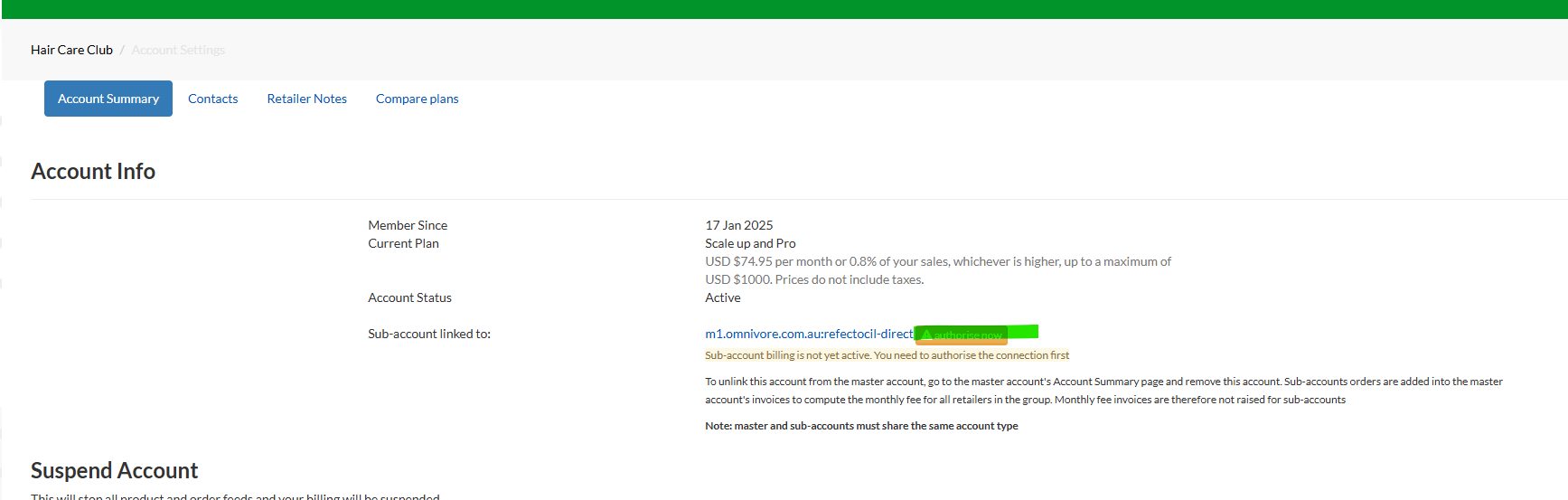
Internal only.
Exceptions
There are exceptions where you should NOT combine billing:
- If a retailer is on The Market free plan and we create a new Omnivore instance for a paid marketplace.
The Market Omnivore instance stays on the free Market plan and the new Omnivore instance would be charged based on the standard paid Omnivore plan for their website type.
If you are not sure what plan to add see https://support.omnivore.com.au/omnivore-pricing-and-plans - All accounts MUST be on the same billing plan.
If they are not on the same billing plan they cannot be combined as master and sub accounts. Combining accounts on different plans will stop ALL bills being generated.
Setup Process
- Go to the Account that is going to be the master account, go to Account Summary and select the sub account cluster from the drop down and insert the sub account retailer code and click Invite. ** Our example is using All That Digi on M7 as the Master and All That Digi in M1 as the sub. When this step is done it will look like this on the Master Account:
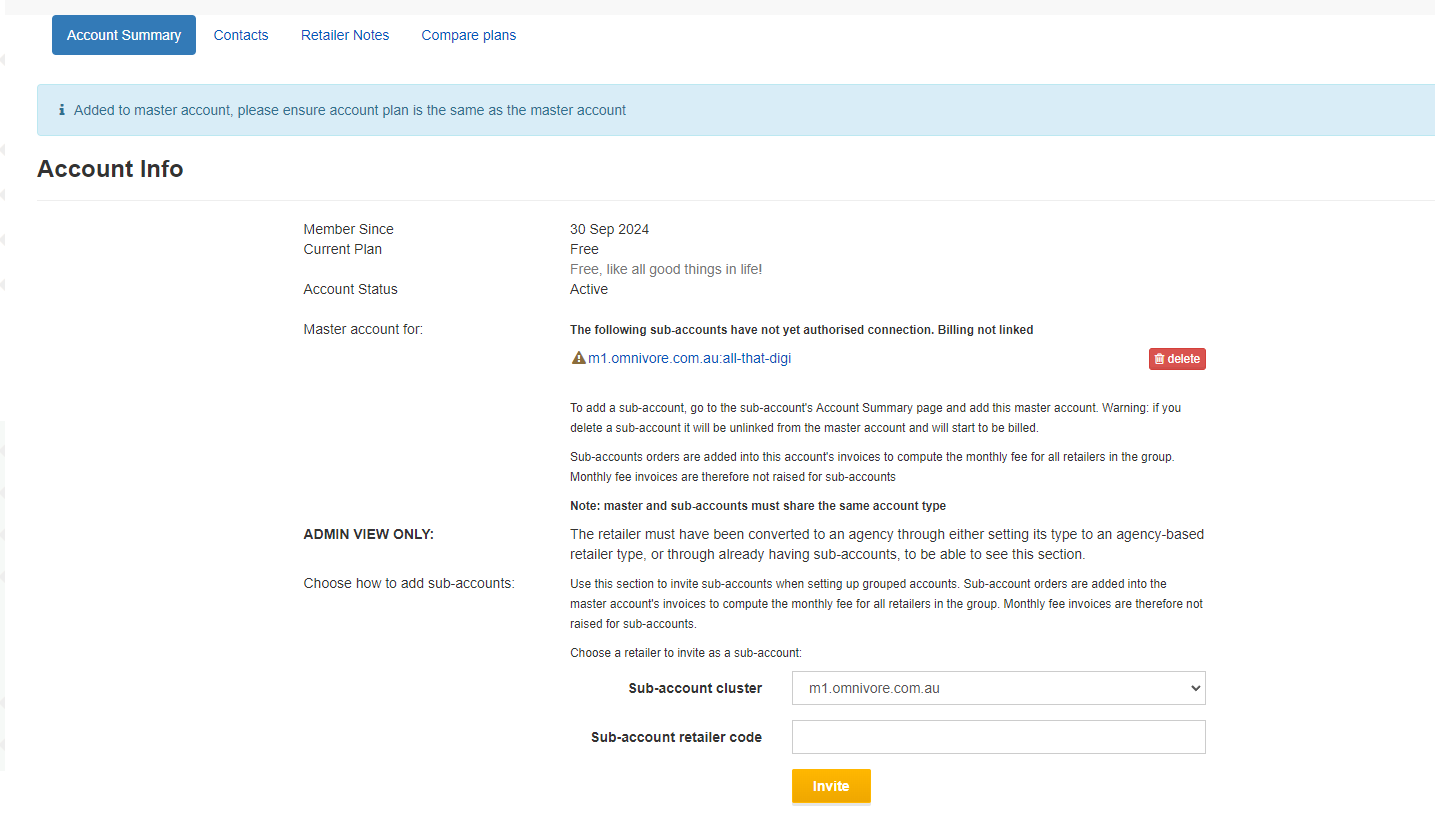
- Ensure both master and sub accounts are on the same plan.
- An invite does not get sent but the Sub Account will now look like this:
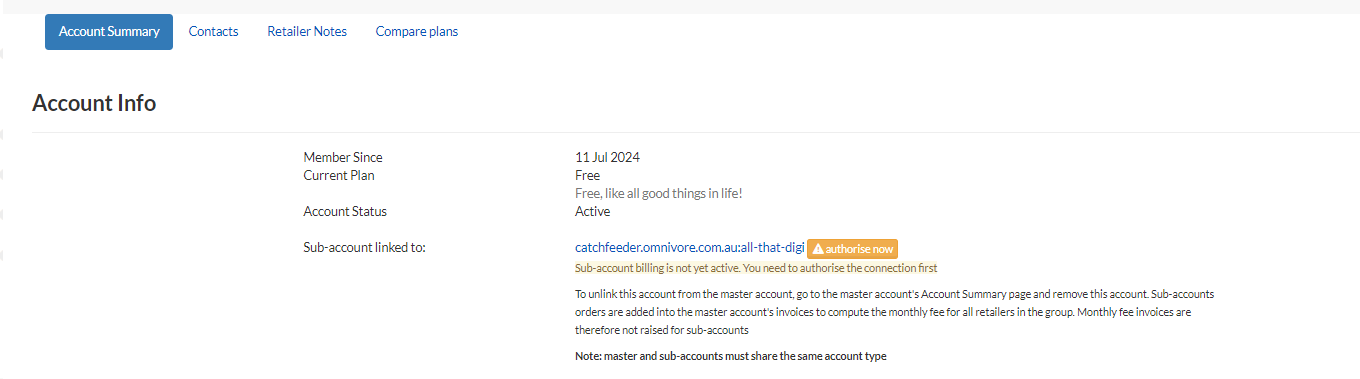
- From the master account you can add as many sub accounts as necessary.
- If you are unsure or if you think it is not correct delete the sub account from the master and start again.
- Point 2 is very important.
- If you see the authorize now button only support/admin can do this not the seller, they cannot see the button, so click this as part of the process if required.