
Omnivore manages its billing on a monthly basis. At the end of each month all teams are required to finalise their invoices and or review accounts for unpaid invoices.
How do I see all unpaid accounts on a cluster?
- Navigate to GENERAL ADMIN in the left hand menu
- Select ACCOUNTS
- Select UNPAID INVOICES
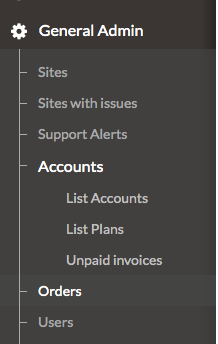
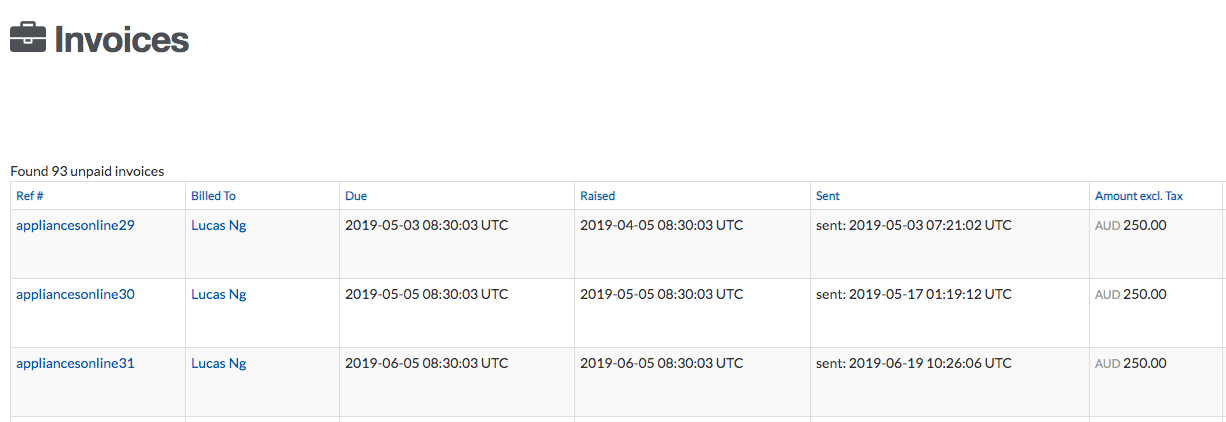
This will list all unpaid invoices on that particular cluster
- Select the REF# hyperlink and this will sort all invoices by retailer
- Select the BILLED TO hyperlink , the user will be redirected to the Account Summary page
- Review the PAYMENT METHOD tab and identify if there is a valid credit card or Shopify payment method set up
- Review the INVOICES tab and retry a single invoice to display the error message
- Email the Billing contact and attach any / all outstanding invoices and the error message received
How are Enterprise Accounts invoiced?
Often Enterprise accounts are on specific plans rather than a general plan. These sellers are all invoiced from the finance system directly (even though an invoice is created in Omnivore also). At the end of the month the head of account management, finance and the managing director reconcile invoices in Omnivore against payments in the finance system.
How are other accounts invoiced?
All other account holders are either billed directly via a credit card or Shopify billing direct on their Shopify account.
Omnivore Payment Terms :
While payment terms are 14 days no accounts should run more than 30days in arrears . Any account more than 1 month in arrears will be issues with a not to resolve the payment . Any account in arrears for 3 months will be suspended and not reactivated until payment is received in full.