
To use the Shopping on Instagram feature, you need to upload your Omnivore Product Feed into Catalogue Manager in Facebook
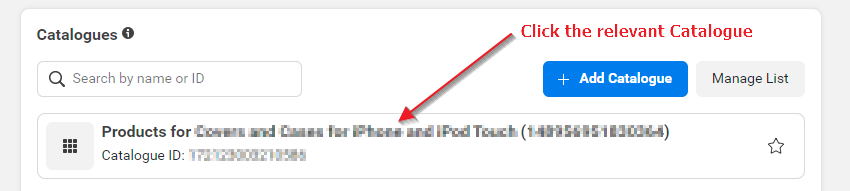
- Go to Commerce Manager in Facebook and Click on your relevant catalogue. If you do not have a Facebook Catalogue set up please see this article
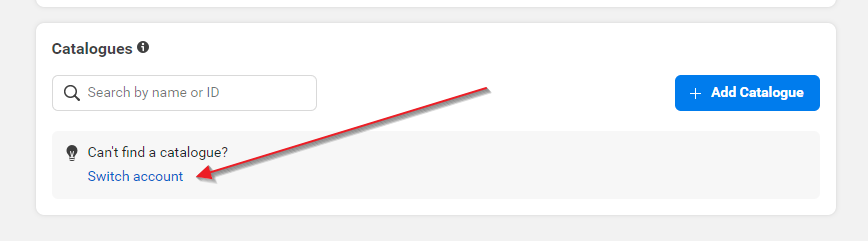
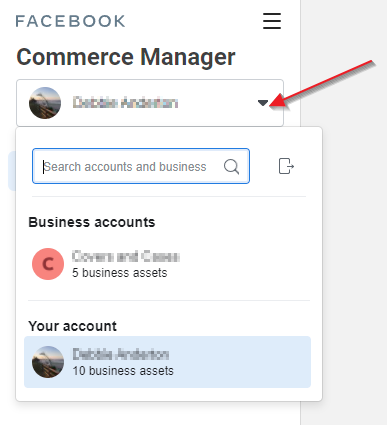
- If you cannot see your catalogue you may need to switch accounts if your personal Facebook account is showing on the top left.
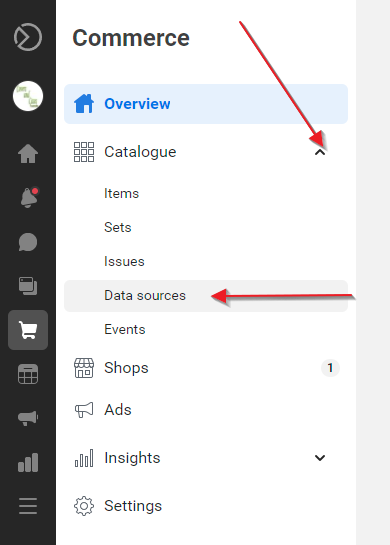
- Go to the Catalogue tab and go to Data sources
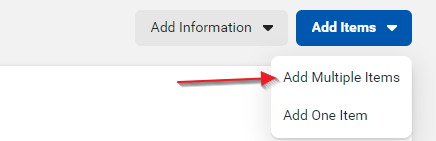
- Select Add Items in the top right navigation. If a drop-down appears, select Add Multiple Items
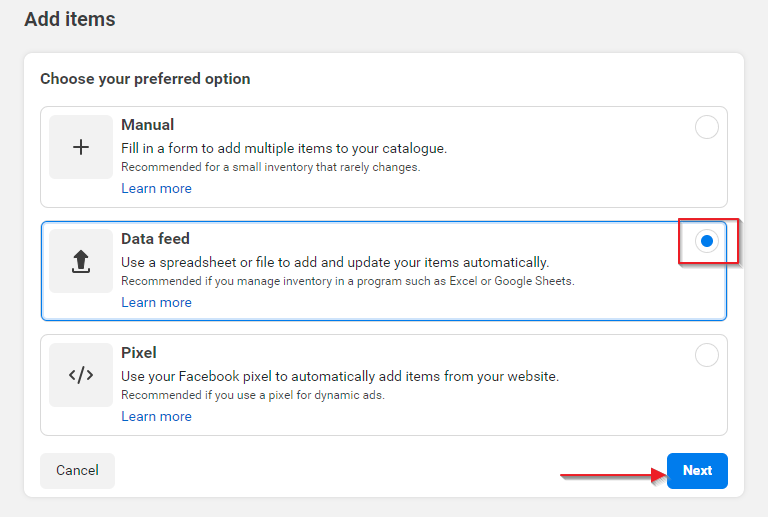
- Select the Data feed Option then click Next
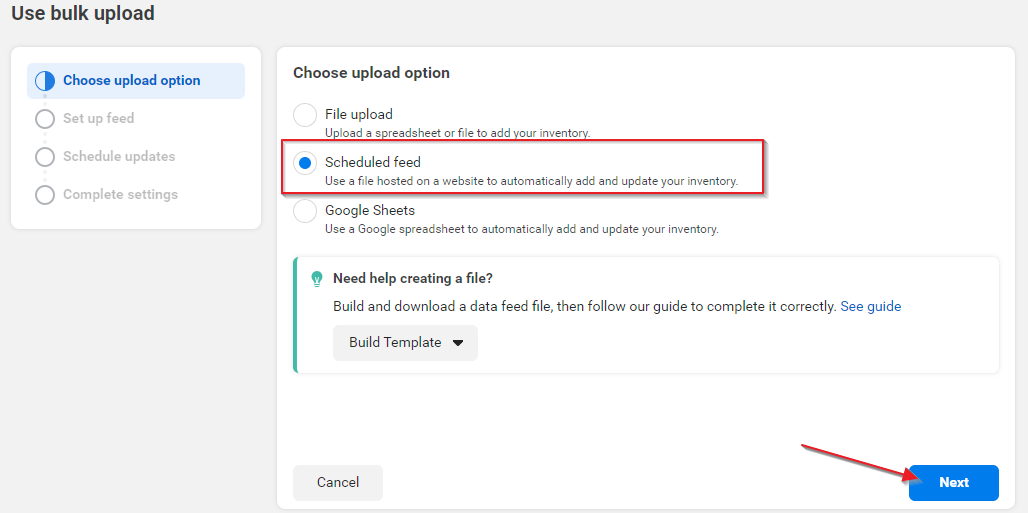
- Under Choose upload option select Scheduled Feed then click Next. This means that the Product Feed will be refreshed between Omnivore and Facebook for the schedule you set.
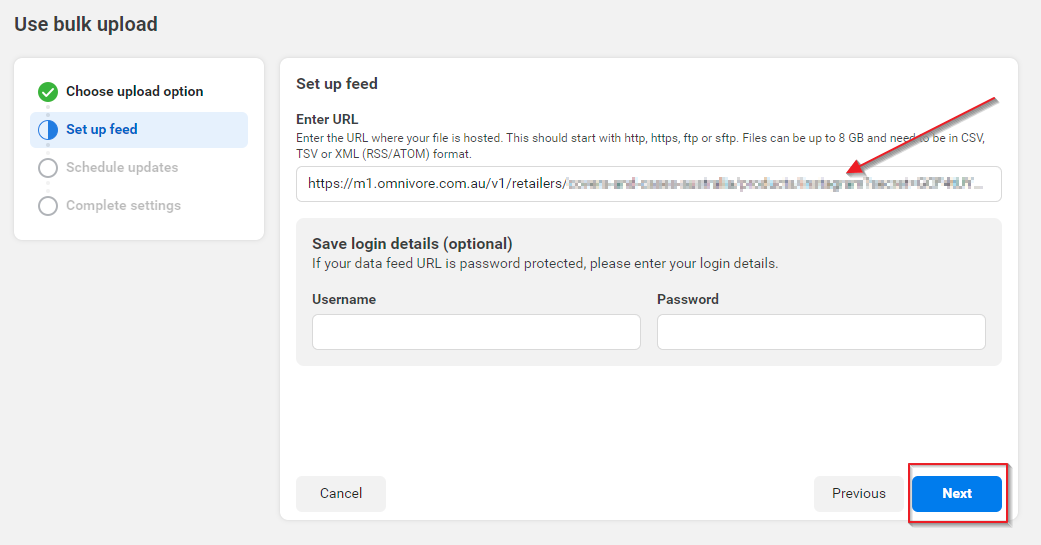
- Enter your Data feed URL - you can find this on the Omnivore Dashboard or under 'Settings - Instagram - General' it will look something like this: https://m1.omnivore.com.au/v1/retailers/all-that-digi/products/instagram?secret=EWcM1eh5sJU8tXkRcfZM
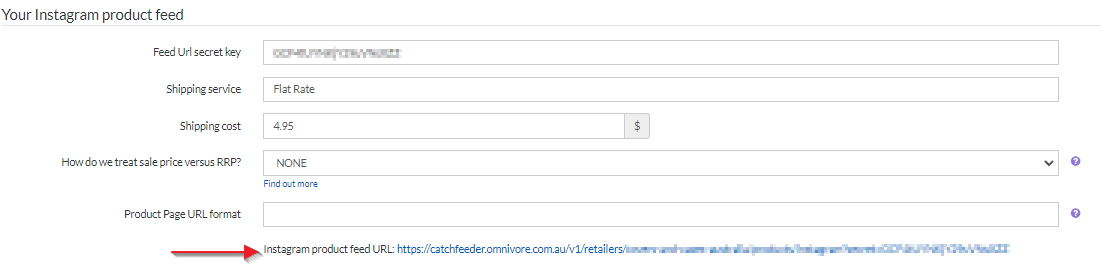
- You will need to copy this feed URL from Omnivore to add to the Enter URL box in Commerce Manager. You do not need to add login details. Click Next
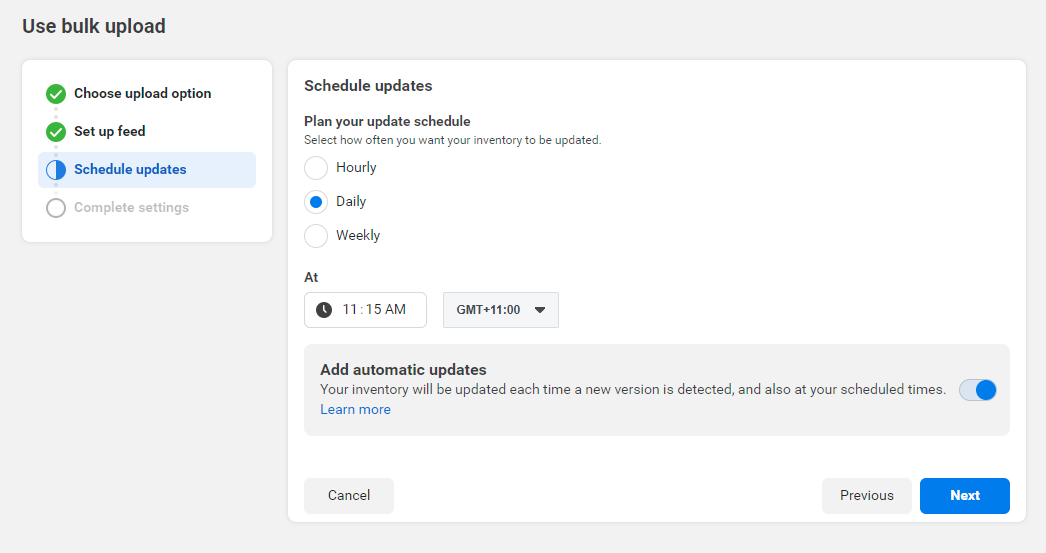
- Schedule the frequency - consider how often your eCommerce store syncs with Omnivore. or how often products and inventory change. We recommend at least once every 24 hours.
- Choose a name for the feed e.g Omnivore and the currency of your eCommerce store e.g AUD
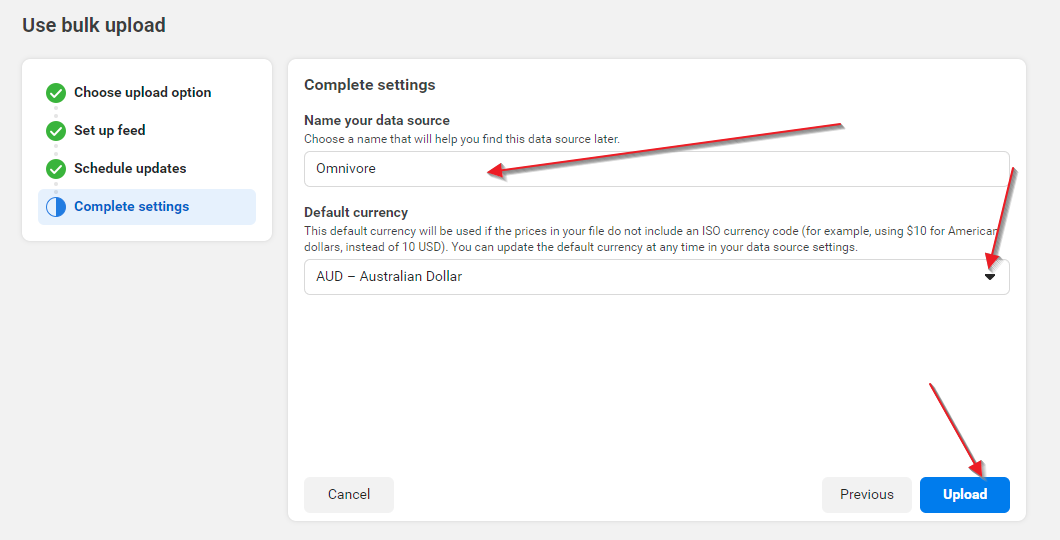
- Click Upload. Once the upload is complete, you should see products on Facebook/Instagram.