
How JB Hi-Fi Marketplace Shipping Works
Shipping is configured for your JB Hi-Fi Marketplace account before you set up the corresponding shipping policies in Omnivore.
During onboarding, the JB Hi-Fi Operations Team will guide you through the required shipping configuration.
Your shipping configuration is first set up in the JB Hi-Fi Seller Portal under Settings > Shipping. You then configure the corresponding shipping policies in Omnivore under Settings > JB-Hi-Fi > Shipping.
The setup in the JB Hi-FI Seller Portal includes:
- Shipping Method – defines how products are shipped. JB Hi-Fi currently supports Standard as the shipping method.
- Shipping Zones – postcode groups defined and managed by JB Hi-Fi. You can disable an entire zone if you cannot service it, but individual postcode exclusions are not supported.
- Logistic Classes – group products into delivery fee tiers. JB Hi-Fi gives Small, Medium and Large as examples, but Logistic Classes are not tied to a particular weight or dimension.
- Shipping Charges – set for each Logistic Class and Shipping Zone, using an Initial charge for the first unit and an Additional charge for extra units in the same order.
- Estimated Delivery Time – a minimum and maximum delivery time is required for each Shipping Zone.
JB Hi-Fi does not calculate shipping dynamically from a product's dimensions, weight and postcode when an order is placed.
Your shipping rates and Logistic Classes need to be configured before you go live.
Shipping Policies in Omnivore
Once your JB Hi-Fi Marketplace shipping configuration is complete, set up the corresponding shipping policies in Omnivore.
Go to Settings > JB-Hi-Fi > Shipping.
The Policy name options available in Omnivore include:
- Flat Rate
- Free Shipping
- Small Products
- Medium Products
- Large Products
- Custom Class 1–15
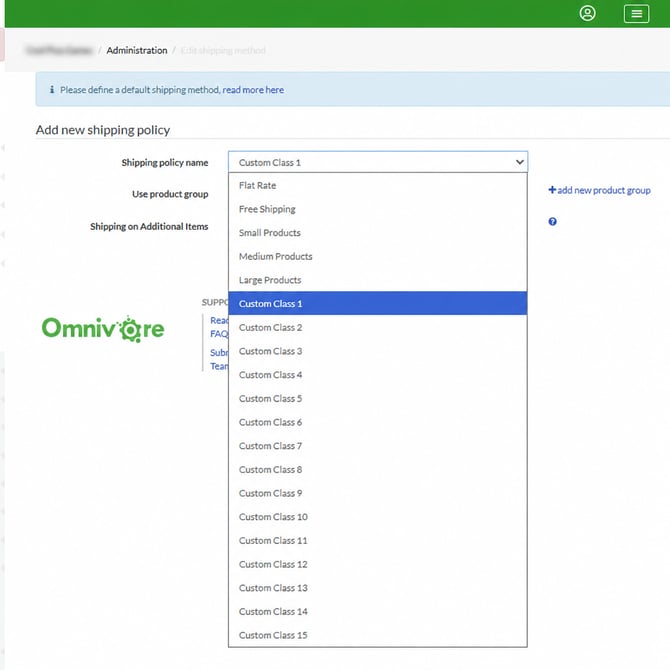 The option you select needs to correspond with the shipping configuration name you have set up for your JB Hi-Fi Marketplace account.
To make a shipping policy the default, leave Use product group blank.
Set Up a Default Shipping Policy
Please ensure you have a default shipping policy for Jb Hi-Fi in Omnivore. This is required.
The default policy is the fallback for products that are not assigned to another shipping policy via a Product Group.
If there is no default shipping policy, Omnivore displays: Please define a default shipping method
- Complete the required shipping configuration in the JB Hi-Fi Seller Portal under Settings > Shipping.
- In Omnivore, go to Settings > JB-Hi-Fi > Shipping.
- Click Add new shipping policies.
- Under Policy name, select the appropriate policy you have chosen as the default fallback Shipping policy for JB Hi-Fi.
- Leave Use product group blank.
- Click Update.
Leaving Use product group blank makes this the default shipping policy.
Use Different Shipping Policies for Different Products
If different products need to use different JB Hi-Fi shipping configurations, you can use Product Groups in Omnivore to determine which shipping policy applies.
Product Groups can be created using product information such as:
- SKU
- Price
- Weight
- Category
- Brand
For example, you may create different groups for products that need to use different JB Hi-Fi Logistic Classes.
The names of Logistic Classes do not determine how products must be grouped. JB Hi-Fi states that Logistic Classes such as Small, Medium and Large are flexible labels and are not inherently tied to product weight or dimensions.
To set up additional shipping policies:
- Complete the required Logistic Classes, Shipping Zones and delivery charges in your JB Hi-Fi Marketplace shipping configuration.
- Create the required Product Groups in Omnivore. See Create a Product Group in Omnivore.
- Go to Settings > JB-Hi-Fi > Shipping.
- Click Add new shipping policies.
- Under Policy name, select the appropriate policy.
- Under Use product group, select the Product Group that should use the policy.
- Click Update.
- Repeat for any additional Product Groups and shipping policies you need.
You must still have a default shipping policy with Use product group left blank.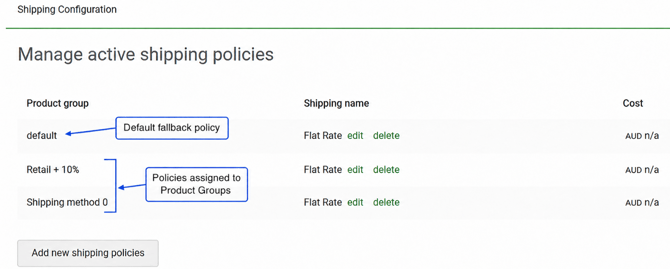
Products that do not match another shipping Product Group will use the default policy.
Offering Storewide Free Shipping
JB Hi-Fi Marketplace supports storewide Free Shipping.
When Free Shipping is enabled in the JB Hi-Fi Seller Portal, it overrides your configured shipping charges and applies to all orders.
To enable Free Shipping:
- In the JB Hi-Fi Seller Portal, go to Shop > Shipping Options > Offer free shipping for all orders.
- Select the Free Shipping option.
- If you intend to offer permanent Free Shipping, make sure all Shipping Zones are active.
Can I Offer Free Shipping on Selected Products Only?
No. JB Hi-Fi's Free Shipping setting currently applies storewide. You cannot enable Free Shipping for selected products only.
When Free Shipping is enabled, the Free Delivery icon appears on your listings. JB Hi-Fi does not currently support displaying this icon for individual products only.
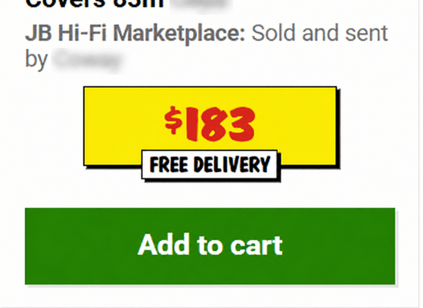
In Omnivore, Free Shipping is also under Settings > JB-Hi-Fi > Shipping as a Policy name. Your Omnivore shipping setup should match the Free Shipping configuration in the JB Hi-Fi Seller Portal.
Use Product Weight to Assign a Shipping Policy
Product weight can be used to define products in a Omnivore Product Group. This allows you to group products by weight and assign the group to an appropriate shipping policy.
This does not mean JB Hi-Fi calculates shipping from the product's weight. The relevant JB Hi-Fi shipping configuration and delivery charges must already be set up.
- In Omnivore, go to Products > On JB Hi-Fi.
- Check the Weight column to confirm that Omnivore has imported a weight for the relevant products.
- Create the Product Groups you require using Weight as the criteria. See Create a Product Group in Omnivore.
- Find a product under Products > On JB Hi-Fi and open its product details.
- Scroll to JB Hi-Fi Product View and check the Product Groups assigned to the product.
- Go to Settings > JB-Hi-Fi > Shipping.
- Create a shipping policy for the weight-based Product Group.
- Select the appropriate Policy name and assign the Product Group.
- Click Update.
Magento users: Go to Settings > Feeds > General, select Map Fields, and confirm that the Magento weight field is mapped to the Omnivore weight field.