
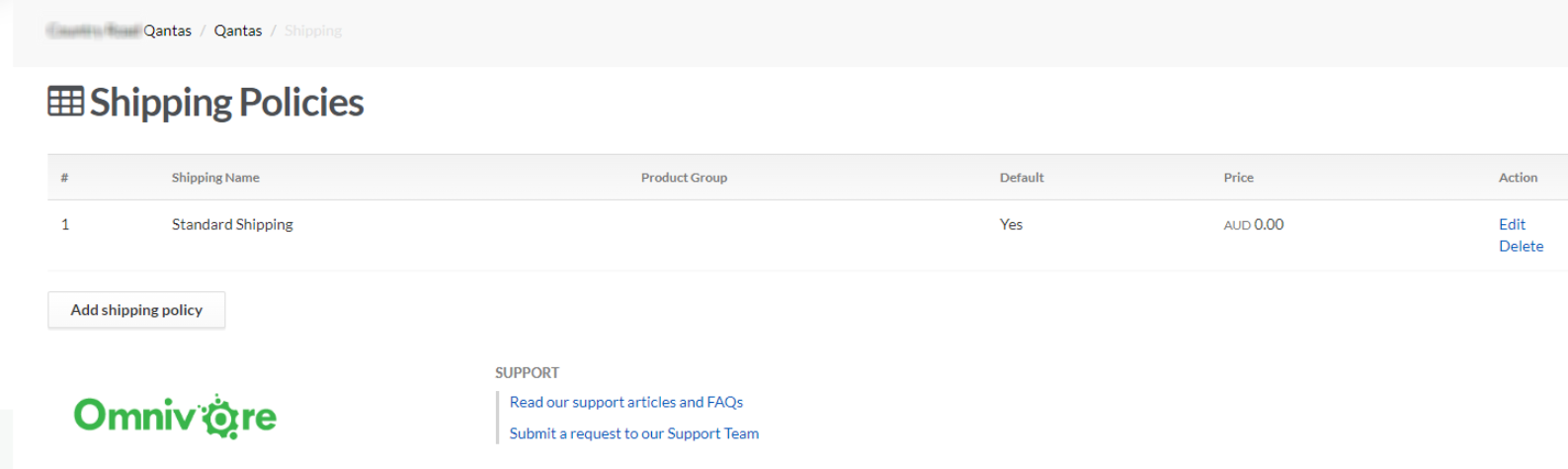
- In Omnivore the Shipping price is set to $0.00 because the price for shipping is set on the Marketplace side (Qantas).
- The Shipping Name in Omnivore has to say 'Standard Shipping'.
Setup Steps
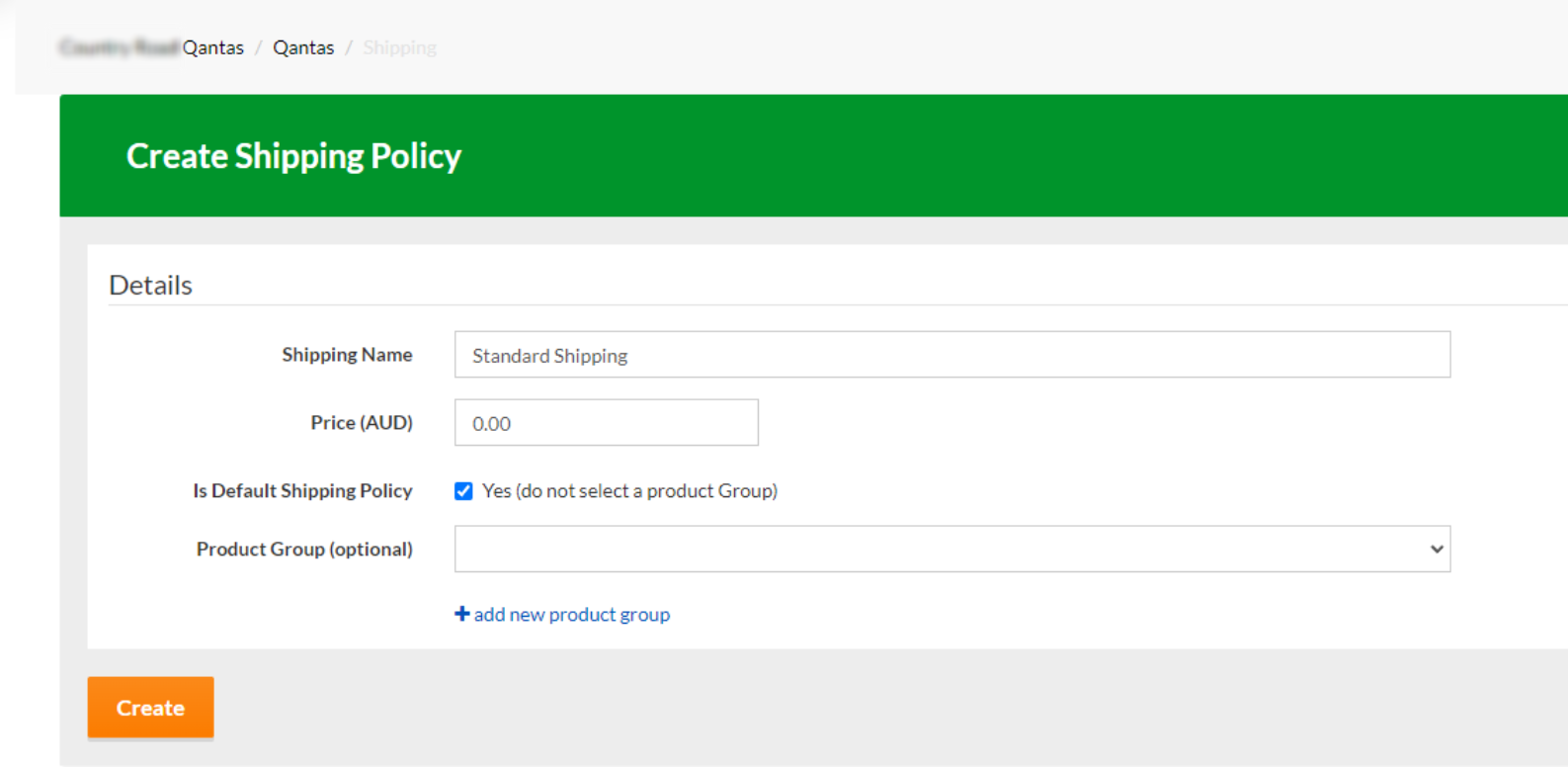
- In Omnivore, navigate to Settings - Qantas Market - Shipping and click Add Shipping Policy.
- Name your policy accordingly (Standard Shipping), tick the 'Is Default Shipping Policy' to set as default.
- Leave the cost set to $0.00.
- Click Create.
Shipping and Product Price
- As mentioned, the shipping price is set at the Marketplace level, therefore the price in Omnivore will be 0.00.
- For the products that you sell on the Qantas Marketplace you can apply a promotion in Omnivore to increase the price to cover the Free Shipping.
- To achieve this follow this comprehensive guide to create a product group and adjust the price accordingly.
- This changes the price in Omnivore for Qantas, not the price on your store.
Testing, Key Points, Additional Reading
- Because all products must have shipping applied, the first level of testing is determined when the products are pushed up to the marketplace. If the shipping is not correct Omnivore will generate an error, we can tweak any settings as required.
- Shipping Setup is part of the overall check list before Start Selling is clicked.
- Other shipping functions such as combined shipping can be discussed with your Marketplace Account Manager.
- Create a promotion to change the price of your products