
The Barbeques Galore Marketplace uses Shipping Profiles that we import from the marketplace. The steps below cover the setup process to import and apply your default Shipping Profile. To complete this step it is necessary to know the Shipping Profile ID that you want to use as your default and any other Shipping Profiles that need to be edited in Omnivore, the ID's are a numeric value.
Before you commence ensure you have the following information:
- All of the Profile ID's that the seller will use, minimum 1.
- The Profile ID that will be set as the default in Omnivore.
- The shipping costs including FREE.
- Any product criteria that will be defined in the Shipping Setup, e.g. if you want products in a weight range we require the weight details and the corresponding Shipping Profile ID. The table below is an example summary:
Tables can't be imported directly. Please insert an image of your table which can be found here.
Setup Steps
- In Omnivore navigate to Settings - Barbeques Galore - Shipping.
- This page will be blank.
- Read the information at the top of the page and click Update from Shipping Profiles.
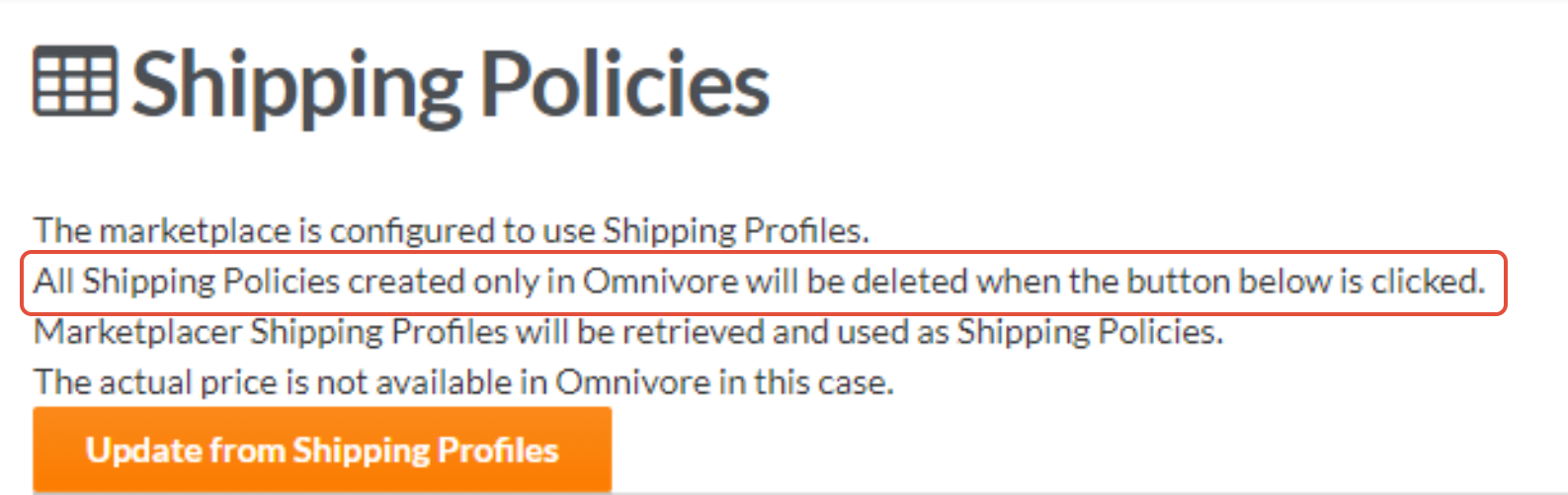
- After you click the Update button refresh the page to see the newly imported profiles.
- Scroll through the list to find the relevant Shipping Profile ID that will be set as your default and click Edit.
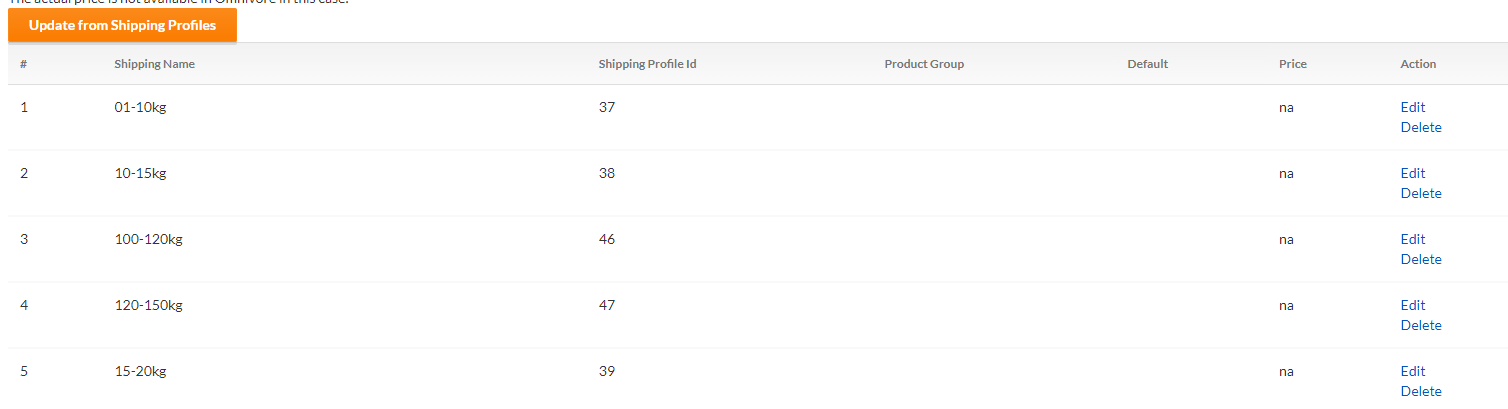
- The price will remain 0.00 because the $ amount is set within the Marketplace, tick the Is 'Default Shipping Policy' check box.
- Click Update.
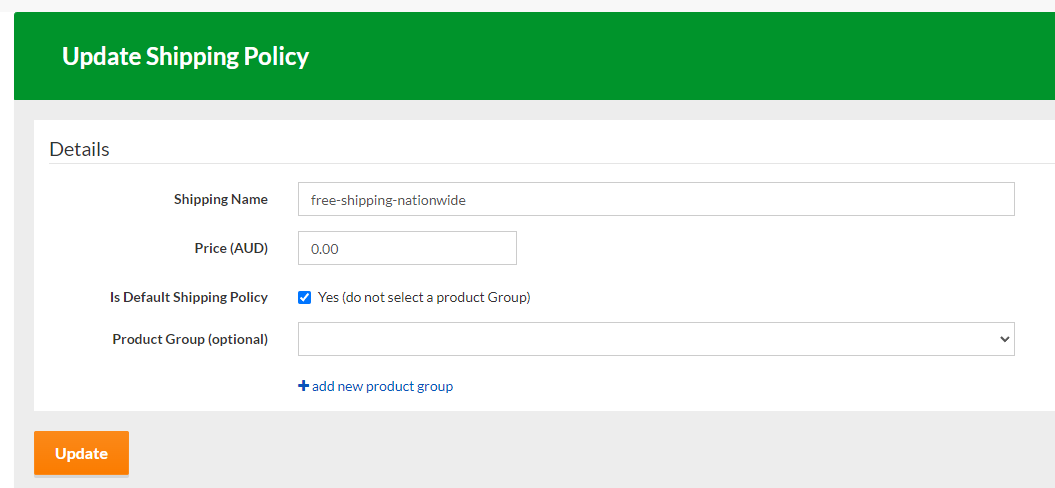
- Continue this process to 'Edit' other profiles in the list, you can only have one default policy.
- You can also use policies and assign them to a specific Product Group. See next section below.
- Reminder, the shipping cost is set within the Marketplace so it will show as 0.00 in Omnivore.
- Click Upload to Barbeques Galore to send these changes to the marketplace listings.
Weight Based Shipping
- Assume you have completed steps 1-7 above and you now need to edit some other Shipping Profiles that will be assigned to Weight Based Groups in Omnivore.
- Define your weight criteria, e.g 0-5kg, 5.1-10kg, 10.1-15kg and create your product groups according.
- Determine which profile ID will be applied to each weight group.
- Use the steps above to Edit each Profile ID, supply a shipping name and select the corresponding Product Group from the drop down.
- Upon completion using our example table above you will have 3 edited policies, 2 will be assigned to 2 different weight groups.
- You will also have a default shipping policy.
- Remember, the price for each shipping type is set in the Marketplace.
Testing, Key Points, Additional Reading
- Because all products must have shipping applied, the first level of testing is determined when the products are pushed up to the marketplace. If the shipping is not correct Omnivore will generate an error, we can tweak any settings as required.
- Shipping Setup is part of the overall check list before start selling is clicked.
- If any prices are incorrect with shipping they can be easily adjusted.
- Other shipping functions such as combined shipping can be discussed with your Marketplace Account Manager.
- Create A Product Group
- Create A Promotion