
Some Marketplacer Markets require product dimensions for shipping, which is set within Omnivore if we are not importing dimension data from the eCommerce Store.
Also note, for shipping, some marketplaces require a product weight.
Setup Steps and Guide
For Dimensions (for this guide we are using Qantas)
- In Omnivore navigate to Settings - Qantas - General
- If you do not have dimension data in your eCommerce Store tick the 'Supply shipping dimensions to Qantas' box, this allows you to set some default values in centimeters.
- The minimum accepted is width is 50, height is 50 and length is 100.
- The values added will be the default dimensions applied to each product.

- Scroll down on that page and click the Update button.
- On the next feed the dimension data as per above will be included as part of your product data.
For Weight
- FYI for Shopify check to see if Omnivore is converting your weight to KG.
- To do this go to Settings - Shopify Feed - General, scroll down under Product Import.
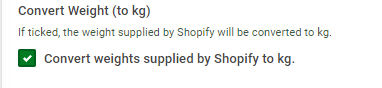
- Check the box accordingly. If you have grams in Shopify and you want to send weight in KG then you can tick this option.
- Omnivore will send your product weight data if it is required (with dimensions) for shipping.
- Below is an example showing what we send in the feed:
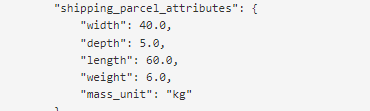
- If there is a specific marketplace requirement to use product weight, we import the weight data from the eCommerce store and in this case we ensure that weight and mass unit are supplied to the marketplace in order for the necessary shipping attributes to be complete.
- If your shipping setup in Omnivore is incomplete and you would like to check dimension and weight use the info in this FAQ as a guide and contact our Support Team so we can also check for you.