
Introduction and Overview
This article includes setup with technical and configuration instructions. The Barbeques Galore Marketplace is engineered by Marketplacer; some of the setup steps in Omnivore are customised and differ from other mainstream markets.
Before you begin, please be aware of the following points:
- To sell on the Barbeques Galore Market using Marketplacer, there must be an active and approved selling account. To confirm, please check with the onboarding team at Barbeques Galore Marketplace.
- If this is already in place, the setup in Omnivore can begin.
- Retrieve the API Key from the Barbeques Galore Marketplacer team.
- With these points in mind setup in Omnivore can continue.
Add Marketplace and API Key
- Add the Barbeques Galore Marketplace to the Omnivore instance. To do this, navigate to the Settings, Marketplaces page in Omnivore, select Create Link and Config.

- When the market has been added, you will see the Barbeques Galore Tab in Omnivore. Click Settings - Barbeques Galore Marketplace - General to view the Connection and Advanced Settings section.
- On this page, add the API Key Credentials retrieved from the BBQ's Galore Team.
- Scroll down and click Update and Check Connection.
Download and Update Brands
- To begin this process, navigate to Retailer Admin - New Dashboard - Marketplacer rest api section. Click the Download Brands create/update Marketplace Brands link.
- This process can take a few seconds to complete so if nothing appears to change on the screen give it time.
- When this job is complete, it will display a screen like this - done, active brands = 992.
- Navigate to Marketplace Admin - Marketplaces. Click Refresh Categories for Barbeques Galore.
Admin Setup
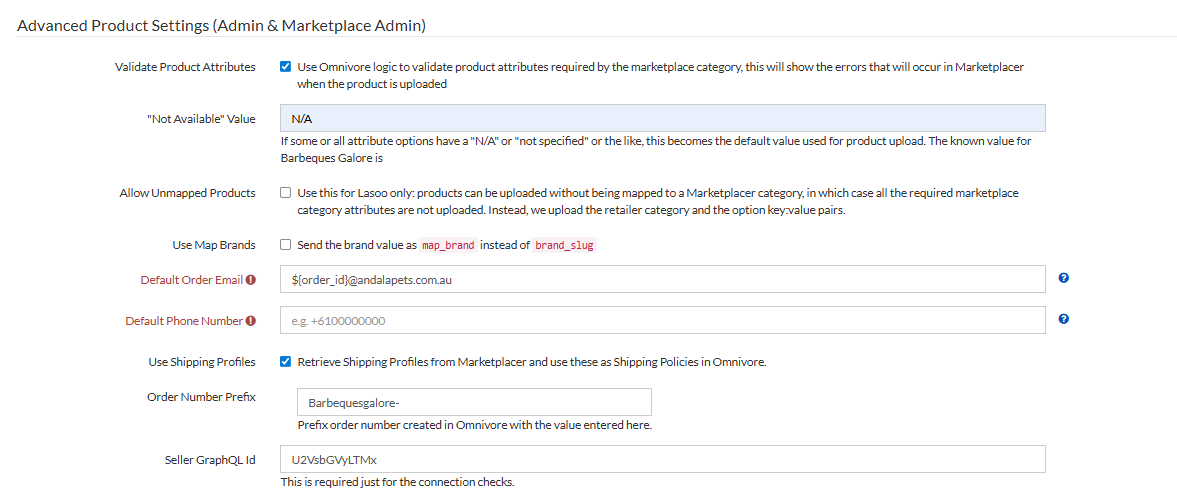
- Return to Settings / Barbeques Galore / General.
- Tick the Validate Product Attributes checkbox.
- Insert N/A into the Not Available Value field.
- The Use Map Brands checkbox should be left unticked.
- Default Order Email - enter ${order_id}@
. - Tick the Use Shipping Policies checkbox. Follow this article for next steps. This article covers both types of shipping setup depending on what you are using.
- Insert Barbequesgalore- in the Order Number Prefix field.
- Insert the Seller GraphQL Id into the respective named field. For Barbeques Galore, this ID is the same for every seller, U2VsbGVyLTMx.
- Click Update to save.
Decide Which Products to List
- Omnivore has the function to Block and Exclude Products from listing, this means you can pick and choose what to list by blocking and unblocking products.
- For more information on Blocking and Excluding click here.
Shipping Setup
There are two options for Shipping Setup:
Shipping Profiles from the Marketplace OR Shipping Policies setup with Omnivore.
Follow this article for the setup options.
Brand Options
There are two brand options, which are, Map Brand OR Brand Slug (default)
Map Brands: If the 'Send the value as Map Brands' field is ticked in Omnivore, this means the retailer brand we send to the Marketplace has to be mapped on the Marketplace side. This is done by the Markeplacer Team or the retailer.
Brand Slug: This is the default brand setting. In this case, we send a brand list to the Marketplace. Once that brand list is in the Marketplace's database, we then reimport the brand list with any changes made by them. The reimported Brands in Omnivore now match what the Marketplace has. No further steps by the retailer or Omnivore are required.
Order Settings
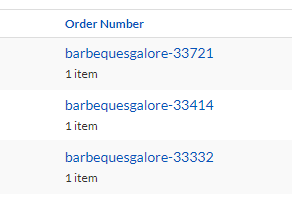
Within the Omnivore, go to Settings - Barbeques Galore - General. The field called 'Prefix Order Number' must have a value entered. Whatever value is added into this field must also to have a - on the end e.g. barbequesgalore- will prefix the order number with that value.
Category Mapping
- To successfully list a product, it must be mapped to a Barbeques Galore Marketplace Category. The Category Mapping process in Omnivore is the same for all marketplaces.
- For more information on Category Mapping in Omnivore click here.
Product Identifiers
- This includes GTINs, UPC and EAN; the general rule on whether product identifiers are required is defined by the marketplace. Omnivore imports product identifiers from the eCommerce store. If the data is not required, we do have functions to not send it. For Marketplacer, this setting is on Settings - Barbeques Galore - General - Product Identifiers.