
If you're already selling on Bunnings Marketplace, there are some important checks to complete before connecting Omnivore and clicking Start Selling.
Your existing Bunnings products remain in the Mirakl catalogue. The key part of the setup is making sure Omnivore can match your existing Bunnings seller offer to the corresponding product in Omnivore.
Before You Click "Start Selling"
Complete the checks in this article before clicking Start Selling.
Understand the Difference Between the Product and Your Seller Offer
Bunnings Marketplace uses Mirakl, where the catalogue product and the seller's offer are separate.
The product is the Bunnings catalogue record and is linked to identifiers such as:
- GTIN
- Bunnings Item Number
The seller offer is your individual offer against that product and includes:
- Seller SKU / Offer SKU
- Price
- Stock
- Other seller-specific offer information
If you already have a product approved and published on Bunnings Marketplace, the existing Bunnings product remains linked to its registered GTIN and Bunnings Item Number.
Your existing seller offer also has a Seller SKU. When moving to Omnivore, this Seller SKU must match the product SKU Omnivore will use. If it does not match, Omnivore will not link to your existing offer.
Do not submit the same product as a new product simply because the SKU in your ecommerce platform is different.
A different GTIN or Seller SKU should only be used when the item is genuinely a different or new product.
Check Your Existing Bunnings Seller SKU
Before clicking Start Selling, check the Seller SKU / Offer SKU used on your existing Bunnings offer.
- Log in to your Bunnings Seller Account.
- Open the Existing Offers page.
- Find the Offer SKU for one of your existing products.
- In Omnivore, open the same product's detail page.
- Compare the Bunnings Offer SKU with the following Omnivore fields:
- Marketplace SKU
- MPN
- Retailer Ref
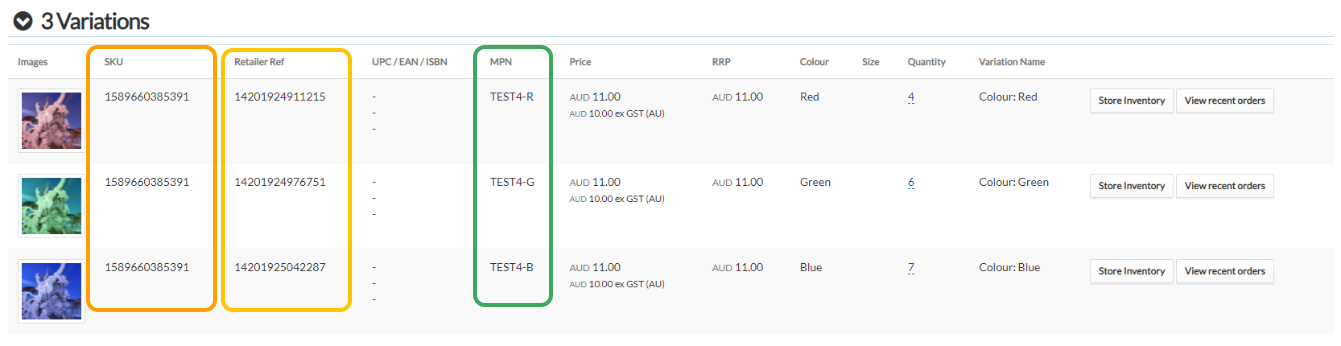
The existing Bunnings Offer SKU must match one of these values in Omnivore.
If it does not match, Omnivore will not link to the existing Bunnings offer.
If Your Existing Bunnings Seller SKU Matches
If the existing Bunnings Offer SKU matches the appropriate SKU, MPN or Retailer Ref in Omnivore:
- Contact the Omnivore Support Team
- We can help confirm the existing offers are ready to be linked through the Omnivore integration.
The existing Bunnings catalogue products can usually remain in place while Omnivore takes over management of your corresponding seller offers. We will advise when to disconnect your current integration if needed.
If Your Existing Bunnings Seller SKU Does Not Match
Do not try to resolve a Seller SKU mismatch by submitting the same product as a new product with a different GTIN or Seller SKU.
Instead:
- Confirm the existing Offer SKU and GTIN in your Bunnings Seller Account.
- Check the corresponding Marketplace SKU, MPN and Retailer Ref in Omnivore.
- Contact Omnivore Support with the affected product details.
- Provide the existing Bunnings Offer SKU and the corresponding Omnivore product SKU.
- If required, work with your Bunnings Marketplace Account Manager or Bunnings Marketplace team to confirm the existing product and offer details.
Do not click Start Selling until the Seller SKU matching issue has been resolved.
Delete All Existing Catalogue Mapping Rules
Before clicking Start Selling, you must delete all existing Catalogue Mapping rules from your Bunnings Seller Account.
- Log in to your Bunnings Seller Account.
- Go to Settings > Catalogue Mapping.
- Delete all existing mapping rules.
Every existing Catalogue Mapping rule must be deleted before starting the Omnivore integration.
If you need help removing the mappings, contact Bunnings Seller Support.
Error message
Validation error = 1004 | The category could not be identified.
If this error occurs, check that all existing Catalogue Mapping rules have been deleted.
Connect Omnivore to Bunnings
Once:
- your existing Bunnings Offer SKUs have been checked,
- any Seller SKU matching issues have been resolved, and
- all existing Catalogue Mapping rules have been deleted,
you can connect Omnivore to Bunnings.
- In Omnivore, go to Settings > Bunnings > General.
- Click Connect Now.
- Log in to your Bunnings Seller Account and authorise the connection.
- Return to Omnivore.
- Open the Bunnings tab.
- Click Start Selling.
- Review the information displayed.
- Tick the confirmation box and click I Am Ready To Start Selling.
Do not click Start Selling if there are unresolved Seller SKU matching issues.
Key Points to Remember
- The Bunnings catalogue product and your seller offer are separate.
- The relevant SKU check is between your existing Bunnings Offer SKU and the product identifiers in your Omnivore account.
- Your existing Bunnings Offer SKU must match the relevant SKU, MPN or Retailer Ref in Omnivore.
- If it does not match, Omnivore will not match to your existing Bunnings offer.
- A changed SKU in your ecommerce platform does not make the item a new Bunnings product.
- Do not submit the same product again with a different GTIN simply to resolve an Offer SKU mismatch.
- Resolve any Seller SKU mismatch with Omnivore Support before clicking Start Selling.
- Delete all existing Catalogue Mapping rules before clicking Start Selling.
- Existing Catalogue Mapping rules can result in
Validation error = 1004 | The category could not be identified.