
If you are offering international shipping on certain products, you need to first create a product group in order for us to know which products are to offer international shipping.
A product group is a group of products identified by one of the following criteria:
- By price
- By weight
- By category
- By brand
- By SKU
How To Setup
To do so you will need to complete the following steps (note you will need to be logged in to Omnivore and your eBay Account):
- Create a new product group in Omnivore for products (e.g. called "International Products")
- Create a new postage Business Policy in Omnivore (e.g. called "International Shipping")
- Edit the new postage Business Policy in eBay to set your international shipping rates
With your product group created using the above FAQ, now move to point 2.
Create a Shipping Policy in Omnivore called International Shipping
- From the left-hand menu select Settings - eBay Australia - Shipping.
- Click the Add new shipping policy button.
- Enter a name for the new shipping policy (e.g. "International Shipping), select the product group (International Products" you just created, and enter a domestic shipping fee (e.g $0.00) in the Standard Delivery section. You'll be able to add the International Shipping fees in eBay during the next step.
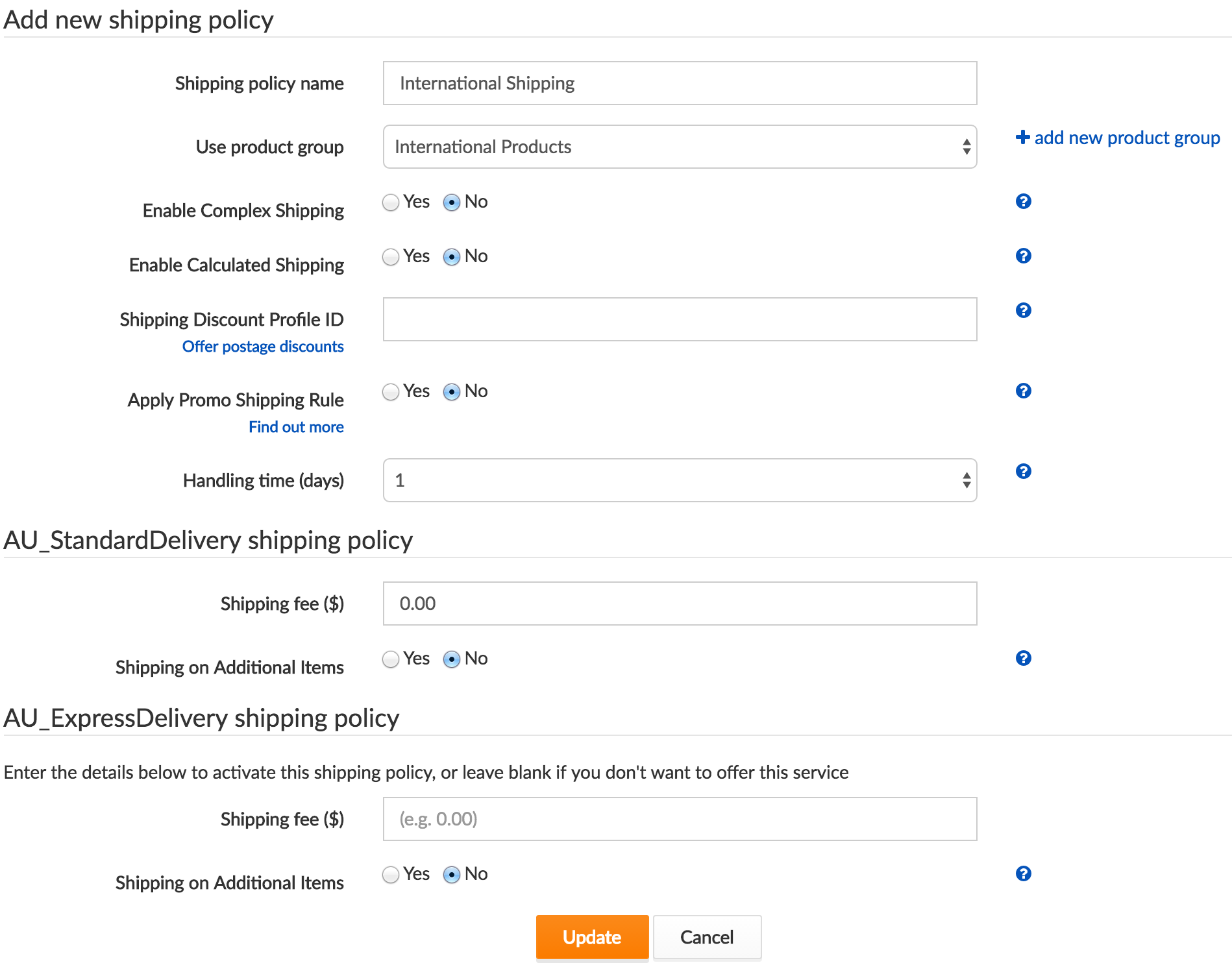
- Once complete hit the Update button to save the policy.
- Finally, upload this new shipping policy to eBay by clicking the Synch policies button.
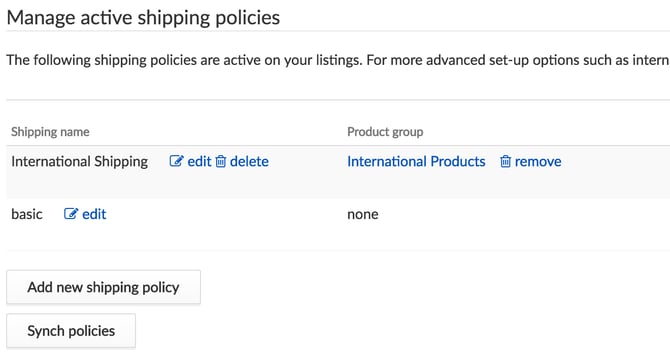
Edit the Shipping Policy in eBay to set your international shipping rates
- Log into your eBay seller account.
- Select My eBay from the top-right.
- Hover over the Account tab and select Business Policies.
- Locate the postage policy named "International Shipping" and click the Edit link.
- Scroll down to the "International Postage" section.
- From the "Post to" section you can select either "Worldwide" or "Choose a custom location". The latter is often preferable as it allows you to set different shipping costs per country/region.
- If you select "Choose a custom location", check the tick box of the required country(s)/region(s), then choose the shipping service and enter the shipping costs.
e.g.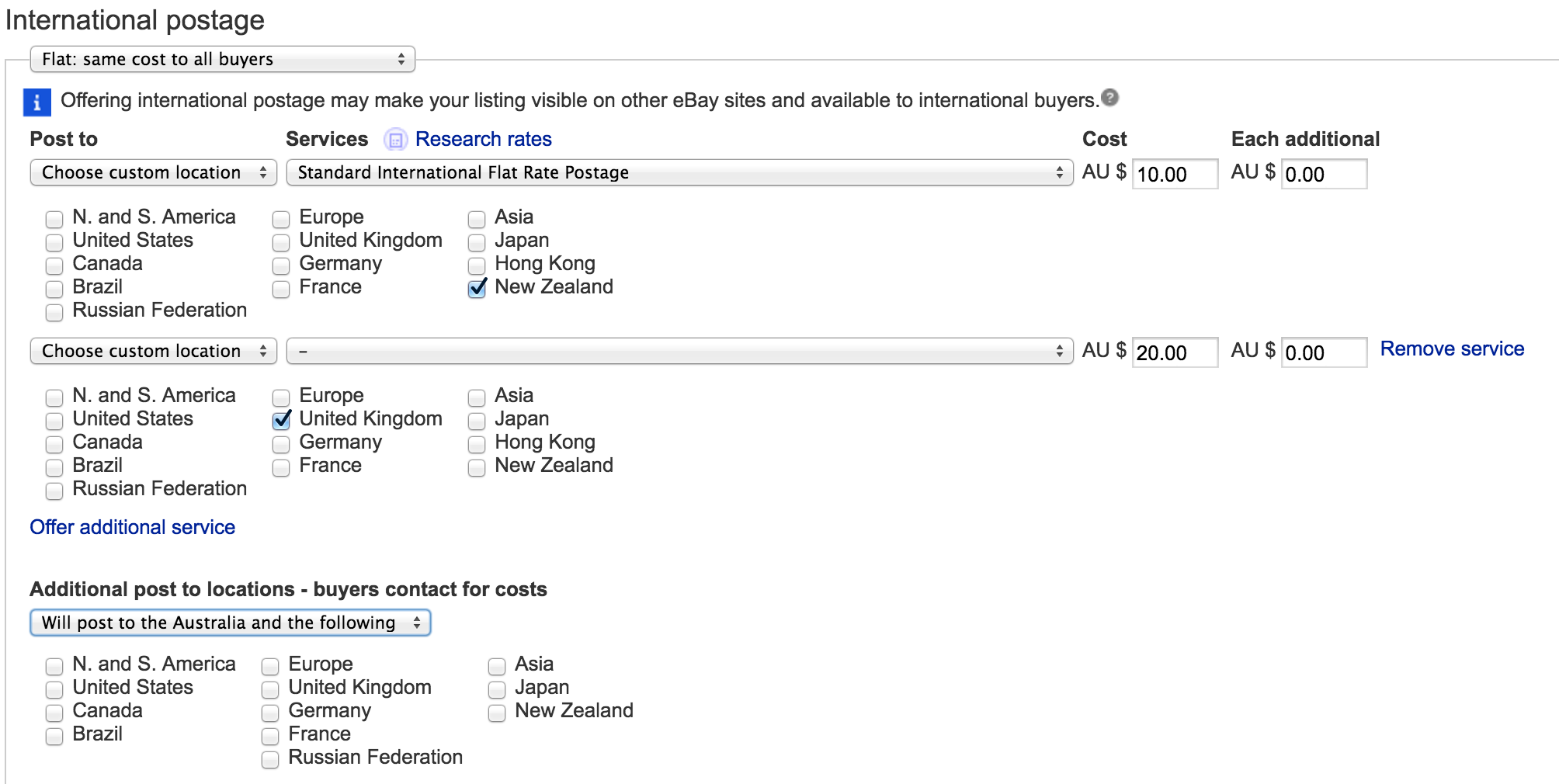
Note: you can add additional countries/regions by clicking the "Offer additional service" link.
In the example above the seller has selected to offer shipping to New Zealand for $10, and shipping to the UK for $20. - When complete, click the "Save" button to save your changes and apply the new international shipping options to your listings.