
In this FAQ we look at why inventory numbers in our system might be different than what you expect as a Shopify store owner.
Contributing factors
There are 2 aspects that contribute here:
- We use a stock buffer as a way to prevent accidental overselling on Marketplaces, see below for explanation
- Shopify uses certain methods to track inventory, sometimes these are not properly configured
Stock buffers
This is set in the Settings -> Administration - click Product Import on the left
Scroll down look for Minimum stock buffer:
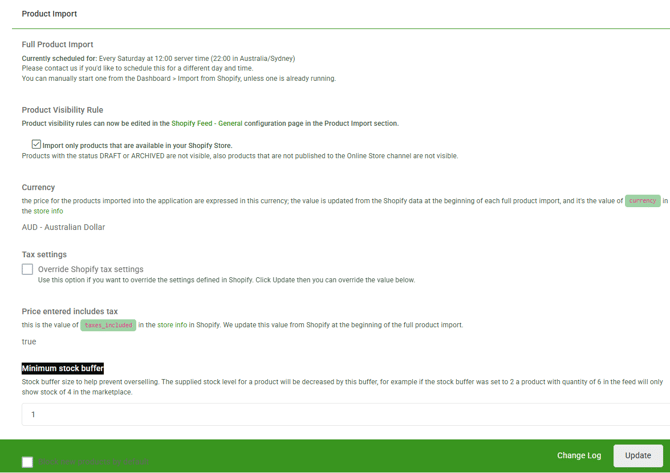 Enter your preferred number and hit Update.
If you chose a value greater than zero, it will also show you that on each and every product page up in the top section in Light Blue the Tab will also have a blue ?.

Shopify Inventory
In Shopify, you have the option to either track inventory or don't track inventory.
If you chose to not track inventory, we will assume a default value of 10 for all your inventory numbers, this is because eBay needs an actual inventory number.
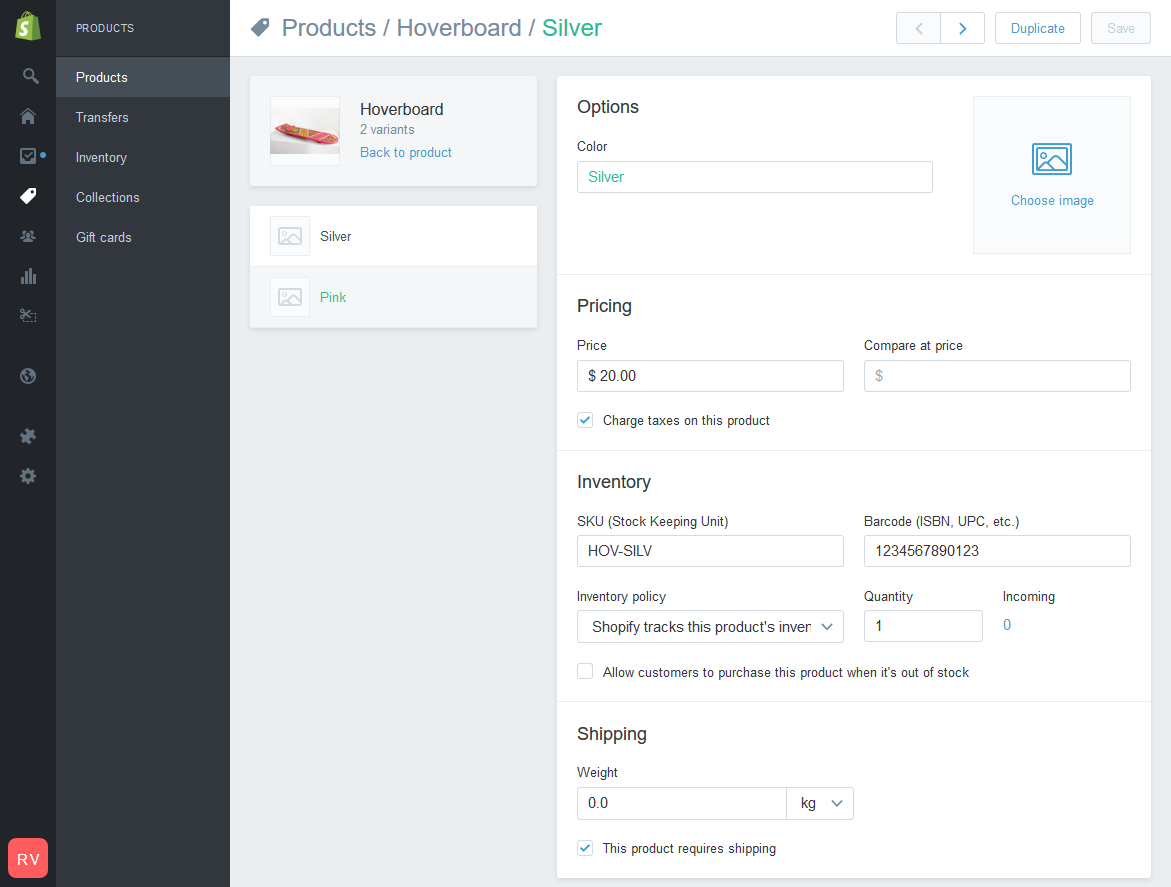
If you chose to track inventory, you will need to appropriately select the option in the product page for a single variant product or in the variant page for a multi variant product:
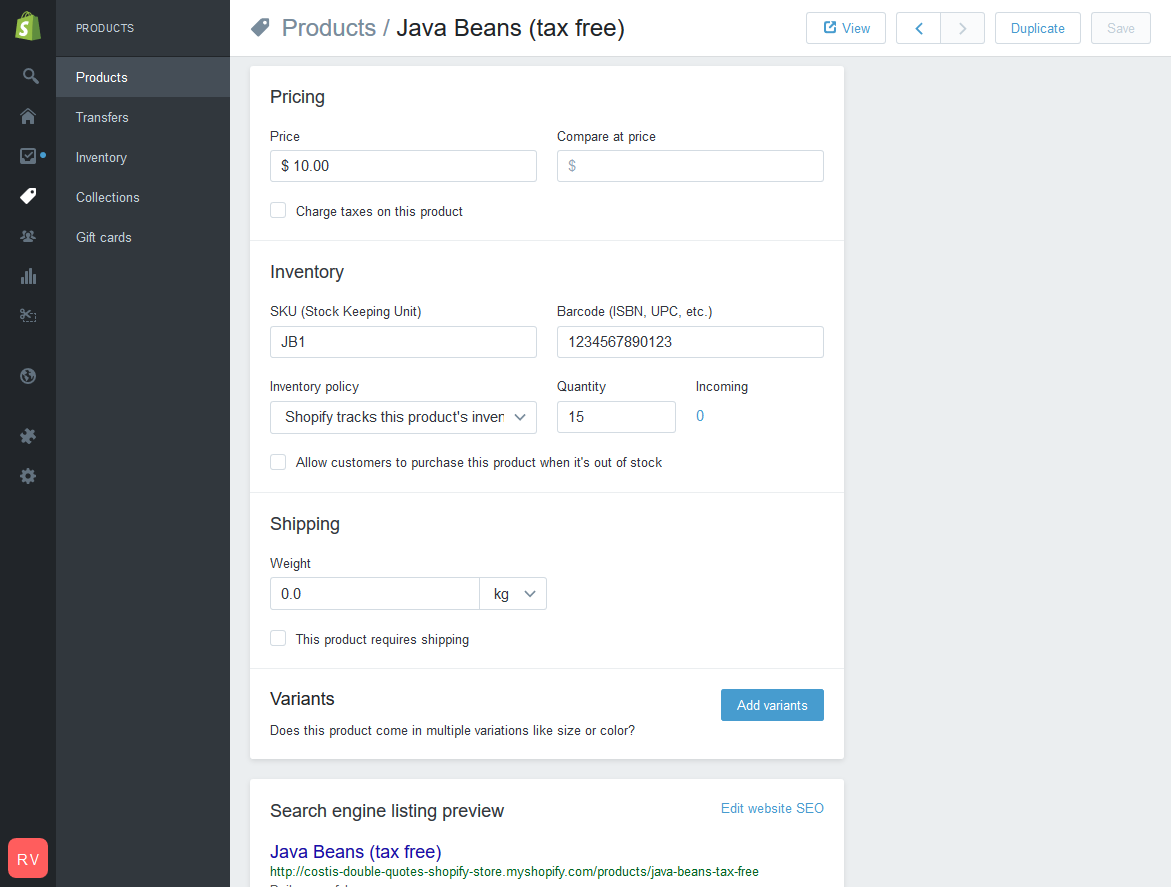
Make sure you select "Shopify tracks this product's inventory" for all variants or results are unpredictable.
Advanced Inventory Checks
You can view the raw product data supplied by Shopify to check whether inventory tracking is enabled for an affected variant.
- Open the product on your Shopify storefront.
- Add
.xmlto the end of the product URL and load the updated URL
e.g. https://costis-double-quotes-shopify-store.myshopify.com/collections/frontpage/products/hoverboard would become https://costis-double-quotes-shopify-store.myshopify.com/collections/frontpage/products/hoverboard.xml - Find the affected variant using its SKU or variant name.
- Check the variant’s
inventory-managementvalue.
The value indicates how inventory is handled:
shopify: Shopify inventory tracking is enabled for the variant.
- Blank or no value: Shopify inventory tracking is not enabled. Omnivore will use the Default Quantity configured under Settings → Shopify Feed → General.
For products with multiple variants, check the inventory-management value for each affected variant. Shopify inventory tracking is configured separately for each variant, so some variants may have tracking enabled while others do not.
This check confirms whether Shopify is tracking inventory for the variant. It does not confirm the final quantity that should appear in Omnivore.
When comparing the quantities, also allow for the Minimum stock buffer configured in Omnivore.
If the inventory-tracking value is correct but the quantity is still unexpected, provide Support with:
- The Shopify product URL
- The affected variant name or SKU
- The inventory quantity shown in Shopify
- The inventory quantity shown in Omnivore
- The configured Minimum stock buffer in Omnivore
- The configured Default Quantity in Omnivore