
Woolworths MarketPlus shipping uses a combination of settings in Woolworths MarketPlus and Omnivore.
In Omnivore, shipping policies determine which shipping method and charge applies to your products. You can use a default shipping policy or create additional policies for specific Product Groups.
Shipping Policies
Go to:
Settings > Woolworths MarketPlus > Shipping
A shipping policy can include:
- Shipping policy name
- Use product group
- Shipping type
- Shipping custom ID
- Shipping fee ($)
The settings you use depend on how shipping should be calculated for the products covered by the policy.
Default Shipping Policy
A default shipping policy is mandatory for Woolworths MarketPlus.
It acts as the fallback shipping policy for any product that does not match another shipping policy linked to a Product Group.
If the retailer uses the same shipping setup for all products, the default policy would be the only shipping policy required.
For the default policy:
- Leave Use product group blank.
- Choose the shipping type that should apply to products using the default policy.
The default policy can use:
- free (as in the following screenshot)
- custom shipping table
- flat per unit
- flat any quantity
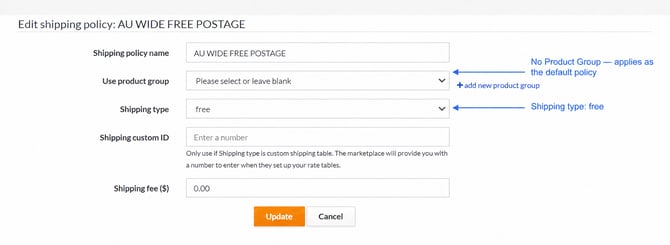
If additional shipping rules are needed for selected products, create extra shipping policies and link them to Product Groups.
Product Groups
Use Product Groups when different products need different shipping rules.
A Product Group allows you to apply a shipping policy only to the products included in that group.
For example, you may create separate Product Groups for products that:
- Have different shipping charges
- Fall within different price ranges
- Need different Woolworths MarketPlus custom shipping tables
- Require different shipping behaviour
Select the required group from Use product group when creating or editing the shipping policy.
You can also select add new product group from the shipping policy screen if you need to create a new group.
Custom Shipping Tables
Use custom shipping table when Woolworths MarketPlus has created a shipping rate table for the products.
Woolworths MarketPlus provides a Custom ID for the rate table. This number is entered into the corresponding Omnivore shipping policy.
To configure a custom shipping table:
- Create or edit the required shipping policy.
- Select the applicable Product Group under Use product group.
- Set Shipping type to custom shipping table.
- Enter the ID supplied by Woolworths MarketPlus into Shipping custom ID.
- Select Update.
The Shipping custom ID field should only be used when Shipping type is set to custom shipping table.
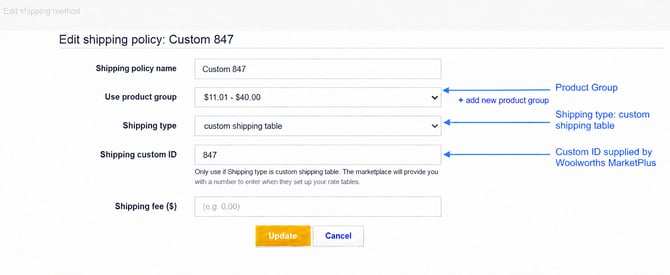
If you use multiple Woolworths MarketPlus rate tables, create the required Product Groups and shipping policies so the correct Custom ID is applied to each group of products.
Flat Per Unit Shipping
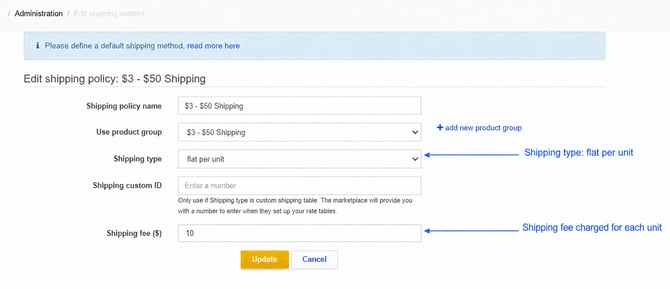
Use flat per unit when the shipping fee should be charged for every unit purchased.
For example, if Shipping fee ($) is set to 10:
| Order | Shipping charge |
|---|---|
| 1 chair | $10 |
| 2 of the same chair | $20 |
| 3 of the same chair | $30 |
To configure flat per unit shipping:
- Select the applicable Product Group.
- Set Shipping type to flat per unit.
- Enter the required amount in Shipping fee ($).
- Select Update.
Flat Any Quantity Shipping
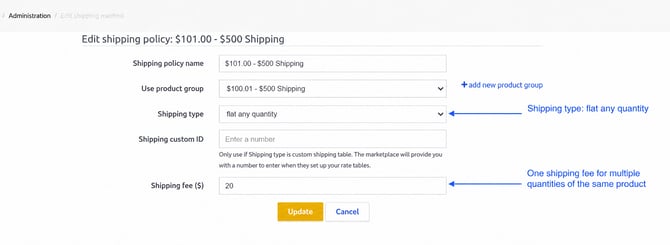
Use flat any quantity when multiple quantities of the same product should receive one shipping charge.
For example, if Shipping fee ($) is set to 20:
| Order | Shipping charge |
|---|---|
| 1 chair | $20 |
| 2 of the same chair | $20 |
| 5 of the same chair | $20 |
Flat any quantity applies to multiple quantities of the same product.
If the customer purchases different products, shipping is calculated separately for each different product according to the applicable shipping policy.
For example:
| Order | Shipping result |
|---|---|
| 2 of the same chair | One shipping charge |
| 1 chair + 1 table | Shipping is calculated separately for each product |
To configure flat any quantity shipping:
- Select the applicable Product Group.
- Set Shipping type to flat any quantity.
- Enter the required amount in Shipping fee ($).
- Select Update.
Free Shipping
Use the free shipping type when there should be no shipping charge.
Set:
| Setting | Value |
|---|---|
| Shipping type | free |
| Shipping fee ($) | 0.00 |
If free shipping applies as the default shipping rule, leave Use product group blank.
If free shipping applies only to selected products, use an appropriate Product Group and shipping policy for those products.
Postcode Exclusions
Postcode exclusions are managed through the relevant Woolworths MarketPlus shipping configuration.
Use postcode exclusions when there are individual postcodes or postcode ranges that you cannot deliver to.
Make sure your Woolworths MarketPlus shipping configuration and Omnivore shipping policies remain aligned so products are not offered to locations you cannot service.
Delivery Time
Woolworths MarketPlus refers to shipping lead time as Delivery Time.
For Omnivore-integrated sellers, delivery time changes are requested through Woolworths MarketPlus.
To update the delivery time:
- Submit a request to the Woolworths MarketPlus team.
- Select the seller enquiry type Product Description/Image Update.
- Include the SKUs that need to be updated.
- Provide the new delivery time for each SKU in an easy-to-understand spreadsheet.
- Make sure the same delivery timeframe is also shown on the Delivery tab in Woolworths MarketPlus.
Which Shipping Type Should I Use?
| Requirement | Shipping type |
|---|---|
| No shipping charge | free |
| Use a Woolworths MarketPlus rate table | custom shipping table |
| Charge shipping for every unit purchased | flat per unit |
| Charge once for multiple quantities of the same product | flat any quantity |
Use Product Groups when different groups of products need different shipping policies.