Steps to Override the Handling Time for a Particular eBay Listing
If you want specific eBay listings to have a different handling time than your default, you can override it using Omnivore/eBay LINK. This allows you to set accurate shipping expectations for individual products.
Steps to Override Handling Time
To override the handling time for a particular listing(s), you'll need to do the following:
- Create a new product group for the listings in question.
- From the left-hand menu, select Products > Product groups, then click the Add a product group button.
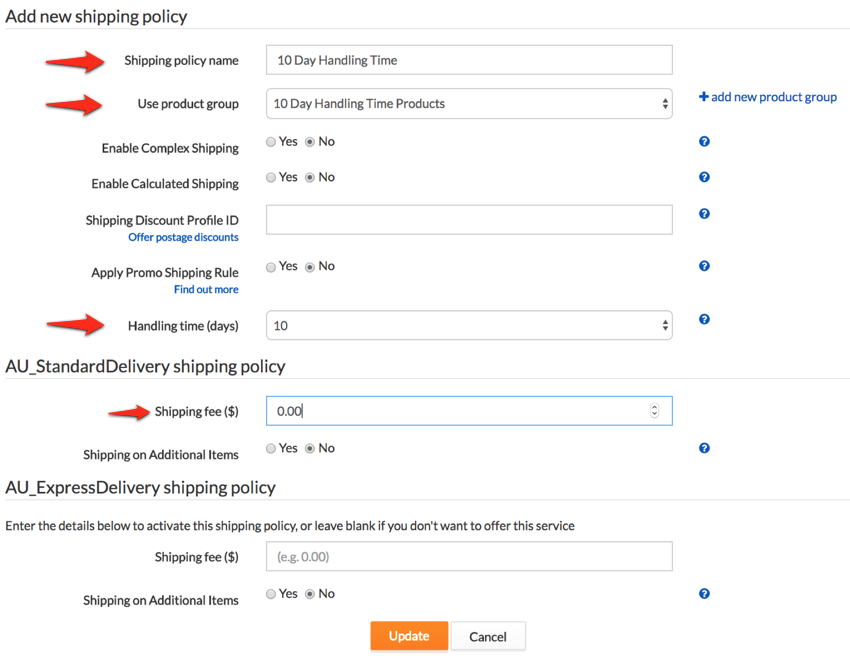
- Now go to Settings - eBay Australia - Shipping and create a new shipping policy, assign the new product group to it and select your desired handling time for the product(s).
- Click the Update button. Our example policy below has set a 10-day handling time.
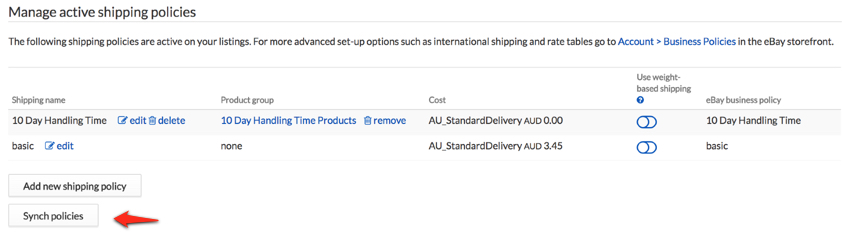
- Click the Sync policies button to sync your shipping policies with eBay.
- Finally, from the dashboard, click the Upload to eBay Australia button.
This will upload a product feed to eBay and assign the desired product(s) to your newly created shipping policy.