
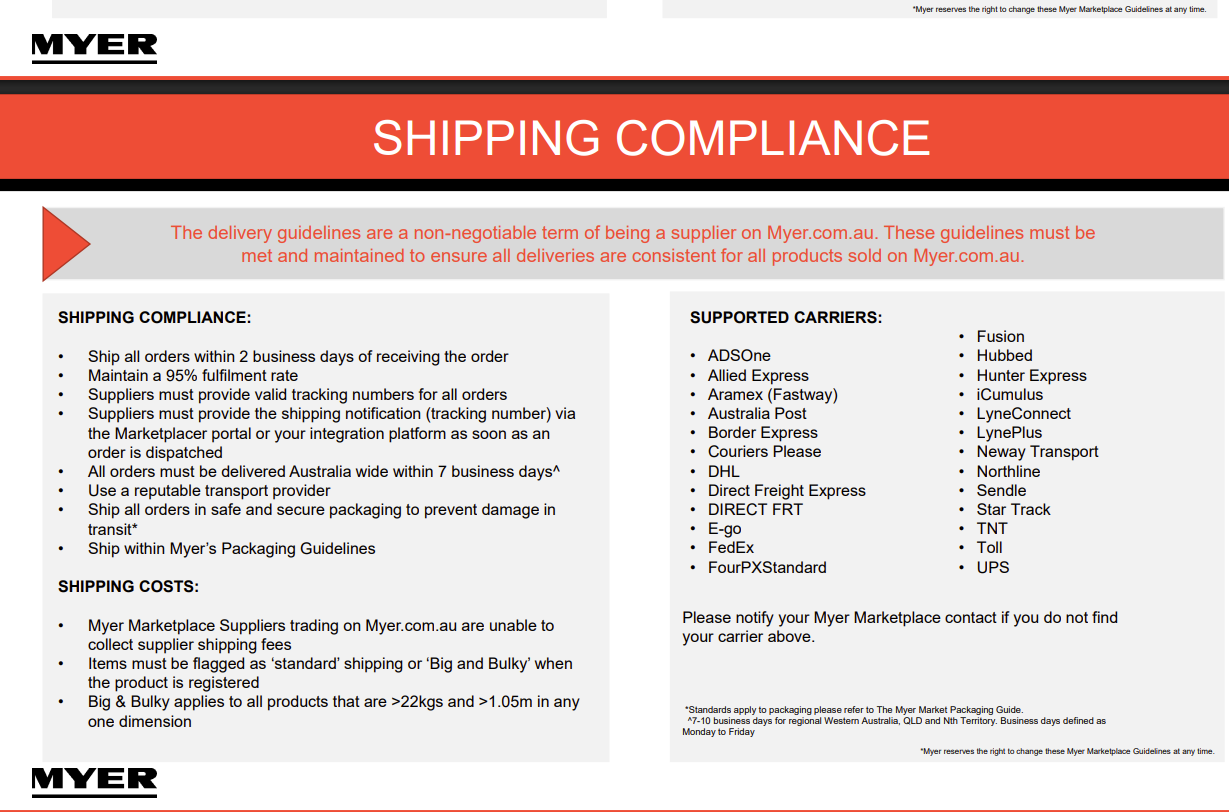
Please consider the following snippet on Shipping Compliance for Myer. Particularly the section on Shipping Costs.
Shipping Configuration for Myer Marketplace (done within Myer)
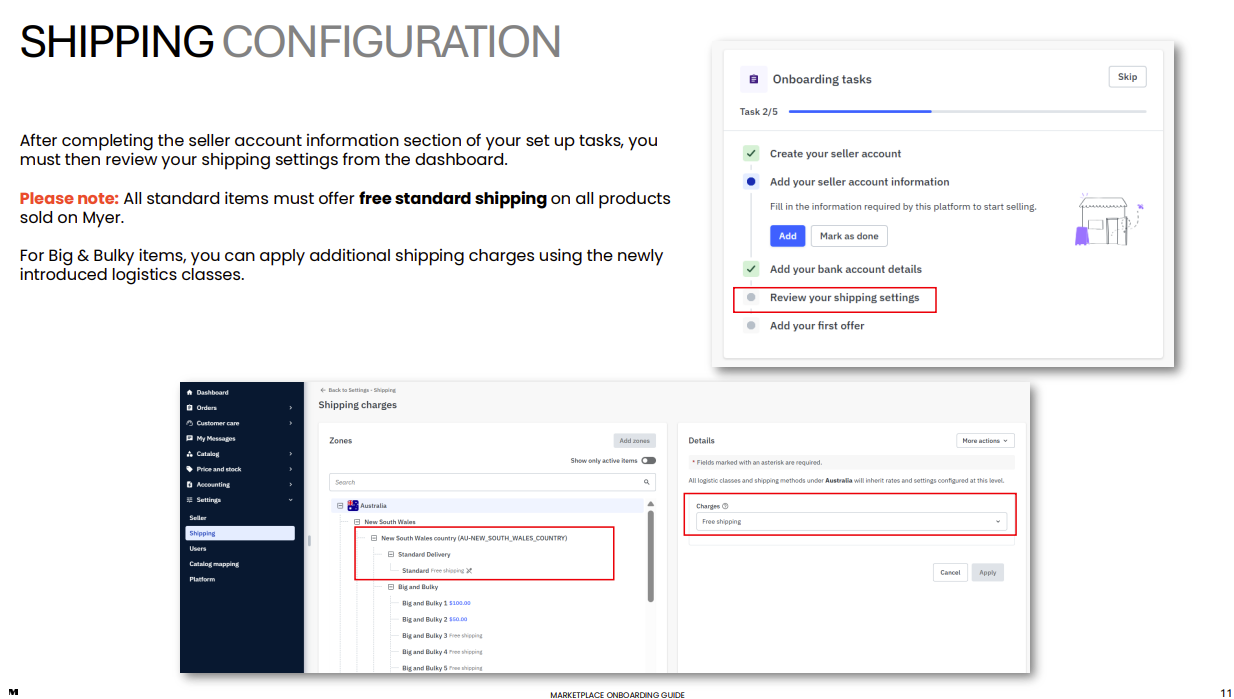
After completing the Seller Account Information step during onboarding, review and configure your shipping settings in Settings - Seller - Shipping.
All standard products sold on Myer Marketplace must be configured with Free Standard Shipping.
Select the relevant shipping zone, choose Standard Delivery, and set the charge type to Free Shipping.
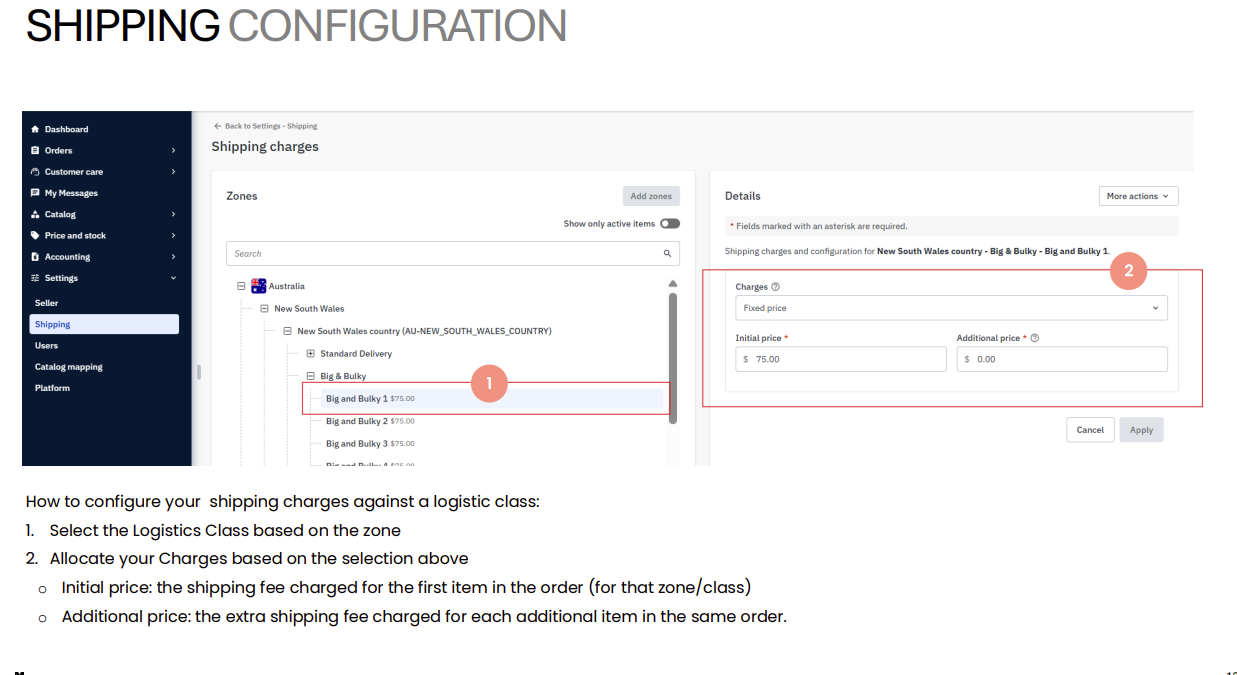
For Big & Bulky products, shipping charges are configured using Logistics Classes. Navigate to the appropriate shipping zone, expand the Big & Bulky shipping method, and select the required Logistics Class (for example, Big and Bulky 1).
Once a Logistics Class has been selected, configure the shipping charges:
- Initial Price: The shipping fee charged for the first item in an order for the selected zone and logistics class.
- Additional Price: The shipping fee charged for each additional item in the same order.
Select the appropriate charge type, such as Fixed Price, enter the applicable shipping rates, and click Apply to save the configuration.
Shipping rates can be configured independently for each Logistics Class, allowing different charges to be applied based on product size, weight, or handling requirements. Logistics Classes should only be used for Big & Bulky products, while standard products must remain configured with Free Standard Shipping in accordance with Myer Marketplace requirements.
Shipping Configuration for Myer Marketplace (done within Omnivore)
For this setup lets assume you have Standard Shipping and Big & Bulky in Myer. Note, in Omnivore we will call Standard your Default Policy. Also, shipping costs are not set in Omnivore, they are set in Myer,
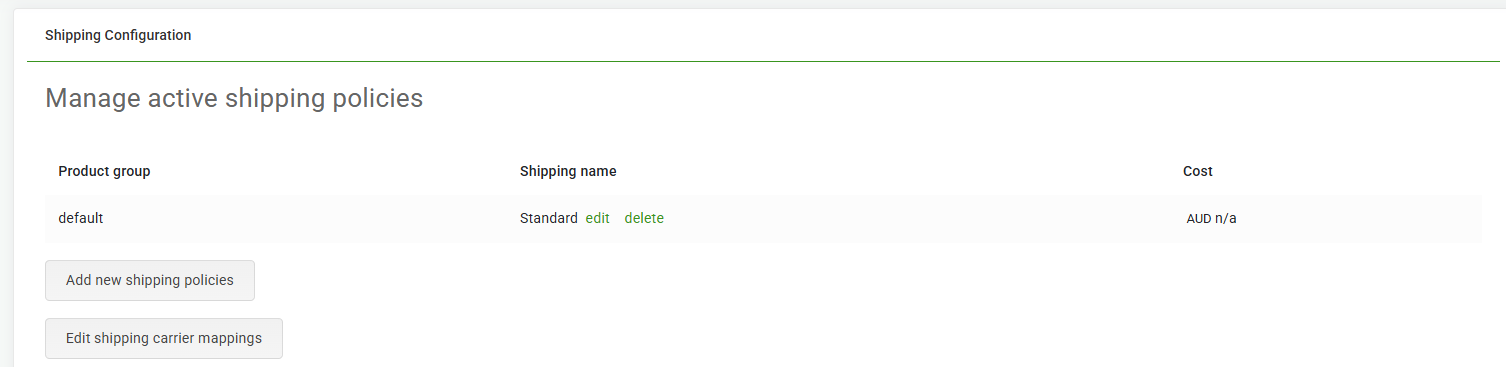
- Shipping setup in Omnivore can be found under Settings - Myer - Shipping. The snippet below shows a simple one-policy-only setup that is the default.
- To set up something like this, make sure your Shipping Zone is set up on Myer first if required.
In Omnivore, click Add new shipping policy, then complete the fields, choosing Standard from the Policy name dropdown.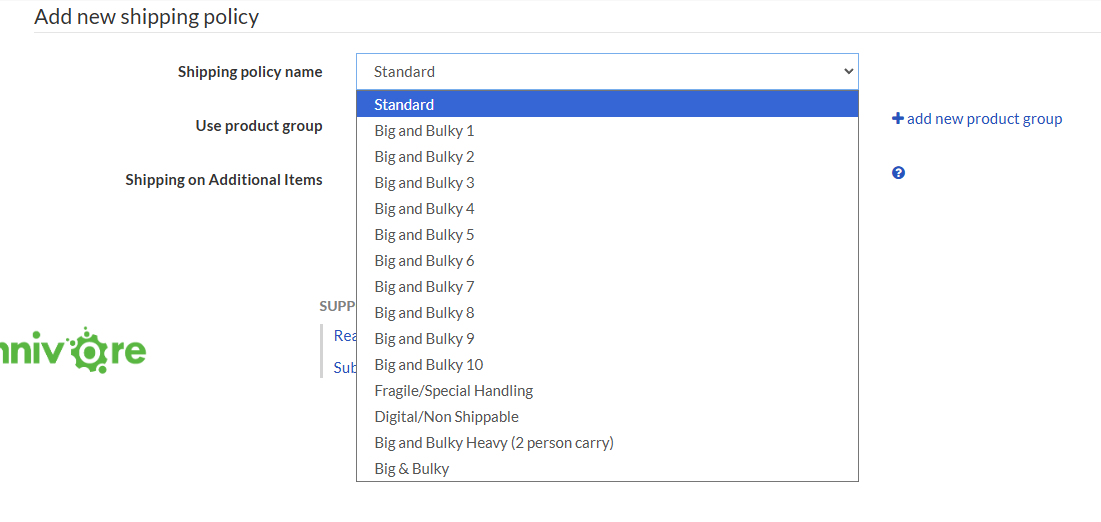
- Do not select a product group, so the policy name will be set to default.
- Click Update, you now have your Standard Policy in Omnivore which we consider your default policy.
- Configure your Big & Bulky shipping setup in Myer as per their setup guide, We will use Big & Bulky 1
- Repeat as per above to add a new policy in Omnivore but select Big and Bulky 1.

- Select OR create a new product group in Omnivore so that only those products get the Big & Bulky 1 shipping cost.
- Add that group to your Big & Bulky Shipping policy

- Click Update. You now have two policies to match your setup in Myer.
- Continue to create policies as per your Shipping Setup in Myer, remember, in this case the Standard/Default has NO product group and it has to remain that way as you must have one default policy, the rest can be attached to Product Groups in Omnivore.
- If you have more Big & Bulky Shipping charges in Myer, you will need a policy for each one of them in Omnivore.
- When your shipping setup is complete, hit Upload to Myer from the Dashboard to sync Omnivore with Myer.