
WooCommerce supports custom variant attributes (e.g., size, color, style).
To ensure Omnivore can correctly import and build products with variants-and have them accepted by the marketplace-you need to map these fields in Omnivore.
If fields are not mapped correctly, you may see validation errors such as:
-
Variants do not have unique attributes
As a general rule, always check your WooCommerce field mapping in Omnivore. Follow the steps below to fix any issues:
How To Fix
-
Check Products in Omnivore
-
Open your Omnivore dashboard. Products with mapping errors will usually show an error.
-
Confirm if the product is a variant type.
-
-
Identify Variant Names in WooCommerce
-
Review the product in WooCommerce to see the variant names (e.g., size, colour, design).
-
-
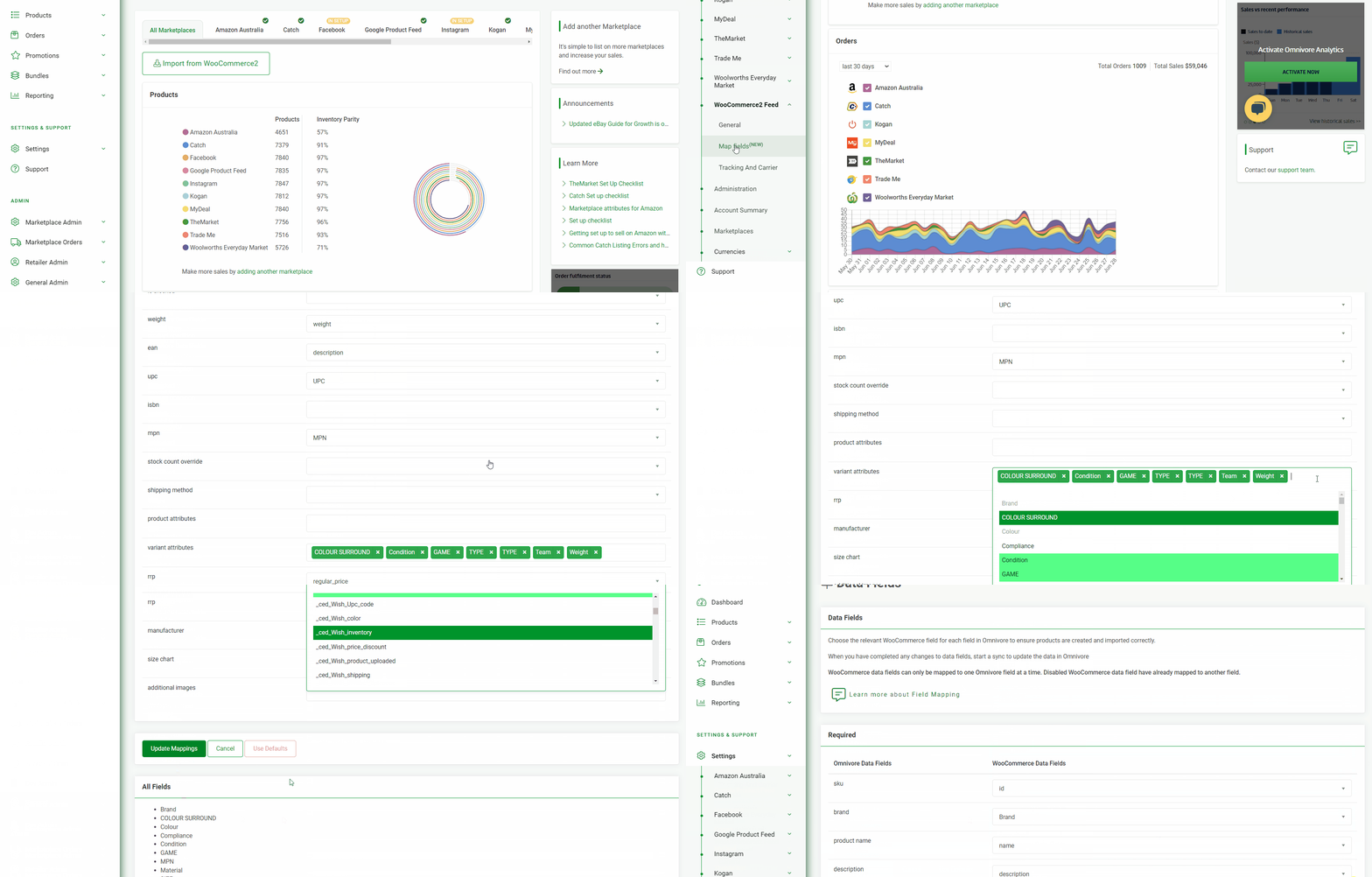
Map Fields in Omnivore
-
Navigate to Settings > WooCommerce Feed > Map Fields.
-
On this page, match each WooCommerce field (right column) to the corresponding Omnivore data field (left column).
-
For size variants, map to the Size line.
-
For colour variants, map to the Colour line.
-
Any other variant types must be added under Variant Attributes.
-
Use the drop-down menus to select the correct WooCommerce names. Refer to the screenshot below for guidance.
-
-
Update and Import
-
Once all fields are mapped, click Update Settings at the bottom of the page.
-
Return to the Dashboard and select Import from WooCommerce to apply the changes.
-
Points To Consider
- Size can be directly mapped to Size
- Colour can be directly mapped to Colour
- This change won't take effect until you do an Import from WooCommerce.
- Both colour and size fields can have more than one field mapped.