
Note: In Omnivore SKU = your BigCommerce Product ID NOT your Bigcommerce product SKU.
- Log into BigCommerce then go to Products then click Export.
- BigCommerce comes with a few product export templates built-in but if you choose default this will provide the Product ID, Code/SKU and product name as well as other fields to help you identify your products.
- Choose Export to Microsoft Excel (CSV).
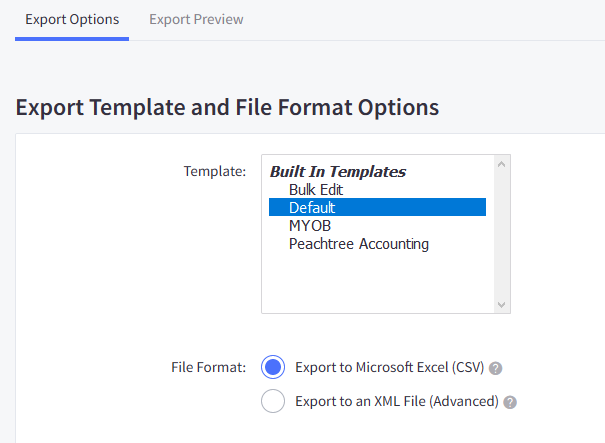
- Click Continue, then click Export my products to a CSV file in the pop-up window.
- When the export is complete, select Download my Products file. The file will be saved to your computer, usually in your Downloads folder.
- Once you have exported the CSV, you can then open it and you will see the Product ID in the first column.
- The product ID will appear in Omnivore as your Product SKU, it will be visible on the Product Search screen underneath the product name and brand name. The value in your SKU field in Bigcommerce will be imported into Omnivore and will be in the MPN field
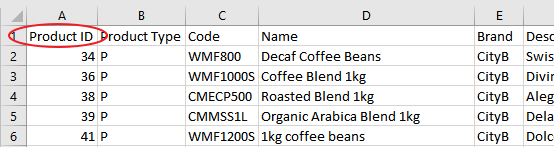

- In summary Bigcommerce ID - Product SKU in Omnivore and Bigcommerce SKU = MPN in Omnivore.