
Add Myer & Connect
Points to consider before you connect:
- If you're new to Omnivore, simply select Myer Marketplace during the sign up process after installing the Omnivore app and follow the prompts using the below information as a guide.
- Existing Omnivore Customers adding Myer follow the steps below.
- Have your Myer Marketplace Account login details handy as you will need them.
- From your Omnivore Dashboard click Add New Marketplace from the right had section.
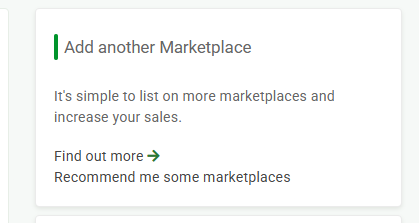
- Select Start Setup next to the Myer Marketplace icon from the list of markets, you may need to scroll down to see the full list of marketplace.
- Click Next to continue into setup OR click Go To Myer if you want to authorise Omnivore to Myer now, this setup can be done now or later.
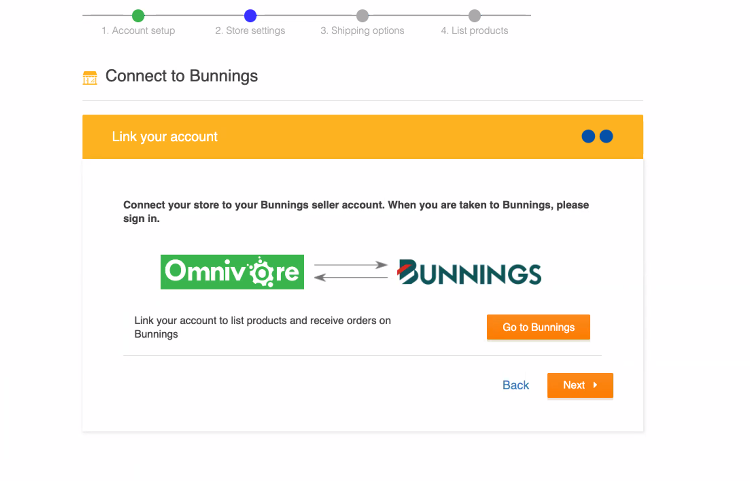
- If you clicked Go to Myer you will be asked to connect your Omnivore Account to your Myer Marketplace Account, during this process you will be asked to login to your Myer Account. If you clicked Next go to Step 9.
- You will be directed to the Mirakl Login page, you will need to sign in to Myer/Mirakl using your account details.
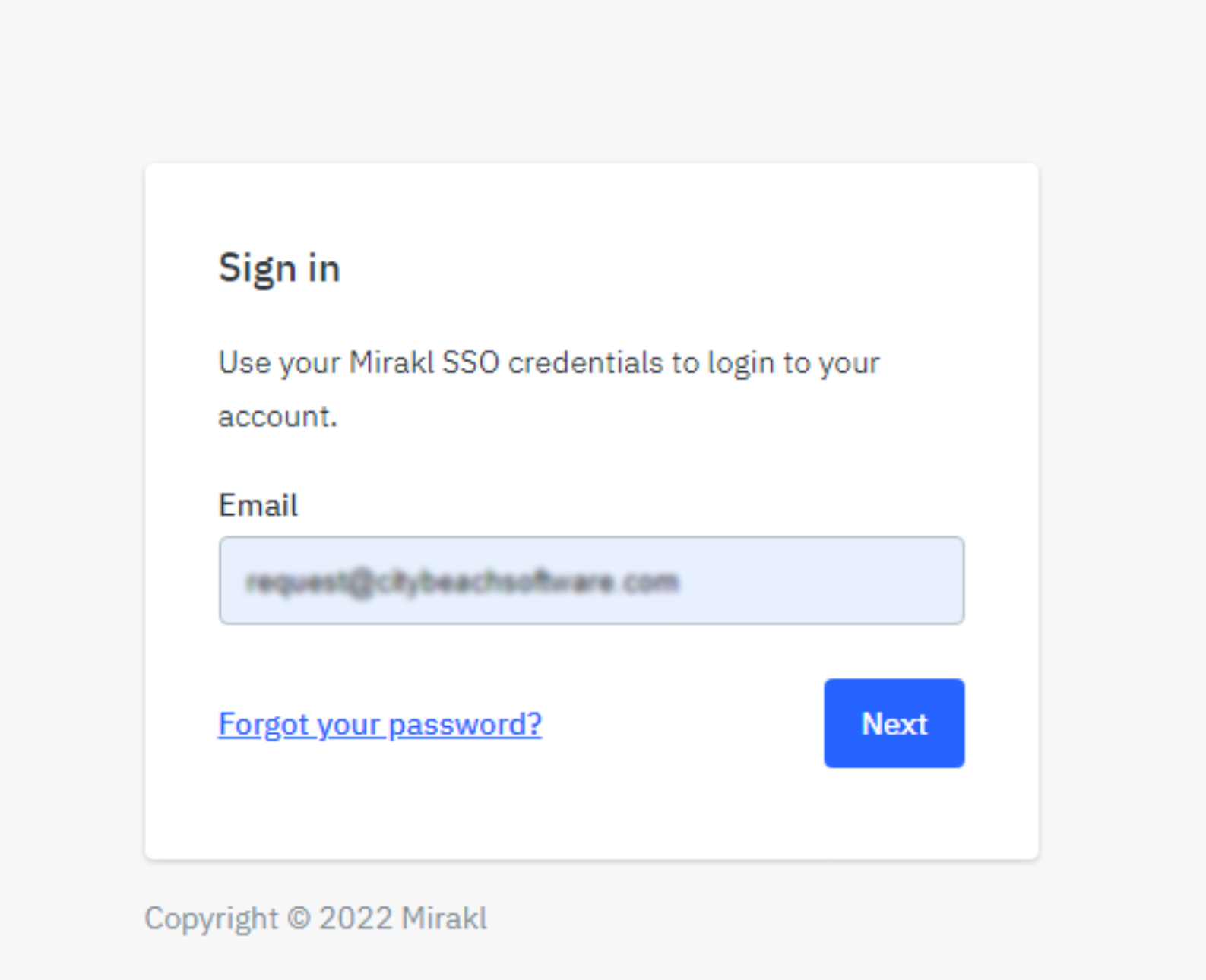
- After you click next and login you will be taken to a Mirakl page, on this page you will have to read the screen and click Confirm.
- This completes the authorisation process from Omnivore to your Myer Marketplace Account. Click Continue.
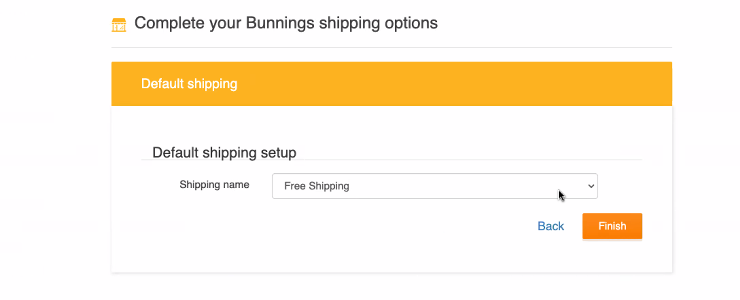
- The next step in the wizard is to setup your Default Shipping for . Select your preferred shipping from the Shipping name drop down list and click Finish.
- The final step is to select your top level categories for Myer. This screen will show a list of Myer Categories, tick the ones that are most relevant to you, then click Next.
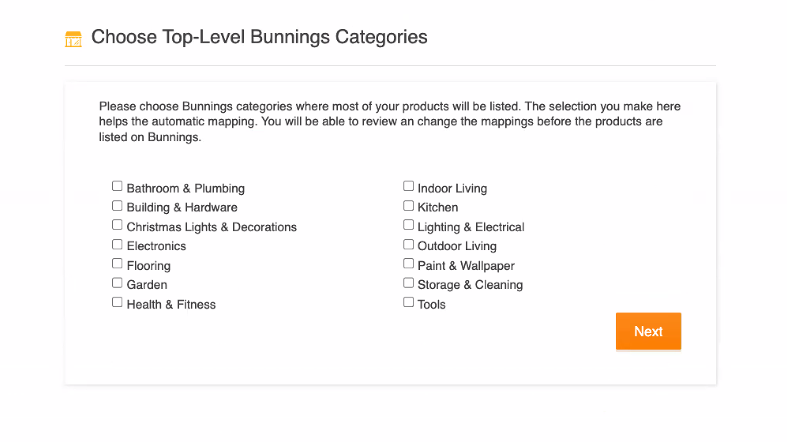
- This completes the first stages of Adding Myer to Omnivore, Connecting Omnivore to Myer and setting up the basic functions.

- Please note there are still more settings to check, please follow this Full Setup Guide to continue with your next steps.
Authorise Process - Omnivore to Myer
If Omnivore is not connected to Myer and you have still do the authorise process follow the steps below from the Dashboard.
- In Omnivore navigate to Settings - General - Myer, click Authorise Now.
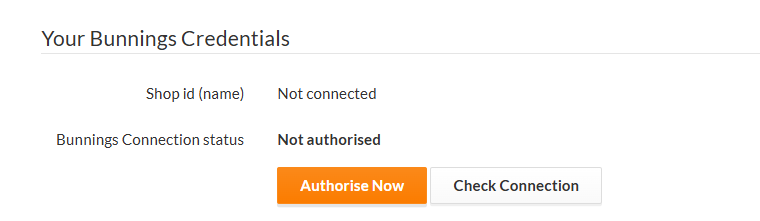
- This will put you into the authorisation/connection wizard process as per above.
- See steps 6-8 in the first section above and follow the prompts to authorise Omnivore to Myer.
- Navigate to return back to the Settings - Myer - General page in Omnivore.
- Click the Check Connection button to ensure this process worked successfully.
Test Your Connection
You can use our Check Connection function to test the link from Omnivore to Myer. Navigate to Settings - General - Myer, click Check Connection.
More Setup Steps
Follow this link and click on Myer Setup to view the documentation and continue the Omnivore/Myer setup process.